In Linux, managing running processes is a fundamental skill for system administrators, developers, and power users. Whether dealing with unresponsive applications, runaway scripts, or services consuming excessive resources, knowing how to safely terminate jobs ensures system stability and prevents data loss or corruption. Unlike abrupt shutdowns or forced kills, a strategic approach preserves integrity while restoring control. This guide explores proven, safe methods to terminate jobs—emphasizing precision, awareness, and minimal disruption.
Understanding Job Control in Linux
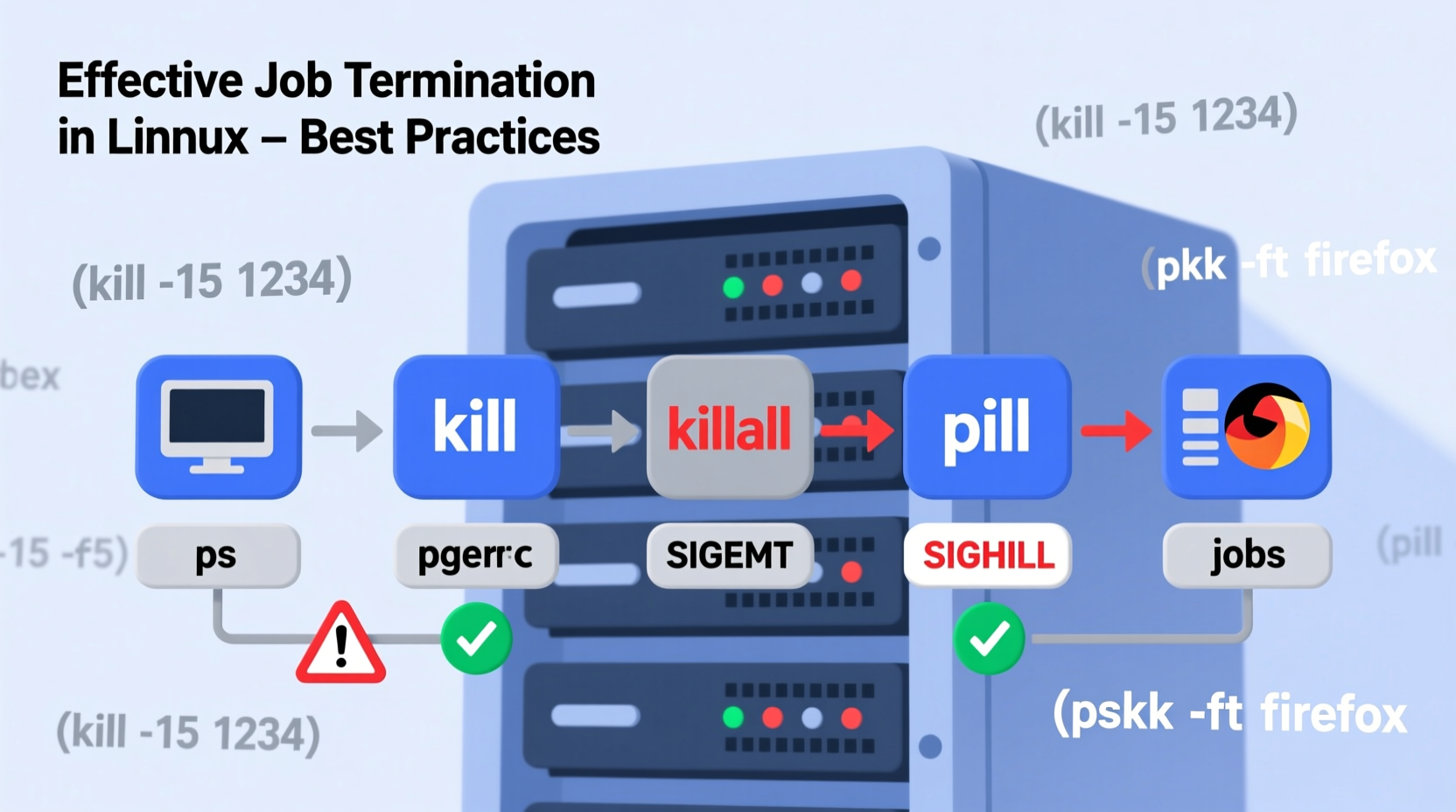
Linux treats running programs as \"jobs,\" each assigned a unique process ID (PID) and managed by the kernel. Jobs can run in the foreground, blocking the terminal, or in the background, allowing continued command-line interaction. The shell provides built-in job control features that let users suspend, resume, or terminate tasks without directly invoking low-level signals.
The primary commands used for job management include:
- jobs – Lists currently active jobs in the current shell session.
- fg %n – Brings job number n to the foreground.
- bg %n – Resumes a suspended job in the background.
- kill %n – Terminates job number n using the default signal (SIGTERM).
These tools provide fine-grained control over user-initiated processes, especially those launched from an interactive shell. Understanding this layer is essential before resorting to more aggressive termination techniques.
Tip: Always usejobs before attempting to terminate a process to confirm its status and job number.
Graceful Termination Using Signals
Linux uses signals to communicate with processes. The most common and safest way to terminate a job is by sending SIGTERM (Signal Terminate), which allows the process to clean up—close files, release memory, and exit gracefully. Only when SIGTERM fails should stronger signals like SIGKILL be considered.
Here are key signals used in job termination:
| Signal | Value | Description | Safety Level |
|---|---|---|---|
| SIGTERM | 15 | Requests graceful shutdown; allows cleanup. | High |
| SIGINT | 2 | Interrupt signal (Ctrl+C); commonly used in terminals. | High |
| SIGQUIT | 3 | Forces quit with core dump; more forceful than SIGINT. | Medium |
| SIGKILL | 9 | Forces immediate termination; cannot be caught or ignored. | Low (Use with caution) |
To send a signal manually, use the kill command followed by the PID:
kill -15 1234   # Sends SIGTERM to process 1234
kill -2 1234    # Equivalent to pressing Ctrl+C
kill -9 1234    # Forces termination (use only if necessary)
“Always attempt graceful termination first. Forcing a kill can leave databases in inconsistent states or corrupt temporary files.” — Arjun Patel, Senior Systems Engineer at Red Hat
Step-by-Step Guide to Safely Terminate a Job
Follow this sequence to minimize risk when ending problematic processes:
- Identify the job or process: Use
jobsfor shell-managed tasks orps aux | grep [keyword]for system-wide processes. - Determine the correct PID or job number: Note whether it’s a background job (%1, %2) or a standalone process (PID).
- Attempt graceful stop: Run
kill -15 PIDorkill %1for job numbers. - Wait 10–15 seconds: Allow time for cleanup routines to complete.
- Verify termination: Recheck with
jobsorps PID. - If still running, escalate cautiously: Use
SIGQUIT (-3)next. Only useSIGKILL (-9)if all else fails.
This methodical escalation prevents unnecessary disruption and respects application lifecycle protocols.
Real-World Example: Handling a Frozen Web Scraper Script
A developer runs a Python web scraper in the background using:
python3 scraper.py &After some time, the script stops responding. The terminal shows high CPU usage, and Ctrl+C has no effect. Here’s how they resolve it safely:
- Run
jobs→ Output:[1]+ Running python3 scraper.py & - Send SIGTERM:
kill %1 - Wait 15 seconds. Check again with
jobs. The job still appears. - Check system-wide:
ps aux | grep scraper.pyreveals PID 5678. - Send another SIGTERM:
kill -15 5678 - After 10 seconds, the process disappears from
psoutput—indicating successful termination.
By avoiding kill -9, the script had a chance to close open HTTP connections and log final status, preserving debugging data.
Best Practices Checklist
Use this checklist before terminating any job:
- ✅ Confirm the process is truly unresponsive—not just slow.
- ✅ Identify the correct PID or job number to avoid killing the wrong process.
- ✅ Prefer shell job control (
kill %n) when possible for simplicity. - ✅ Always start with SIGTERM, not SIGKILL.
- ✅ Wait between attempts to allow graceful exit.
- ✅ Log the reason for termination for audit or troubleshooting purposes.
- ✅ Avoid killing critical system processes (e.g., init, systemd, sshd) unless absolutely necessary and understood.
ps with
grep to filter results:
ps aux | grep firefox quickly finds Firefox-related processes.
Frequently Asked Questions
What’s the difference between 'kill' and 'pkill'?
The kill command requires a specific PID, while pkill allows you to target processes by name, user, or other attributes. For example, pkill firefox terminates all Firefox instances. Use pkill with care—it can affect multiple processes at once.
Why doesn’t SIGTERM always work?
SIGTERM may fail if the process is stuck in uninterruptible sleep (e.g., waiting for I/O), has misconfigured signal handlers, or is in a deadlock. In such cases, the process won’t respond until the underlying block clears—or until a forced kill is issued.
Can I recover data after using 'kill -9'?
Not reliably. SIGKILL halts execution immediately, bypassing cleanup routines. Unsaved data, incomplete file writes, or locked resources may result in loss or corruption. Always consider it a last resort.
Conclusion: Precision Over Power
Terminating jobs in Linux isn’t about brute force—it’s about control, timing, and understanding the system’s behavior. By prioritizing graceful shutdowns, leveraging job control, and escalating only when necessary, users maintain system reliability and reduce unintended consequences. These practices aren’t just technical steps; they reflect a mindset of responsibility in system management.
💬 Put these methods into practice today. Next time a job hangs, resist the urge to immediately runkill -9. Try the safer path first—and share your experience or tips with others in the community.