
Navigating Dayton’s roadways during peak hours can be a challenge, especially when unexpected delays arise. Whether you're commuting from Centerville to downtown, heading west toward Miamisburg, or catching I-75 northbound early in the morning, staying ahead of traffic is essential. Fortunately, several reliable resources provide live traffic camera feeds across the Miami Valley. The most trusted sources—WHIO, ODOT (Ohio Department of Transportation), and OHGO—offer real-time visuals that help drivers make informed decisions before hitting the road.
These platforms don’t just show static images; they deliver near-live video streams updated every 30 to 60 seconds, allowing you to assess congestion, accidents, weather impacts, and construction zones instantly. This guide breaks down how to access these tools effectively, compares their features, and provides practical strategies for using them to optimize your daily commute.
How to Access Live Dayton Traffic Cams
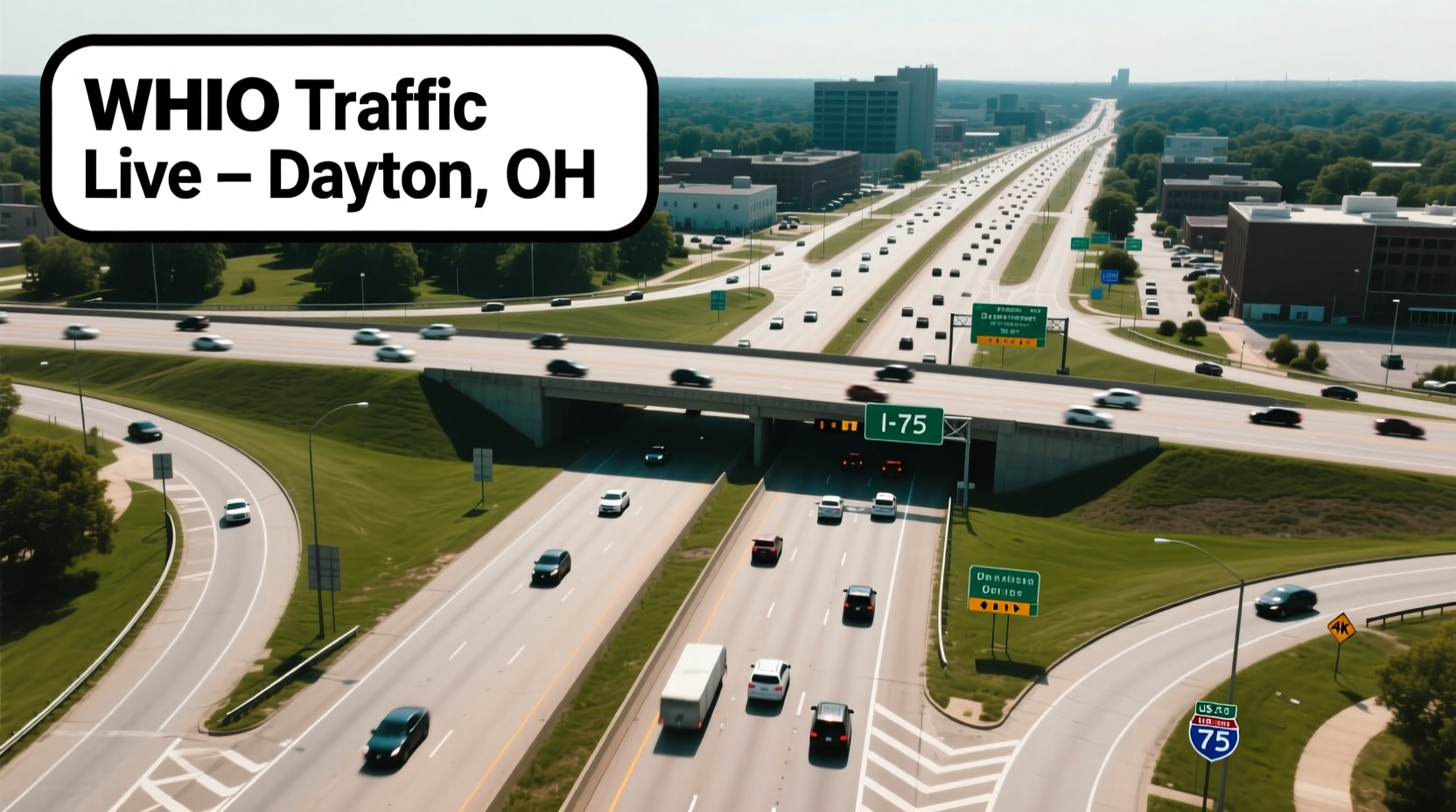
The easiest way to view current traffic conditions in Dayton is through online dashboards powered by local news and state transportation agencies. Each platform has its own interface, strengths, and coverage focus.
- WHIO-TV 7: Dayton’s CBS affiliate offers localized traffic camera snapshots on its website, often embedded within weather or breaking news reports.
- ODOT: As the state agency managing Ohio’s highways, ODOT operates hundreds of traffic cameras, many focused on interstates like I-70, I-75, and US-35.
- OHGO: Ohio’s official traffic information system consolidates data from ODOT and regional partners into a single interactive map with camera integration.
To access any of these services, simply visit their websites on a desktop or mobile browser. No login or subscription is required. Most users find it helpful to bookmark the OHGO map or WHIO traffic page for quick access during rush hour.
Tip: Use the OHGO mobile app for GPS-enabled alerts and voice navigation that syncs with live camera feeds.Key Differences Between WHIO, ODOT, and OHGO
While all three platforms provide valuable insights into Dayton-area traffic, they serve slightly different purposes based on design, update frequency, and user experience.
| Feature | WHIO | ODOT | OHGO |
|---|---|---|---|
| Live Video or Still Images? | Still images updated every few minutes | Mix of stills and live video feeds | LIVE streaming available at select locations |
| Map-Based Interface? | Limited; mostly text-linked cameras | Yes, but less intuitive | Full interactive map with zoom/search |
| Coverage Focus | Dayton metro and major arterials | Statewide, including rural routes | Urban corridors and interstate hubs |
| Mobile App Available? | No dedicated app | No | Yes (iOS & Android) |
| Incident Alerts Integrated? | Sometimes via news updates | Yes, manually reported | Automated push notifications |
For most drivers, OHGO offers the most comprehensive solution due to its unified interface and active alert system. However, WHIO remains useful for hyperlocal context, especially during severe weather or breaking incidents where journalists may add commentary not found elsewhere.
Step-by-Step Guide to Checking Traffic Before Your Drive
Using live traffic cams doesn’t require technical expertise, but following a consistent routine ensures you get the most accurate picture of road conditions. Here's how to do it efficiently:
- Open the OHGO website or app on your phone or tablet. If using a browser, allow location access so the map centers on your area.
- Search for your route by typing in key roads like “I-75 N,” “US-35 W,” or “SR-4 N.” Alternatively, zoom into Dayton and pan manually.
- Locate camera icons along your intended path. Blue dots typically indicate active cameras.
- Click or tap each camera to load the latest image or stream. Look for stopped vehicles, emergency lights, debris, or reduced visibility due to rain or fog.
- Check nearby alternate routes if congestion appears. For example, if I-70 East is backed up near Xenia Avenue, consider SR-4 as a detour.
- Set up a recurring check during your usual commute times—morning (6–9 AM) and evening (4–7 PM)—to build situational awareness over time.
This process takes less than two minutes once you’re familiar with the layout and can prevent costly delays.
Real Example: Avoiding a Morning Backup on I-75
Consider Sarah, a nurse commuting from Beavercreek to Kettering Medical Center. One Tuesday, she noticed her usual 20-minute drive was taking longer than expected. Instead of leaving blindly, she opened the OHGO app while having coffee.
The live feed from the I-75/I-675 interchange showed multiple emergency vehicles and stopped traffic southbound. A quick scan revealed an accident near Miller Lane exit. Using the app’s routing feature, Sarah rerouted via Colonel Glenn Highway and avoided the backup entirely, arriving five minutes earlier than colleagues who took the jammed interstate.
This scenario plays out daily across the region. Those who proactively check traffic cams gain both time and peace of mind.
“Real-time traffic cameras are one of the most underutilized tools for everyday commuters. Just 60 seconds of checking before departure can save 30 minutes on the road.” — Mark Reynolds, ODOT Traffic Operations Manager
Tips for Getting the Most Out of Traffic Camera Feeds
Not all camera views are equally useful. Some angles are obstructed, poorly lit at night, or cover low-impact areas. To maximize effectiveness, follow these expert-backed practices:
Tip: Always verify what time the image was last updated—some feeds lag behind actual conditions by several minutes.- Prioritize cameras near known bottlenecks: I-75 at I-675, US-35 near Wilmington Pike, and I-70 at the I-75 merge.
- Use multiple sources: Cross-reference OHGO with WHIO’s incident reports for confirmation.
- Understand camera limitations: Trees, snow, or fog can obscure views even when the feed is live.
- Bookmark your top 3–5 cameras for fast access instead of searching each time.
- Enable sound on OHGO live streams when possible to hear sirens or detect ongoing incidents.
Frequently Asked Questions
Are Dayton traffic cams really live?
Most are near-live, refreshing every 30–60 seconds. True continuous video is only available at select high-priority intersections via OHGO. Others display timed still images rather than full video streams.
Why can’t I see some camera feeds?
Cameras may go offline for maintenance, connectivity issues, or temporary outages after storms. ODOT typically marks inactive cameras with a red \"X\" or grayed-out icon on their map.
Can I report a broken camera?
Yes. On the OHGO site, click the camera icon and select “Report a Problem” to notify ODOT technicians. Include the camera name and time of failure for faster resolution.
Conclusion: Stay Informed, Stay Ahead
Staying aware of Dayton’s ever-changing traffic patterns isn’t about reacting—it’s about anticipating. With free, real-time access to live views from WHIO, ODOT, and OHGO, there’s no reason to drive blind into gridlock. These tools empower you to adapt quickly, avoid disruptions, and reclaim valuable time in your day.
Whether you’re a daily commuter, weekend traveler, or delivery driver navigating tight schedules, integrating traffic cam checks into your routine is a small habit with outsized benefits. Start today: open OHGO, locate your usual route, and see exactly what’s happening on the road right now.
🚀 Take control of your commute. Bookmark OHGO, follow WHIO’s traffic updates, and never get caught in avoidable backups again. Share this guide with fellow drivers and help build a smarter, more connected Dayton roadway community!