
Every day, millions of photos are captured on smartphones, tablets, DSLRs, and laptops. Without a clear system, these images scatter across devices, cloud services, and external drives—leading to duplicates, lost memories, and endless scrolling through unsorted albums. A well-organized digital photo library isn’t just about aesthetics; it’s about accessibility, preservation, and emotional value. Whether you're managing family moments, travel memories, or professional photography, a structured approach ensures your photos remain findable, safe, and synchronized no matter which device you're using.
Why Cross-Device Photo Organization Matters
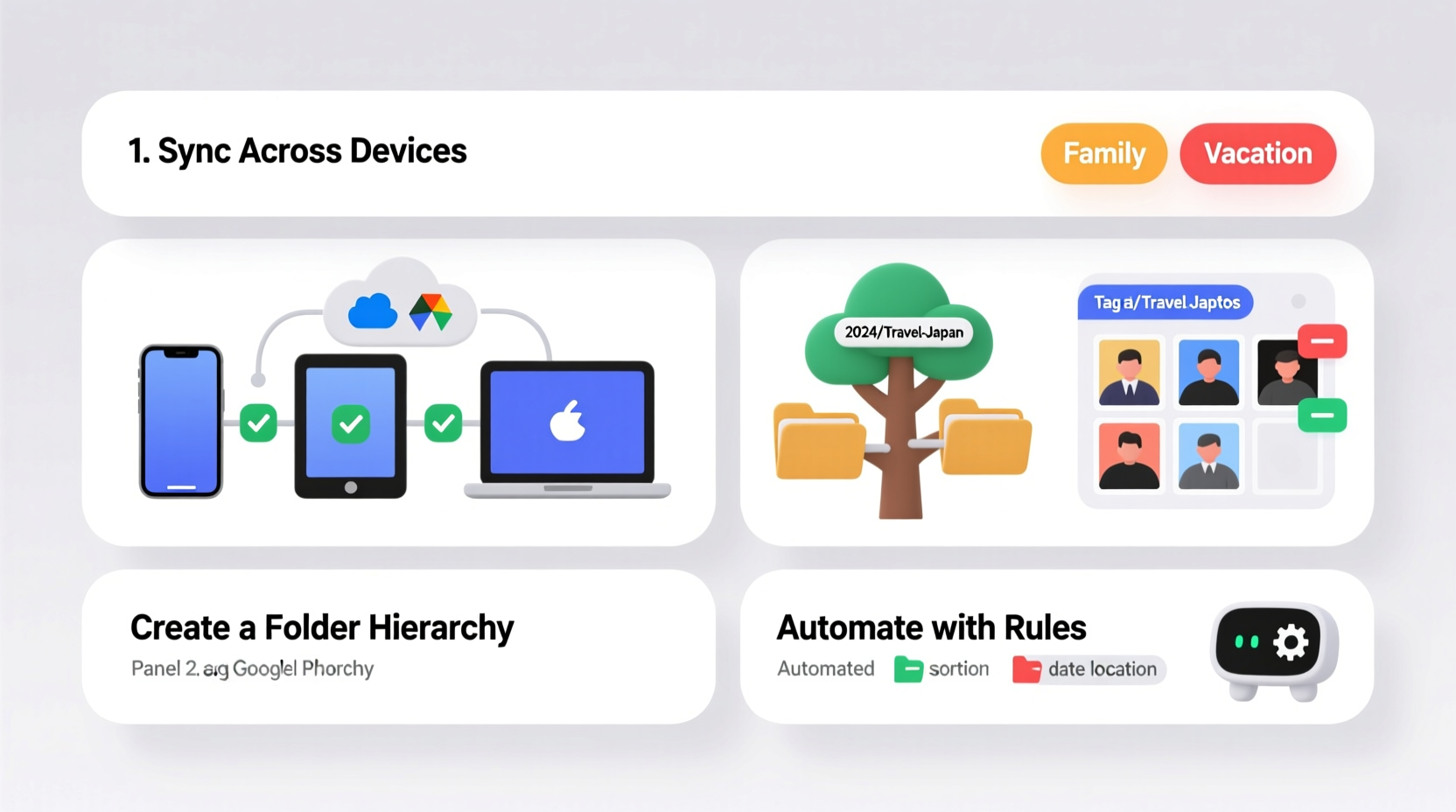
Most people today use multiple devices: a smartphone for daily snapshots, a tablet for viewing, and a computer for editing or archiving. Photos taken on one device often don’t automatically appear on others—or worse, they do but in inconsistent formats or locations. This fragmentation leads to:
- Duplicate files consuming storage space
- Missing photos when switching devices
- Inability to quickly locate specific images
- Risk of permanent loss during device failure
A unified photo management strategy bridges this gap. It ensures that every photo is backed up, tagged, and accessible from any screen, while maintaining high quality and minimizing clutter.
“Digital photos are among the most valuable personal assets we create—but only if we can find and preserve them.” — Dr. Linda Chen, Digital Archivist & Metadata Specialist
Step-by-Step Plan to Organize Your Photo Library
Follow this seven-phase process to build a reliable, cross-device photo system that scales with your collection.
Phase 1: Audit Your Current Collection
Begin by identifying where your photos currently live:
- Smartphones and tablets: Check both internal storage and cloud sync settings (e.g., Google Photos, iCloud).
- Computers: Search primary folders like “Pictures,” “Downloads,” or external drive backups.
- Cloud services: Review accounts such as Google Drive, Dropbox, OneDrive, or Amazon Photos.
- Dedicated storage: Include SD cards, USB drives, or old hard drives stored in drawers.
Create a simple inventory list noting each location and estimated number of photos. This helps reveal gaps and redundancies.
Tip: Use file explorer search filters (e.g., \"kind:photo\", \"modified:last year\") to speed up discovery.Phase 2: Choose a Primary Storage Hub
Select one central platform to serve as your master photo library. The best choice depends on your ecosystem and usage habits:
| Platform | Best For | Limits |
|---|---|---|
| iCloud Photos | Apple users with iPhone, iPad, Mac | Paid storage required beyond 5GB; limited third-party app support |
| Google Photos | Android & multi-platform users | Original quality now requires Google One subscription |
| Microsoft OneDrive + Windows Photos | Windows-centric households | Less intuitive mobile experience |
| Adobe Lightroom + Cloud | Photography enthusiasts needing editing tools | Subscription cost; overkill for casual users |
Once chosen, ensure all devices are logged into the same account and set to sync automatically. This becomes your real-time hub.
Phase 3: Consolidate and Eliminate Duplicates
After syncing, you’ll likely see duplicates—especially from overlapping imports or manual transfers. Use these strategies to clean up:
- Automated tools: Duplicate cleaner apps like Gemini Photos (iOS), DupliFinder (Windows), or VisiPics (cross-platform) scan and flag near-identical images.
- Manual review: Sort by date and folder, then compare thumbnails side-by-side before deletion.
- Smart criteria: Keep higher-resolution versions, delete blurry shots, or remove screenshots unless essential.
Never delete originals until you’ve verified the correct version is safely stored in your primary hub.
Phase 4: Implement a Consistent Naming and Folder Structure
Even with cloud syncing, a logical organization system makes searching easier. Adopt a standard format:
Folder hierarchy example:
Photos/
├── 2023/
│   ├── 2023-06-10_Johns_Wedding/
│   ├── 2023-07-15_Family_Reunion/
│   └── 2023-08-22_Europe_Trip/
├── 2024/
│   ├── 2024-01-01_New_Years/
│   └── 2024-03-18_Birthday_Party/
└── Archives/
    └── Pre-2020_Scans/
Use ISO date format (YYYY-MM-DD) at the start of folder names so they sort chronologically. Avoid special characters like / ? * | which cause compatibility issues across operating systems.
Tip: Prefix event names with location or key people (e.g., \"2024-05-12_Maya_Graduation\") for faster recognition.Phase 5: Tag and Describe for Searchability
Modern photo platforms use AI to detect faces, objects, and locations—but manual tagging improves accuracy. Add metadata such as:
- People: Full names (e.g., “Emma Rivera”) rather than vague labels like “friend”
- Locations: City or venue name (e.g., “Yellowstone National Park”)
- Events: “Summer Wedding,” “Baby’s First Birthday”
- Keywords: “beach,” “holiday,” “black dress,” “sunset”
On desktop, use built-in tools:
- macOS Photos: Right-click image → “Add Keyword”
- Windows Photos: Select photo → click “Add a tag”
- Google Photos: Edit description field directly
These tags enable powerful searches later: typing “mountains Emma 2023” should return relevant results instantly.
Phase 6: Enable Automatic Syncing Across Devices
Ensure seamless access by configuring each device to stay updated:
- Smartphones: Turn on “Sync Photos” in iCloud or Google Photos settings. Choose “Upload Only” to save local space.
- Tablets: Log into the same account and enable background sync.
- Laptops/Desktops: Install the official app (e.g., iCloud for Windows, Google Drive Desktop) and link your photo folder.
- Set rules: Exclude screenshots or downloads unless needed; auto-import from connected cameras or SD cards.
Test the flow: take a new photo on your phone and confirm it appears on your computer within minutes.
Phase 7: Establish a Backup Routine
No single cloud service is immune to outages, hacking, or accidental deletion. Follow the 3-2-1 backup rule:
- 3 copies of every photo (original + two backups)
- 2 different media types (e.g., cloud + external drive)
- 1 offsite copy (e.g., encrypted drive stored at a relative’s house or safety deposit box)
Schedule quarterly checks to verify backups are current and readable.
Checklist: Building Your Cross-Device Photo System
Use this checklist to track progress:
- ✅ Inventory all existing photo locations
- ✅ Select a primary cloud/photo platform
- ✅ Upload missing photos to the central hub
- ✅ Remove duplicates and low-quality images
- ✅ Create dated, descriptive folder structure
- ✅ Add tags and descriptions to key albums
- ✅ Enable automatic sync on all devices
- ✅ Set up secondary backup (external drive or alternate cloud)
- ✅ Test retrieval: search for a random photo on another device
- ✅ Schedule annual review and cleanup session
Real Example: How Sarah Reclaimed Her Family Photos
Sarah, a mother of two, had over 12,000 photos scattered across her old iPhone, her husband’s Android, a laptop with failing storage, and a dusty external drive. She couldn’t find pictures of her daughter’s first steps and worried about losing years of memories.
She began by connecting her old devices and exporting everything to a temporary folder on her new MacBook. Using Google Photos as her central hub, she uploaded all content and enabled face grouping. Over three weekends, she reviewed duplicates, deleted blurry or redundant shots, and created folders like “2022-06-15_Lucas_First_Birthday” and “2023-08_Hawaii_Vacation.”
She then installed Google Photos on her husband’s phone and shared the albums with him. They now both add to the same timeline, and their parents receive monthly shared album updates. An automated backup to a NAS (Network Attached Storage) device runs weekly. Today, Sarah finds any photo in under 20 seconds—and sleeps easier knowing nothing is lost.
Frequently Asked Questions
Can I use multiple cloud services without creating chaos?
Yes, but designate one as your primary source of truth. For example, use Google Photos for daily sync and iCloud only for Apple-specific continuity features. Avoid uploading the same photo set to two clouds independently, as this increases duplication risk.
What should I do with old physical photo albums?
Scan them at minimum 300 DPI resolution using a flatbed scanner or dedicated photo scanning app (like Google PhotoScan). Save scans in a dedicated “Archives/Pre-Digital” folder with notes on original dates and people. Store originals in acid-free sleeves even after digitizing.
How often should I clean up my photo library?
Perform a light review monthly—delete recent blurry shots or screenshots. Conduct a full audit annually: deduplicate, reorganize if needed, and verify backups. Major life events (births, moves, trips) are good triggers for focused curation.
Final Thoughts and Call to Action
Your digital photo library is more than a collection of files—it’s a living archive of your life. Taking control of its organization doesn’t require technical expertise, just consistency and intention. By following a clear system, you protect irreplaceable moments and make them easy to revisit, share, and cherish.
Start today: pick one device, find one missing album, and upload it to your central hub. Then repeat. Small actions compound into lasting order. Don’t wait for a broken phone or corrupted drive to realize what you’ve lost.
🚀 Your next photo shouldn’t get lost in the digital shuffle. Begin your cleanup now—organize one folder, sync one device, save one memory. Share your progress or questions below and inspire others to do the same.