
Restoring your iMac to factory settings can breathe new life into a sluggish system, resolve persistent software issues, or prepare the device for resale. However, the fear of losing valuable files often deters users from taking this essential step. The truth is, with proper planning and execution, you can reset your iMac completely while keeping your personal data safe. This guide walks you through every phase—from backup to final setup—ensuring your data remains intact and your machine runs like new.
Why Reset Your iMac?
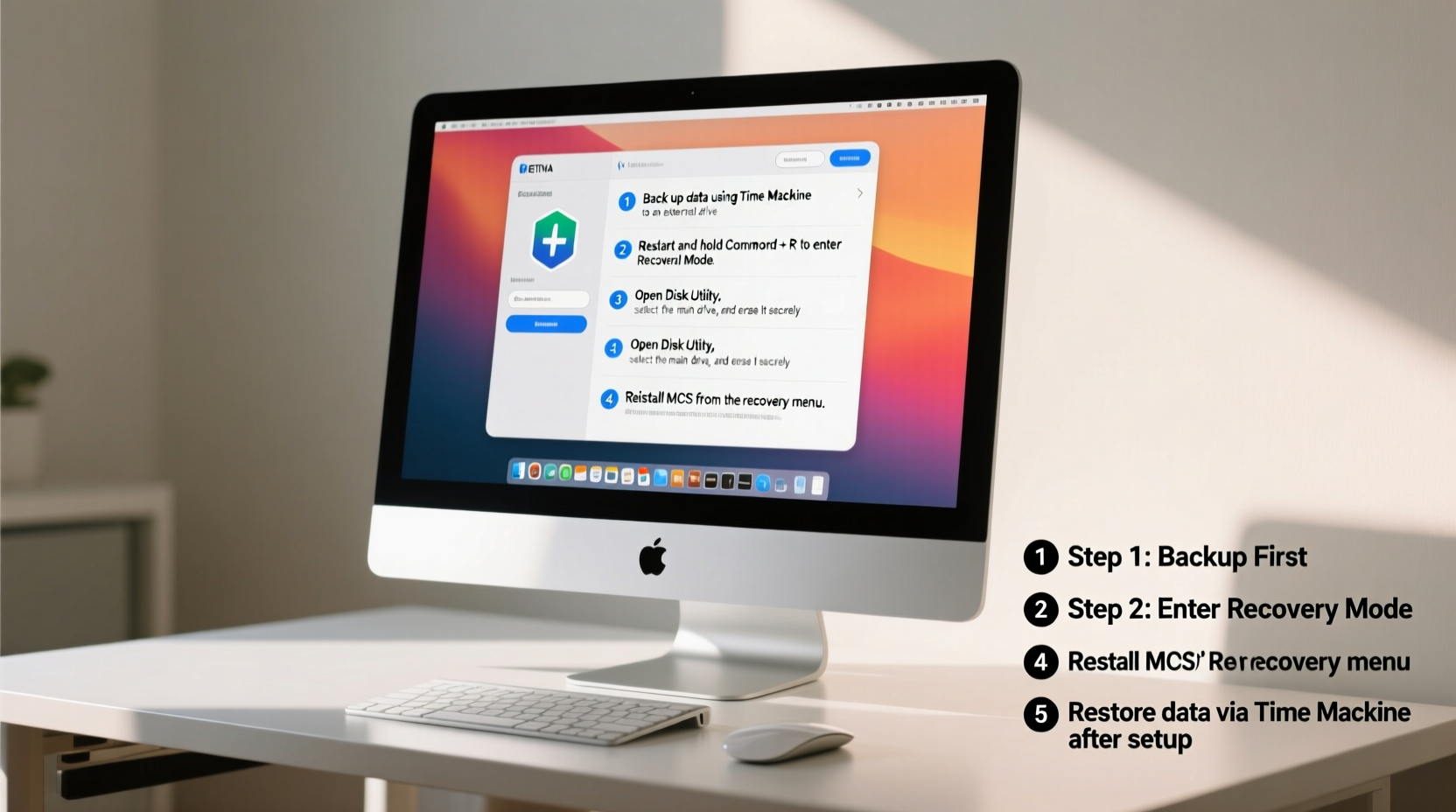
There are several valid reasons to restore your iMac to its original state. Over time, macOS accumulates temporary files, corrupted preferences, and unused applications that degrade performance. A clean install eliminates digital clutter and resets system settings to default. It’s also necessary when transferring ownership, troubleshooting boot issues, or preparing for a major OS upgrade.
The key misconception is that resetting means losing everything. In reality, a factory reset only affects the internal drive—not external backups or iCloud-stored content. By separating your data from the system before wiping, you maintain full control over what stays and what goes.
Tip: Always disconnect non-essential peripherals during the reset process to avoid driver conflicts.Step-by-Step Guide to Safely Restore Your iMac
This structured timeline ensures your data is protected at every stage. Follow each step carefully to avoid irreversible mistakes.
- Back up all critical data using Time Machine or iCloud.
- Verify your backup by checking file integrity and completeness.
- Sign out of iCloud and other accounts to prevent activation lock complications.
- Boot into Recovery Mode and erase the startup disk.
- Reinstall macOS from scratch.
- Restore your data from the backup after setup.
Phase 1: Secure Your Data Before Any Changes
The cornerstone of a safe reset is a reliable backup. Apple’s Time Machine is the most robust option for full-system protection. Connect an external drive with at least as much capacity as your iMac’s internal storage. Then navigate to System Settings > General > Time Machine and select “Back Up Automatically.” Run a manual backup immediately to ensure all recent changes are captured.
If you prefer cloud-based solutions, enable iCloud Drive and sync key folders such as Desktop, Documents, Photos, and Notes. Be aware that free iCloud storage (5GB) may not suffice for large media libraries. Upgrade if needed, or combine both methods: use iCloud for documents and Time Machine for complete system snapshots.
Phase 2: Prepare Your iMac for Factory Reset
Before erasing anything, take inventory of active services and connected devices. Deauthorize your computer from iTunes and Adobe apps to preserve license limits. Disable FileVault encryption temporarily if enabled, as it may complicate disk access during recovery.
Also, make sure Find My Mac is turned off. Go to System Settings > Apple ID > iCloud and uncheck “Find My Mac.” You’ll need your Apple ID password to confirm. Skipping this step could result in Activation Lock, rendering the iMac unusable even after reinstallation.
| Action | Purpose | Risk if Skipped |
|---|---|---|
| Run Time Machine backup | Preserve all user files and app settings | Data loss during reset |
| Turn off Find My Mac | Prevent Activation Lock post-reset | Inability to reactivate the device |
| Deauthorize media apps | Protect account licenses | Limited authorizations on future devices |
| Update macOS (optional) | Ensure compatibility with latest recovery tools | Installation errors during reinstall |
Phase 3: Enter Recovery Mode and Erase the Disk
Shut down your iMac. Press the power button and continue holding it until you see the startup options screen—this includes a gear icon labeled “Options.” Click it and press “Continue” to enter macOS Recovery.
Once inside Recovery Mode, open “Disk Utility” from the menu. Select your primary drive (usually named “Macintosh HD”) in the sidebar. Click “Erase,” then choose the following settings:
- Name: Macintosh HD
- Format: APFS (for macOS High Sierra and later)
- Scheme: GUID Partition Map
Confirm the erase operation. This removes the operating system and all local user data—but remember, your backup holds everything. After completion, close Disk Utility and return to the main Recovery window.
Tip: If your iMac doesn’t support the modern startup options screen, try pressing Command (⌘) + R immediately after powering on.Phase 4: Reinstall macOS
Select “Reinstall macOS” from the Recovery menu. The assistant will verify your model and download the appropriate version compatible with your hardware. An internet connection is required; Ethernet is recommended for stability, though Wi-Fi works if signal strength is strong.
The installation typically takes 20–60 minutes depending on connection speed and model. Do not interrupt the process. Once complete, your iMac restarts to the initial setup screen—the same one you saw when first unboxing it.
Phase 5: Restore Your Data from Backup
During setup, choose “Transfer or Restore” and select “From a Mac, Time Machine backup, or startup disk.” Follow the prompts to locate your Time Machine drive. Pick the most recent backup taken before the reset and begin restoration.
For iCloud users, sign in with your Apple ID and enable iCloud Drive sync. Manually download any missing files from iCloud.com if necessary. Applications will need to be reinstalled individually unless included in the Time Machine restore.
“Backing up isn’t just about safety—it’s about peace of mind. A verified copy of your data transforms a risky reset into a routine maintenance task.” — David Lin, Senior Apple Support Advisor
Real-World Example: Sarah’s iMac Revival
Sarah had used her 2019 iMac for six years. Lately, it took over five minutes to boot, and apps frequently froze. She considered buying a new machine but decided to try a factory reset first. Using a 2TB Seagate drive, she completed a full Time Machine backup overnight. After disabling Find My Mac and deauthorizing iTunes, she booted into Recovery Mode and erased her disk.
The macOS reinstall took 35 minutes. During setup, she restored her user account and files from the backup. When finished, her iMac booted in under 30 seconds. All her documents, photos, and application preferences were intact. The entire process saved her $1,200 compared to purchasing a new unit.
Essential Checklist for a Safe iMac Reset
Use this checklist to stay organized and minimize risks:
- ✅ Back up all data using Time Machine or iCloud
- ✅ Verify backup integrity by browsing sample files
- ✅ Deauthorize iTunes, Adobe Creative Cloud, and other licensed software
- ✅ Turn off Find My Mac in iCloud settings
- ✅ Disconnect unnecessary USB devices
- ✅ Boot into Recovery Mode (hold power button or use ⌘+R)
- ✅ Use Disk Utility to erase the startup disk
- ✅ Reinstall macOS from Recovery
- ✅ Restore user data after setup completes
- ✅ Re-enable security features like FileVault and Firewall
Frequently Asked Questions
Will I lose my photos and documents if I reset my iMac?
No—if you’ve backed up to Time Machine or iCloud, your personal files remain safe. The reset only clears the internal drive. Always confirm your backup contains recent versions before proceeding.
Can I restore only certain files instead of the whole system?
Yes. After reinstalling macOS, you can selectively restore folders from Time Machine by opening it from the Dock and browsing previous backups. Drag desired items to your desktop without overwriting current settings.
How long does a factory reset take?
Total time ranges from 1 to 3 hours, including backup verification, OS reinstallation, and data restoration. Most of the duration depends on internet speed and backup size.
Final Steps and Ongoing Maintenance
After restoring your data, take a moment to review system settings. Update all applications, run Software Update for macOS patches, and consider enabling automatic backups again. Install only trusted software moving forward to maintain stability.
A periodic reset every 2–3 years can keep your iMac running efficiently. Treat it like a tune-up for a car: preventive, restorative, and ultimately cost-effective.
💬 Ready to refresh your iMac? Start with a backup today and reclaim speed, security, and simplicity. Share your reset experience in the comments below—your story might help another user take the leap!