If your iPhone battery used to last a full day but now dies by mid-afternoon, you're not alone. Sudden drops in battery performance can be frustrating—especially when they happen without any major changes to your usage habits. While aging hardware and environmental factors play roles, the most common culprit behind sudden battery drain is often software-related: specific apps running in the background, using excessive resources, or malfunctioning after an update.
This article breaks down the real reasons behind sudden iPhone battery drain, highlights high-energy apps that commonly cause the issue, and provides actionable steps to identify and resolve the problem. Whether you're on iOS 16, 17, or beyond, this guide offers practical solutions based on Apple’s own diagnostics and expert user insights.
Understanding Battery Drain Triggers
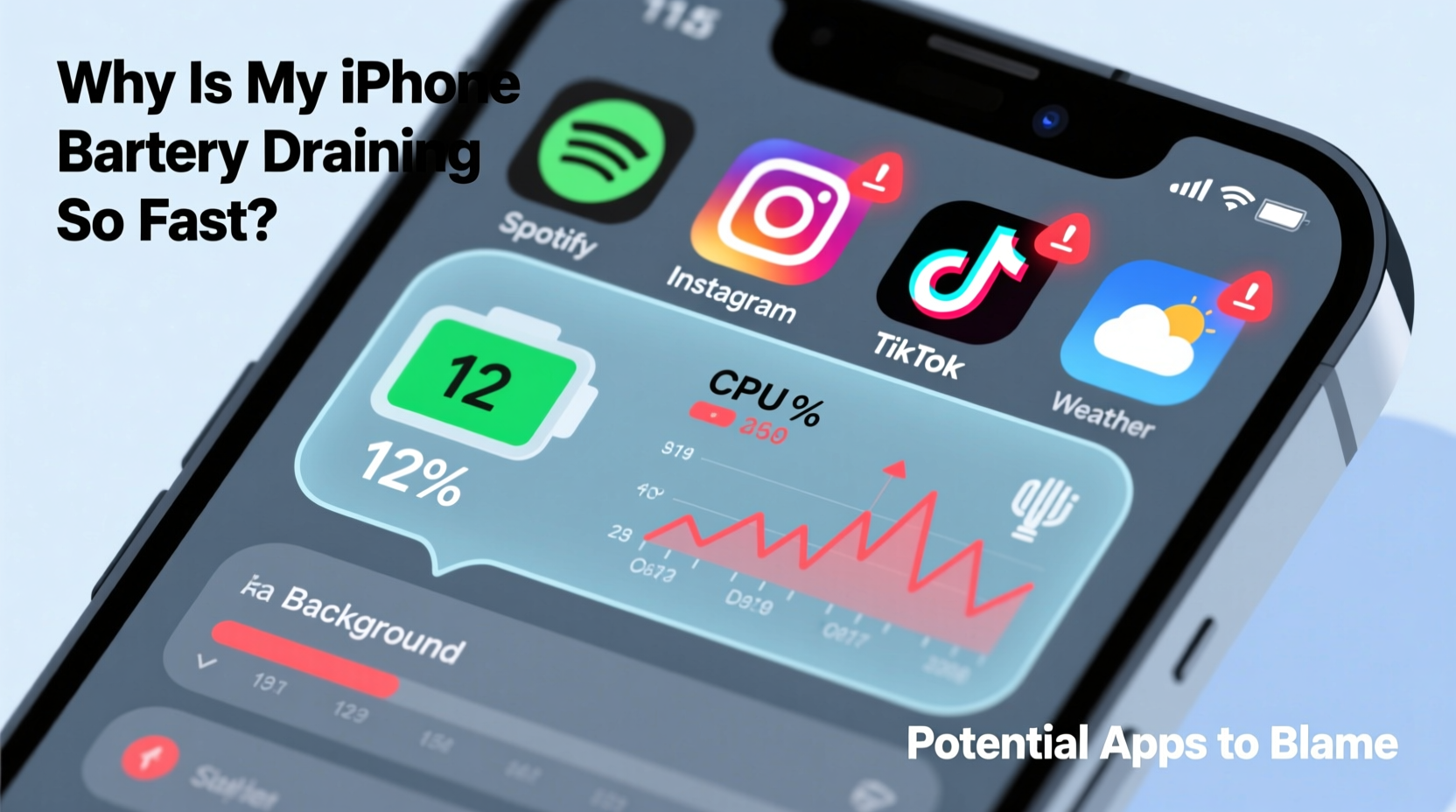
Battery life isn’t just about screen time. Modern iPhones use sophisticated power management systems that track app behavior, location services, network activity, and background refresh. When one of these processes goes into overdrive, it can rapidly deplete your battery—even if your phone is idle.
Sudden battery drain typically occurs due to:
- App updates with bugs: A recent update may introduce inefficient code or memory leaks.
- Background app refresh: Apps continue working when not in use, syncing data or tracking location.
- Poor cellular or Wi-Fi signal: Your phone boosts radio power to maintain connection, increasing energy use.
- Location services abuse: Some apps constantly access GPS even when unnecessary.
- iCloud sync issues: Failed uploads or repeated retries consume battery.
How to Identify Battery-Hungry Apps
Apple provides built-in tools to monitor app energy usage. The key is knowing where to look and how to interpret the data.
Step-by-Step: Check Battery Usage in Settings
- Open the Settings app.
- Tap Battery.
- Wait for the usage chart to load (may take a few seconds).
- Review two sections:
- Last 24 Hours
- Last 10 Days
- Look for apps with high percentages under “Battery Usage.”
- Check whether usage occurred during “Screen On” or “Background Activity.”
If an app shows high background usage while contributing little to actual screen time, it's likely the culprit.
Interpreting the Data
Pay attention to:
- Background Activity > 30%: Indicates excessive resource use when not actively opened.
- High “Time” vs Low “Usage”: May suggest poor optimization (e.g., Facebook app historically known for this).
- Spike after update: If battery drain began immediately after updating an app, consider rolling back or reporting the bug.
“Over 60% of unexpected battery drain cases we see are tied to third-party apps misusing background refresh or location services.” — Mark Tran, Senior iOS Support Analyst at AppleCare
Top Apps Known to Drain iPhone Battery
While all apps use some power, certain categories consistently rank high in energy consumption reports. These include social media, navigation, messaging, and cloud storage apps.
| App | Common Issue | Recommended Fix |
|---|---|---|
| Facebook / Meta Suite (Instagram, WhatsApp) | Aggressive background refresh, auto-play videos, location tracking | Disable Background App Refresh; limit location access to “While Using” |
| Google Maps / Waze | Continuous GPS usage, voice guidance, live traffic updates | Turn off Location Services when not navigating; avoid leaving app open |
| Snapchat | Background camera prep, AR filters, frequent notifications | Disable Background App Refresh; reduce notification frequency |
| Slack / Microsoft Teams | Constant syncing, push emails, background calls | Adjust sync intervals; disable push for non-critical channels |
| Spotify / Music Streaming Apps | Streaming over cellular, offline caching, Bluetooth connectivity | Download playlists for offline use; avoid streaming on weak signals |
| Weather Apps (e.g., AccuWeather, The Weather Channel) | Hourly location checks, background alerts, widget updates | Limit location access; disable widgets if unused |
These apps aren't inherently bad—they’re designed for constant connectivity—but their default settings often prioritize function over efficiency.
Mini Case Study: Unexpected Drain from a Weather Widget
Sophia, a freelance designer in Portland, noticed her iPhone 14 Pro battery dropping from 85% to 30% overnight. She wasn’t using her phone heavily and hadn’t installed new apps. After checking her Battery settings, she discovered that “The Weather Channel” accounted for 42% of background activity despite being opened only twice that day.
The issue? A home screen widget refreshing every 15 minutes and pulling location data each time. She removed the widget and changed the app’s location setting to “Never.” Her next-day battery drain dropped by 60%, proving how small features can have big energy costs.
Fixing and Preventing Excessive Battery Drain
Once you’ve identified problematic apps, take action. Here’s a checklist to optimize your iPhone’s battery life and prevent recurrence.
🔋 Battery Optimization Checklist
- ✅ Review Battery settings weekly for unusual spikes.
- ✅ Disable Background App Refresh for non-essential apps.
- ✅ Set Location Services to “While Using” or “Never” for apps that don’t need GPS.
- ✅ Turn off Push Email; switch to Fetch manually or hourly.
- ✅ Delete or replace apps with consistent high background usage.
- ✅ Keep iOS updated—Apple regularly patches battery inefficiencies.
- ✅ Reset All Settings if drain persists (doesn’t erase data).
Advanced Tips for Power Users
For deeper control, explore these less-known options:
- Limits in Screen Time: Set app limits for social media or games to reduce overall usage and background strain.
- Low Data Mode: Reduces background activity across apps, especially effective on cellular networks.
- Reduce Motion & Transparency: Found in Accessibility settings, these reduce GPU load and extend battery slightly.
- Disable Automatic Downloads: Prevents apps from downloading content (apps, books, updates) in the background.
Frequently Asked Questions
Why is my iPhone battery draining fast after an iOS update?
Major iOS updates often trigger system-wide indexing, iCloud syncing, and background optimizations that temporarily increase battery usage. This usually stabilizes within 48–72 hours. If it doesn’t, check for misbehaving apps or incomplete backups causing constant retry attempts.
Can a virus or malware drain my iPhone battery?
True malware is rare on iPhones due to Apple’s strict app sandboxing. However, malicious scripts in websites or compromised profiles can cause excessive CPU usage. If Safari shows high battery use without active browsing, clear history and website data, and remove untrusted configurations under Settings > General > VPN & Device Management.
Does closing apps from the app switcher save battery?
No. iOS automatically suspends apps when not in use. Force-closing apps can actually increase battery drain because relaunching them requires more energy than resuming a suspended state. Only close apps if they’re frozen or clearly malfunctioning.
When to Suspect Hardware Issues
If you’ve optimized all software settings and still experience rapid drain, the issue may be hardware-related. Signs include:
- Battery percentage dropping in large jumps (e.g., 50% → 30% in minutes).
- Phone overheating without heavy usage.
- “Service Battery” warning in Settings > Battery > Battery Health.
Under Battery Health, check “Maximum Capacity.” If it’s below 80%, the battery is degraded and should be replaced. Apple recommends service when capacity falls to 79% or lower, as performance throttling becomes more aggressive.
Note: Third-party batteries or repairs may not integrate properly with iOS power management, leading to inaccurate readings or instability.
Conclusion: Take Control of Your iPhone’s Battery Life
Sudden battery drain isn’t something you have to accept. More often than not, it’s not your iPhone aging—it’s an app behaving poorly. By leveraging Apple’s built-in battery analytics, adjusting permissions, and applying smart usage habits, you can restore reliable all-day performance.
Start today: Open Settings, go to Battery, and review the last 24 hours. Identify one app consuming more than its fair share and apply the fixes outlined here. Small changes compound quickly—better battery life means fewer charges, less stress, and a longer-lasting device.
💬 Experiencing weird battery drain? Share which app surprised you in the comments. Your insight could help another user solve their mystery drain!