
Smudged printouts can be more than just a nuisance—they signal underlying issues that affect document quality, professionalism, and even the longevity of your printer. Whether you're printing contracts, school projects, or personal photos, consistent smudging undermines the purpose of having a reliable machine. The causes range from simple maintenance oversights to deeper mechanical failures. The good news is that most smudging problems are fixable with the right approach. By understanding the root causes and applying targeted solutions, you can eliminate smudges for good and extend the life of your printer.
Understanding the Causes of Printer Smudging
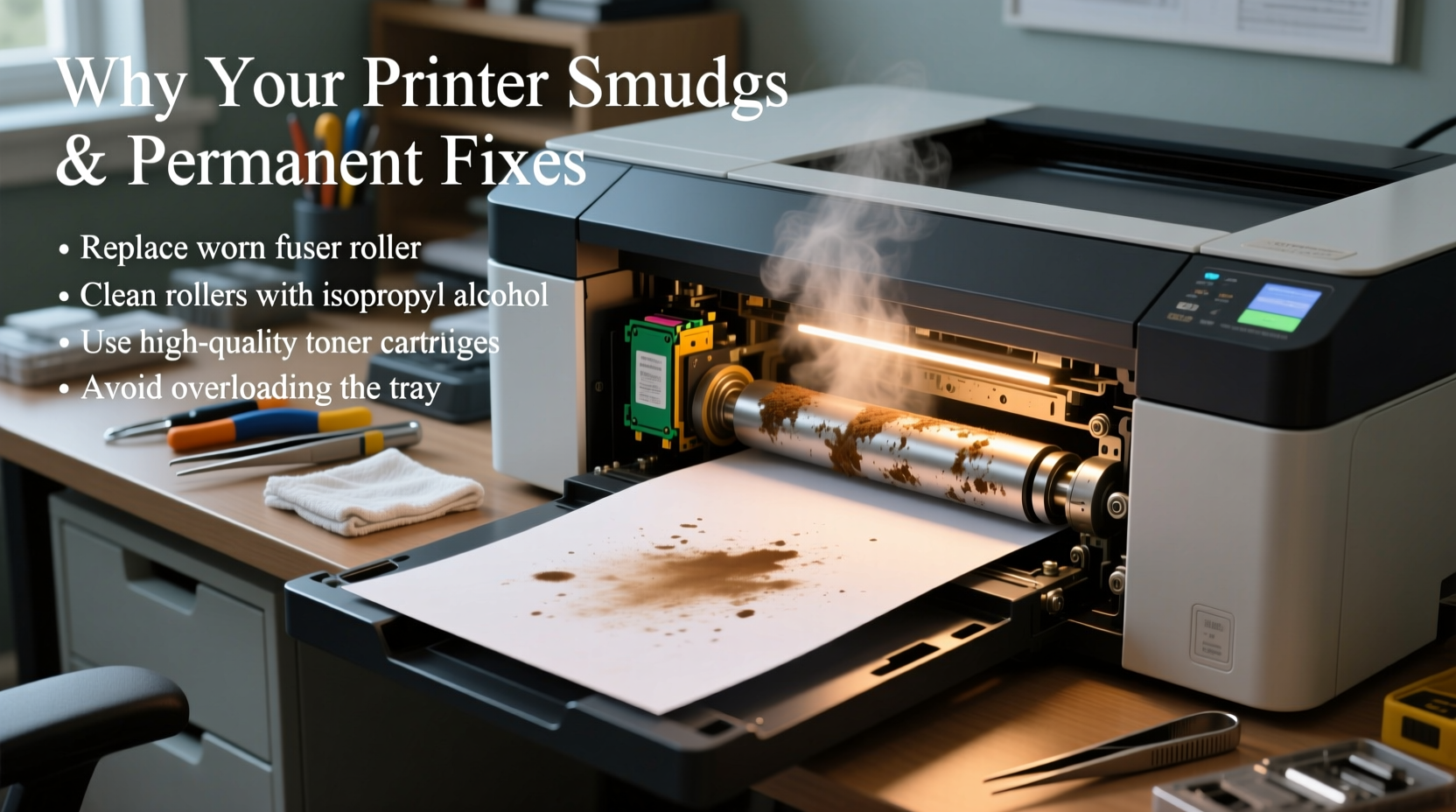
Before attempting any fix, it’s essential to identify what’s causing the smudges. Different types of printers—inkjet and laser—experience smudging for different reasons. Recognizing the pattern helps determine the correct solution.
- Inkjet Printers: These use liquid ink sprayed onto paper. Smudging typically occurs when excess ink isn’t drying quickly or when components like rollers or printheads are dirty.
- Laser Printers: These use toner powder fused to paper with heat. Smudging here usually means improper fusing, paper jams, or worn-out rollers.
Common culprits include low-quality paper, high humidity, clogged printheads, incorrect printer settings, or internal residue buildup. In some cases, the issue may stem from using third-party or expired cartridges, which don’t dispense ink or toner consistently.
“Over 60% of printer smudging issues reported to service centers are preventable with routine cleaning and proper media selection.” — David Lin, Senior Technician at PrintCare Solutions
Step-by-Step Guide to Diagnose and Fix Smudging
A methodical approach ensures you address the real problem rather than treating symptoms. Follow this timeline to diagnose and resolve smudging permanently.
- Inspect the Output: Determine if smudges appear on one side, across the entire page, or in repeating patterns. Horizontal streaks often point to roller issues; vertical lines suggest printhead or drum problems.
- Check Paper Quality: Use only manufacturer-recommended paper weights and finishes. Glossy photo paper used in text mode, or overly thin paper, can cause ink absorption issues.
- Clean Internal Components: Turn off the printer and unplug it. Open the access panel and gently wipe rollers and feed paths with a lint-free cloth slightly dampened with distilled water (for inkjets) or dry for lasers.
- Run Built-in Cleaning Cycles: Access your printer’s maintenance menu via software or control panel. Run printhead alignment and cleaning routines (inkjet), or perform a drum and fuser wipe (laser).
- Replace Consumables: Install genuine or high-rated compatible cartridges. If toner is old or spilled inside the unit, replace it immediately.
- Update Firmware and Drivers: Visit the manufacturer’s website and install the latest updates. Outdated drivers can miscommunicate with hardware, leading to over-saturation or misalignment.
- Test Print After Each Step: Print a test page after each intervention to isolate which action resolved the issue.
Do’s and Don’ts: Maintaining Smudge-Free Performance
Prevention is far more effective than repeated troubleshooting. This table outlines key behaviors to adopt and avoid for long-term printer health.
| Do’s | Don’ts |
|---|---|
| Use recommended paper types and store them in dry conditions | Use wrinkled, recycled, or overly textured paper regularly |
| Run cleaning cycles monthly, even if no issues appear | Ignore error messages or skip maintenance alerts |
| Store ink cartridges properly if removed for extended periods | Leave empty cartridges installed—this dries out printheads |
| Keep the printer powered on when possible (many auto-clean during idle) | Power-cycle the printer frequently without reason |
| Print at least once a week to prevent ink stagnation | Let the printer sit unused for months without preparation |
Real-World Case: How a Small Office Eliminated Chronic Smudging
A marketing agency in Portland struggled with smudged client proposals for months. Their Epson WorkForce WF-7720 would produce clean drafts but smear final color prints. Staff initially blamed the ink, then the paper, then each other. A technician was called in after three cartridge replacements failed to fix the issue.
The diagnosis revealed two overlooked factors: First, the office used “multipurpose” paper rated for 24 lb, below the 28 lb minimum recommended for photo-quality output. Second, the printhead hadn’t been cleaned in over a year despite weekly heavy use. Humidity from a nearby kitchen vent also contributed to slow ink drying.
The solution was straightforward: switch to premium 32 lb matte paper, run three consecutive printhead cleanings, relocate the printer away from the kitchen area, and set up bi-weekly automatic maintenance reminders. Within days, smudging stopped entirely. Over the next six months, print failure rates dropped by 90%, and client feedback on presentation quality improved significantly.
This case underscores a common oversight: assuming consumables are the only variable. Environmental and maintenance factors are equally critical.
Permanent Fixes Based on Printer Type
Different technologies require tailored solutions. Applying universal fixes without considering your printer type may yield temporary results at best.
Inkjet Printers: Tackle Moisture and Clogs
Inkjets are prone to smearing due to liquid ink behavior. To fix this permanently:
- Enable “Fast-Dry Ink Mode” in print settings if available.
- Reduce print quality slightly for draft documents to minimize ink saturation.
- Install an air dehumidifier near the printer if ambient moisture exceeds 60%.
- Remove and cap unused cartridges with protective covers to prevent nozzle drying.
- Use the printer weekly—even a single-page test prevents clogging.
Laser Printers: Address Heat and Pressure Systems
Laser smudging often indicates fuser or roller failure. The fuser applies heat and pressure to bond toner to paper. If it’s failing, toner remains loose and rubs off.
Persistent smudging after cleaning suggests:
- A worn fuser sleeve—replace every 50,000–75,000 pages.
- Damaged pickup or exit rollers—inspect for glazing or cracks.
- Toner spillage inside the drum unit—clean carefully with a toner vacuum (never regular vacuum).
Unlike inkjets, lasers don’t benefit from frequent use, but prolonged inactivity can cause roller deformation. If storing a laser printer, rotate the rollers manually every few weeks.
Tip: For laser printers, a repeating smudge every 3–4 inches likely indicates a damaged fuser roller. The spacing matches the roller’s circumference.Essential Maintenance Checklist
To ensure lasting results, follow this checklist monthly or after every 500 printed pages:
- ✅ Run printhead alignment and cleaning (inkjet) or fuser wipe (laser)
- ✅ Inspect paper path for dust, paper fragments, or toner residue
- ✅ Wipe external rollers with a dry, lint-free cloth
- ✅ Check for firmware updates via manufacturer software
- ✅ Verify that paper guides are adjusted correctly to prevent skewing
- ✅ Replace cartridges showing signs of leakage or inconsistent output
- ✅ Store spare cartridges in sealed containers with silica gel packs
- ✅ Confirm environmental conditions: temperature between 60–75°F, humidity under 60%
Frequently Asked Questions
Why does my printer smudge only on one side?
Uneven smudging, especially along one edge, often points to misaligned paper guides or a dirty feed roller on that side. It could also indicate a warped tray or uneven pressure during feeding. Adjust the paper guide snugly against the stack and clean the corresponding roller with isopropyl alcohol on a cotton swab.
Can I fix a smudging laser printer without replacing parts?
Sometimes. If the issue is toner spillage or a dirty corona wire, thorough cleaning may suffice. However, if the fuser or rollers are physically damaged, cleaning won’t help. These components wear out over time and must be replaced. Attempting to repair them manually risks further damage or safety hazards due to high internal temperatures.
Is it worth fixing an old printer that keeps smudging?
That depends on usage. If you print fewer than 20 pages per month, investing in repairs may not be cost-effective. However, for home offices or small businesses relying on daily output, replacing a faulty fuser ($80–$150) can extend a printer’s life by years. Compare the repair cost to a new model’s price and features before deciding.
Conclusion: Take Control of Your Print Quality
Smudged pages don’t have to be a fact of life. With a clear understanding of your printer’s mechanics and a commitment to regular care, you can achieve consistently sharp, professional results. The key is not to react only when problems arise, but to build prevention into your routine. From choosing the right paper to scheduling maintenance, every small action compounds into long-term reliability.
Don’t let poor print quality undermine your work. Apply these steps today, document your printer’s performance, and notice the difference within days. A well-maintained printer saves time, reduces waste, and delivers confidence with every page.
💬 Have a smudging issue you’ve solved? Share your experience in the comments—your insight could help someone else restore their printer to peak condition.