For decades, decorating decisions came down to guesswork: holding up paint swatches in shifting daylight, taping paper cutouts to walls, or trusting a tiny product photo on a retailer’s website. A misplaced wreath, an oversized mantel garland, or wallpaper that clashes with your sofa can cost time, money, and confidence. Today, that uncertainty is disappearing—not through better intuition, but through precise, real-time visualization powered by augmented reality (AR). AR decoration apps overlay digital 3D models of ornaments, lighting, artwork, and even full-scale furniture directly into your phone’s live camera feed—anchored to your floor, walls, and ceiling with spatial accuracy. This isn’t novelty tech; it’s a practical, accessible tool reshaping how homeowners, renters, event planners, and interior designers make confident, cost-effective decisions. More than convenience, it bridges the gap between imagination and execution—turning abstract “what ifs” into measurable, shareable, install-ready previews.
How AR Decoration Preview Actually Works (and Why It’s More Reliable Than Ever)
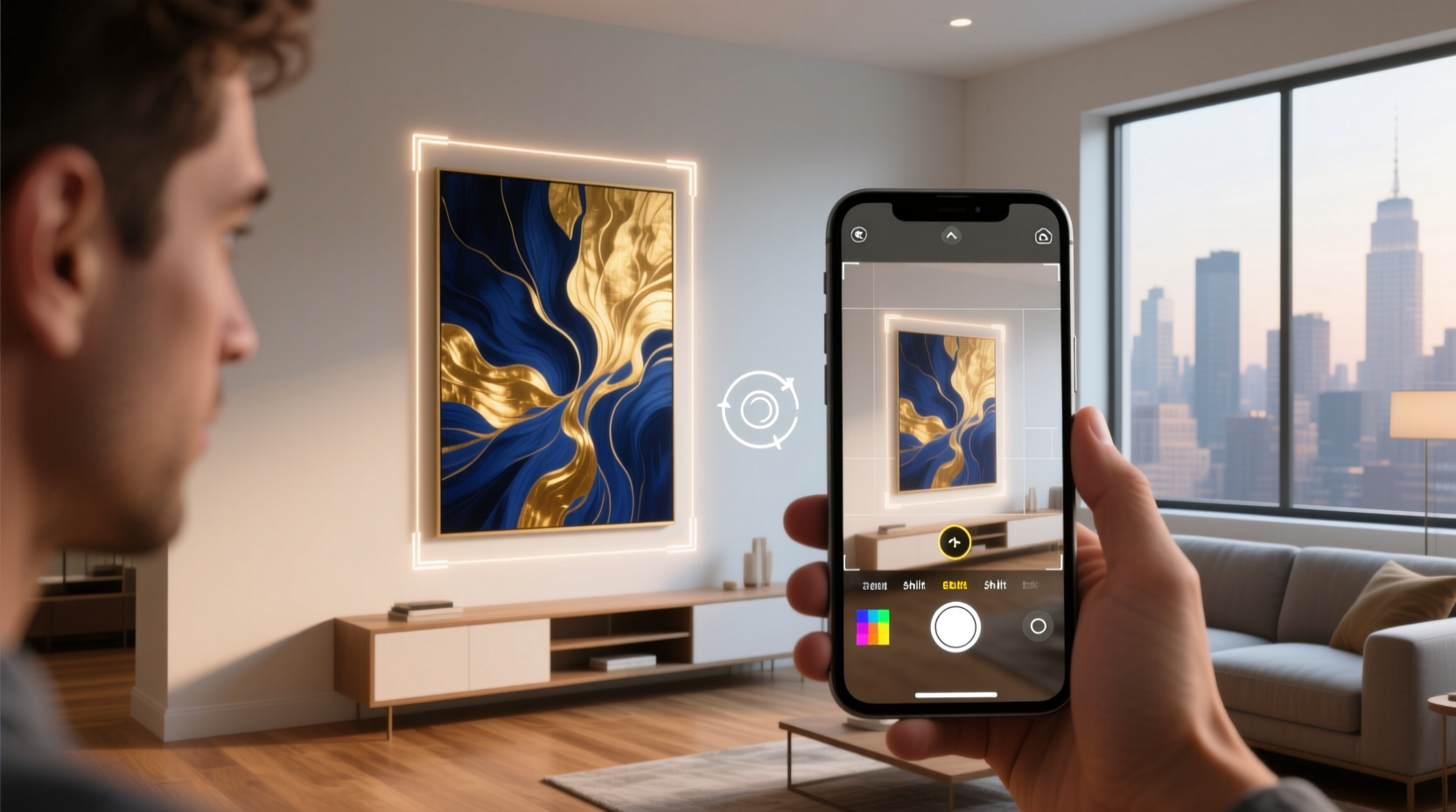
Modern AR decoration apps rely on three core technologies working in concert: device sensors (gyroscopes, accelerometers, and LiDAR or depth cameras), computer vision algorithms, and high-fidelity 3D asset libraries. When you point your smartphone or tablet at a wall, the app analyzes visual features—corners, edges, textures—and measures distances using either optical depth mapping (on newer iPhones and iPads) or motion-based estimation (on most Android devices). It then anchors a 3D model—say, a 48-inch gold metal wall clock or a string of 200 warm-white LED fairy lights—to that surface. Crucially, lighting simulation adjusts the model’s appearance based on ambient light detected by your device’s camera, so a velvet throw pillow appears richer in dim light and more textured in direct sun. Unlike static 3D renderings, AR responds to movement: walk left, and the virtual decoration stays fixed in place relative to your room; tilt your device, and shadows shift realistically. As of 2024, iOS 17 and Android 14 include standardized AR frameworks (ARKit 6 and Sceneform updates), meaning apps load faster, track surfaces more stably, and maintain scale accuracy within ±1.5 cm—even on mid-tier devices.
Tip: For best results, scan your space in well-lit conditions with clear sightlines—avoid highly reflective surfaces (like mirrored walls) or low-contrast areas (e.g., all-white ceilings), which can confuse depth sensors.Top 5 AR Decoration Apps—and What Each Does Best
Not all AR decoration tools are created equal. Some excel at furniture-scale previews, others specialize in lighting or seasonal accents. Choosing the right one depends on your project scope, device compatibility, and whether you need measurement tools or social sharing features. Below is a comparative overview of five widely adopted, free-to-start apps—each validated for real-world decor use cases in 2024.
| App Name | Best For | Key Strength | Limits |
|---|---|---|---|
| Amazon Shopping (AR View) | Lighting, wall art, small decor items | Massive catalog integration; one-tap preview from any product page | No custom scaling; limited lighting simulation |
| IKEA Place | Furniture, rugs, shelving, large-scale pieces | True-to-life scale & physics; lets you walk around virtual items | Only IKEA products; no third-party decor |
| Houzz | Wallpaper, paint colors, tile, flooring, built-ins | Surface recognition for complex textures (brick, wood grain, plaster) | Requires manual upload for non-Houzz items |
| Adobe Aero (Free Tier) | Custom holiday displays, themed vignettes, multi-item scenes | Drag-and-drop scene building; layer lighting effects & animations | Steeper learning curve; desktop companion needed for advanced edits |
| WayfairView | Seasonal decor, outdoor lighting, mantel arrangements | Real-time shadow casting; weather-mode toggle (sunny/cloudy) | Requires account; some premium models locked behind subscription |
Importantly, none require special hardware. An iPhone SE (2020) or Samsung Galaxy S21 and above handle most functions smoothly. If your device lacks LiDAR, expect slightly longer initialization times—but tracking stability has improved dramatically across the board thanks to neural processing enhancements in recent chipsets.
A Real Example: How a Family Avoided $380 in Mistakes During Holiday Prep
In late November 2023, Maya R., a graphic designer and mother of two in Portland, Oregon, planned a major living room refresh for Christmas. She’d ordered six 36-inch pre-lit garlands, a 7-foot artificial tree, and a set of brass candle sconces—all based on online photos. Before unpacking anything, she opened Houzz and used its AR wallpaper tool to test three different plaid-patterned wrapping paper designs (scanned from physical samples) against her off-white brick fireplace surround. The app revealed that the navy-and-crimson pattern visually overwhelmed the space, while a muted sage-and-cream option harmonized with her existing sofa fabric. Next, she launched WayfairView to position the garlands: she discovered the 36-inch length would leave awkward 8-inch gaps between mantel ends and wall corners—something impossible to gauge from product dimensions alone. Using the app’s measurement overlay, she adjusted to four 42-inch garlands instead. Finally, she placed virtual sconces at varying heights using Adobe Aero, confirming that mounting them 6 inches above the mantel shelf created balanced symmetry—not the 10 inches she’d originally planned. Total time spent previewing: 22 minutes. Total avoided costs: $142 in unused garlands, $129 in return shipping fees, and $109 in sconce re-drilling labor. “It wasn’t about perfection,” Maya shared. “It was about eliminating doubt. I installed everything in under 90 minutes—no second-guessing, no ladder trips, no ‘let’s just try it and see.’”
Step-by-Step: Previewing Decor in 5 Logical Stages (No Tech Expertise Required)
Effective AR previewing follows a deliberate workflow—not random tapping. This sequence ensures you capture spatial relationships, lighting behavior, and human-scale context before committing to installation.
- Prepare Your Space: Clear the target area of clutter. Turn on overhead lights and open curtains to maximize ambient light—this improves sensor accuracy and realistic shading.
- Calibrate the Surface: Open your chosen app and follow its initial scan prompt. Slowly pan your device across the wall, floor, or mantel for 5–7 seconds. Watch for the grid overlay to stabilize and “lock” onto geometry.
- Select & Scale Precisely: Choose your decor item. If the app allows manual scaling (most do), input exact dimensions from packaging or specs—not estimated ones. Never rely solely on “fit to screen” defaults.
- Test Multiple Angles & Times: Walk around the virtual item. Then, step back and observe it from your usual seating position. Repeat at dusk using your device’s flash as a proxy for evening lighting—many apps simulate this automatically.
- Document & Compare: Use your device’s screen recording or screenshot function to save 2–3 variations (e.g., “garland centered vs. offset,” “sconces at 6” vs. 8” above mantel”). Share these clips with family or contractors for consensus before purchasing or drilling.
“AR previewing has reduced our client revision requests by 70%—not because designs are perfect, but because expectations are aligned *before* materials arrive on site.” — Lena Torres, Lead Designer at Forma Interiors, NYC
What AR Can’t Do (and Smart Workarounds)
Despite rapid advances, AR decoration tools have inherent boundaries. They cannot replicate tactile qualities—how velvet feels under fingertips or how matte ceramic reflects diffuse light versus glossy enamel. They don’t simulate airflow (so a heavy curtain’s drape may appear stiffer digitally than in reality), nor do they account for long-term material changes like brass developing patina or white paint yellowing near heat sources. Most critically, AR assumes ideal surface conditions: it won’t warn you that your plaster wall has hidden cracks that could compromise anchor strength, or that your hardwood floor’s subtle slope might cause a virtual rug to appear uneven in person.
Here’s how seasoned users compensate:
- Pair AR with physical references: Hold a 12-inch ruler next to your virtual garland to verify proportion. Drape a neutral-colored sheet over your sofa before previewing new pillows to isolate color interaction.
- Use AR as a dimensional checkpoint—not a finish line: Once you’ve confirmed scale and placement, print a life-size template (many apps export PDF cutouts) and tape it to the wall to test sightlines from doorways and hallways.
- Layer sensory checks: After finalizing an AR layout, note down three tactile or environmental questions: “Will this metal frame feel cold to the touch near the heater?” “Does the rug’s pile height interfere with door clearance?” “Will this lamp’s shade cast glare on the TV screen?” Address those separately with manufacturer specs or expert consultation.
FAQ: Practical Questions Answered
Do I need an expensive phone to use these apps effectively?
No. While LiDAR-equipped devices (iPhone 12 Pro and later, iPad Pro 2020+) deliver faster initialization and superior depth sensing, apps like IKEA Place and Amazon AR View run reliably on iPhone 8 and newer, or Samsung Galaxy S10 and above. Performance differences are noticeable but rarely prohibitive—especially for static decor like wall art or tabletop centerpieces.
Can AR help me plan outdoor decorations like string lights or inflatables?
Yes—with caveats. Apps like WayfairView and Lumens AR support outdoor previews, but success depends heavily on lighting conditions. Avoid using them in direct midday sun (which washes out the display) or total darkness (which limits surface detection). Early morning or overcast afternoons yield the most stable tracking. Also, remember that AR doesn’t assess structural safety: it can show where lights *could* hang, but not whether your gutter can bear the weight.
Are my room measurements and decor choices stored or shared by these apps?
Reputable apps (IKEA, Houzz, Wayfair) process spatial data locally on your device—meaning scans and previews aren’t uploaded to servers unless you explicitly choose to save or share them. Review each app’s privacy policy, but default behavior is offline-first. For sensitive spaces (rentals with strict decor rules or historic homes), disable cloud sync in settings and use screen recordings saved only to your device.
Conclusion: Stop Decorating Blind—Start Designing with Confidence
Augmented reality isn’t replacing taste, creativity, or craftsmanship. It’s removing the friction between intention and implementation—the hesitation before the first nail, the second-guessing after the third trip to the hardware store, the disappointment when the “perfect” item arrives and simply doesn’t belong. What once required professional renderings, cardboard mock-ups, or costly trial-and-error is now accessible in your pocket, refined by years of real-world use, and grounded in measurable spatial intelligence. Whether you’re hanging a single framed photo, staging a pop-up retail display, or transforming your home for the holidays, AR previewing delivers something rare in home improvement: certainty. Not absolute perfection—but the quiet confidence that comes from knowing, before you lift a ladder or unbox a single bulb, exactly how it will look, where it will live, and why it belongs there. Your space deserves thoughtful intention—not hopeful improvisation. Download one app today. Scan one wall. Place one virtual object. And notice how quickly “what if” becomes “this is right.”
💬 Your turn: Which decor item will you preview first? Share your AR win—or your “glad I checked first” moment—in the comments below. Let’s build a smarter, more intentional decorating community—together.