
Screen mirroring has evolved from a niche tech feature into an essential tool for modern digital life. Whether you're presenting a slideshow, streaming a movie from your iPhone to the big screen, or sharing gameplay with friends, being able to mirror your iPhone's display opens up a world of convenience and functionality. With Apple’s ecosystem and third-party innovations, there are multiple reliable ways to project your iPhone screen to TVs, computers, and even projectors—wirelessly or via cable. This guide breaks down every practical method, compares their strengths, and delivers expert-backed steps to ensure flawless performance.
Understanding Screen Mirroring vs. Streaming
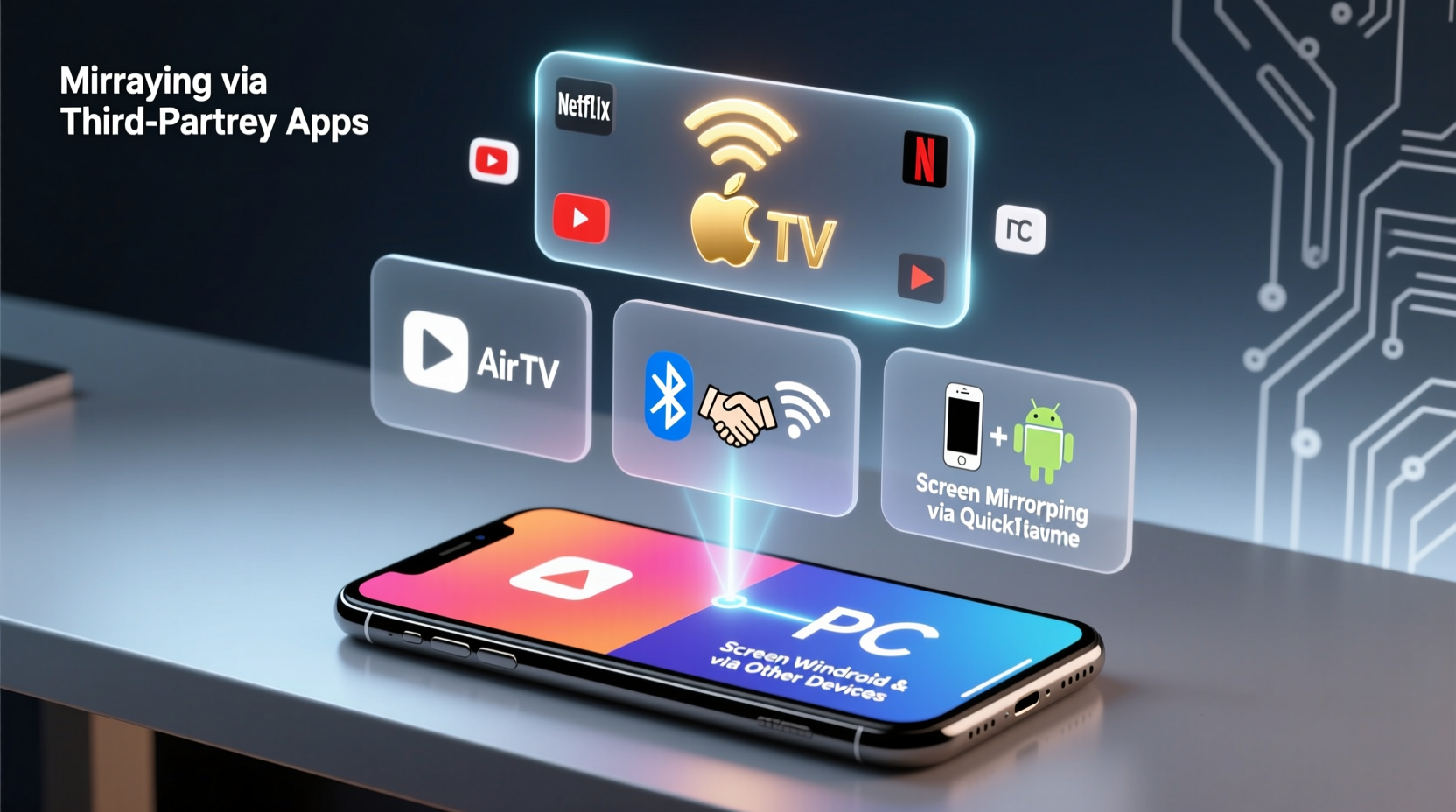
Before diving into methods, it’s important to distinguish between screen mirroring and media streaming. Screen mirroring duplicates your entire iPhone display in real time, including notifications, app interfaces, and gestures. Streaming, on the other hand, sends only specific content—like a video from Netflix—to another device using apps like AirPlay or Chromecast.
Mirroring is ideal when you need full control or are demonstrating something interactive. Streaming is better for uninterrupted playback without distractions. For this guide, we focus exclusively on true screen mirroring: projecting everything visible on your iPhone.
AirPlay: The Native Solution for Apple Ecosystem
AirPlay is Apple’s proprietary wireless technology that enables screen mirroring, audio sharing, and content streaming between Apple devices and compatible hardware. It’s the most seamless option if you’re using an Apple TV, AirPlay 2-compatible smart TV, or a Mac.
How to Use AirPlay to Mirror to a TV or Mac
- Ensure your iPhone and receiving device (TV or Mac) are connected to the same Wi-Fi network.
- Swipe down from the top-right corner of your iPhone (iPhone X and later) to open Control Center.
- Tap “Screen Mirroring.”
- Select your target device from the list (e.g., “Apple TV” or “Living Room TV”).
- If prompted, enter the four-digit code displayed on the TV.
Once connected, your iPhone screen appears instantly on the larger display. To stop mirroring, return to Control Center and tap “Stop Mirroring.”
Tip: If your device doesn’t appear, restart both devices and check Wi-Fi connectivity. AirPlay requires both devices to be on the same 2.4GHz or 5GHz band.“AirPlay remains the gold standard for wireless screen mirroring within the Apple ecosystem—low latency, high reliability, and end-to-end encryption.” — David Lin, Senior Product Engineer at HomeTech Labs
Wired Screen Mirroring: Lightning to HDMI
When Wi-Fi is unstable or unavailable, a physical connection offers a rock-solid alternative. Using a Lightning Digital AV Adapter, you can connect your iPhone directly to an HDMI-equipped TV or monitor.
Step-by-Step: Connect iPhone to TV via Cable
- Purchase Apple’s official Lightning to Digital AV Adapter (or a certified third-party version).
- Plug the Lightning end into your iPhone.
- Connect an HDMI cable from the adapter to your TV’s HDMI port.
- Switch the TV input to the correct HDMI source.
- Your iPhone screen will automatically mirror on the TV.
This method provides zero lag and consistent quality, making it ideal for presentations or watching high-resolution videos. However, it limits mobility since your phone must remain physically tethered.
| Mirroring Method | Connection Type | Lag | Max Resolution | Best For |
|---|---|---|---|---|
| AirPlay (Wireless) | Wi-Fi | Low to moderate | 1080p | Streaming, casual use |
| Lightning to HDMI | Wired | Negligible | 1080p | Presentations, gaming |
| Third-Party Apps (e.g., LetsView) | Wi-Fi | Moderate | 720p–1080p | Cross-platform sharing |
| Mac Screen Sharing (via QuickTime) | USB/Wi-Fi | Very low | Full Retina | Content creation, tutorials |
Mirroring to Windows PCs and Non-Apple Devices
While AirPlay is limited to Apple and select smart TVs, third-party applications bridge the gap for Windows users and non-AirPlay TVs. These tools simulate screen mirroring over Wi-Fi using peer-to-peer connections.
Top Third-Party Apps for iPhone to PC Mirroring
- LetsView: Free, cross-platform, supports AirPlay and Miracast. Offers annotation tools and recording.
- ApowerMirror: User-friendly interface, allows keyboard and mouse control from PC.
- Reflector: Premium software ($15), excellent for educators and professionals needing multi-device support.
How to Mirror iPhone to a Windows PC Using LetsView
- Download and install LetsView on your Windows PC.
- Open the app and note the AirPlay receiver name.
- On your iPhone, open Control Center and tap “Screen Mirroring.”
- Select the LetsView receiver from the list.
- Approve the connection prompt on your PC if required.
The screen appears in a resizable window on your computer. You can record sessions, take screenshots, or even control your iPhone using your mouse and keyboard (in supported apps).
Tip: For best performance, close background apps on your iPhone and ensure your router supports 5GHz Wi-Fi to reduce interference.Real-World Example: A Teacher’s Classroom Setup
Sarah, a high school biology teacher, uses her iPhone daily to show short clips, annotate diagrams, and demonstrate lab procedures. Her classroom has a projector connected to a Windows laptop. By installing Reflector on the laptop, she wirelessly mirrors her iPhone during lessons. When explaining cell division, she pulls up an interactive 3D model, zooms in with pinch gestures, and students see every movement on the big screen. She reports smoother engagement and fewer technical interruptions compared to USB drives or pre-loaded files.
“Being able to share my screen live makes science feel dynamic,” Sarah says. “I can react to student questions instantly by pulling up resources on the fly.”
Common Issues and Troubleshooting Tips
Even with reliable methods, screen mirroring can sometimes fail. Here’s a checklist to resolve common problems:
Troubleshooting Checklist
- ✅ Ensure both devices are on the same Wi-Fi network.
- ✅ Restart your router and devices if connection fails.
- ✅ Update iOS and the receiving device’s software.
- ✅ Disable Bluetooth interference by turning it off temporarily.
- ✅ For wired setups, check that the HDMI cable and adapter are firmly connected.
- ✅ Try resetting network settings on your iPhone (Settings > General > Transfer or Reset iPhone > Reset > Reset Network Settings).
Lag or stuttering? Reduce video resolution in the app settings or avoid streaming HD content while mirroring. Also, avoid using public or congested networks, which degrade performance.
Frequently Asked Questions
Can I mirror my iPhone to a Samsung TV?
Yes. If your Samsung TV supports AirPlay 2 (models from 2019 onward), you can mirror directly via Screen Mirroring in Control Center. Otherwise, use a third-party app like Smart View or LetsView to establish a Wi-Fi connection.
Is screen mirroring secure?
AirPlay uses end-to-end encryption, making it highly secure. Third-party apps vary—stick to reputable providers with clear privacy policies. Avoid mirroring sensitive data on public networks.
Does screen mirroring drain the iPhone battery quickly?
Yes, especially when using Wi-Fi-based methods. The combination of display output, wireless transmission, and GPS/Wi-Fi usage accelerates battery consumption. Keep your iPhone charged or use a power adapter during extended sessions.
Final Recommendations and Best Practices
For Apple-centric households, AirPlay is unmatched in simplicity and integration. Invest in an Apple TV or AirPlay 2-compatible TV for hassle-free mirroring. In mixed environments—especially those involving Windows PCs—third-party tools like Reflector or LetsView deliver flexible, functional alternatives.
For professional or educational use, prioritize wired connections or trusted software with recording capabilities. Always test your setup before critical moments, whether it’s a business pitch or a classroom lecture.
“The key to successful screen mirroring isn’t just the technology—it’s preparation. Test early, optimize your network, and know your fallback options.” — Lisa Tran, EdTech Consultant
Take Action Today
Start by checking if your TV or computer supports AirPlay or screen sharing. Experiment with one method this week—whether it’s connecting via cable or trying a free mirroring app. Once you experience the convenience of projecting your iPhone screen, you’ll wonder how you ever managed without it. Share your setup tips or ask questions in the comments below—let’s build a smarter way to share our screens together.
💬 Have a unique screen mirroring setup or tip? Share your experience below and help others get the most out of their iPhone.