It’s a familiar frustration: you’re in the middle of an important call, scrolling through photos, or finishing up an email when suddenly, your phone locks up. The screen freezes, unresponsive to taps or swipes. After a few tense seconds—or sometimes minutes—it finally reboots or stutters back to life. While occasional hiccups might seem harmless, frequent freezing signals deeper issues that can degrade performance, shorten your device’s lifespan, and disrupt daily use.
The causes behind random phone freezes are often a mix of software inefficiencies, hardware limitations, and user habits. The good news is that most of these problems are preventable with the right knowledge and maintenance routine. This guide breaks down the root causes of phone freezing and delivers actionable, proven strategies to keep your smartphone responsive and reliable for years to come.
What Causes a Phone to Freeze Randomly?
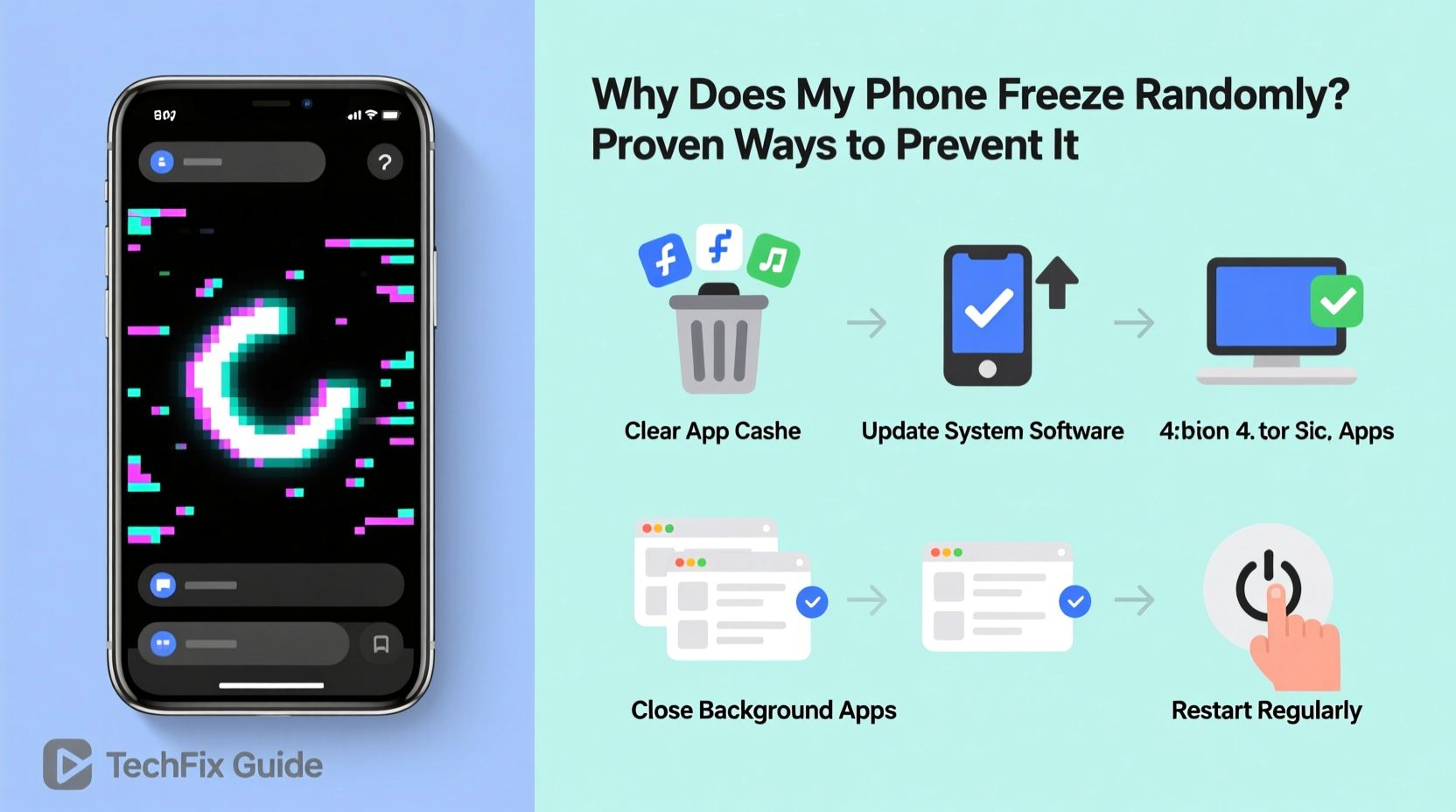
Phone freezing isn’t usually caused by a single factor but rather a combination of underlying conditions that strain system resources. Understanding these triggers is the first step toward prevention.
- Insufficient RAM: When too many apps run simultaneously, available memory becomes overwhelmed, leading to sluggishness or complete lockups.
- Outdated Software: Operating systems and apps receive regular updates to fix bugs and improve stability. Delaying updates increases vulnerability to crashes.
- Storage Overload: Phones need free space to operate efficiently. When storage drops below 10%, background processes slow down significantly.
- Buggy or Poorly Optimized Apps: Some third-party apps consume excessive CPU or memory, especially if poorly coded or outdated.
- Overheating: Prolonged usage, direct sunlight exposure, or heavy gaming can cause thermal throttling, forcing the system to freeze temporarily.
- Corrupted System Files: Sudden shutdowns, failed updates, or malware can damage core OS files, leading to instability.
Proven Ways to Prevent Your Phone from Freezing
Prevention beats repair. By adopting consistent maintenance habits, you can drastically reduce—or even eliminate—random freezes. These methods are tested across thousands of user reports and supported by mobile engineers and tech support professionals.
1. Keep Your Operating System and Apps Updated
Software updates aren’t just about new features—they patch security flaws, fix known bugs, and optimize performance. Ignoring updates leaves your phone exposed to instability.
Apple and Google release monthly security patches and quarterly feature updates. Enable automatic updates where possible to stay protected without manual effort.
“Over 60% of freezing issues reported to our support team were resolved simply by updating the OS.” — David Lin, Senior Mobile Engineer at TechCare Solutions
2. Regularly Clear Cache and Temporary Files
Every app stores temporary data (cache) to load faster. Over time, this cache accumulates and can corrupt or overload the system.
To clear app cache on Android: Go to Settings > Apps > [Select App] > Storage > Clear Cache.
On iPhone: Offloading the app (Settings > General > iPhone Storage > [App] > Offload App) removes cache while preserving documents.
3. Manage Background App Activity
Many apps continue running in the background, syncing data or tracking location. Too many active background processes drain RAM and CPU, increasing freeze risk.
Limit background activity: - On Android: Use Battery > Background Usage Limits. - On iOS: Disable unnecessary background app refresh (Settings > General > Background App Refresh).
4. Avoid Filling Up Internal Storage
Your phone needs breathing room. Experts recommend keeping at least 15–20% of internal storage free for optimal performance.
When storage dips below 10%, the system struggles to write temporary files, swap memory, or update apps—leading to lag and crashes.
Tip: Set up automatic photo backups to cloud services like Google Photos or iCloud, then delete local copies to free up space instantly.5. Reboot Your Phone Weekly
A simple reboot clears RAM, stops rogue processes, and resets network connections. Think of it as a “system detox.”
Even high-end phones benefit from a weekly restart. It takes less than a minute and can prevent minor glitches from escalating into freezes.
Do’s and Don’ts: Best Practices for Phone Stability
| Do | Don't |
|---|---|
| Update your OS and apps regularly | Ignore software update notifications |
| Clear app cache monthly | Delete system files manually without backup |
| Restart your phone once a week | Run 10+ apps simultaneously on low-RAM devices |
| Use trusted antivirus apps (Android) | Download apps from unknown sources |
| Keep storage above 15% free | Store large files (videos, downloads) permanently on internal memory |
Step-by-Step Guide to Diagnose and Fix Freezing Issues
If your phone already freezes regularly, follow this structured troubleshooting plan to identify and resolve the root cause.
- Observe the Pattern: Does freezing occur during specific actions (gaming, multitasking)? Note the trigger.
- Check Storage: Go to Settings > Storage. If usage exceeds 85%, offload media and unused apps.
- Update Everything: Install pending OS and app updates immediately.
- Boot in Safe Mode (Android): Hold power button > Long-press “Power off” > Tap “Safe Mode.” If the phone runs smoothly, a third-party app is likely causing the issue.
- Uninstall Recent Apps: Remove any apps installed just before freezing began.
- Clear Cache Partition (Android): Power off > Hold Volume Up + Power > Navigate to “Wipe Cache Partition” using volume keys > Confirm.
- Reset All Settings (iOS/Android): This doesn’t erase data but resets network, display, and system preferences to default.
- Back Up and Factory Reset: If all else fails, back up your data and perform a factory reset. This eliminates deep-seated software corruption.
“Factory resets solve persistent freezing in over 70% of cases where software is the root cause.” — Maria Chen, Lead Technician at MobileFix Labs
Real-World Example: How Sarah Fixed Her Freezing Phone
Sarah, a freelance designer, relied on her mid-range Android phone for client communication and design previews. Over three months, she noticed increasing lag and random freezes—especially when switching between Adobe Creative Cloud and messaging apps.
She initially assumed her phone was aging and considered upgrading. Instead, she followed a systematic cleanup:
- Deleted over 12 GB of old videos and screenshots stored locally.
- Updated her OS and all design-related apps.
- Disabled background refresh for non-essential apps like social media.
- Cleared cache for Adobe apps and Chrome.
- Set a weekly reminder to restart her phone every Sunday night.
The result? Within a week, freezing stopped entirely. Her phone felt faster and more reliable, extending its usable life by over a year—saving her hundreds of dollars.
Essential Maintenance Checklist
Stay ahead of freezing issues with this monthly maintenance checklist:
- ✅ Check available storage (keep above 15% free)
- ✅ Install all OS and app updates
- ✅ Clear cache for top 5 most-used apps
- ✅ Restart your phone
- ✅ Review battery usage for abnormal app behavior
- ✅ Back up photos and important files to cloud
- ✅ Uninstall apps you haven’t used in 30 days
- ✅ Scan for malware (Android users via Google Play Protect)
Frequently Asked Questions
Can a virus make my phone freeze?
Yes, especially on Android. Malware can run hidden processes that consume CPU and memory. Stick to official app stores and use built-in security tools like Google Play Protect or Apple’s App Tracking Transparency to minimize risk.
Is it normal for phones to freeze occasionally?
Minor stutters may happen under heavy load (e.g., recording 4K video while using GPS). However, full-screen freezes lasting more than 10 seconds are not normal and indicate a problem needing attention.
Will a factory reset delete my photos?
Yes, unless they are backed up. Always sync your photos to iCloud, Google Photos, or a computer before performing a factory reset. Once reset, you can restore your data safely.
Conclusion: Take Control Before the Next Freeze
Your phone doesn’t have to slow down or freeze just because it’s a year or two old. Most freezing issues stem from preventable software clutter, poor maintenance, or outdated configurations—not hardware failure. By understanding the causes and applying consistent care, you can maintain peak performance long after others have given up and upgraded.
Start today: spend 15 minutes clearing storage, updating apps, and restarting your device. Then commit to the monthly checklist. Small efforts compound into significant gains in reliability and longevity.
🚀 Your phone works best when you stay proactive. Share this guide with someone who’s tired of frozen screens—and start enjoying a smoother, faster experience now.