Over time, your iPad quietly accumulates digital clutter—especially in the form of cookies. These small data files help websites remember your preferences, login status, and browsing habits. While convenient, an overabundance of cookies can slow down Safari, compromise your privacy, and even expose you to tracking by third-party advertisers. Regularly clearing cookies isn’t just a maintenance chore—it’s a smart digital hygiene practice that keeps your browsing fast, secure, and private.
This comprehensive guide walks you through everything you need to know about managing cookies on your iPad: why they matter, how they affect performance and privacy, and the most effective ways to clear them. Whether you're troubleshooting sluggish browsing or tightening your online security, this is your go-to resource.
Why Clearing Cookies Matters for Performance and Privacy
Cookies serve a practical purpose—they save login sessions, shopping cart items, and site preferences so you don’t have to re-enter information every time you visit a page. But unchecked accumulation leads to bloated browser caches, longer load times, and increased memory usage. Worse, some cookies are used for cross-site tracking, allowing advertisers to follow your behavior across multiple websites.
Clearing cookies periodically offers two major advantages:
- Improved Speed: Removing outdated or unnecessary cookies reduces browser overhead, leading to faster page loads and smoother navigation.
- Enhanced Privacy: Eliminating tracking cookies limits the ability of advertisers and analytics firms to build profiles based on your browsing history.
Step-by-Step Guide to Clearing Cookies in Safari
The process for removing cookies on your iPad is straightforward but varies slightly depending on whether you want to delete all website data or selectively manage certain sites. Follow these steps to clear cookies efficiently:
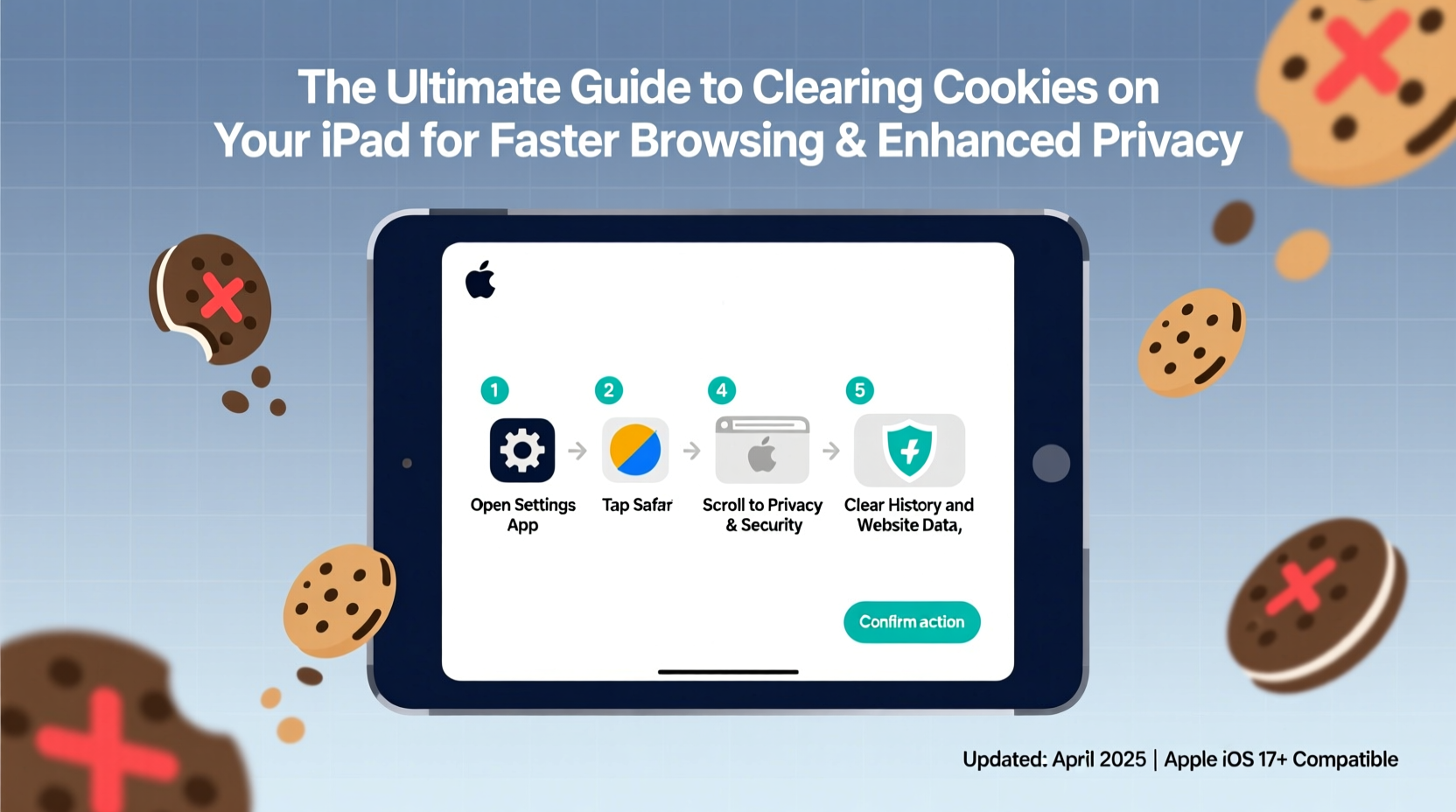
- Open the Settings app on your iPad.
- Scroll down and tap Safari.
- Under the \"Privacy & Security\" section, tap Clear History and Website Data.
- Confirm by tapping Clear History and Data when prompted.
This action removes all browsing history, cookies, and stored website data. Note that you’ll be logged out of most websites after this step.
For more granular control, use the \"Manage Website Data\" option:
- In Settings > Safari, tap Website Data.
- Browse the alphabetical list of sites storing cookies and cache.
- Swipe left on any entry to delete it individually, or tap Remove All Website Data to wipe everything at once.
This method allows you to retain useful cookies (like those from your bank or email provider) while eliminating bloat from rarely visited or suspicious domains.
When and How Often Should You Clear Cookies?
There’s no universal rule, but timing depends on your usage patterns and privacy needs. Consider these benchmarks:
| User Type | Recommended Frequency | Rationale |
|---|---|---|
| Regular casual users | Every 4–6 weeks | Maintains performance without disrupting frequent logins. |
| Privacy-conscious individuals | Weekly or bi-weekly | Minimizes exposure to tracking and fingerprinting. |
| Shared or public device users | After each session | Prevents unauthorized access to personal accounts. |
| Troubleshooting slow Safari | Immediately | Resolves lag, crashes, or unresponsive behavior. |
“Routine cookie management is one of the simplest yet most effective ways to maintain both speed and confidentiality online.” — Dr. Lena Patel, Cybersecurity Analyst at Digital Trust Labs
Do’s and Don’ts of Cookie Management
To get the most benefit from clearing cookies—and avoid unintended consequences—follow these best practices:
| Do’s | Don’ts |
|---|---|
| Back up important passwords using iCloud Keychain before clearing data. | Clear cookies without saving login credentials you rely on. |
| Use “Manage Website Data” to remove only problematic or unknown trackers. | Ignore updates to iOS that improve privacy controls. |
| Enable Prevent Cross-Site Tracking in Safari settings. | Assume incognito mode deletes cookies permanently—it doesn’t unless manually cleared. |
| Review stored website data monthly to spot suspicious domains. | Store sensitive logins on shared iPads without wiping cookies afterward. |
Real-World Example: Recovering a Sluggish iPad
Sophie, a freelance writer, noticed her iPad was taking nearly 15 seconds to load news sites she visited daily. Pages would freeze, and autocomplete stopped working correctly. After trying restarts and force-quitting apps with no improvement, she checked Safari’s website data and found over 300 MB of stored cookies—many from ad networks and social media platforms she hadn’t visited in months.
She used “Manage Website Data” to remove entries from domains like doubleclick.net and facebook.com, then restarted Safari. Immediately, page loads improved, and her device felt noticeably snappier. By targeting only non-essential cookies, she preserved her banking and email logins while regaining performance.
Advanced Tips for Ongoing Cookie Control
Clearing cookies occasionally is helpful, but building long-term habits ensures lasting results. Consider these advanced strategies:
- Enable Intelligent Tracking Prevention: Go to Settings > Safari and toggle on “Prevent Cross-Site Tracking.” This blocks hidden trackers from following you across websites.
- Use Private Browsing Mode: When accessing sensitive accounts or researching privately, open a Private tab. No cookies are saved after closing the session.
- Install Content Blockers: Apps like 1Blocker or AdGuard DNS filter out tracking scripts before they set cookies, reducing cleanup frequency.
- Automate with Shortcuts: Create an automation in the Shortcuts app that reminds you monthly to review website data.
Frequently Asked Questions
Will clearing cookies log me out of all my accounts?
Yes, in most cases. Cookies store login sessions, so removing them will require you to re-enter usernames and passwords for websites like Gmail, Facebook, or banking portals. To minimize hassle, ensure iCloud Keychain is enabled to auto-fill saved credentials.
Can I clear cookies for just one website?
Absolutely. In Settings > Safari > Website Data, search or scroll to find a specific site, then swipe left to delete its data. This is ideal for removing tracking from advertising networks without affecting your main accounts.
Does deleting cookies improve battery life?
Indirectly, yes. Fewer background processes related to tracking scripts and loaded website elements reduce CPU usage, which can extend battery efficiency during browsing sessions.
Take Control of Your iPad Experience
Your iPad is designed to be fast, intuitive, and secure—but it needs your help to stay that way. Clearing cookies regularly is a simple act with outsized benefits: quicker browsing, stronger privacy, and fewer glitches. It takes less than five minutes, yet many users overlook it until problems arise.
Start today. Open Settings, navigate to Safari, and clean up accumulated website data. Make it part of your monthly routine, just like software updates or cloud backups. Your future self will thank you every time you open Safari and see pages load instantly, free from digital baggage.
🚀 Ready to boost your iPad’s speed and protect your privacy? Clear your cookies now and experience the difference. Share this guide with someone who needs a faster, safer browsing experience!