
Smartwatches have become essential companions, delivering notifications, tracking fitness, and streamlining daily tasks. But when your smartwatch stops syncing with your phone, the experience quickly turns frustrating. Data doesn’t update, calls go unanswered, and health metrics stall. The root causes are often simple—Bluetooth glitches, software bugs, or misconfigured settings—but diagnosing them requires a methodical approach. This guide walks through proven troubleshooting techniques to restore seamless communication between your devices.
Understanding Smartwatch Syncing: How It Works
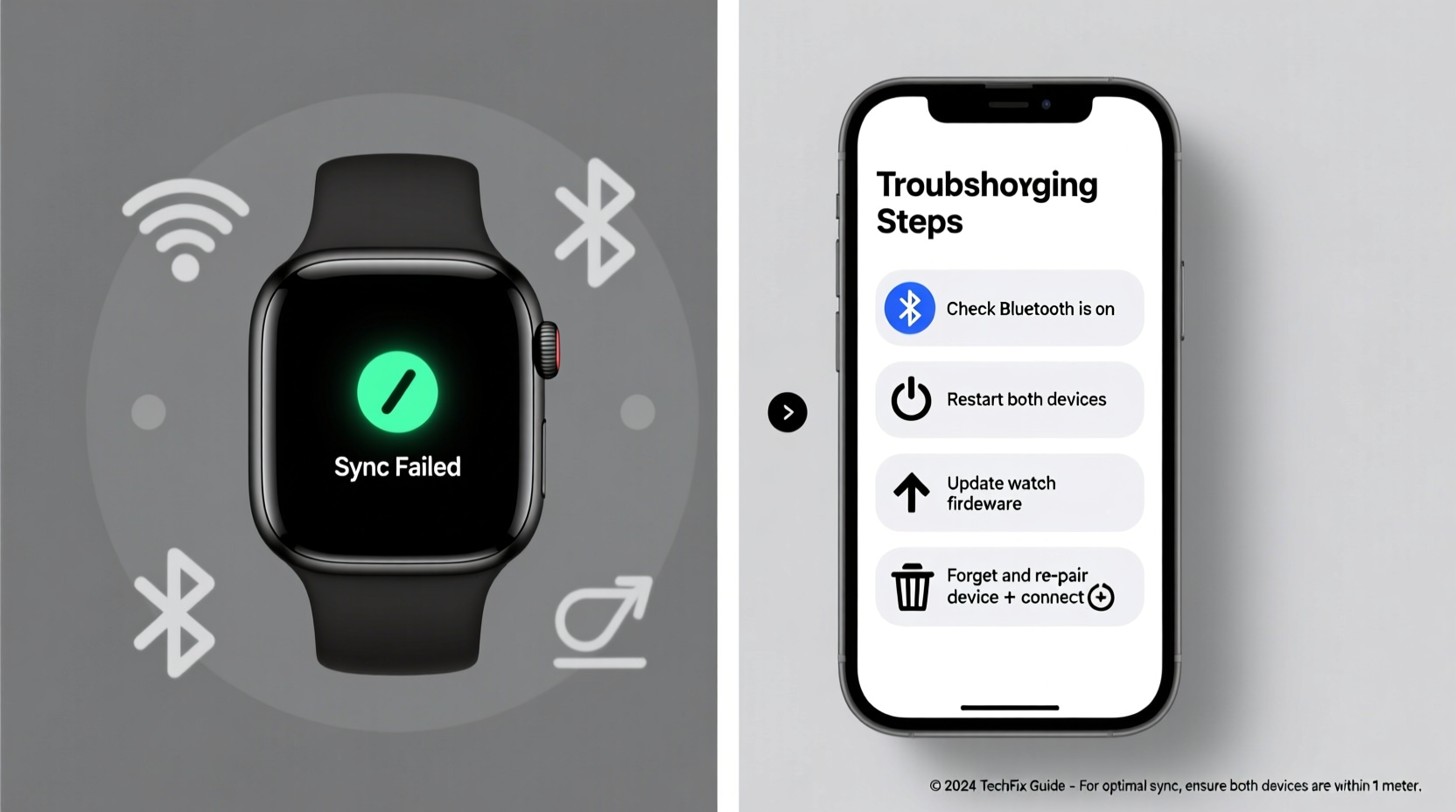
Syncing between a smartwatch and smartphone relies on wireless protocols, primarily Bluetooth, to exchange data in real time. When functioning correctly, your watch pulls notifications, sends heart rate readings, updates GPS logs, and reflects calendar changes—all without manual input. Behind the scenes, companion apps (like Wear OS by Google, Samsung Galaxy Wearable, or Apple Watch app) manage this flow, acting as intermediaries that authenticate, encrypt, and schedule data transfers.
Interference, outdated firmware, or permission conflicts can disrupt this process. Unlike wired connections, wireless syncing is sensitive to environmental factors and device states. For example, if your phone’s battery saver mode limits background activity, the companion app may be suspended, halting all sync operations. Similarly, a full cache on the wearable can prevent new data from being written.
“Wireless syncing depends on consistent low-energy communication. Even minor interruptions in Bluetooth pairing or app permissions can break the chain.” — Dr. Lena Patel, Mobile Systems Engineer at TechConnect Labs
Step-by-Step Troubleshooting Guide
Before jumping to conclusions, follow a structured sequence of checks. Most syncing issues resolve within 10–15 minutes using these steps.
- Verify Bluetooth Connection
Open your phone’s Bluetooth settings and confirm the smartwatch appears as “Connected.” If it shows “Paired” but not connected, tap it to re-establish the link. On some Android devices, you may need to disable and re-enable Bluetooth entirely. - Restart Both Devices
Power down your smartwatch and smartphone completely. Wait 30 seconds, then turn them back on. This clears temporary memory errors and resets network stacks—a surprisingly effective fix for stalled syncs. - Check App Permissions
Navigate to your phone’s Settings > Apps > [Companion App] > Permissions. Ensure the app has access to Location (required for Bluetooth on Android), Notifications, and Storage. Without these, syncing fails silently. - Force Stop and Reopen Companion App
In your phone’s app manager, force stop the wearable’s companion app (e.g., Galaxy Wearable, Wear OS). Relaunch it and check if syncing resumes automatically. - Toggle Airplane Mode on the Watch
Activate Airplane Mode on the smartwatch for 10 seconds, then disable it. This forces a fresh Bluetooth handshake with the phone. - Re-pair the Devices
Unpair the watch from your phone’s Bluetooth menu. Then, use the companion app to pair again from scratch. This resets encryption keys and removes corrupted connection profiles.
Common Causes and Fixes by Category
Different issues require targeted solutions. Use this breakdown to narrow down the problem based on symptoms.
Software and Firmware Issues
Outdated operating systems are among the top reasons for sync failures. Manufacturers release updates to patch bugs in data transmission protocols. Check for updates:
- On iPhone: Open the Watch app > General > Software Update.
- On Android: Open the companion app > Device settings > Software update.
- On the watch itself: Settings > System > Updates.
If an update is available but won’t install, ensure at least 50% battery and a stable Wi-Fi connection. Interrupted downloads corrupt firmware files.
Network and Interference Problems
Bluetooth operates on the 2.4 GHz band, which is shared with Wi-Fi routers, microwaves, and cordless phones. High interference can cause packet loss during sync. To reduce congestion:
- Move away from crowded wireless environments.
- Temporarily disable nearby Bluetooth speakers or headsets.
- Use 5 GHz Wi-Fi on your phone to offload traffic from the 2.4 GHz band.
Battery Optimization Conflicts
Many smartphones aggressively limit background app usage to extend battery life. Unfortunately, this often includes companion apps. To prevent this:
- Go to Settings > Battery > Battery Optimization (Android).
- Find your companion app and set it to “Don’t optimize.”
- On Samsung devices, also disable “Put unused apps to sleep” for the app.
iOS users should ensure Background App Refresh is enabled: Settings > General > Background App Refresh > [Watch App] > On.
Troubleshooting Checklist
Keep this checklist handy when diagnosing sync problems. Tick off each item as you complete it.
Checklist: Restore Smartwatch Syncing- ✅ Bluetooth is on and paired
- ✅ Both devices restarted recently
- ✅ Companion app has required permissions
- ✅ No battery saver mode active
- ✅ Software is up to date on both devices
- ✅ Devices are within close proximity (under 3 feet)
- ✅ Re-paired devices if sync persists
- ✅ Cleared app cache (Android: Settings > Apps > [App] > Storage > Clear Cache)
Do’s and Don’ts: Best Practices Table
| Do’s | Don’ts |
|---|---|
| Keep your smartwatch charged above 20% during sync attempts | Leave Bluetooth off for extended periods |
| Update firmware monthly or when prompted | Ignore persistent “Sync Failed” notifications |
| Store both devices near each other overnight for automatic backups | Use third-party Bluetooth boosters or mods |
| Review app permissions quarterly | Factory reset without backing up health data first |
| Use original charging cables to avoid power inconsistencies | Pair your watch with multiple phones simultaneously |
Real-World Example: Resolving a Persistent Sync Failure
Jamal, a fitness instructor in Austin, noticed his Samsung Galaxy Watch stopped updating workout stats to his phone. His step count froze at 2,347 despite walking over 8,000 steps. He tried restarting both devices—no change. The Galaxy Wearable app showed “Connected,” but no data flowed.
After checking online forums, he realized his phone had recently installed a security update that reset app permissions. He navigated to Settings > Apps > Galaxy Wearable > Permissions and found that Location access was denied. Android requires Location permission for Bluetooth scanning—a non-obvious dependency. After enabling it, the watch synced all pending workouts within two minutes.
This case highlights how system-level changes can break functionality without clear warnings. Regular permission audits prevent such silent failures.
When to Reset or Seek Support
If standard fixes fail, consider more advanced options—but proceed with caution.
Clear App Cache and Data (Android)
Go to Settings > Apps > [Companion App] > Storage. Tap “Clear Cache” first. If that doesn’t work, “Clear Data” will erase pairing info and settings. You’ll need to re-pair the watch afterward.
Reset Network Settings
This erases saved Wi-Fi networks, Bluetooth pairings, and APN settings. On iPhone: Settings > General > Transfer or Reset iPhone > Reset > Reset Network Settings. On Android: Settings > System > Reset Options > Reset Wi-Fi, mobile & Bluetooth.
Factory Reset the Smartwatch
As a last resort, erase the watch entirely. On most models: Settings > System > Reset > Erase All Data. After resetting, pair it as a new device. Note: This deletes local workouts, alarms, and downloaded apps.
“Before factory resetting, export critical health data via the companion app’s export tool or cloud backup. Once erased, some metrics cannot be recovered.” — Marcus Tran, Customer Support Lead at FitTech Solutions
Frequently Asked Questions
Why does my smartwatch sync intermittently?
Intermittent syncing often points to unstable Bluetooth signals or background app restrictions. Check if battery saver is enabled or if another app is monopolizing Bluetooth resources. Also, verify that your watch face isn’t using a third-party app known for draining resources.
Can I sync my smartwatch over Wi-Fi only?
Some watches support Wi-Fi syncing when Bluetooth is unavailable, but only after initial Bluetooth pairing. Enable Wi-Fi on the watch and ensure it’s connected to the same network as your phone. However, continuous syncing still requires Bluetooth for real-time notifications.
Will switching phones break my smartwatch sync?
Yes, unless both phones use the same ecosystem. An Apple Watch won’t work with Android. A Wear OS watch may pair with iOS but with limited features. Always check compatibility before switching platforms. Your historical health data typically stays tied to the original account unless exported manually.
Conclusion: Stay Connected with Confidence
A smartwatch that won’t sync undermines its core value. Yet, most connectivity issues stem from manageable causes—misconfigured settings, overlooked permissions, or minor software hiccups. By following a disciplined troubleshooting process, you can restore functionality quickly and avoid recurring problems. Establish maintenance habits like monthly updates and permission reviews to keep your devices in harmony.
Technology should simplify life, not complicate it. Take control of your smartwatch experience today. Apply these steps, share what works, and enjoy uninterrupted access to your digital health and communication tools.
💬 Found a fix that worked for you? Share your experience in the comments—your insight could help someone else get their smartwatch back on track.