Smartwatches have become essential tools for tracking fitness goals, with step counting being one of the most relied-upon features. Yet many users find themselves questioning their device’s accuracy—walking hundreds of steps only to see a fraction recorded. This inconsistency can be frustrating, especially when trying to meet daily activity targets or monitor progress over time. The good news is that inaccurate step counts are often fixable. Most issues stem from user habits, placement, software settings, or hardware limitations rather than permanent defects.
Understanding why your smartwatch miscounts steps involves examining how these devices work. They use built-in accelerometers and gyroscopes to detect motion patterns associated with walking or running. Algorithms interpret this data to estimate steps, but they aren’t perfect. Environmental factors, movement types, and even how you wear the watch influence results. Fortunately, with targeted adjustments, most users can significantly improve tracking reliability.
How Smartwatches Track Steps: The Basics
At the core of every smartwatch’s step-tracking function is a suite of motion sensors. Accelerometers measure linear acceleration—how fast your arm moves in different directions—while gyroscopes detect rotational movement. Together, they capture the rhythm and intensity of your motion. When you walk, the back-and-forth swing of your arm produces a repeating pattern that the watch interprets as a step.
However, not all movements are created equal. Smartwatches rely on machine learning models trained on typical gait patterns. These models attempt to filter out non-step motions like typing, gesturing, or driving. Still, false positives (counting non-steps) and false negatives (missing real steps) occur regularly. For example, pushing a stroller or shopping cart may reduce arm swing, leading the watch to undercount. Conversely, vigorous hand gestures might register as extra steps.
“Wearable algorithms are improving, but they still struggle with atypical gaits and low-arm-movement activities.” — Dr. Lena Patel, Biomedical Engineer & Wearable Tech Researcher
The accuracy also varies by brand and model. High-end devices often use sensor fusion—combining data from multiple sources like heart rate monitors and GPS—to refine step estimates. Budget models may lack this sophistication, relying solely on basic accelerometer input, which increases error rates.
Common Causes of Inaccurate Step Counting
Inaccuracy rarely stems from a single issue. More often, it’s the result of overlapping factors. Identifying the root cause requires evaluating both device behavior and user habits.
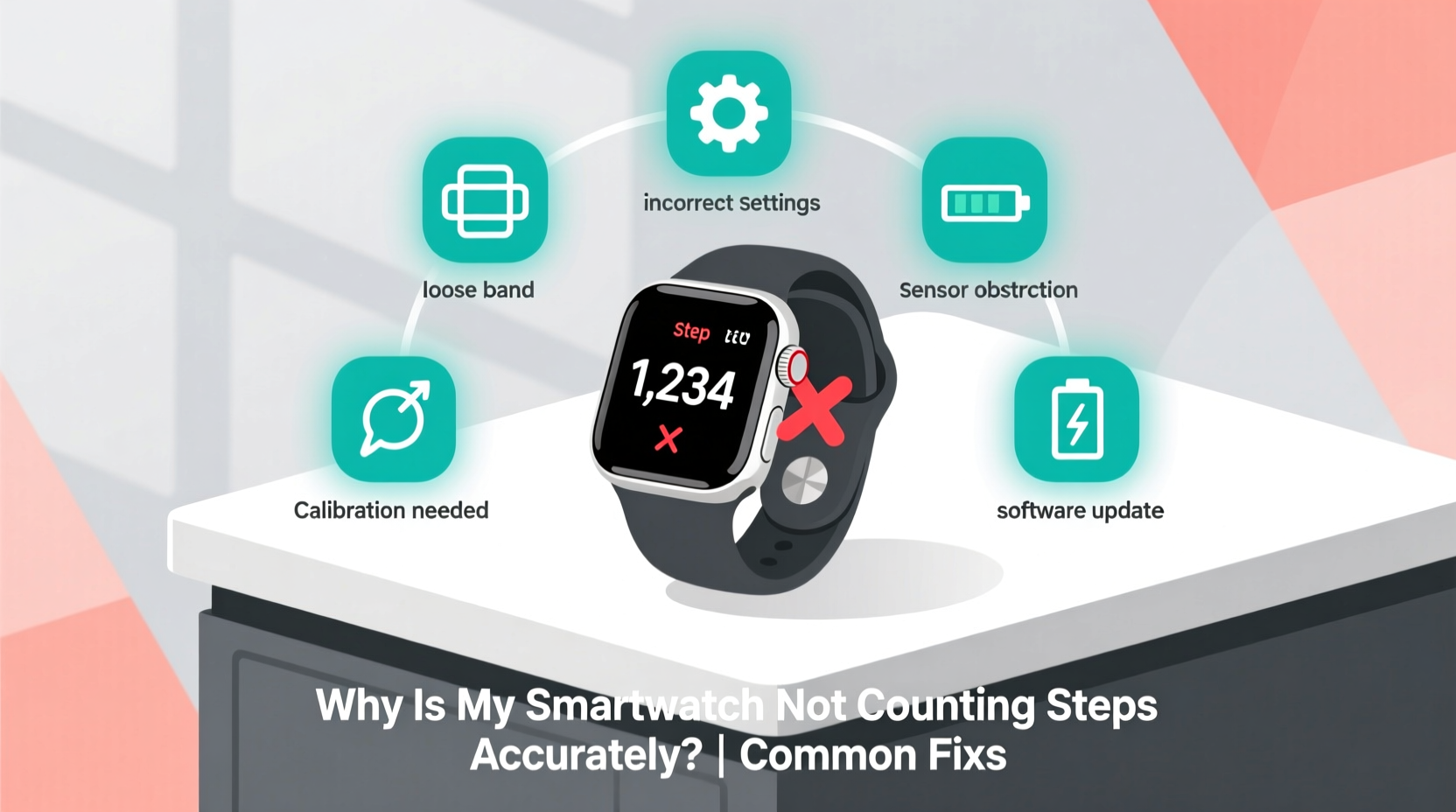
- Improper wearing position: Wearing the watch too loose or too high on the wrist reduces motion detection sensitivity.
- Low battery mode: Power-saving modes often disable background sensors to conserve energy, impairing continuous tracking.
- Outdated software: Bugs in firmware or apps can disrupt sensor calibration or data processing.
- Incorrect dominant hand setting: If your watch assumes you’re right-handed but you wear it on your left, some models may apply incorrect motion logic.
- Arm movement limitations: Activities like cycling, pushing a wheelchair, or carrying bags minimize natural arm swing, confusing the algorithm.
- Sensor obstruction: Dirt, sweat, or tight clothing covering the back of the watch can interfere with sensor performance.
Step-by-Step Guide to Fixing Step Count Accuracy
Follow this structured approach to diagnose and resolve step tracking issues:
- Check watch fit and placement: Ensure the device is snug but comfortable. It should move with your wrist, not slide around excessively.
- Verify dominant hand settings: Go into your watch’s settings and confirm the correct hand is selected. Misalignment here can skew motion interpretation.
- Update software: Check for system updates on both the watch and paired smartphone. Manufacturers frequently release patches that improve sensor accuracy.
- Recalibrate motion sensors: Some watches offer a calibration option under \"Sensors\" or \"Motion.\" Follow the on-screen instructions to recalibrate.
- Restart the device: A simple reboot clears temporary glitches affecting sensor performance.
- Test in controlled conditions: Walk 100 steps manually counted and compare with your watch’s reading. Repeat three times to assess consistency.
- Reset health data: If discrepancies persist, reset step counters through the companion app to eliminate accumulated errors.
- Contact support: If problems continue after troubleshooting, reach out to the manufacturer—there may be a hardware defect.
Do’s and Don’ts for Accurate Step Tracking
| Do’s | Don’ts |
|---|---|
| Wear the watch on your non-dominant hand for more consistent arm movement tracking | Don’t wear the watch too loosely—it needs stable contact with your wrist |
| Keep sensors clean and free of debris | Don’t cover the back of the watch with thick sleeves or accessories |
| Enable full sensor usage in settings (disable power-saving modes during activity) | Don’t rely solely on step count; use distance and active minutes as cross-references |
| Sync your watch regularly to ensure data uploads correctly | Don’t ignore software update notifications—they often include tracking improvements |
| Use GPS for outdoor walks to validate distance and correlate with step data | Don’t expect perfect accuracy during non-walking activities like elliptical training |
Real-World Example: Sarah’s Step Tracking Struggle
Sarah, a 34-year-old office worker, noticed her smartwatch consistently undercounted steps during her daily commute. She walked nearly a mile each way but saw only 30% of those steps registered. Frustrated, she assumed the device was faulty and considered returning it.
After researching, she realized she wore the watch on her right wrist—the same hand she used to push her coffee cart through the subway station. With minimal arm swing, the watch couldn’t detect her gait. She switched the device to her left wrist, adjusted the band for a tighter fit, and disabled battery saver mode. The next day, her step count jumped to 95% accuracy compared to manual counting.
This case illustrates how small behavioral changes can dramatically improve performance without needing a replacement device.
When to Trust Your Smartwatch (And When Not To)
No wearable delivers 100% accuracy. Studies show most consumer-grade smartwatches have a margin of error between 5% and 20%, depending on activity type. For general fitness monitoring, this range is acceptable. But if you're using step data for medical tracking, research, or precise goal setting, consider supplementing with other tools.
For instance, pedometers worn on the hip tend to be more accurate for pure step counting than wrist-based devices. Alternatively, pairing your smartwatch with a foot pod or GPS-enabled running app adds validation layers. Understanding the limitations helps set realistic expectations.
Tip: Use your smartwatch as a trend tracker—not an absolute counter. Focus on consistent daily patterns rather than exact numbers.Advanced Fixes and Settings to Explore
Beyond basic troubleshooting, deeper settings can enhance tracking fidelity.
- Adjust sensitivity settings: Some brands (e.g., Garmin, Fitbit) allow users to tweak motion sensitivity. Increasing sensitivity may help detect subtle movements.
- Enable wrist detection: Ensures the watch knows when it’s being worn, reducing false counts when left on a table.
- Link to third-party apps: Sync with apps like Strava or Google Fit to cross-validate data and identify discrepancies.
- Review calibration history: Devices with GPS can recalibrate stride length automatically based on mapped runs or walks.
If your smartwatch supports manual stride length input, take the time to measure it accurately. Walk 10 normal steps, measure the total distance, divide by 10, then enter that value in your profile. This improves distance and step estimations, especially over longer durations.
Frequently Asked Questions
Can I calibrate my smartwatch for better step accuracy?
Yes. While full calibration isn't always user-accessible, you can improve accuracy by manually entering your stride length, ensuring proper fit, updating software, and performing test walks to verify readings. Some models offer guided calibration via GPS routes.
Why does my smartwatch count steps when I’m not walking?
This usually happens due to repetitive arm motions—like chopping food, driving on bumpy roads, or shaking hands. The accelerometer detects rhythmic movement similar to walking. Modern watches reduce this with AI filtering, but occasional false counts are inevitable.
Does wearing the watch on my ankle improve step counting?
In theory, yes—since ankle movement correlates more directly with foot strikes. However, most smartwatches aren’t designed for ankle wear, and doing so may damage the device or void the warranty. Specialized trackers (like certain fitness bands) support ankle mounting, but standard smartwatches should remain on the wrist.
Final Checklist: Restore Your Step Accuracy
- ✅ Wear the watch snugly one inch above the wrist bone
- ✅ Confirm correct dominant hand setting in the app
- ✅ Update watch and phone app to latest versions
- ✅ Clean the back sensors regularly
- ✅ Disable power-saving modes during active hours
- ✅ Perform a test walk to validate accuracy
- ✅ Reset health data if inconsistencies persist
- ✅ Contact customer support if hardware issues are suspected
Conclusion: Take Control of Your Fitness Data
Your smartwatch is a powerful ally in maintaining an active lifestyle, but it requires proper setup and maintenance to perform reliably. Step counting inaccuracies are common, but rarely insurmountable. By understanding how motion sensing works and applying targeted fixes, you can restore confidence in your device’s feedback.
Don’t let inconsistent data discourage your fitness journey. Instead, use this knowledge to fine-tune your wearable experience. Small adjustments often yield big improvements. Share your own tips in the comments—your insight could help others solve the same frustrating issue.
💬 Have a step-counting hack that worked for you? Let us know below and help build a smarter community of fitness tech users!