
It’s a familiar frustration: you're watching your favorite show, fully immersed in the story, when suddenly—during a commercial break—the volume drops so low you have to scramble for the remote just to hear what’s being advertised. Moments later, when the program returns, the sound blasts back at full force, catching you off guard. This jarring shift isn’t random. It’s the result of complex audio dynamics between broadcast standards, production practices, and your TV’s internal settings. The good news? In most cases, this issue can be significantly reduced—or even eliminated—with the right knowledge and adjustments.
The Root Cause: Audio Level Discrepancies Between Programs and Commercials
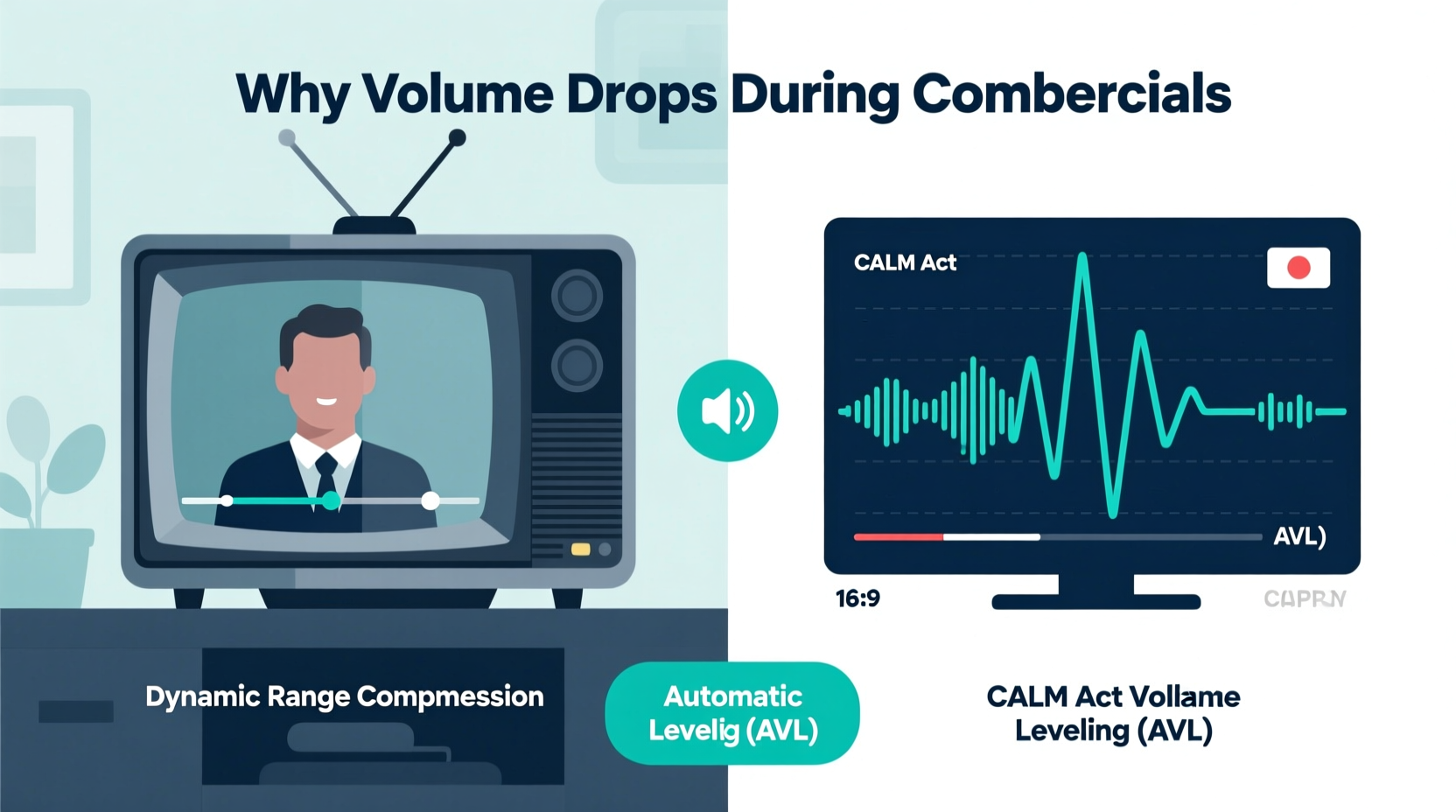
At its core, the reason your TV volume seems to \"drop\" during commercials lies in how audio is produced and delivered across different types of content. Television programs are typically mixed with careful attention to dynamic range—the difference between the quietest and loudest sounds. Dialogue is balanced against background music and effects to create an immersive experience. Commercials, however, are often engineered differently. Advertisers aim to capture attention quickly, which sometimes means compressing audio to maintain consistent loudness throughout the spot.
But here's the twist: despite common belief, commercials aren't always louder than regular programming. In fact, due to regulations like the CALM Act (Commercial Advertisement Loudness Mitigation Act) passed in the U.S. in 2012, broadcasters are required to ensure that commercials do not exceed the average loudness of the surrounding programming. So if ads aren’t supposed to be louder, why does it feel like they’re quieter?
The answer often comes down to perception. When a high-dynamic-range TV show transitions into a heavily compressed commercial with flat audio levels, the lack of contrast can make the overall volume seem lower—even if the measured loudness complies with legal standards. Additionally, some networks may under-mix their ad content relative to the main program, especially when using third-party advertising feeds or automated insertion systems.
Tip: Don't rely solely on your ears—perceived volume differs from actual decibel output. Use built-in audio leveling features instead of manually adjusting each time.How Modern TVs Handle Audio: Understanding Dynamic Range Compression
Your television includes several audio processing technologies designed to manage volume inconsistencies. One of the most important is Dynamic Range Compression (DRC), sometimes labeled as “Auto Volume,” “Volume Leveling,” or “Night Mode” depending on the brand.
This feature works by narrowing the gap between soft and loud sounds. For example, in a dramatic scene where a whisper is followed by an explosion, DRC reduces the intensity of the explosion while boosting the whisper, making everything easier to hear without constant remote use. When applied consistently, this same technology can smooth out the transition between shows and commercials.
However, not all TVs apply these settings uniformly across inputs or sources. Streaming apps, cable boxes, HDMI-connected devices, and over-the-air broadcasts may bypass or override your TV’s internal audio controls. That’s why you might notice volume issues only with certain services or channels.
Common Audio Settings by Brand
| TV Brand | Feature Name | Where to Find It |
|---|---|---|
| Samsung | Auto Volume | Settings > Sound > Expert Settings |
| Lg | Volume Leveler | Settings > Sound > Advanced > Volume Leveler |
| Sony | Auto Volume | Sound Settings > Advanced > Auto Volume |
| TCL / Roku TV | Auto Volume | Settings > Audio > Auto Volume |
| Vizio | Volume Mode (Cinema, Standard, Loud) | Menu > Audio > Volume Mode |
Enabling these settings can dramatically reduce sudden shifts in volume. However, overuse of compression can lead to a “flat” or unnatural sound profile, stripping away cinematic depth. The key is balance—use enough compression to stabilize commercials but avoid dulling the emotional impact of your favorite movies and series.
“Modern audio normalization standards have reduced extreme loudness, but inconsistent implementation across platforms still leads to noticeable dips—especially during ad breaks.” — Daniel Reeves, Broadcast Audio Engineer, NBC Universal (retired)
Step-by-Step Guide: Fixing Commercial Volume Drops
If you're tired of constantly reaching for the remote, follow this comprehensive process to minimize or eliminate unwanted volume fluctuations.
- Access Your TV’s Sound Settings
Navigate to the main menu and locate the “Sound” or “Audio” section. This varies slightly by manufacturer but is usually found under “Settings.” - Enable Auto Volume or Volume Leveling
Look for options such as “Auto Volume,” “Volume Stabilizer,” or “Loudness Equalization.” Turn this feature ON. If prompted, choose “Standard” or “Medium” rather than “High” unless you’re in a noise-sensitive environment. - Check External Devices
If you use a cable box, streaming stick, or soundbar, check their audio settings too. Many devices have independent volume controls. Ensure that auto-leveling is enabled on any external hardware connected via HDMI. - Disable Audio Enhancements That May Interfere
Some features like “Surround Sound,” “Voice Boost,” or “Clear Audio” can conflict with volume leveling. Temporarily disable them to test if stability improves. - Update Firmware
Manufacturers frequently release updates that improve audio processing. Go to Settings > System > Software Update and install the latest version. - Test Across Multiple Sources
Watch live TV, stream a show on Netflix, and view YouTube videos to see if the issue persists across platforms. This helps identify whether the problem originates from your TV, provider, or specific apps. - Use a Soundbar or AV Receiver with Advanced Processing
Higher-end audio systems often include superior dynamic range control and dialogue enhancement tools. Brands like Denon, Yamaha, and Sonos offer “Adaptive Volume” or “Dialogue Lift” modes that respond intelligently to content changes.
Real Example: Solving the Problem in a Multi-Device Setup
Consider Mark, a cord-cutter in Austin who streams most of his content through a Roku Ultra connected to a five-year-old Samsung QLED TV. He noticed that during Hulu and Peacock ad breaks, the volume would plummet—so much so that he’d miss entire lines of dialogue in commercials. Frustrated, he assumed it was the apps’ fault.
After researching, he discovered that his TV’s “Auto Volume” setting had been turned off during a firmware reset months earlier. He re-enabled it, but the improvement was minimal. Then, he checked his Roku settings and found that “Volume Mode” was set to “Normal” instead of “Reduce Loud Sounds.” After switching to the latter, the transitions became far less jarring.
Still not satisfied, Mark invested in a mid-tier soundbar with built-in dialogue clarity mode. By combining the soundbar’s processing with both his Roku and TV settings optimized, he achieved near-seamless volume continuity—even during fast-cut commercials with layered voiceovers and music.
His experience illustrates a critical point: solving volume inconsistency often requires a layered approach, addressing every link in the audio chain—from source to display to output device.
When the Problem Isn’t Your TV: Network and Provider Factors
Sometimes, no amount of tweaking your equipment will resolve the issue because the root cause lies upstream. Cable providers, satellite companies, and streaming platforms occasionally deliver poorly normalized content, particularly during live events or regional ad insertions.
For instance, local stations that splice in community advertisements may not adhere strictly to CALM Act guidelines. Similarly, international content streamed through niche services might not undergo proper audio remastering for U.S. loudness standards (measured in LUFS—Loudness Units Full Scale).
In such cases, consumer recourse is limited—but not nonexistent. You can:
- Contact your provider’s customer support and report inconsistent audio levels.
- File a complaint with the FCC if you suspect repeated violations of the CALM Act (especially for major national networks).
- Switch to ad-free subscription tiers where available (e.g., Hulu (No Ads), Max, Disney+ Premium).
While regulatory enforcement has improved post-CALM, compliance monitoring remains reactive rather than proactive. Public feedback plays a crucial role in prompting corrective action.
Checklist: How to Prevent TV Volume Drops During Commercials
Action Plan:- ✅ Enable “Auto Volume” or “Volume Leveling” on your TV
- ✅ Check audio settings on all connected devices (cable box, streaming stick, etc.)
- ✅ Update firmware on your TV and peripherals
- ✅ Test volume consistency across multiple apps and channels
- ✅ Consider upgrading to a soundbar with adaptive audio features
- ✅ Disable conflicting audio enhancements (e.g., surround simulators)
- ✅ Report persistent issues to your service provider or the FCC
Frequently Asked Questions
Is it legal for commercials to be louder than TV shows?
No. Under the CALM Act, enforced by the FCC in the United States, commercials must match the average loudness of the programming they accompany. While isolated incidents still occur, widespread non-compliance is rare due to automated monitoring systems used by broadcasters.
Why do some commercials still feel quieter even when they shouldn’t be?
Perception plays a big role. A commercial with uniform volume (no dynamic peaks) may seem softer compared to a dramatic TV scene with sudden loud moments. Also, poor mixing or incorrect metadata tagging can cause playback imbalances, even within regulated frameworks.
Can I completely eliminate volume changes during ads?
With the right combination of TV settings, external audio equipment, and updated software, you can reduce fluctuations to barely noticeable levels. However, achieving perfect consistency across all content types and delivery methods may require trade-offs in sound quality, such as reduced dynamic range.
Conclusion: Take Control of Your Viewing Experience
The annoyance of dropping TV volume during commercials is more than just a minor inconvenience—it disrupts immersion, strains attention, and undermines the value of high-quality home entertainment systems. But understanding the interplay between broadcast standards, device settings, and audio engineering empowers you to take meaningful steps toward resolution.
You don’t need expensive gear or technical expertise. Start with simple settings adjustments, verify configurations across all components, and leverage modern audio features designed specifically for this issue. In many cases, flipping one toggle in your sound menu can transform your nightly viewing from frustrating to seamless.
Don’t accept poor audio as inevitable. With a little investigation and persistence, you can enjoy smooth, consistent sound—whether you’re watching a thriller, a sitcom, or yes, even the commercials in between.
💬 Experiencing volume drops? Found a fix that worked? Share your setup and solution in the comments below—your insight could help another viewer reclaim their sound.