
Smartwatches have become essential companions in daily life—tracking fitness, delivering notifications, and keeping you connected on the go. But nothing disrupts that seamless experience faster than a sudden disconnection from your phone. Whether it happens during a workout, while receiving an important message, or seemingly at random, frequent disconnections can be frustrating and puzzling.
The good news is that most of these issues stem from common, fixable causes. From Bluetooth interference to outdated software, the reasons behind the instability are usually straightforward. With the right troubleshooting steps, you can restore a reliable connection and get back to enjoying your wearable without interruption.
Understanding the Connection: How Smartwatches Stay Paired
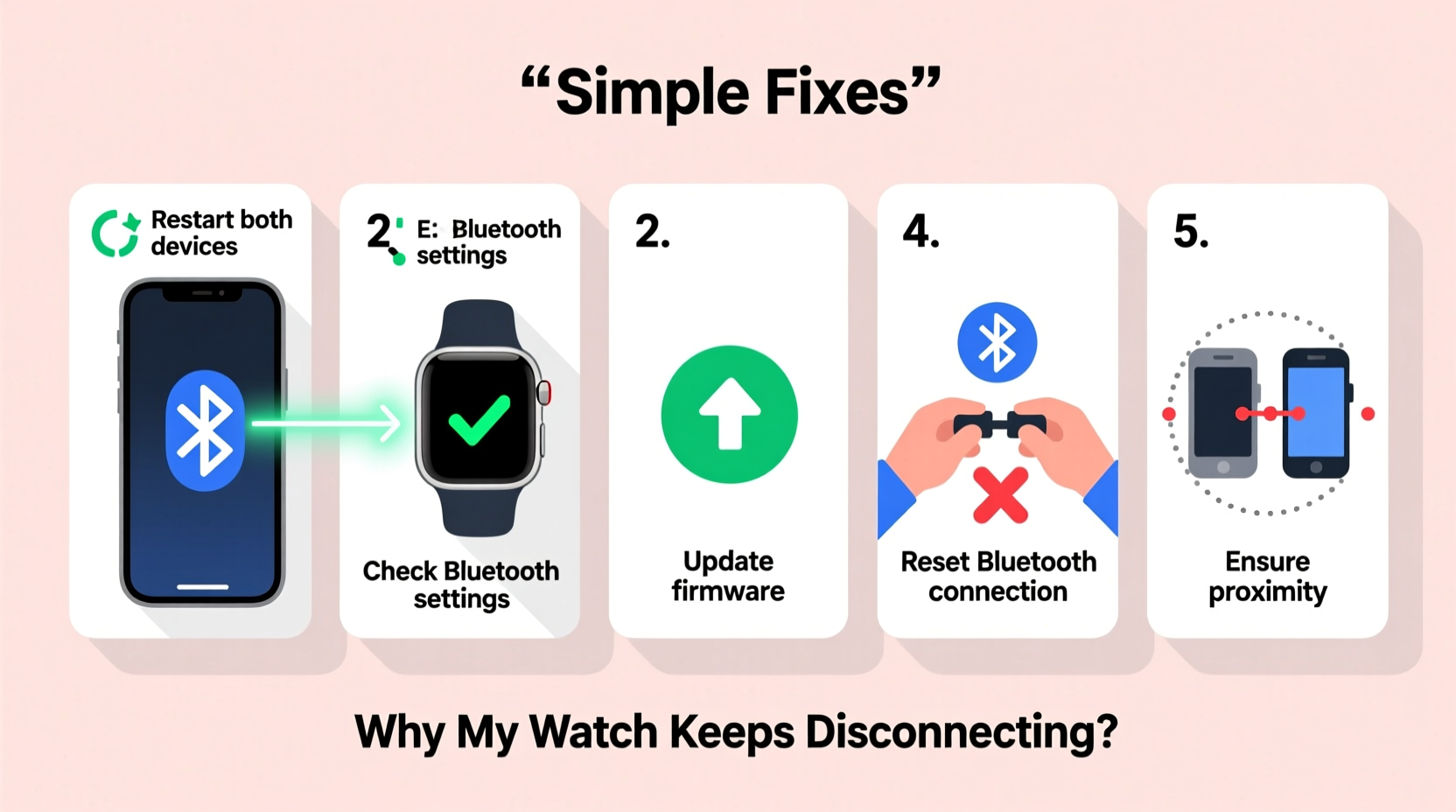
Most smartwatches rely on Bluetooth to maintain a wireless link with your smartphone. This connection allows data like calls, messages, health metrics, and app alerts to flow between devices. While Bluetooth 5.0 and later versions offer improved range and stability, many factors can still interfere with the signal.
Unlike Wi-Fi, Bluetooth operates on the 2.4 GHz frequency band, which is also used by microwaves, cordless phones, and other wireless devices. When multiple signals compete in this crowded spectrum, interference can cause temporary dropouts. Additionally, physical obstructions like walls, metal objects, or even your body can weaken the signal over short distances.
Another key point: smartwatches don’t just connect—they sync. If background syncing fails due to power-saving settings or app restrictions, the watch may appear disconnected even when Bluetooth remains technically active.
“Bluetooth reliability depends not only on hardware but also on software optimization and environmental conditions.” — Dr. Lin Zhao, Wireless Communications Engineer
Common Causes of Disconnection (And How to Diagnose Them)
Before diving into fixes, it’s helpful to identify the root cause. Here are the most frequent culprits behind unstable smartwatch-phone connections:
- Bluetooth interference: Other wireless devices or dense urban environments can disrupt the signal.
- Outdated firmware or OS: Both your phone and watch require regular updates for optimal compatibility.
- Battery-saving modes: Aggressive power management can disable background processes needed for syncing.
- App permissions restricted: The companion app might be blocked from running in the background.
- Distance and obstacles: Moving too far apart or placing barriers between devices breaks the link.
- Corrupted Bluetooth cache: Temporary glitches in the Bluetooth stack can prevent stable pairing.
- Incompatible Bluetooth profiles: Some watches use specific protocols (like LE Audio) not fully supported by older phones.
Step-by-Step Guide to Restore a Stable Connection
Follow this structured approach to resolve disconnection issues systematically. Most users find success within the first few steps.
- Restart both devices: A soft reboot clears temporary glitches. Turn off your phone and smartwatch, wait 30 seconds, then power them back on.
- Forget and re-pair the device: On your phone, go to Bluetooth settings, select your watch, and choose “Forget.” Then, open the companion app (e.g., Wear OS, Galaxy Wearable, Apple Watch app) and pair again from scratch.
- Check for software updates: Ensure both your phone’s OS and the watch’s firmware are up to date. Outdated software is responsible for nearly 30% of reported connectivity problems.
- Disable battery optimization for the companion app: On Android, go to Settings > Apps > [Companion App] > Battery > set to “Unrestricted.” This prevents the system from killing the app in the background.
- Reset network settings (if needed): As a deeper fix, reset network settings on your phone. This clears all saved Wi-Fi, Bluetooth, and cellular configurations. Note: You’ll need to reconnect to networks afterward.
- Test in safe mode (Android): Boot your phone in safe mode to rule out third-party apps causing interference. If the watch stays connected, a downloaded app may be the culprit.
- Factory reset the watch: If all else fails, erase the watch completely and set it up as new. Back up any health data first if possible.
Real Example: Fixing Persistent Disconnections on a Samsung Galaxy Watch
A user in Seattle reported that their Galaxy Watch 5 would disconnect every 10–15 minutes, especially during morning commutes. Notifications stopped arriving, and heart rate data failed to sync. Initial attempts—restarting and toggling Bluetooth—provided only temporary relief.
After reviewing the steps above, they discovered that the “Galaxy Wearable” app was set to “Optimize” in battery settings. Changing it to “Don’t optimize” immediately stabilized the connection. Further investigation revealed that a recently installed task automation app was forcing Bluetooth off during commute hours. Disabling that rule resolved the issue permanently.
This case highlights how software-level restrictions—not hardware faults—are often to blame.
Do’s and Don’ts: Best Practices for Reliable Connectivity
| Do’s | Don’ts |
|---|---|
| Keep both devices updated with the latest OS and firmware | Ignore software update notifications for your watch or phone |
| Place your phone in a consistent location (e.g., jacket pocket vs. bag) | Switch storage locations frequently without testing impact |
| Use the official companion app for setup and maintenance | Rely solely on generic Bluetooth menus instead of dedicated apps |
| Re-pair occasionally, especially after major updates | Assume pairing is permanent and never needs refreshing |
| Monitor for interference near microwaves, routers, or crowded transit hubs | Expect flawless performance in high-interference environments |
Tips for Long-Term Stability
Maintaining a consistent connection isn’t just about fixing problems—it’s about preventing them. These habits help ensure lasting reliability:
Tip: Perform a “connection checkup” once a month: restart both devices, verify app permissions, and confirm firmware status.- Limit background apps: Too many running apps can overload your phone’s Bluetooth stack. Close unused apps regularly.
- Charge both devices nightly: Low battery can trigger aggressive power-saving behaviors that disrupt connectivity.
- Avoid metal cases or thick phone covers: Some materials can block or reflect Bluetooth signals.
- Keep your watch charged above 20%: Extremely low battery may force the watch into standby mode, breaking the link.
- Use Wi-Fi syncing when available: Many watches can sync data over Wi-Fi even when the phone is out of range, reducing dependency on constant Bluetooth.
FAQ: Common Questions About Smartwatch Disconnections
Why does my smartwatch disconnect when I leave the room?
Bluetooth has a typical indoor range of 30–50 feet. Walls, furniture, and interference reduce this significantly. If your watch disconnects when moving more than one room away, it’s likely operating at the edge of its functional range. Consider using Wi-Fi syncing to maintain data flow even when Bluetooth drops.
Can a phone case cause connection issues?
Yes. Cases made with metal, magnetic mounts, or thick shielding materials (like those designed for RFID protection) can interfere with Bluetooth and NFC signals. Try removing the case temporarily to test if connectivity improves.
Will resetting my smartwatch delete my health data?
If your watch syncs regularly with your phone or cloud service (e.g., Google Fit, Apple Health), your historical data should remain intact. However, unsynced data—such as recent workouts or sleep logs—may be lost. Always ensure your watch shows “Synced” before performing a factory reset.
Essential Checklist: Fix Smartwatch Disconnection Fast
When your smartwatch keeps dropping connection, work through this checklist in order:
- ✅ Restart both your phone and smartwatch
- ✅ Toggle Bluetooth off and on
- ✅ Check for OS and firmware updates
- ✅ Disable battery optimization for the companion app
- ✅ Forget and re-pair the device via the official app
- ✅ Reset network settings on your phone (if problem persists)
- ✅ Factory reset the watch as a last resort
Most users resolve the issue by step four. Only a small fraction need to proceed to full resets.
Conclusion: Regain Control Over Your Smartwatch Connection
Frequent disconnections don’t mean your smartwatch is defective or incompatible. In most cases, the solution lies in overlooked settings, outdated software, or environmental factors. By understanding how Bluetooth works and applying practical fixes—like adjusting battery settings, re-pairing devices, and minimizing interference—you can achieve a stable, dependable connection.
The convenience of having real-time notifications, fitness tracking, and mobile access on your wrist shouldn’t come with constant frustration. Take a few minutes today to run through the checklist, optimize your settings, and ensure both devices are working together seamlessly. Once fixed, you’ll wonder why you ever tolerated the interruptions.
💬 Experiencing smartwatch disconnections? Share your story or solution in the comments—your insight could help someone else solve the same issue!