
Instagram Reels are designed for seamless, fast-paced viewing—quick cuts, engaging music, and instant transitions. But when your screen freezes mid-scroll, showing that endless spinning wheel, the experience falls apart. Buffering interrupts engagement, disrupts content discovery, and can even affect creators’ reach. While many assume poor internet is the sole culprit, the reality is more nuanced. Multiple factors—from router placement to background app usage—can contribute to persistent buffering. Understanding these variables and knowing how to address them systematically turns frustration into control.
Understanding Why Instagram Reels Buffer
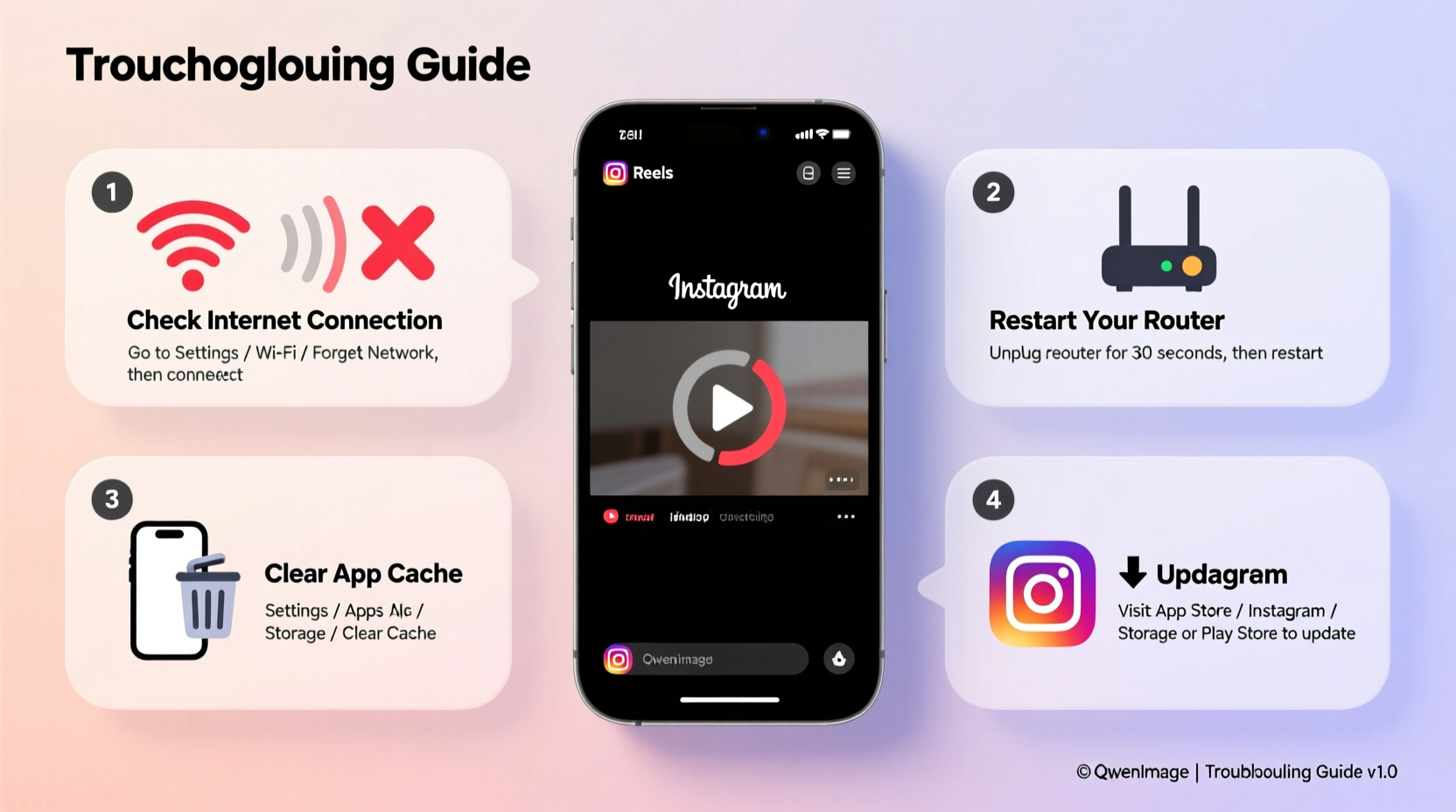
Buffering occurs when your device cannot download video data quickly enough to maintain smooth playback. Instagram Reels, being high-resolution vertical videos often streamed in rapid succession, demand consistent bandwidth and stable connections. When the flow of data is interrupted or slowed, the app pauses to load more content—resulting in that all-too-familiar buffer symbol.
The root causes typically fall into three categories: network connectivity, device limitations, and app-specific behavior. Network issues include weak Wi-Fi signals, congested networks, or throttled mobile data. Device-related problems involve outdated hardware, insufficient RAM, or storage overload. App-level concerns might be outdated software, corrupted caches, or server-side outages on Instagram’s end.
Before jumping to conclusions, it's essential to isolate which layer is causing the issue. A systematic approach ensures you don’t waste time resetting your router when the real problem lies in an overloaded cache.
Tip: Test if the issue is specific to Instagram by opening YouTube or TikTok. If those apps stream smoothly, the problem likely lies within Instagram’s settings or cache.Step-by-Step Guide to Troubleshoot Network Settings
Since network instability is one of the most common causes of buffering, start here. Follow this sequence to identify and resolve connection issues:
- Check Your Internet Speed: Use a speed test tool (like Speedtest.net) to measure your download speed. For HD video streaming, you need at least 5 Mbps. Anything below 3 Mbps may cause frequent buffering.
- Restart Your Router: Power cycle your modem and router by unplugging them for 30 seconds, then plugging them back in. This clears temporary glitches and resets IP assignments.
- Move Closer to the Router: Distance and physical barriers (walls, appliances) weaken Wi-Fi signals. Try using your phone near the router to see if performance improves.
- Switch Between Wi-Fi and Mobile Data: Test Reels on both networks. If buffering stops on cellular data, your Wi-Fi may be congested or misconfigured.
- Forget and Reconnect to Wi-Fi: On your phone, go to Wi-Fi settings, tap the network name, and select “Forget.” Then reconnect by entering the password again. This forces a fresh handshake with the router.
- Check for Network Congestion: If multiple devices are streaming, gaming, or downloading large files, they consume bandwidth. Pause other activities temporarily to free up capacity.
- Change DNS Settings (Advanced): Default ISP DNS servers can be slow. Switch to Google DNS (8.8.8.8 and 8.8.4.4) or Cloudflare (1.1.1.1) via your phone’s network settings for faster domain resolution.
This process helps pinpoint whether the issue stems from signal strength, bandwidth allocation, or configuration errors. Most users find relief after steps 1–5 alone.
Device and App Optimization Strategies
Even with perfect network conditions, your device and Instagram app must perform efficiently. Outdated software, full storage, or background processes can cripple performance.
Clear Instagram Cache
Over time, Instagram accumulates cached data—thumbnails, temporary files, and metadata—that can become bloated or corrupted. Clearing it often resolves playback issues.
- Android: Go to Settings > Apps > Instagram > Storage > Clear Cache
- iOS: Offload the app (Settings > General > iPhone Storage > Instagram > Offload App), then reinstall
Note: Clearing cache does not delete account data or saved posts.
Update the Instagram App
Older versions may contain bugs affecting video rendering. Always update to the latest version via Google Play Store or Apple App Store.
Monitor Background Apps
Running too many apps simultaneously consumes RAM and CPU, reducing resources available for video decoding. Close unused apps regularly, especially media-heavy ones like YouTube or games.
Free Up Storage Space
If your phone has less than 10% free storage, system performance degrades. Delete unused apps, old photos, or move files to cloud storage to regain space.
| Issue | Symptom | Solution |
|---|---|---|
| Full device storage | App crashes, slow loading | Delete unused media/apps; use cloud backup |
| Outdated OS | Incompatibility with new app features | Install latest iOS/Android updates |
| Battery saver mode | Reduced background activity | Disable during video use |
| Low RAM | Frequent app reloads | Close background apps; restart device |
“Mobile performance isn't just about internet speed. A cluttered device can mimic poor connectivity—even on gigabit fiber.” — Lena Park, Mobile Systems Analyst at TechFlow Insights
Real-World Example: Sarah’s Weekend Streaming Struggle
Sarah, a digital marketer based in Austin, noticed her Instagram Reels kept buffering every Saturday evening. It wasn’t happening during weekdays, so she assumed it was a network issue. She tried restarting her phone and switching to mobile data, but the problem persisted only on Wi-Fi.
After reading about network congestion, she checked her home setup. Her son was downloading a large game update, her partner was streaming a 4K movie, and her smart TV was updating firmware—all simultaneously. The combined bandwidth demand exceeded her 100 Mbps plan’s capacity during peak hours.
Sarah implemented two changes: she scheduled large downloads for overnight and set up Quality of Service (QoS) rules on her router to prioritize mobile devices over smart TVs. Within days, Reels played smoothly again—even during family movie nights.
Her case illustrates how user behavior and household tech habits directly impact app performance. No single fix works universally; context matters.
Common Mistakes That Worsen Buffering
Well-intentioned actions sometimes make things worse. Avoid these pitfalls:
- Ignoring Firmware Updates: Routers receive firmware updates that improve stability and security. Ignoring them leaves your network vulnerable to inefficiencies.
- Using Signal Boosters Incorrectly: Wi-Fi extenders can double your coverage but halve your speed if poorly placed. Position them halfway between your router and dead zones—not at the edge of your home.
- Leaving Bluetooth On Unnecessarily: On some older phones, active Bluetooth interferes with Wi-Fi reception due to frequency overlap (2.4 GHz band).
- Assuming 5G Solves Everything: While 5G offers faster speeds, signal penetration is weaker indoors. You might have \"5G\" on your phone but still experience poor throughput if far from a tower.
FAQ: Common Questions About Instagram Reels Buffering
Does Instagram throttle video quality automatically?
Yes. Instagram adjusts video resolution based on your connection speed. On slow networks, it serves lower-bitrate streams to reduce buffering. However, this doesn’t always prevent stalls if latency is high or packet loss occurs.
Can a factory reset fix buffering issues?
Potentially. If software corruption or deep system bloat is the cause, a factory reset can restore optimal performance. However, this should be a last resort—back up your data first and try simpler fixes earlier.
Why do Reels buffer only when I’m scrolling fast?
Rapid scrolling triggers multiple simultaneous video loads. Even with good bandwidth, your device may struggle to decode several clips at once. This is normal behavior under heavy load and not necessarily a sign of network failure.
Comprehensive Checklist: Fix Instagram Reels Buffering
Use this checklist to methodically eliminate potential causes:
- ✅ Run a speed test (target: 5+ Mbps download)
- ✅ Restart your router and phone
- ✅ Move closer to your Wi-Fi source
- ✅ Switch between Wi-Fi and mobile data to compare
- ✅ Forget and reconnect to your Wi-Fi network
- ✅ Clear Instagram app cache (or offload/reinstall on iOS)
- ✅ Update Instagram and your phone’s operating system
- ✅ Close background apps consuming memory
- ✅ Free up at least 1–2 GB of storage
- ✅ Disable battery saver mode during video use
- ✅ Check for other devices hogging bandwidth
- ✅ Consider changing DNS to 8.8.8.8 or 1.1.1.1
- ✅ Contact your ISP if speeds are consistently below advertised rates
Work through each item in order. Most users resolve the issue before reaching step 10.
When to Suspect Instagram Server Issues
Sometimes, the problem isn’t on your end. Instagram experiences occasional outages or regional service degradation. Before spending hours troubleshooting your setup, check if others are affected.
Websites like Downdetector.com track real-time reports of Instagram outages. Search for “Instagram” and filter by “Reels” or “Streaming.” If hundreds of users report similar issues around the same time, wait a few hours—the fix will come from Meta’s engineering team, not your router.
You can also verify server status via social media. Twitter/X threads often surface within minutes of major platform disruptions.
Conclusion: Take Control of Your Viewing Experience
Buffering shouldn’t derail your Instagram experience. With the right knowledge, you can diagnose whether the issue lies in your network, device, or app settings—and apply targeted solutions. Most cases stem from correctable configurations, not irreversible hardware flaws. By optimizing your Wi-Fi, managing device resources, and keeping software updated, you ensure Reels play as intended: fluid, fast, and frictionless.
💬 Experiencing buffering? Share your solution in the comments. Help others troubleshoot by letting us know what worked for you—your insight could save someone hours of frustration.
![How To Choose The Best Dress For A Wedding Guest [2026 Guide]](https://s.alicdn.com/@sc02/kf/A4fc73ee8061e4ff3a1fd686fb70df2590.jpg)