
Your mobile phone’s IP address is essential for diagnosing network issues, setting up remote access, or configuring smart home devices. Unlike desktop computers, smartphones don’t display this information by default, which can make locating it seem confusing. However, with the right steps, you can uncover your device’s IP in under a minute—regardless of whether you’re using an iPhone or Android.
An IP (Internet Protocol) address acts like a digital mailing label for your device, allowing data to be sent to and from the correct location on a network. Mobile devices typically receive a local IP address when connected to Wi-Fi, assigned by the router, while cellular data uses a different, carrier-managed system that isn’t usually visible to users.
This guide walks you through reliable methods to locate your phone’s local IP address, explains what the numbers mean, and offers troubleshooting advice if something goes wrong.
Understanding IP Addresses on Mobile Devices
Before diving into the steps, it’s important to distinguish between public and private IP addresses. Your phone has two types:
- Private (Local) IP Address: Assigned by your Wi-Fi router when connected. Used only within your local network (e.g., 192.168.1.15).
- Public IP Address: The external address seen by websites and online services, assigned by your internet service provider or mobile carrier.
When people ask how to find their phone’s IP address, they usually mean the private one—the identifier used when sharing files, streaming to smart TVs, or accessing security cameras on the same network.
“Knowing your device’s local IP helps troubleshoot connectivity problems and set up network-dependent apps correctly.” — Raj Mehta, Network Systems Engineer at NetSecure LabsTip: If your phone disconnects and reconnects to Wi-Fi, its local IP may change unless reserved by the router.
How to Find Your iPhone’s IP Address
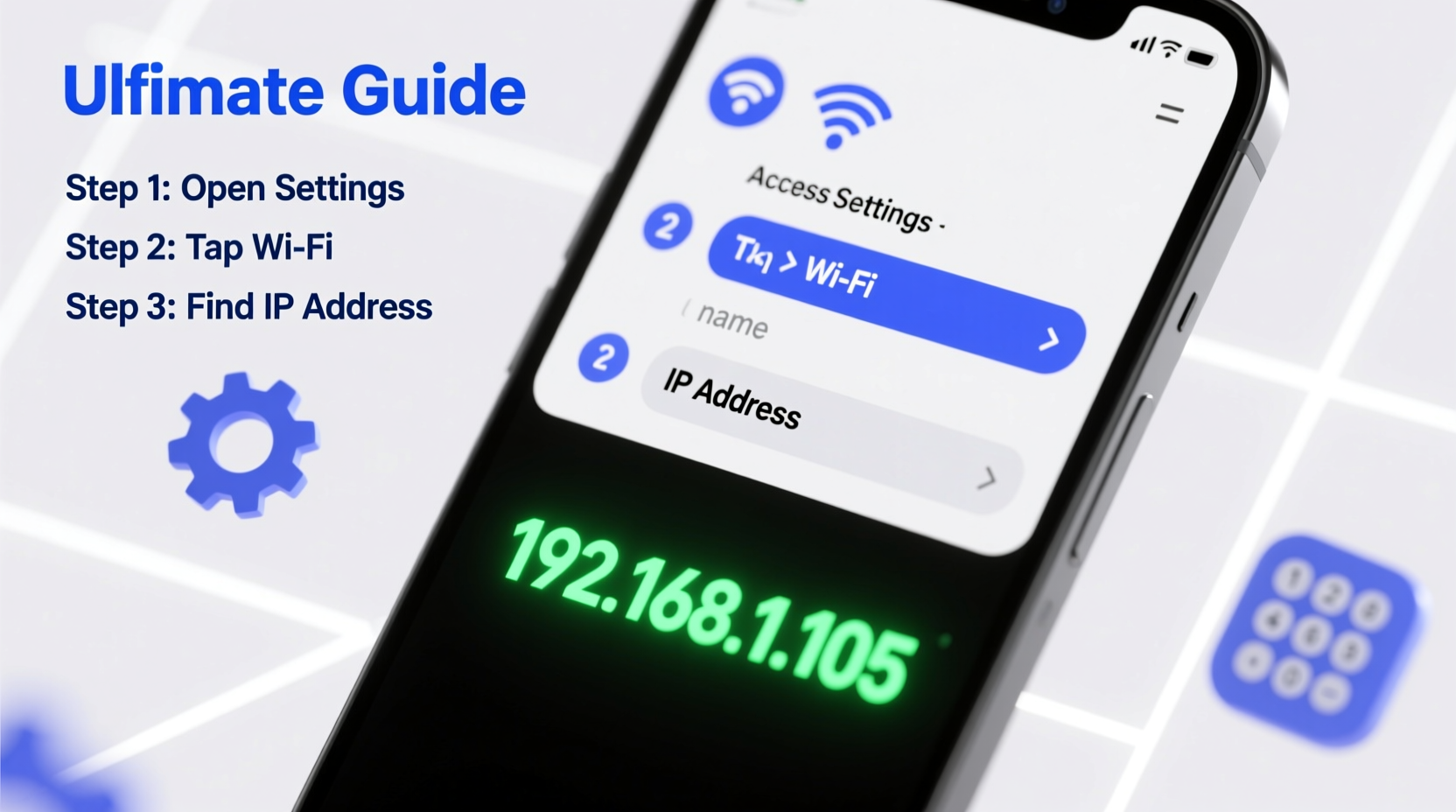
Finding your iPhone’s IP address is straightforward once you know where to look. Follow these steps:
- Open the Settings app.
- Tap Wi-Fi and ensure you’re connected to a network.
- Next to the connected network name, tap the blue i icon.
- Scroll down to the “IP Address” field under the IPv4 section.
You’ll also see additional network details such as subnet mask, router address, and DNS settings. These can be useful when configuring advanced network tools or diagnosing connection failures.
If you're troubleshooting, compare your iPhone’s IP with other devices on the same network. Conflicts arise when two devices have the same IP, causing intermittent disconnections.
Locating Your Android Phone’s IP Address
The process varies slightly depending on your Android version and manufacturer, but the general path remains consistent across most devices:
- Go to Settings.
- Select Network & Internet or Connections, then Wi-Fi.
- Tap the name of the Wi-Fi network you're currently using.
- In the network details screen, look for “IP address” under the “Network details” section.
On some Samsung or older Android models, you may need to tap Advanced to expand additional information. Some versions even allow copying the IP directly with a long press.
| Device Type | Path to IP Address | Typical IP Format |
|---|---|---|
| iPhone (iOS 17+) | Settings → Wi-Fi → [Network] → i → IP Address | 192.168.x.x |
| Android (Stock UI) | Settings → Wi-Fi → [Network] → IP Address | 192.168.x.x or 10.x.x.x |
| Samsung Galaxy | Settings → Connections → Wi-Fi → [Network] → Advanced | 192.168.x.x |
Alternative Methods Without Touching Settings
If you’re assisting someone remotely or managing multiple devices, there are indirect ways to identify a phone’s IP without unlocking it:
- Router Admin Panel: Log into your router’s web interface (usually via 192.168.1.1 or 192.168.0.1). Look for a list of connected devices. Your phone will appear with its assigned IP.
- Network Scanner Apps: Tools like Fing (available on iOS and Android) scan your network and display all connected devices, including names and IPs.
- Voice Assistants: Ask Google Assistant, “What’s my phone’s IP?” Only works if previously configured with compatible routines.
Using a network scanner is particularly helpful when dealing with guest devices or smart gadgets that don’t show IP details in their interface.
Mini Case Study: Troubleshooting Smart Home Setup
Jamal installed a new IP security camera but couldn’t connect it to his phone. The app asked for his phone’s IP address to verify local network access. He didn’t know where to find it. After checking Settings > Wi-Fi > i > IP Address on his iPhone, he entered the number (192.168.1.23) into the camera setup wizard. Within seconds, the device recognized his phone and completed pairing. Knowing where to locate the IP saved him hours of frustration and unnecessary customer support calls.
Common Mistakes and What to Avoid
Even simple tasks can go wrong if basic errors aren’t avoided. Here’s what not to do when trying to find your mobile IP:
| Mistake | Why It’s Problematic | Do This Instead |
|---|---|---|
| Checking cellular instead of Wi-Fi | Cellular IPs aren’t user-accessible and differ from local network IPs | Ensure Wi-Fi is active and connected |
| Looking in Bluetooth or Display settings | IP settings aren’t located outside network menus | Navigate specifically to Wi-Fi settings |
| Confusing public IP with private IP | Public IP applies to the whole network, not individual devices | Use router or scanning tool to confirm device-specific IP |
Quick Checklist: Finding Your Phone’s IP Address
✅ Action Steps:- Connect your phone to a Wi-Fi network.
- Open device Settings.
- Navigate to Wi-Fi settings.
- Select the connected network.
- View network details to find the IP address.
- Verify it starts with common private prefixes (192.168., 10., or 172.16.–172.31.)
- (Optional) Use a network scanner app to double-check.
Frequently Asked Questions
Does my phone have a different IP on cellular data?
Yes, but it’s managed internally by your carrier and not visible in settings. Only Wi-Fi connections assign a user-accessible local IP address.
Why does my IP address change every time I reconnect?
Your router uses DHCP (Dynamic Host Configuration Protocol) to assign temporary IPs. To keep a consistent address, set up a static IP reservation in your router settings.
Can two phones have the same IP on the same network?
No. Duplicate IPs cause conflicts and disrupt connectivity. Routers prevent this automatically in most cases, but manually assigning the same static IP to two devices will break both connections.
Final Thoughts and Next Steps
Knowing how to find your mobile phone’s IP address is more than a technical trick—it’s a practical skill for modern digital life. Whether you’re connecting to a printer, debugging slow speeds, or integrating smart home tech, having instant access to your device’s network identity streamlines the process.
Now that you understand the pathways on both iOS and Android, consider saving this knowledge for future reference. Share it with family members who struggle with similar issues, or use it to help friends configure their devices faster. Technology should simplify life, not complicate it—and mastering small but powerful details like IP lookup brings us one step closer.
💬 Did this guide help you find your IP quickly? Let others know in the comments and share your experience!