The DHGadgets LC88 smart watch is a budget-friendly wearable that offers essential fitness tracking, call notifications, and heart rate monitoring. Like any smart device, its performance depends heavily on up-to-date software. Over time, manufacturers release firmware updates to fix bugs, improve battery efficiency, enhance compatibility with smartphones, and add new functions. However, unlike premium smartwatches, the LC88 doesn’t support over-the-air (OTA) updates. This means users must manually install new firmware using a companion app and a stable connection.
Updating your LC88 may seem technical at first, but with the right tools and steps, it’s a straightforward process. Skipping updates can lead to poor responsiveness, inaccurate health tracking, or even connectivity failures. This guide walks you through everything you need to know—from preparation to post-update verification—so your smartwatch continues performing reliably.
Why Updating Your LC88 Firmware Matters
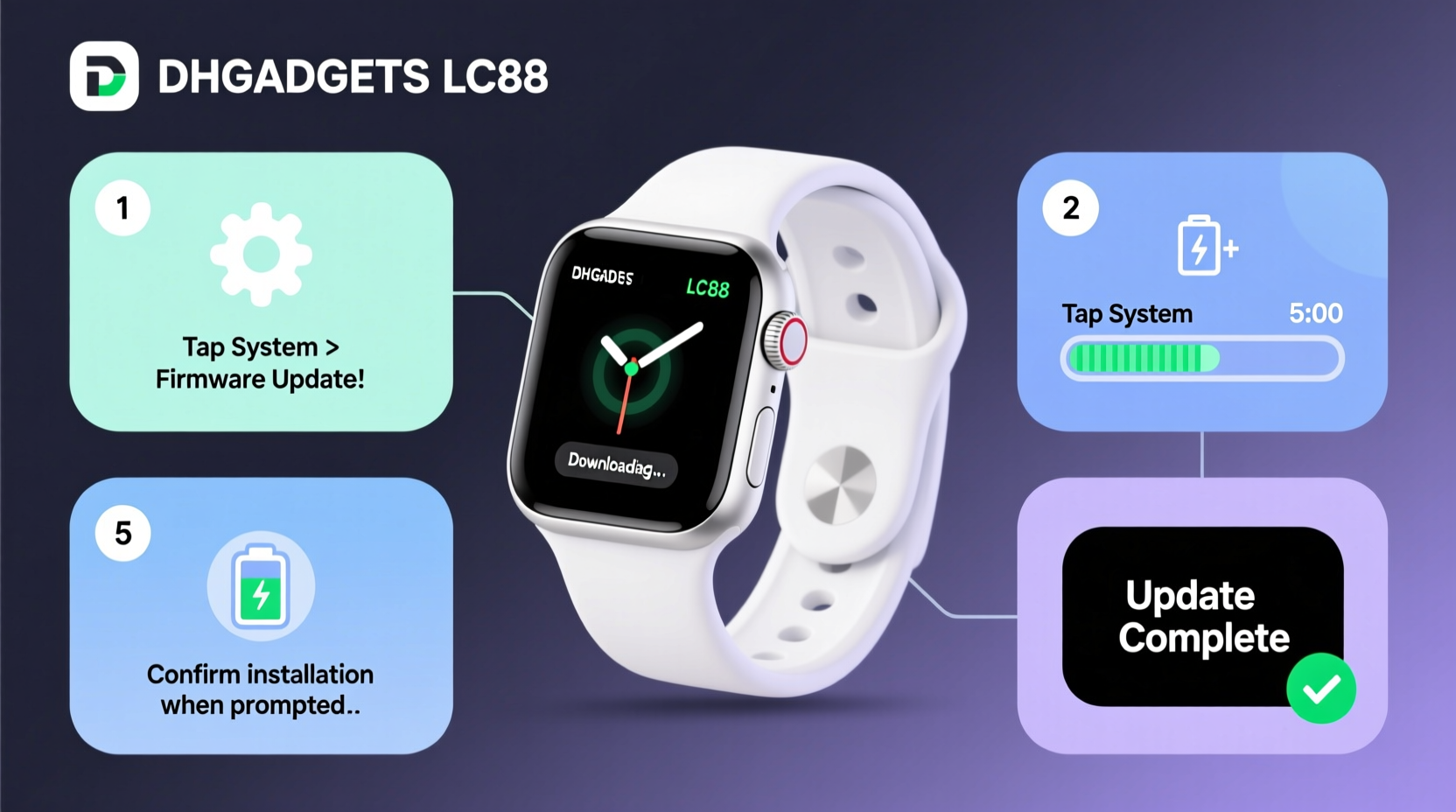
Firmware is the low-level software that controls your smartwatch’s hardware. Unlike apps, which run on top of the system, firmware governs core operations such as sensor calibration, Bluetooth communication, and display rendering. When outdated, these components can degrade in functionality.
Manufacturers release firmware updates for several reasons:
- Bug Fixes: Resolves issues like screen freezes, unresponsive touch, or incorrect step counts.
- Security Patches: Protects against vulnerabilities that could expose personal data.
- Improved Compatibility: Ensures smooth pairing with newer Android or iOS versions.
- New Features: Adds watch faces, sport modes, or enhanced sleep tracking.
- Battery Optimization: Improves power management to extend usage between charges.
What You’ll Need Before Starting
Before initiating the update, gather the necessary tools and ensure your environment supports a smooth process. Interruptions during firmware installation can result in a bricked device—rendering it unusable.
Required Equipment and Software
| Item | Purpose | Notes |
|---|---|---|
| DHGadgets LC88 Smart Watch | The device being updated | Ensure it has at least 50% battery |
| Android or iOS Smartphone | To run the Da Fit app | iOS 9.0+ or Android 5.0+ |
| Da Fit App (Latest Version) | Manages firmware updates | Download from official app store |
| Stable Wi-Fi or Data Connection | Downloads firmware files | Avoid switching networks mid-update |
| USB Charging Cable | For charging before and after update | Use original cable if possible |
“Manual firmware updates require patience and precision. A single disconnection can corrupt the system.” — Raj Mehta, Wearable Device Technician
Step-by-Step Update Process
Follow this sequence carefully. The entire process takes about 15–25 minutes, depending on download speed and device responsiveness.
- Charge Your Watch: Plug in your LC88 and charge it to at least 50%. Ideally, reach 70–80% to avoid shutdowns during the update.
- Update the Da Fit App: Open your phone’s app store (Google Play or Apple App Store), search for “Da Fit,” and install any available updates. An outdated app may not detect new firmware.
- Pair Your Watch Properly: Open the Da Fit app, go to the device section, and confirm your LC88 is connected. If not, follow the pairing instructions inside the app. Ensure Bluetooth is enabled and no other devices are interfering.
- Check for Firmware Updates: In the Da Fit app, tap on your device profile. Scroll down to find “Firmware Update” or “Device Upgrade.” Tap it. The app will check online for the latest version compatible with the LC88.
- Download the Firmware: If an update is available, tap “Download Now.” Do not close the app or lock your phone during this phase. The file size is typically under 5MB, so it downloads quickly on stable connections.
- Start the Installation: Once downloaded, the app prompts “Install Update.” Tap it. Your watch will vibrate and display a progress bar or logo. Do not press any buttons or disconnect Bluetooth.
- Wait for Completion: The update takes 5–10 minutes. The watch may restart automatically. The Da Fit app shows a success message once done.
- Verify the Update: After rebooting, return to the Firmware Update section in the app. It should now say “Up to Date” or show the new version number.
Troubleshooting Common Update Issues
Even with careful preparation, problems can occur. Here’s how to resolve them:
Firmware Download Fails
This usually stems from internet instability. Switch to a stronger Wi-Fi network or reset your router. Close background apps consuming bandwidth. Restart the Da Fit app and retry.
Update Stalls at 0% or Freezes
If the progress bar doesn’t move for more than 3 minutes, force-close the Da Fit app, restart your phone, and reconnect the watch. Reattempt the update. If persistent, uninstall and reinstall Da Fit.
Watch Restarts Continuously After Update
This indicates a corrupted flash. Perform a factory reset via the Da Fit app (Settings > Factory Reset). Then re-pair the device and attempt the update again.
No Update Option Appears
Your firmware might already be current. Alternatively, the server hasn’t pushed the update to your region yet. Wait 1–2 weeks and check again. Also, confirm you’re using the correct app—some clones exist under similar names.
Mini Case Study: Recovering a Non-Responsive LC88
Sarah, a fitness instructor from Portland, noticed her LC88 stopped syncing workouts to her phone. Heart rate readings were erratic, and notifications delayed. She tried restarting the watch multiple times without success. After reading online forums, she suspected outdated firmware.
She followed the Da Fit update process but encountered a failed download twice. On the third attempt, she switched from public Wi-Fi to her home network and successfully installed version 1.2.3. Post-update, her sync issues resolved, and step tracking accuracy improved. Sarah now checks for updates monthly and recommends others do the same to prevent performance decay.
Best Practices After Updating
An update isn’t the finish line—it’s the beginning of optimized performance. Follow these habits to maximize benefits:
- Reboot your watch manually once after the update to clear residual cache.
- Re-sync health data to ensure continuity in your activity history.
- Test all core functions: heart rate monitor, pedometer, alarms, and smartphone notifications.
- Review new settings or modes introduced in the update log.
- Back up your data regularly through the Da Fit app cloud feature, if available.
FAQ
Can I update my LC88 without a smartphone?
No. The Da Fit app is required to download and push firmware updates. There is no PC-based updater or standalone method.
Will updating erase my data?
Most updates preserve user data like steps and heart rate logs. However, a factory reset during troubleshooting will delete local data. Always sync before major updates.
How do I know which firmware version I’m running?
In the Da Fit app, go to Device Settings > About Device. The firmware version is listed there, often in the format v1.x.x.
Final Checklist: Preparing for a Successful Update
- ☐ Charge watch to 50% or higher
- Prevents shutdown during installation.
- ☐ Install latest Da Fit app version
- Ensures compatibility with current firmware servers.
- ☐ Confirm Bluetooth connection is stable
- Interference can break the update link.
- ☐ Stay near your phone during the process
- Maintains consistent signal strength.
- ☐ Do not interact with the watch mid-update
- Touching buttons may interrupt flashing.
Conclusion
Keeping your DHGadgets LC88 smart watch updated is one of the simplest yet most effective ways to maintain its reliability and functionality. While the process requires manual effort, it safeguards your investment and ensures you get the most out of its features. By following this guide, you minimize risks and maximize the lifespan of your wearable.
💬 Have questions about your LC88 update experience? Share your story or ask for help in the comments—your insight could help another user avoid common pitfalls.