In an age where every second counts, your smartwatch is more than a timepiece—it’s a personal command center. Yet most people use default watch faces, missing out on the opportunity to align their device with both their aesthetic preferences and daily workflow. A well-designed watch face can reduce decision fatigue, surface critical information instantly, and reflect your unique personality. The key lies in intentional customization: blending utility with design to create a wearable interface that works for you, not against you.
Personalization isn’t just about aesthetics. It’s about creating a tool that supports focus, reduces distractions, and keeps you informed without requiring constant interaction. Whether you're managing meetings, tracking fitness goals, or simply expressing your taste, the right watch face setup can make a measurable difference in how you experience your day.
Why Your Watch Face Matters More Than You Think
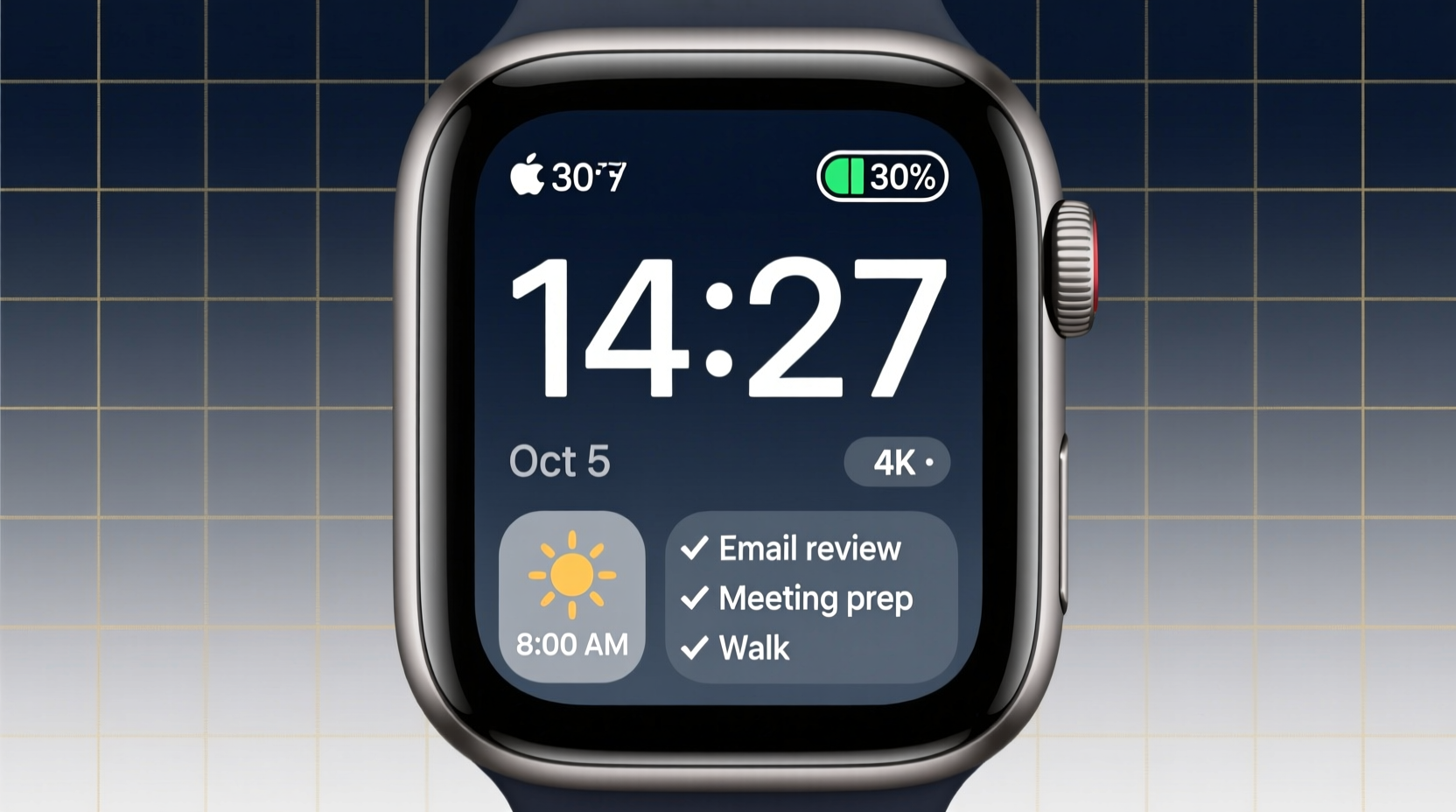
The average person checks their smartwatch 60–100 times per day. Each glance presents an opportunity—either to gain insight or lose focus. A cluttered or irrelevant watch face forces cognitive effort to extract useful data. Conversely, a thoughtfully designed face delivers what you need at a glance, minimizing screen time while maximizing value.
Productivity experts emphasize the importance of reducing friction in information retrieval. Dr. Cal Newport, author of *Digital Minimalism*, notes:
“Every time you have to dig through layers of apps or notifications, you’re adding micro-delays that accumulate into lost focus and energy. Design your tools to serve your goals—not distract from them.” — Dr. Cal Newport, Productivity Researcher
This principle applies directly to smartwatch customization. By curating what appears on your watch face, you shift from reactive scrolling to proactive awareness. For example, seeing your next meeting start time, step count, or hydration level without unlocking your phone reinforces habits and keeps priorities visible.
Step-by-Step Guide to Customizing Your Watch Face
Creating a personalized watch face varies slightly by platform (Apple Watch, Wear OS, Samsung Galaxy Watch), but the underlying process is consistent. Follow this universal timeline to build a functional, stylish display tailored to your lifestyle.
- Assess your daily needs: Identify the top 3–5 pieces of information you want to see at a glance (e.g., calendar, heart rate, weather, battery).
- Choose a base watch face style: Select between analog, digital, modular, or photo-based designs based on readability and preference.
- Edit complications: Add, remove, or rearrange widgets (complications) to prioritize relevant data.
- Adjust color schemes and fonts: Match the palette to your wardrobe, mood, or brand identity; ensure high contrast for legibility.
- Test during different activities: Wear it during work, workouts, and social events to evaluate usability.
- Save and rotate if needed: Create multiple faces for different contexts (e.g., “Work Mode,” “Weekend”) and switch as needed.
Design Principles for Style and Functionality
A great watch face balances form and function. Too much decoration obscures data; too little character makes it forgettable. Apply these design principles to achieve harmony:
- Hierarchy: Place the most important information (like time or next event) front and center.
- Legibility: Choose fonts with clean lines and sufficient size. Avoid script or overly thin typefaces.
- Color psychology: Blue promotes calm focus; red signals urgency; neutral tones enhance professionalism.
- Consistency: Align your watch face style with your phone’s wallpaper and app icons for a cohesive digital ecosystem.
Consider using monochromatic themes for professional settings and vibrant accent colors for creative or fitness modes. Some users even match their watch face to seasonal palettes—earthy tones in fall, pastels in spring—adding a subtle layer of personal expression.
Top Watch Faces for Different Lifestyles
One size doesn’t fit all. Here’s how three professionals customize their watches to match their roles and routines.
Case Study: Sarah, Project Manager
Sarah leads a remote team across time zones. Her Apple Watch uses the “Infograph” face with complications for:
- Next calendar event (top left)
- World clock showing Tokyo and London (bottom left)
- Heart rate (center bottom)
- Battery level (top right)
She chose a dark gray background with white text for low glare during video calls. This setup helps her stay punctual, aware of team availability, and mindful of stress levels—all without touching her phone.
Case Study: Marcus, Freelance Designer
Marcus values creativity and flexibility. He uses a Wear OS watch with a custom photo face featuring his latest artwork. Complications include step count, weather, and a mindfulness reminder at 3 PM daily. The design changes monthly, doubling as a portfolio showcase and personal motivator.
Case Study: Priya, Medical Resident
Priya needs speed and accuracy. Her Samsung Galaxy Watch displays a bold digital face with large numerals, a 24-hour format, and complications for oxygen saturation, upcoming shifts, and caffeine intake tracking. High-contrast red accents highlight urgent alerts, supporting rapid decision-making in high-pressure environments.
Do’s and Don’ts of Smartwatch Personalization
| Do | Don't |
|---|---|
| Limit complications to 3–5 essential ones | Crowd the screen with 8+ widgets |
| Use dynamic backgrounds that change with activity | Set distracting animations or flashing elements |
| Align colors with your personal brand or style | Choose low-contrast combinations (e.g., yellow on white) |
| Rotate faces based on context (work, workout, evening) | Stick to one face regardless of situation |
| Test readability in sunlight and low light | Ignore visibility under real-world conditions |
Advanced Tips for Power Users
For those ready to go beyond basic customization, here are strategies used by tech-savvy professionals:
- Create context-aware automation: Use shortcuts (iOS) or Tasker (Android) to auto-switch watch faces based on location or time. Example: “Work” face activates when arriving at the office; “Sleep” face with dimmed display turns on at 9 PM.
- Integrate habit trackers: Add complications for water intake, meditation streaks, or medication reminders. Seeing progress daily reinforces consistency.
- Leverage third-party apps: Platforms like Facer (for Wear OS) or Watchsmith (for Apple Watch) offer thousands of community-designed faces with advanced functionality, including Pomodoro timers and moon phase trackers.
- Backup your favorites: Export or save your preferred configurations. A software update or device reset shouldn’t erase your optimized setup.
“Your wearable should feel like an extension of your mind—not another notification machine.” — Lena Torres, UX Designer at a leading wearable tech firm
Frequently Asked Questions
Can personalizing my watch face improve productivity?
Yes. Studies show that immediate access to prioritized information reduces task-switching and mental load. By surfacing only what matters—such as your next meeting or daily goal progress—you minimize interruptions and maintain flow.
How many complications should I use?
Most experts recommend 3 to 5. Any more risks visual clutter. Focus on data that drives action: time-sensitive items (calendar), health metrics (steps, heart rate), or system status (battery, connectivity).
Are animated or photo-based watch faces bad for battery life?
They can be. Animated faces and those using live photos consume more power, especially on OLED screens. If battery longevity is a concern, opt for static, minimalist designs with fewer updates. On Apple Watch, avoid “Photos” or “Solar” faces for all-day use unless charging frequently.
Checklist: Optimize Your Watch Face in 10 Minutes
Follow this quick checklist to refine your current setup:
- Open the watch face customization menu on your device.
- Select a base design that matches your current priority (work, fitness, casual).
- Add only the most relevant complications (limit to five).
- Adjust colors for contrast and mood alignment.
- Ensure the time is clearly visible at a glance.
- Test legibility in bright sun and dim rooms.
- Save the configuration with a descriptive name (e.g., “Focus Mode” or “Gym Ready”).
- Set up automatic switching if supported (e.g., via GPS or schedule).
- Remove any decorative elements that don’t serve a purpose.
- Repeat weekly to adapt to changing routines.
Conclusion: Make Your Device Work for You
Your smartwatch is a canvas for intentionality. When personalized effectively, it becomes less of a distraction and more of a compass—guiding your attention toward what truly matters. Whether you're streamlining your workday, staying accountable to health goals, or simply expressing your sense of style, the watch face is your first point of contact with your digital life.
Take control today. Spend 10 minutes refining your display. Ask yourself: Does this help me? Does it reflect who I am? If the answer isn’t a clear yes, it’s time to redesign. Small tweaks compound into meaningful gains in clarity, efficiency, and confidence. And remember—your wrist is prime real estate. Make every glance count.
🚀 Ready to transform your smartwatch into a productivity powerhouse? Pick one tip from this guide and apply it now—then share your new setup in the comments below!