Reverse image search has become an essential digital skill in an era where visual content dominates online communication. Whether you're verifying the authenticity of a photo, tracking down the source of an image, or identifying unknown objects, Google’s reverse image search offers powerful capabilities. However, most users only scratch the surface of its potential. With the right techniques, you can transform this simple tool into a precision instrument for research, verification, and discovery.
Understanding How Google Reverse Image Search Works
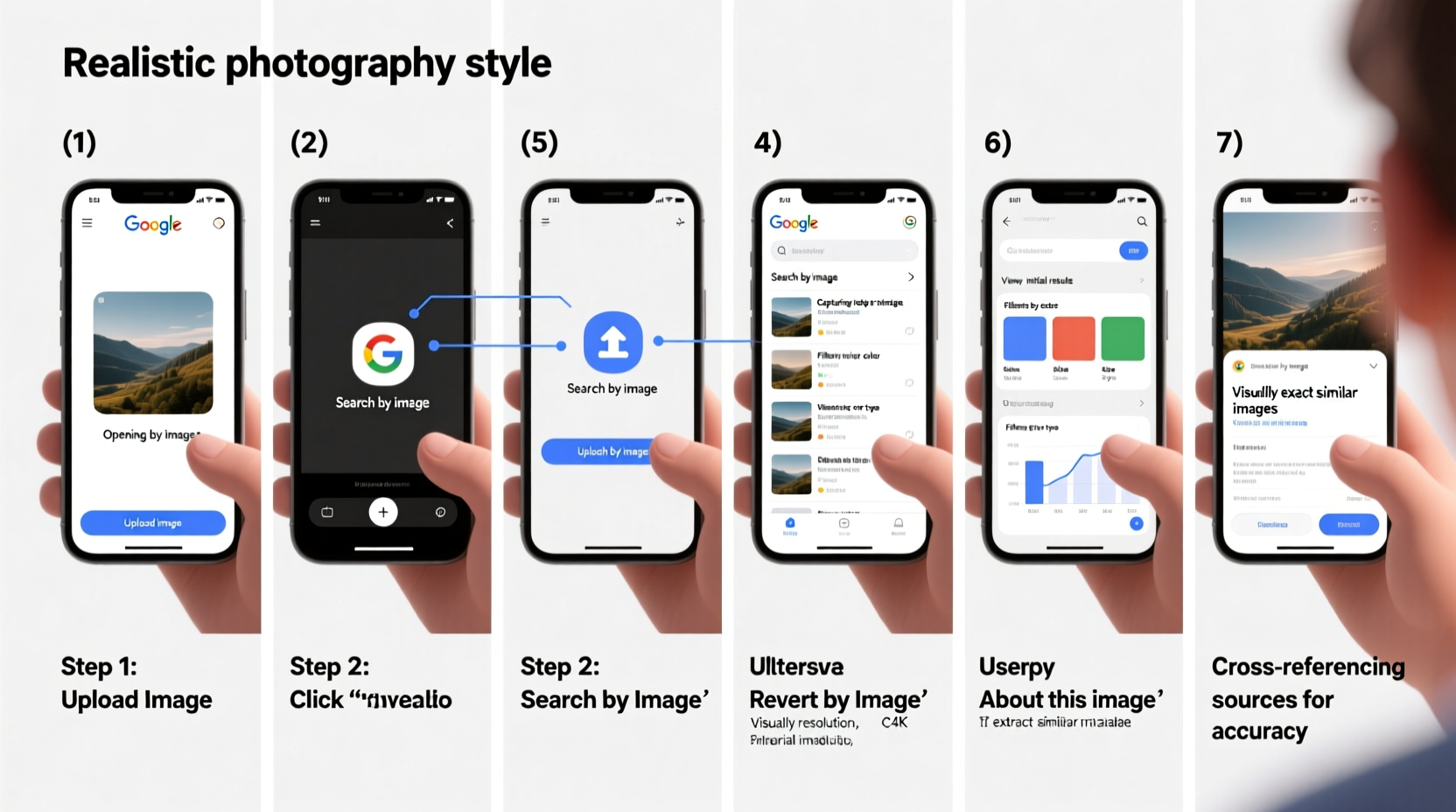
Google reverse image search analyzes the visual content of an image rather than relying on text. It uses computer vision algorithms to detect patterns, shapes, colors, and textures, then compares them against billions of indexed images across the web. When you upload or link to an image, Google generates a “visual fingerprint” and matches it with similar visuals in its database.
The technology doesn’t rely solely on exact duplicates. It can identify modified versions—cropped, resized, or filtered—making it effective even when the original image has been altered. This is particularly useful for detecting misinformation, finding higher-resolution versions, or discovering where an image first appeared online.
“Reverse image search is one of the most underutilized tools in digital literacy. It empowers users to verify claims and trace digital content back to its origin.” — Dr. Lena Patel, Digital Forensics Researcher at MIT Media Lab
Step-by-Step Guide to Performing a Reverse Image Search
Mastering reverse image search begins with knowing how to use the tool effectively. Follow these steps for consistent, accurate results:
- Navigate to Google Images: Open your browser and go to images.google.com.
- Locate the Camera Icon: In the search bar, find the camera icon. Clicking it opens the reverse image search interface.
- Upload or Paste: You can either:
- Upload an image from your device
- Paste the URL of an image hosted online
- Analyze the Results: Google will display visually similar images, web pages where the image appears, and sometimes related information like product links or news articles.
- Refine Your Search: Use keywords in the search bar to narrow results. For example, if searching for a person, add their name. If identifying a plant, include terms like “species” or “scientific name.”
Advanced Techniques for More Accurate Outcomes
Basic searches are helpful, but advanced strategies unlock deeper insights. Consider these methods to enhance accuracy and relevance:
- Crop Before Uploading: Focus on the most distinctive part of the image—such as a face, logo, or unique object—to eliminate background noise that may confuse the algorithm.
- Use Multiple Engines: While Google leads in image indexing, cross-check with Bing Visual Search, Yandex, or TinEye for alternative results, especially with non-Western content.
- Search in Incognito Mode: Prevent personalized search bias by using private browsing, ensuring results are based on image data—not your history.
- Leverage EXIF Data (if available): Some images contain metadata like GPS location or device info. Tools like Jeffrey’s Exif Viewer can extract this before running a reverse search.
Real Example: Tracing a Viral Photo
In early 2023, a photo circulated on social media claiming to show a rare snowstorm in Dubai. A journalist suspected manipulation and used reverse image search to investigate. By cropping the image to focus on a distinctive palm tree and fountain, they uploaded it to Google. The top results linked to a travel blog from 2018, clearly labeled as a digitally altered artwork. Further searches revealed the same image had resurfaced during previous weather hoaxes. This case demonstrates how reverse search can quickly debunk misinformation with minimal effort.
| Scenario | Best Practice | Common Mistake |
|---|---|---|
| Identifying an unknown plant | Crop close to leaves/flowers; add \"plant ID\" or \"species\" to search | Searching full garden shot with multiple plants |
| Verifying a profile picture | Use high-res version; check multiple engines | Relying only on Google without refinement |
| Finding product sources | Include brand name or \"buy\" in follow-up search | Not checking shopping tabs in results |
Checklist: Optimize Every Reverse Image Search
Before finalizing your search, run through this checklist to ensure maximum effectiveness:
- ✅ Crop the image to highlight key features
- ✅ Save the highest resolution version available
- ✅ Try both upload and URL paste methods
- ✅ Refine with descriptive keywords
- ✅ Check \"Visually similar images\" and \"Pages that contain this image\"
- ✅ Cross-reference with at least one other reverse search engine
- ✅ Review thumbnails for context clues (e.g., captions, surrounding text)
Common Challenges and How to Overcome Them
Even experienced users encounter obstacles. Here are frequent issues and practical solutions:
Low-Quality or Heavily Compressed Images: These reduce detection accuracy. If possible, obtain a clearer version from the source or use AI upscaling tools like Fotor or Let’s Enhance before searching.
Stylized or Artistic Renderings: Drawings, memes, or edited photos may not match real-world references. Add context terms like “meme,” “fan art,” or “digital illustration” to improve relevance.
Privacy and Ethical Concerns: Never use reverse image search to harass, stalk, or invade someone’s privacy. Respect copyright and personal boundaries. As Google states, the tool should be used responsibly and legally.
Tip: If an image yields no direct matches, describe what you see in text-based searches. Sometimes combining visual and keyword research delivers the best outcome.Frequently Asked Questions
Can Google reverse image search identify people accurately?
It can locate where a person’s photo appears online, but it does not perform facial recognition like law enforcement software. Accuracy depends on the image’s uniqueness and online presence. Be cautious about assumptions—similar appearances don’t guarantee identity.
Is it possible to reverse search from a mobile device?
Yes. On Android or iOS, open Google Images in Chrome, tap the search bar, then the camera icon. You can upload from your gallery or paste a URL. The process is slightly slower than desktop but equally functional.
Why do some images return no results?
This usually means the image is new, highly modified, or not indexed. Rare or private photos may not appear in any database. Try improving quality, adjusting crop, or testing on alternative platforms like Yandex, which excels with faces.
Conclusion: Turn Visual Clues Into Knowledge
Google reverse image search is more than a curiosity—it’s a gateway to truth in a world saturated with manipulated visuals. From journalists verifying sources to shoppers finding authentic products, the ability to trace an image’s journey adds clarity and confidence to digital interactions. Mastery comes not from luck, but from methodical practice: cropping wisely, refining queries, and validating across platforms.
The next time you encounter an unfamiliar image, don’t guess. Investigate. Upload. Analyze. Let the pixels tell their story. With these strategies, you’re not just searching—you’re uncovering.
🚀 Ready to test your skills? Pick an image from your phone, apply these steps, and see what you discover. Share your findings or questions in the comments below—let’s build a smarter, more informed web together.



![How To Choose The Best Dress For A Wedding Guest [2026 Guide]](https://s.alicdn.com/@sc02/kf/A4fc73ee8061e4ff3a1fd686fb70df2590.jpg)