It’s a familiar frustration: you reboot your laptop after a Windows update, only to find it sluggish, unresponsive, or barely functional. What was once a smooth machine now takes ages to open programs, boot up, or even respond to clicks. You’re not alone—millions of users face this issue after major or minor Windows updates. The good news? Most post-update slowdowns are temporary and fixable with the right approach.
Windows updates often install background services, reconfigure system settings, or trigger resource-heavy processes that can overwhelm older hardware or poorly optimized systems. While some performance dips resolve on their own within a few days, others persist due to misconfigured components, outdated drivers, or unnecessary startup tasks. This guide dives into the real causes behind post-update lag and delivers actionable, expert-backed solutions to get your laptop running fast again—fast.
Why Windows Updates Can Slow Down Your Laptop
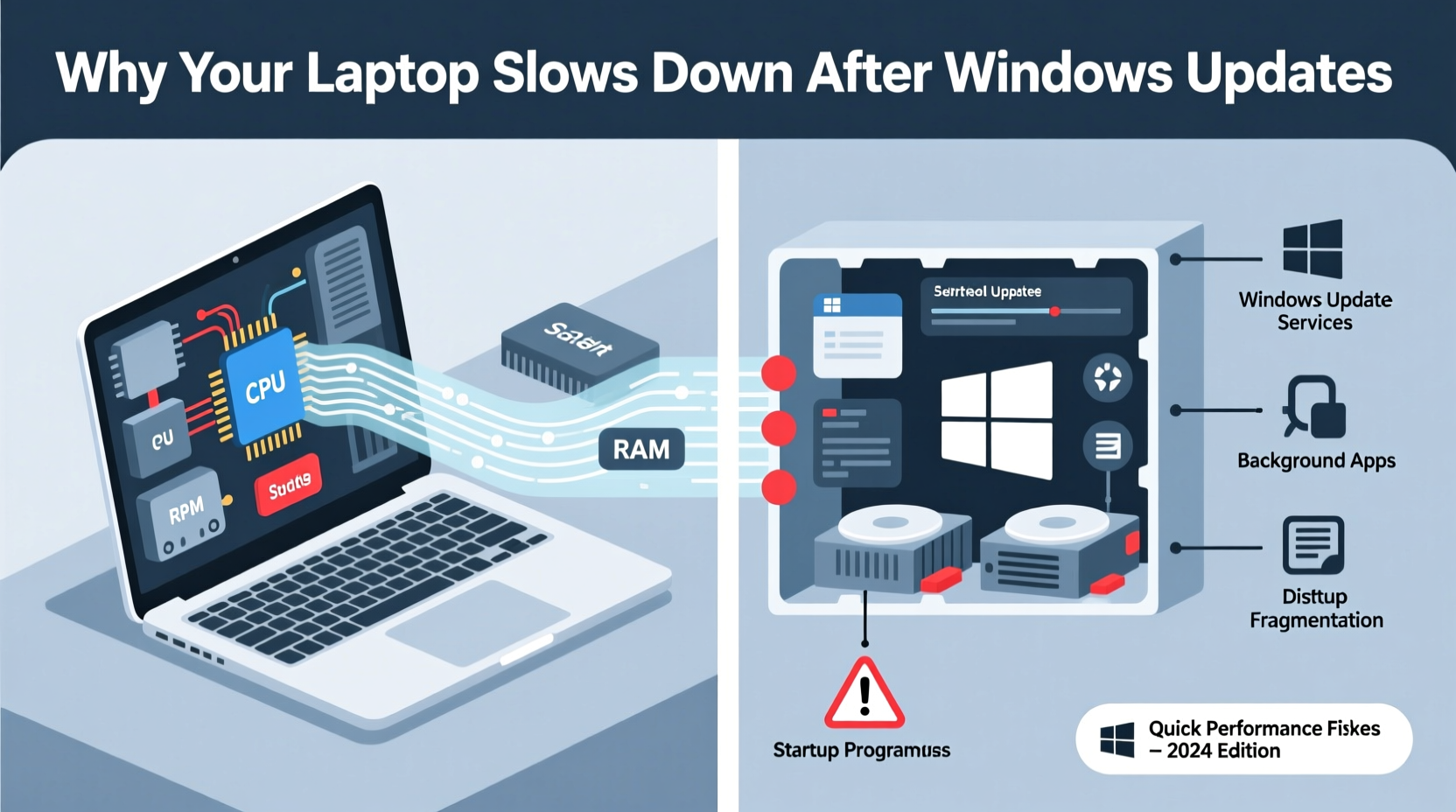
Windows updates are essential for security, compatibility, and feature improvements. However, they can also introduce performance bottlenecks. Understanding the root causes helps you target fixes more effectively.
- Background indexing and optimization: After an update, Windows rebuilds search indexes, recalibrates settings, and scans for compatibility issues—tasks that consume CPU and disk resources.
- Driver conflicts: An update may replace or disable existing drivers, especially graphics or chipset drivers, leading to inefficient hardware use.
- Startup bloat: New Windows services or third-party software may auto-enable during updates, increasing boot time and memory usage.
- System file corruption: Incomplete installations or interrupted updates can corrupt critical files, forcing the OS to run suboptimally.
- Antivirus rescan: Security software often triggers full system scans post-update, spiking CPU and disk usage.
- Hardware limitations: Older laptops with HDDs, limited RAM (4GB or less), or outdated processors struggle with newer Windows versions’ demands.
“Post-update slowdowns are rarely permanent. Most stem from transient system adjustments or misconfigurations that can be resolved in under 30 minutes.” — David Lin, Senior Systems Engineer at TechFlow Solutions
Quick Performance Fixes to Restore Speed
You don’t need to reinstall Windows or buy new hardware. Start with these fast, effective steps to diagnose and eliminate the most common causes of post-update lag.
1. Restart Your Laptop (Again)
It sounds obvious, but many users overlook this. After a Windows update, the system may still be finalizing background processes. A second restart clears residual tasks and stabilizes performance.
Tip: Hold Shift while clicking \"Restart\" to perform a clean reboot and clear pending update tasks.2. Check for Pending Updates
Sometimes, the initial update installs only part of the patch. Additional components download afterward. Open Settings > Update & Security > Windows Update and check for more downloads. Install any pending updates and reboot.
3. Disable Unnecessary Startup Programs
Too many apps launching at startup can cripple boot times. Use Task Manager to disable non-essential entries:
- Press Ctrl + Shift + Esc to open Task Manager.
- Go to the Startup tab.
- Right-click unnecessary programs (e.g., Spotify, Skype, Adobe Updater) and select Disable.
Focus on items with high “Startup impact” ratings. Aim to keep startup apps under five.
4. Run Disk Cleanup and Clear Temporary Files
Windows update files can occupy several gigabytes. Free up space with built-in tools:
- Search for “Disk Cleanup” in the Start menu.
- Select your system drive (usually C:).
- Check boxes for “Temporary files,” “Windows Update Cleanup,” and “Delivery Optimization Files.”
- Click “OK” and confirm deletion.
For deeper cleanup, use the Storage Sense feature under Settings > System > Storage to automate file removal.
5. Update or Roll Back Drivers
Outdated or incompatible drivers are a top cause of post-update slowness. Focus on graphics, network, and chipset drivers:
- Press Win + X and select Device Manager.
- Expand categories like Display adapters, Network adapters, and System devices.
- Right-click each device and choose Update driver.
- Select “Search automatically for updated driver software.”
If problems started immediately after a driver update, right-click the device and choose Properties > Driver > Roll Back Driver.
Advanced Troubleshooting Steps
If basic fixes don’t help, dig deeper into system performance using diagnostic tools and configuration tweaks.
Run the Performance Troubleshooter
Windows includes a built-in tool to detect common performance issues:
- Go to Settings > Update & Security > Troubleshoot.
- Select Additional troubleshooters.
- Choose Performance and click “Run the troubleshooter.”
This scans for issues like power settings, background services, and system configuration errors.
Scan for System File Corruption
Corrupted system files can degrade performance. Repair them using Command Prompt:
- Type “cmd” in the Start menu.
- Right-click Command Prompt and select “Run as administrator.”
- Enter:
sfc /scannow - Wait for the scan to complete (may take 15–20 minutes).
- If issues are found, run:
Dism /Online /Cleanup-Image /RestoreHealth
These commands repair core Windows files and restore system integrity.
Adjust Power Settings for Maximum Performance
Many laptops default to “Balanced” or “Power Saver” mode after updates, limiting CPU performance. Switch to high performance:
- Open Control Panel > Hardware and Sound > Power Options.
- Select High performance.
- If not visible, click “Show additional plans.”
To save battery without sacrificing speed, create a custom plan that sets processor minimum to 100% when plugged in.
| Power Plan | CPU Behavior | Best For |
|---|---|---|
| Balanced | Dynamic scaling (slower when idle) | General use, battery saving |
| Power Saver | Throttled performance | Maximizing battery life |
| High Performance | Full CPU utilization | Laptops on AC power needing speed |
Real-World Example: Recovering a Sluggish Work Laptop
Sarah, a freelance graphic designer, updated her 5-year-old Dell Inspiron to Windows 11 23H2. After the reboot, Photoshop took over two minutes to launch, and her cursor froze frequently. She tried restarting multiple times with no improvement.
She followed these steps:
- Used Task Manager to disable Adobe Creative Cloud and Slack from startup (saved 22 seconds on boot).
- Ran Disk Cleanup and freed 6.2 GB of update cache.
- Updated her Intel UHD Graphics driver via Device Manager.
- Switched to High Performance power plan.
Within 20 minutes, her laptop returned to normal speed. Photoshop launched in 8 seconds, and system responsiveness improved dramatically. Sarah later scheduled monthly maintenance to prevent future slowdowns.
Tip: Schedule a monthly “cleanup session” to review startup apps, clear temp files, and check for driver updates.Essential Maintenance Checklist
Use this checklist to quickly address and prevent post-update slowdowns:
- ✅ Reboot the system after updates
- ✅ Check for and install pending updates
- ✅ Disable high-impact startup programs
- ✅ Run Disk Cleanup and delete temporary files
- ✅ Update or roll back problematic drivers
- ✅ Run
sfc /scannowto fix system files - ✅ Switch to High Performance power plan
- ✅ Monitor Task Manager for resource hogs
- ✅ Ensure SSD is detected and TRIM is enabled (for solid-state drives)
- ✅ Keep at least 15% of your drive free for optimal performance
Frequently Asked Questions
How long should I wait for my laptop to stabilize after a Windows update?
Most systems stabilize within 24 to 72 hours as background indexing and optimization complete. If slowness persists beyond three days, manual intervention is likely needed.
Can a Windows update permanently damage my laptop’s performance?
No. Updates do not permanently harm hardware or software. Any slowdown is due to configuration issues, which are reversible. In rare cases, upgrading hardware (e.g., replacing HDD with SSD or adding RAM) may be recommended for older machines.
Should I avoid Windows updates to keep my laptop fast?
No. Skipping updates exposes your system to security vulnerabilities and compatibility issues. Instead, apply updates promptly and follow up with performance checks. Updates often include performance improvements and bug fixes.
Conclusion: Take Control of Your Laptop’s Performance
A slow laptop after a Windows update doesn’t have to be a long-term problem. With the right knowledge and tools, you can diagnose and fix the issue in under an hour. From disabling bloated startup apps to repairing system files and optimizing power settings, every step brings you closer to a responsive, efficient machine.
Don’t accept sluggish performance as inevitable. Modern Windows systems are designed to adapt, but they sometimes need a little guidance—especially on older or budget hardware. By applying the fixes outlined here, you reclaim control over your productivity and user experience.
🚀 Ready to speed up your laptop? Pick one fix from this guide and apply it now. Share your results in the comments—your experience could help someone else get their machine back on track!