If your internet cuts out like clockwork every day—say, at 7:30 PM or 2:15 AM—you're not imagining things. This kind of predictable disconnection is more common than you think, and while frustrating, it’s often rooted in identifiable causes. Unlike random dropouts, a daily pattern suggests a specific trigger tied to timing, usage, or device behavior. The good news? Once you pinpoint the cause, most issues can be resolved with simple adjustments or firmware updates.
This guide breaks down the most likely reasons behind scheduled disconnections, walks through proven diagnostic steps, and provides actionable solutions to restore stability to your home network.
Common Causes of Daily Router Disconnections
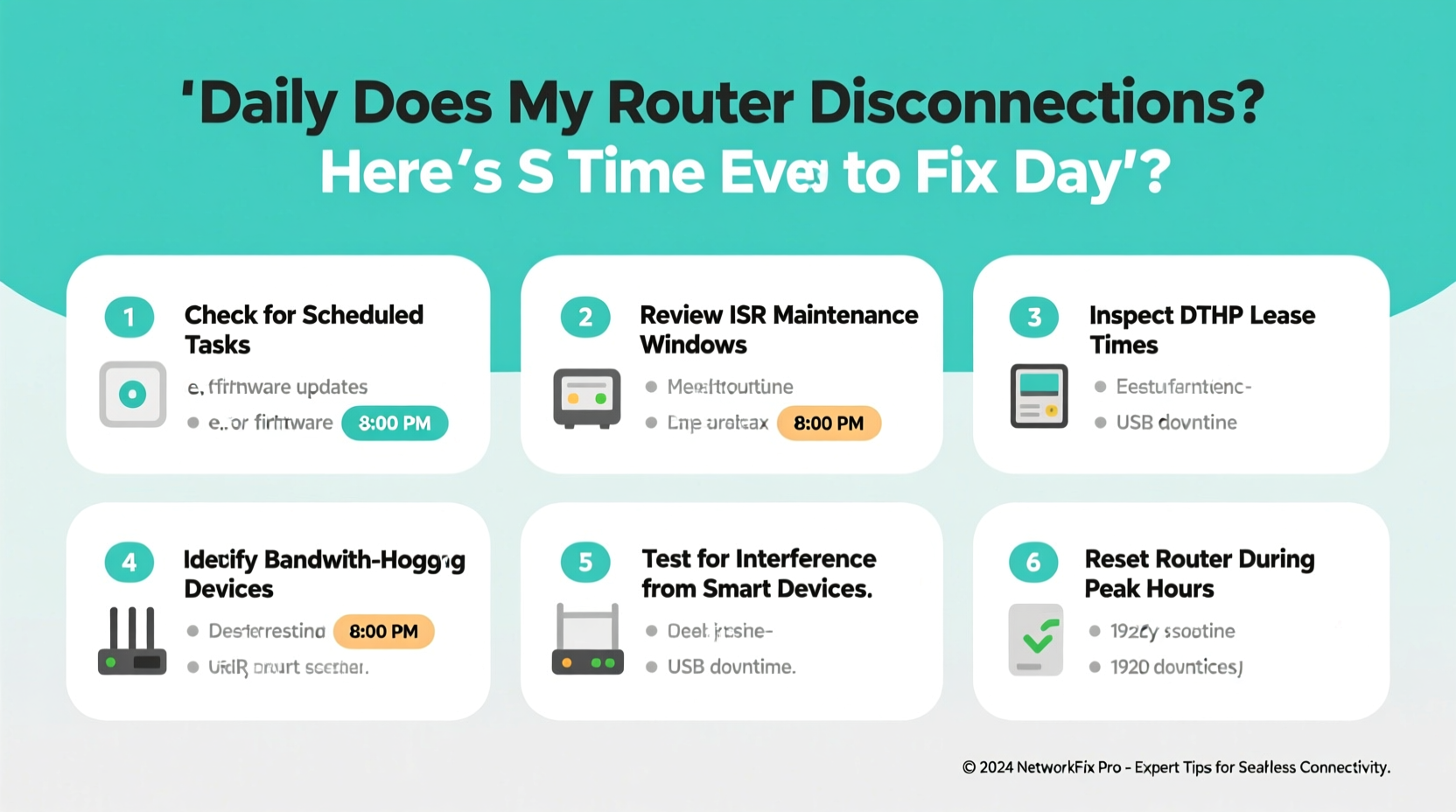
A router disconnecting at the same time each day isn’t usually due to hardware failure. Instead, it's typically caused by automation, interference, or environmental triggers that repeat on a cycle. Below are the top culprits:
- Scheduled reboots or firmware updates: Some routers or ISPs automatically reboot or update firmware during off-peak hours.
- Network congestion: High bandwidth usage from streaming, gaming, or downloads at peak times can overwhelm older routers.
- Overheating: Routers generate heat. If placed in enclosed spaces, they may overheat after prolonged use and shut down temporarily.
- Parental controls or access schedules: These features may restrict connectivity for certain devices during set hours.
- Interference from other devices: Appliances like microwaves, cordless phones, or smart home gadgets may activate at fixed times and disrupt Wi-Fi signals.
- DHCP lease expiration: Misconfigured IP address leasing can cause temporary loss of connection when leases renew.
- ISP throttling or maintenance: Internet providers sometimes perform maintenance or throttle speeds during high-usage periods.
Step-by-Step Diagnostic Process
To determine the root cause, follow this structured approach. Each step helps eliminate possibilities and narrow down the source of the problem.
- Record the disconnection pattern: For three consecutive days, note the time, duration, and whether all devices lose connection or just one.
- Check connected devices: Determine if only specific devices (e.g., laptops, phones) disconnect or if the entire network goes down.
- Inspect router logs: Access your router’s admin interface (usually via 192.168.1.1 or 192.168.0.1) and review system logs for error messages around the outage window.
- Monitor temperature: Feel the router casing during and before the expected dropout. Excessive heat indicates overheating.
- Test wired vs. wireless: Connect a computer directly via Ethernet. If the wired connection stays up, the issue may be wireless-specific (e.g., interference).
- Restart and observe: After a full power cycle, monitor if the timing resets or persists.
Accessing Your Router’s Admin Panel
Open a browser and enter your router’s IP address. Common addresses include:
| Router Brand | Default IP Address | Default Login |
|---|---|---|
| Netgear | 192.168.1.1 | admin/password |
| TP-Link | 192.168.0.1 | admin/admin |
| ASUS | router.asus.com | admin/admin |
| Linksys | 192.168.1.1 | admin/admin |
Once logged in, navigate to “System Log,” “Event Log,” or “Status” sections to look for entries like “reboot,” “disconnected,” or “firmware update” at the scheduled time.
Practical Troubleshooting Tips
Based on the diagnosis, apply targeted fixes. Here are the most effective strategies:
1. Disable Scheduled Reboots
Some routers have a built-in feature to reboot automatically. While intended to maintain performance, this can interrupt service.
- Log into your router’s admin panel.
- Navigate to Administration or Maintenance.
- Look for “Auto-Reboot,” “Scheduled Reboot,” or “Reboot Schedule.”
- Disable the option or adjust the time to a less disruptive period.
2. Update Firmware
Outdated firmware can contain bugs that cause instability or unintended reboots. Check for updates under the Firmware or Administration tab. Never interrupt a firmware update—ensure stable power and no interruptions.
3. Adjust DHCP Lease Time
If your router assigns IP addresses with short lease durations (e.g., 1 hour), devices may briefly disconnect when renewing. Extend the lease to 24 hours or more:
- Go to LAN Settings > DHCP Server.
- Change “DHCP Lease Time” from 3600 seconds (1 hour) to 86400 (24 hours).
- Save and restart the router.
4. Optimize Placement and Ventilation
Routers in cabinets, near TVs, or stacked with other electronics trap heat. Overheating leads to thermal throttling or automatic shutdowns.
“We’ve seen dozens of cases where moving a router from a closed entertainment center to an open shelf eliminated daily dropouts.” — Raj Mehta, Network Support Lead at BroadbandCare Inc.
Ensure at least 4–6 inches of clearance on all sides. Avoid placing near radiators, direct sunlight, or kitchen appliances.
5. Review Parental Controls and Access Schedules
Families often set up screen-time limits without realizing they affect internet availability. Check if any device or user group has a schedule enabled:
- Visit Parental Controls, Access Schedule, or Device Management.
- Look for active time restrictions tied to MAC addresses or device names.
- Temporarily disable the schedule to test if disconnections stop.
Troubleshooting Checklist
Use this checklist to methodically resolve the issue:
| Action | Status (✓/✗) | Notes |
|---|---|---|
| Record disconnection time and duration | e.g., 8:15 PM – 8:20 PM daily | |
| Check router logs for reboot events | Look for “system restart” or “power cycle” | |
| Verify firmware is up to date | Version: ________ | |
| Disable scheduled reboot (if enabled) | Found in Maintenance settings | |
| Extend DHCP lease time to 24 hours | Default often set to 1 hour | |
| Inspect for overheating signs | Rough to touch? In enclosed space? | |
| Check parental/access schedules | Especially if kids’ devices affected | |
| Test with wired connection | Determines if issue is Wi-Fi-specific |
Real-World Example: The Case of the 9 PM Outage
Mark, a remote worker in Denver, noticed his internet dropped every evening at 9:00 PM for about five minutes. Video calls would freeze, and his smart lights went offline. He assumed it was his ISP until he tested a wired laptop—same result. All devices lost connectivity.
After checking logs, he found recurring entries: “System reboot initiated by user schedule.” Confused, he dug deeper and discovered his wife had enabled a “digital detox” rule via the router’s mobile app for their children’s tablets. The rule blocked internet access at 9 PM but inadvertently triggered a full router reboot due to a firmware bug in her model.
Updating the firmware and switching to device-level blocking (instead of network-wide actions) resolved the issue. The takeaway? Always verify who or what has control over your network settings—even family members using companion apps.
Frequently Asked Questions
Could my ISP be causing the daily disconnection?
Possibly. Some ISPs perform nightly maintenance between 1 AM and 5 AM. Contact customer support and ask if they conduct scheduled maintenance. They can also check for line noise or signal fluctuations at the outage time.
Is it safe to leave my router on 24/7?
Yes. Modern routers are designed for continuous operation. However, periodic reboots (once a month) can clear memory leaks and refresh connections. Use this as a maintenance habit—not a daily fix.
Why does the disconnection only affect Wi-Fi and not Ethernet?
If wired devices stay online, the issue is likely wireless-specific. Causes include channel interference (e.g., from a neighbor’s router syncing at the same time), Wi-Fi scheduler settings, or radio module instability. Try switching from 2.4 GHz to 5 GHz or changing the Wi-Fi channel manually.
Final Steps and When to Upgrade
If all troubleshooting steps fail and the pattern persists, consider these final options:
- Factory reset the router: Erases all configurations and returns settings to default. Reconfigure carefully afterward.
- Contact your ISP: Request a line test and inquire about modem-router compatibility. They may replace outdated equipment.
- Upgrade your router: Models older than 3–4 years may struggle with modern traffic loads. Invest in a dual-band or tri-band mesh system for better stability.
Before replacing hardware, ensure the issue isn’t originating from your modem. A failing modem can cause sync loss at consistent intervals, especially if it overheats or receives unstable signal from the provider.
Conclusion
Daily router disconnections aren’t normal—and they’re rarely random. With careful observation and systematic testing, most timing-related outages can be traced to settings, environment, or device interactions. Whether it’s a misconfigured schedule, overheating unit, or outdated firmware, the solution is usually within reach.
Start today: log the next outage, check your router’s dashboard, and run through the checklist. Small adjustments can lead to uninterrupted streaming, seamless work calls, and a smarter, more reliable home network.
💬 Experiencing the same issue? Share your story below. Help others troubleshoot by telling us what worked—or didn’t—for your setup.