
A sudden laptop shutdown—especially when you're in the middle of critical work—is more than just an inconvenience. It can signal deeper issues within your device's hardware or thermal management system. Unlike a controlled shutdown, random power-offs often occur without warning, bypassing the operating system entirely. This behavior typically indicates that the laptop’s internal safety mechanisms have triggered due to a fault condition. Understanding the root causes is essential not only to restore reliability but also to assess the long-term health of your machine.
Modern laptops are designed with multiple fail-safes to protect sensitive components like the CPU, GPU, and battery. When temperatures spike, voltage fluctuates, or hardware begins to degrade, these systems may force a shutdown to prevent permanent damage. While occasional glitches might be dismissed as software quirks, repeated unexplained shutdowns should never be ignored. They often foreshadow impending hardware failure.
Common Causes of Random Laptop Shutdowns
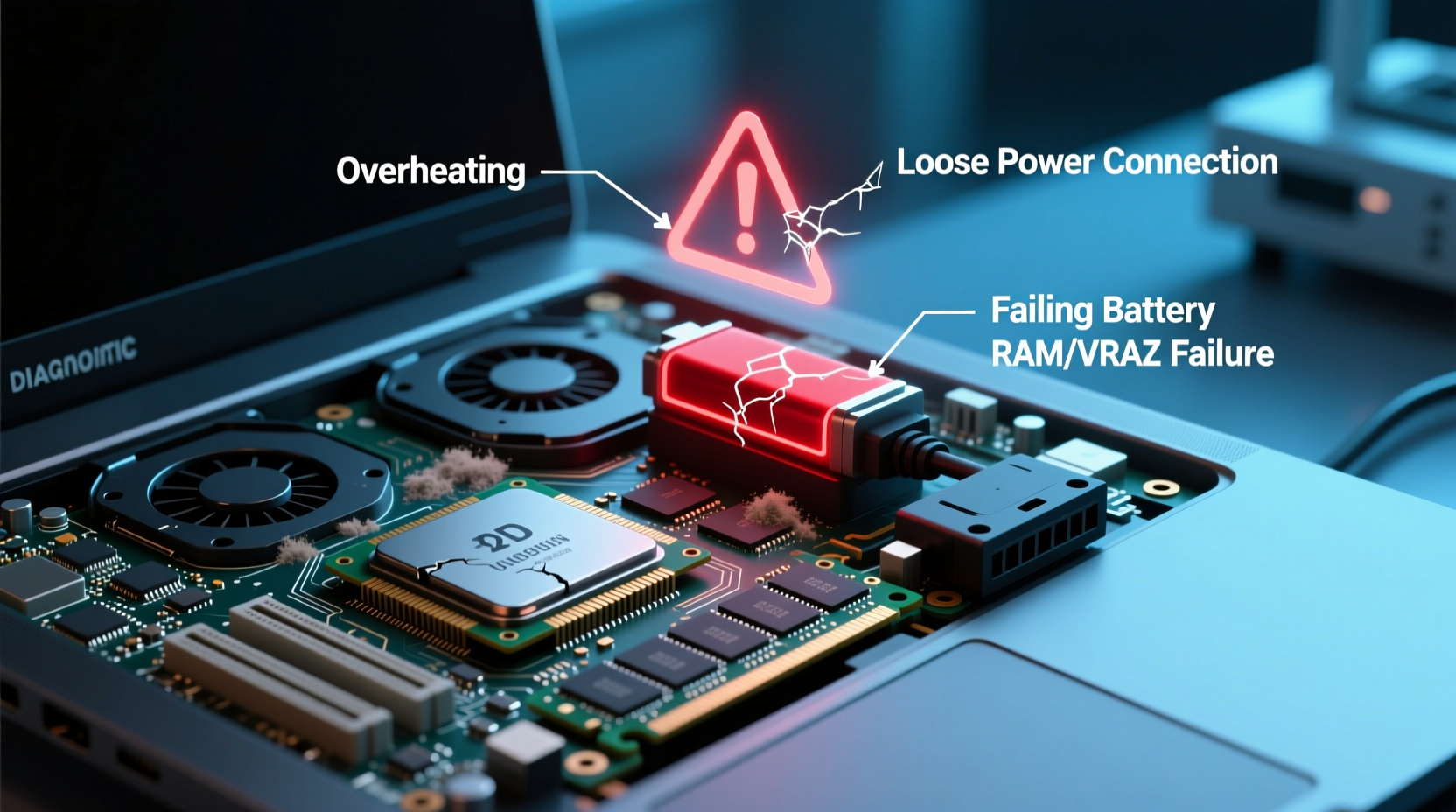
Several interrelated factors can lead to unexpected shutdowns. Some are environmental or user-related, while others point to aging or failing hardware. Identifying the most likely culprit requires evaluating both usage patterns and physical symptoms.
- Overheating: The leading cause of spontaneous shutdowns. When internal temperatures exceed safe thresholds, the processor automatically powers down to avoid thermal damage.
- Power supply issues: A failing battery, damaged charging cable, or malfunctioning power adapter can cause inconsistent voltage delivery, prompting the system to shut off abruptly.
- Faulty RAM or motherboard: Memory errors or corrupted data pathways on the motherboard can crash the system at the firmware level, bypassing normal shutdown procedures.
- Damaged cooling system: Dust-clogged fans, dried-out thermal paste, or a broken heatsink reduce heat dissipation efficiency, increasing the risk of overheating.
- Software conflicts or malware: Though less common, certain drivers or malicious programs can trigger kernel-level crashes that mimic hardware failures.
While software problems usually result in blue screens or restarts, true random shutdowns—where the laptop simply goes dark—are almost always hardware-driven. If your laptop doesn’t even reach the login screen before cutting out, the issue is likely physical rather than digital.
Tip: Monitor your laptop’s temperature using tools like HWMonitor or Core Temp. Sustained CPU temps above 90°C under load indicate a serious cooling problem.What Random Shutdowns Reveal About Hardware Health
Each unexpected shutdown is a stress event for your laptop. Beyond disrupting workflow, these incidents can accelerate wear on key components. More importantly, they serve as diagnostic signals—your laptop is essentially issuing distress calls through its behavior.
Thermal Degradation and Component Lifespan
Repeated overheating damages silicon over time. High temperatures increase electron migration within processors, gradually degrading transistors. This phenomenon, known as electromigration, can permanently reduce performance and reliability. According to Intel’s reliability engineering reports, sustained operation above 95°C can shorten a CPU’s effective lifespan by up to 50%.
“Every uncontrolled thermal cycle stresses solder joints and microconnections. After hundreds of such events, microscopic cracks form—leading to intermittent faults.” — Dr. Alan Zhou, Senior Hardware Engineer at Dell Technologies
The same applies to GPUs and VRAM chips, which are equally sensitive to heat. Laptops used for gaming or video editing are particularly vulnerable if airflow is restricted.
Battery Wear and Power Instability
Aging lithium-ion batteries lose their ability to hold charge and regulate voltage. As capacity diminishes, the battery may deliver unstable power during peak demand, causing the system to shut down even when showing 20–30% remaining. This isn't a false reading—it's the battery collapsing under load.
Additionally, swollen batteries pose a physical threat. Expansion can press against the motherboard or touchpad assembly, creating short circuits or blocking fan rotation, further compounding overheating risks.
Motherboard and Voltage Regulator Failures
The motherboard houses voltage regulator modules (VRMs) that manage power distribution to the CPU and other components. These regulators generate heat during operation and rely on small heatsinks. If those heatsinks become dust-covered or detached, VRMs overheat and fail, triggering immediate shutdowns. Because VRM failure often progresses gradually—starting with brief instability before complete collapse—it may initially present as sporadic shutdowns under heavy use.
Diagnostic Checklist: Is Your Laptop at Risk?
If your laptop shuts down unpredictably, follow this checklist to isolate potential issues. Address each item systematically to determine whether the problem is fixable or indicative of irreversible hardware decline.
- Check for overheating symptoms: Does the bottom of the laptop feel excessively hot? Do fans run loudly even during light tasks?
- Inspect the cooling system: Use compressed air to clean vents. Listen for unusual grinding or clicking from fans.
- Test with AC power only: Remove the battery (if removable) and run solely on the charger. If shutdowns stop, the battery is likely faulty.
- Monitor shutdown triggers: Note whether shutdowns happen during specific activities (e.g., gaming, video playback). Pattern recognition helps identify load-based failures.
- Run hardware diagnostics: Use built-in tools (like Windows Memory Diagnostic or manufacturer utilities such as HP Support Assistant) to scan RAM, disk, and system health.
- Review Event Viewer logs: In Windows, open Event Viewer and look under “System” for critical errors (Event ID 41: Kernel-Power) around the time of shutdowns.
- Assess battery health: On Windows, generate a battery report via Command Prompt (
powercfg /batteryreport). Check design capacity vs. full charge capacity.
Real-World Case Study: A Designer’s Dilemma
Jessica, a freelance graphic designer based in Portland, began experiencing random shutdowns while rendering large Photoshop files. Her 4-year-old laptop would freeze for a few seconds, then cut off completely—no warning, no error message. Initially, she assumed it was a software update issue and reinstalled Windows twice, but the problem persisted.
She noticed the shutdowns occurred only after 20–30 minutes of continuous use. Using HWMonitor, she discovered her CPU was hitting 98°C before powering down. Upon opening the chassis, she found the fan clogged with pet hair and the thermal paste hardened into a flaky residue. After cleaning the fan, replacing the thermal paste, and ensuring proper ventilation, her laptop ran stably at 78°C under the same workload.
This case illustrates how a seemingly catastrophic hardware symptom was resolved with basic maintenance. However, had Jessica continued using the laptop in that state, she risked permanent CPU degradation or VRM failure. Early intervention saved her hundreds in potential repair costs.
Step-by-Step Guide to Prevent Future Shutdowns
Prevention is far more effective—and less costly—than emergency repairs. Follow this timeline to maintain optimal hardware health and minimize unexpected shutdowns.
- Weekly: Clean external vents
Use a soft brush or compressed air to remove dust from intake and exhaust grilles. Never use vacuum cleaners, as static discharge can damage components. - Monthly: Monitor system performance
Check CPU temperature under load, review battery health reports, and ensure all drivers are up to date. Tools like Open Hardware Monitor provide real-time insights. - Every 6 months: Deep-clean internal components (if comfortable)
Power off, unplug, and ground yourself. Open the back panel (consult your model’s manual), clean fans and heatsinks with isopropyl alcohol and cotton swabs, and inspect for loose cables or bulging capacitors. - Every 2–3 years: Replace thermal interface material
Remove the heatsink and apply fresh thermal paste to CPU and GPU. Use high-quality paste like Arctic MX-4 or Noctua NT-H1 for best results. - Annually: Evaluate battery health
If capacity drops below 70% of original design capacity, consider replacement. Continuing to use a degraded battery increases strain on the power circuitry.
Do’s and Don’ts: Managing Laptop Stability
| Do | Don’t |
|---|---|
| Use your laptop on hard, flat surfaces to allow proper airflow | Place it on beds, pillows, or laps where vents get blocked |
| Keep ambient room temperature moderate (below 27°C) | Leave it in hot cars or direct sunlight |
| Shut down properly when not in use for extended periods | Force power-off by holding the button regularly |
| Update BIOS and firmware when recommended by the manufacturer | Ignore critical updates that improve thermal management |
| Back up data weekly to protect against sudden hardware failure | Rely solely on local storage without backups |
Frequently Asked Questions
Can a virus cause my laptop to shut down randomly?
While malware can destabilize the operating system and cause crashes, it rarely causes true hardware-level shutdowns. Most malicious software operates within the OS environment and cannot bypass firmware protections. If your laptop powers off instantly—without a blue screen or restart sequence—the cause is almost certainly hardware-related, not viral.
Is it safe to keep using a laptop that shuts down randomly?
No. Continued use under these conditions risks permanent damage. Each uncontrolled shutdown subjects components to thermal and electrical stress. Data corruption, file system errors, and premature hardware failure are likely outcomes. It’s safer to diagnose and resolve the issue immediately or switch to a secondary device until repairs are made.
Will reinstalling Windows fix random shutdowns?
Only if the issue is purely software-based—such as a buggy driver or corrupted system file. However, if shutdowns occur before the OS boots or persist after a clean install, the root cause is hardware. Reinstalling the OS may temporarily mask symptoms but won’t address overheating, power delivery flaws, or failing components.
Conclusion: Act Now to Preserve Your Device
Random laptop shutdowns are not quirks—they’re warnings. Whether caused by dust buildup, thermal fatigue, or deteriorating components, these events reflect declining hardware health. Ignoring them invites more severe failures, data loss, and higher repair bills. The good news is that many causes are preventable or reversible with timely action.
Start by monitoring temperatures, cleaning your device regularly, and assessing battery and power performance. If symptoms persist, seek professional diagnosis before the problem escalates. Remember: a stable laptop isn’t just about convenience—it’s about protecting your productivity, privacy, and investment.
🚀 Your laptop is trying to tell you something. Don’t wait for total failure—diagnose, maintain, and extend its life today. Share your experience or ask questions in the comments below.