If you’ve ever sat down to watch a show, only to wait five seconds for the home screen to respond after pressing a button on your remote, you’re not alone. Millions of users face sluggish smart TV interfaces every day—menus freeze, apps crash, and navigation feels like moving through molasses. But here’s the real question: is the problem your TV, or could switching to a streaming stick solve it? The battle between built-in smart TV apps and external streaming devices isn’t just about features—it’s about performance, longevity, and user experience.
The frustration of a laggy interface often stems from mismatched expectations. Consumers assume that because their TV is “smart,” it should perform like a modern smartphone or tablet. But most smart TVs run on underpowered processors, outdated operating systems, and bloated software that degrades over time. In contrast, dedicated streaming sticks are designed with one purpose: smooth, responsive media delivery. This article breaks down the technical and practical differences between these two options and reveals why your TV might be dragging its feet.
Why Smart TV Interfaces Feel Slow: The Hidden Bottlenecks
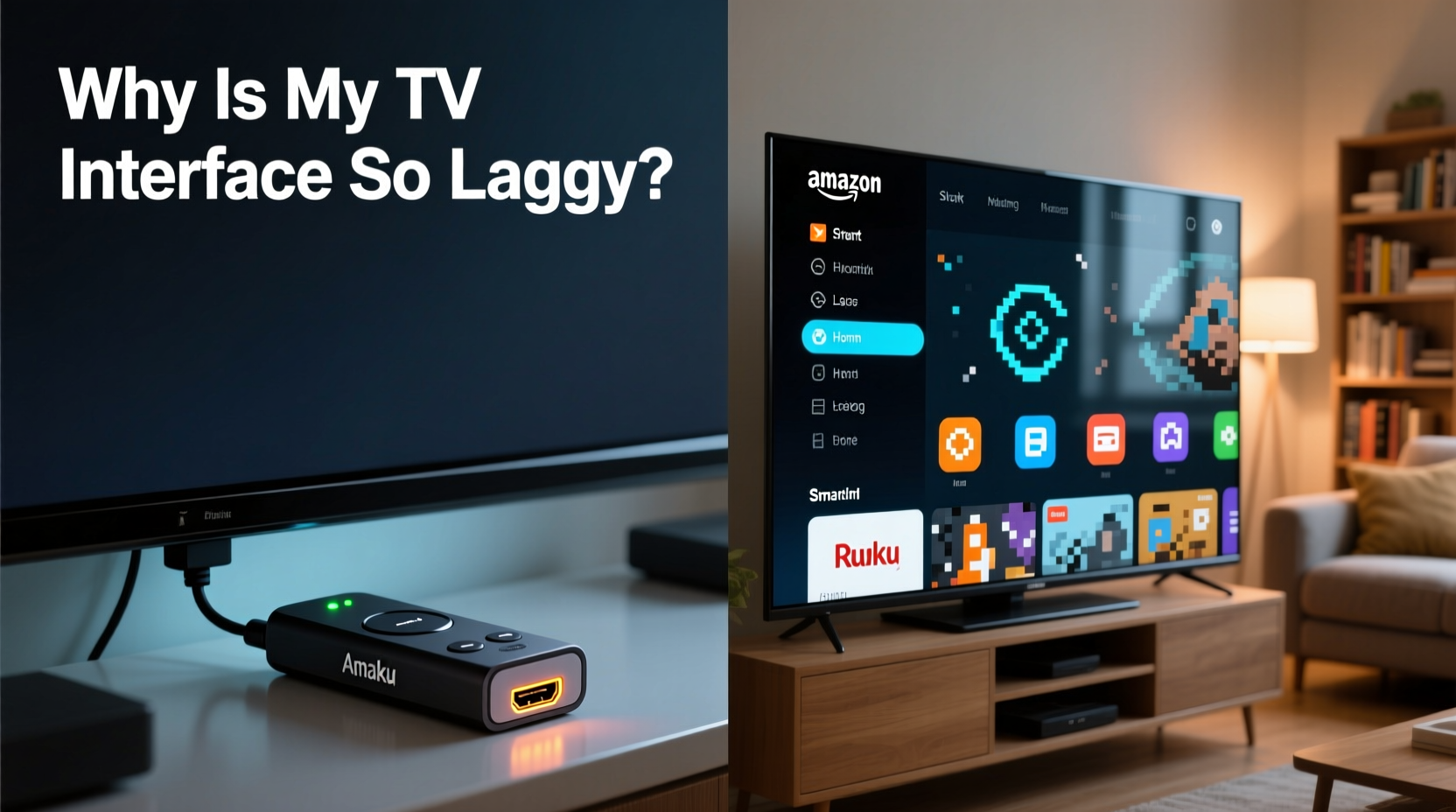
Smart TVs come packed with features—voice assistants, app stores, web browsers—but many of these functions run on hardware that hasn’t kept pace with software demands. Unlike phones or laptops, where upgrades happen frequently, a TV is typically used for 5–7 years or more. Over time, this creates a widening gap between what the system expects and what the hardware can deliver.
One major issue is RAM allocation. Many mid-tier smart TVs ship with only 1.5GB to 2.5GB of RAM, shared across the operating system, background services, and active apps. When you open Netflix, the system must load the app, maintain network connections, manage ad integrations, and keep UI animations running—all while possibly indexing content from USB drives or connected devices. Under such strain, even simple tasks become delayed.
Another culprit is firmware bloat. Manufacturers often preload unnecessary apps (so-called “crapware”) that auto-launch or run in the background. These apps consume memory and CPU cycles, slowing down overall responsiveness. Worse, some brands use proprietary operating systems (like Samsung’s Tizen or LG’s webOS) that aren’t optimized for long-term updates, meaning performance rarely improves—and often worsens—with age.
Tip: Restart your smart TV at least once a week to clear cached data and stop runaway background processes.Streaming Sticks: Built for Speed and Simplicity
Streaming sticks like the Amazon Fire Stick, Roku Streaming Stick+, Google Chromecast with Google TV, and Apple TV HD are engineered differently. They run lightweight, single-purpose operating systems focused solely on media consumption. Their hardware may seem modest on paper, but it's tuned specifically for video playback and app launching—not multitasking or running web browsers.
Take the Roku OS, for example. It boots in under 10 seconds and maintains consistent frame rates during navigation thanks to efficient code and minimal background activity. Similarly, Google’s Android TV (now Google TV) has improved dramatically by pruning unnecessary services and prioritizing app responsiveness. These platforms receive regular updates that enhance stability and speed, unlike many smart TV systems that get abandoned after two years.
Additionally, streaming sticks benefit from centralized app development. Developers optimize apps like Netflix, Hulu, and Disney+ primarily for platforms like Roku and Fire TV because they represent large, standardized user bases. As a result, apps tend to launch faster and crash less frequently than on fragmented smart TV ecosystems.
Hardware Comparison: Chips, Memory, and Real-World Performance
To understand why performance differs, let’s compare typical specs between smart TVs and streaming sticks.
| Device Type | Average Processor | RAM | Storage | Update Support |
|---|---|---|---|---|
| Budget/Mid Smart TV (e.g., Hisense, TCL) | Dual-core ARM Cortex-A55 | 1.5–2.5 GB | 8–16 GB | 1–2 years |
| Premium Smart TV (e.g., Samsung Q80B, LG C2) | Custom quad-core SoC | 4 GB | 16–32 GB | 3–4 years |
| Amazon Fire Stick 4K Max | Quad-core 1.8 GHz | 2 GB | 8 GB | 3+ years |
| Roku Streaming Stick+ | Dual-core 1.5 GHz | 1.5 GB | 4 GB | Ongoing (Roku promises lifetime support) |
| Google Chromecast with Google TV (4K) | Amlogic S905X3 (quad-core) | 2 GB | 8 GB | 3+ years |
While high-end smart TVs now feature respectable hardware, budget models—which make up the majority of sales—often rely on entry-level chips and limited memory. Even when specs appear similar, real-world performance diverges due to software optimization. Streaming sticks avoid resource-heavy GUIs and focus on delivering clean, fast menus tailored to entertainment.
“Most consumers don’t realize that a $60 streaming stick can outperform a $1,500 smart TV in interface responsiveness. It’s not about raw power—it’s about purpose-built design.” — David Lin, Senior Product Analyst at StreamTech Insights
Real-World Example: Sarah’s Frustrating Movie Night
Sarah bought a new 55-inch smart TV last year. Excited to cut the cord, she canceled her cable subscription and relied entirely on built-in apps. At first, everything worked fine. But within six months, opening Netflix took nearly 15 seconds. Navigating to her profile froze the screen twice. One Friday night, she tried to watch a movie with friends, only to spend ten minutes restarting the TV and clearing cache before anything played.
Frustrated, she borrowed a friend’s Roku Streaming Stick+. She plugged it in, paired the remote, and within seconds, the home screen loaded smoothly. Netflix launched instantly. No spinning wheels, no crashes. She was so impressed that she bought one the next day. Since then, her viewing experience has been seamless—even though the stick costs less than 5% of her TV’s price.
Sarah’s story isn’t unique. It reflects a growing trend: consumers discovering that off-the-shelf streaming devices offer better reliability and faster response times than even premium smart TVs.
Step-by-Step Guide to Diagnose and Fix a Laggy TV Interface
Before replacing your setup, try optimizing your current system. Follow this timeline to identify and resolve common causes of lag:
- Week 1: Reboot and Clean Up
- Power cycle your TV completely (unplug for 30 seconds).
- Go to Settings > Apps > See All Apps, and uninstall unused preloaded apps.
- Clear cache and data for frequently used apps like YouTube and Netflix.
- Week 2: Update Everything
- Check for system updates in Settings > System > Software Update.
- Ensure your Wi-Fi router firmware is up to date.
- Restart your modem/router to refresh DNS and reduce latency.
- Week 3: Optimize Network and Display
- Switch from Wi-Fi to Ethernet if possible, or move closer to the router.
- Disable motion smoothing (“TruMotion” or “Auto Motion Plus”) which can interfere with UI rendering.
- Turn off voice assistant microphones if not used—they consume background resources.
- Week 4: Test Alternatives
- Borrow or buy an affordable streaming stick (under $40).
- Compare boot time, app launch speed, and menu fluidity side-by-side.
- If the stick performs significantly better, consider making the switch permanent.
When to Stick With Your Smart TV (and When to Switch)
Not all smart TVs are slow. High-end models from Sony, LG, and Samsung with recent processors and ample RAM can deliver excellent performance—especially if updated regularly. If your TV is less than two years old and runs a modern OS like webOS 22 or Tizen 7.0, it may still be worth optimizing rather than abandoning.
However, if your TV is more than three years old, struggles with basic navigation, or receives no further software updates, it’s likely hitting end-of-life performance limits. In such cases, adding a streaming stick doesn’t replace your TV—it enhances it. You retain access to live TV via antenna or cable inputs while gaining a faster, more reliable streaming experience.
Tip: Use HDMI-CEC to control both your TV and streaming stick with one remote, minimizing clutter and improving usability.Checklist: Upgrade Your Streaming Experience
- ✅ Assess your current smart TV’s responsiveness (boot time, app launch, menu lag)
- ✅ Clear app cache and remove unused preinstalled apps
- ✅ Install all available system and app updates
- ✅ Test connection speed using a wired Ethernet adapter
- ✅ Try a budget streaming stick (Roku, Fire Stick Lite) for comparison
- ✅ Evaluate long-term update policy of your TV brand
- ✅ Decide whether to rely on built-in apps or switch to a dedicated streamer
FAQ: Common Questions About Smart TV Lag
Why do smart TV apps run slower than on phones or tablets?
Smart TVs often use older, less powerful processors and have fewer optimizations for app rendering. Additionally, developers prioritize mobile and streaming device versions over smart TV ports, leading to poorly optimized apps that load slowly and crash frequently.
Can a streaming stick really be faster than my 4K smart TV?
Yes. A streaming stick focuses only on media delivery, avoiding the bloat and multitasking demands of a full smart TV OS. Even with lower specs, its streamlined software allows for quicker response times and smoother navigation.
Will buying a new TV solve the lag problem?
It might—for a while. Premium 2023–2024 models with strong processors and modern operating systems perform well initially. However, without long-term update commitments, they may degrade over time. Research the brand’s track record: LG and Sony generally support webOS and Android TV longer than others.
Conclusion: Take Control of Your Viewing Experience
Your TV shouldn’t make you wait. Whether you choose to optimize your existing smart TV or invest in a dedicated streaming stick, the goal is the same: a fast, reliable, enjoyable interface. Don’t accept lag as inevitable. Technology should serve you—not frustrate you. By understanding the limitations of built-in systems and exploring better alternatives, you regain control over how you watch, when you watch, and how smoothly it all works.
Start small. Reboot your TV. Delete unused apps. Test a $30 streaming stick. You might be surprised how much difference a simple change can make. The best entertainment experience isn’t always the most expensive one—it’s the one that works when you press play.
💬 Have you switched from smart TV apps to a streaming stick? Share your experience below—your insight could help someone else skip the frustration!