Streaming entertainment has shifted from the living room to the palm of your hand. With a mobile phone in nearly every pocket, accessing live TV, on-demand shows, and exclusive content is more convenient than ever. The key lies in downloading and configuring the right TV apps. Whether you’re a cord-cutter, a sports enthusiast, or someone who loves binge-watching series during commutes, setting up TV apps correctly ensures smooth playback, personalized recommendations, and uninterrupted access. This guide walks you through the entire process—from choosing the right platform to troubleshooting common issues—so you can enjoy high-quality streaming wherever you are.
Understanding TV Apps: What They Are and Why You Need Them
TV apps are mobile applications that allow users to stream television content directly to their smartphones. These include services like Netflix, Hulu, YouTube TV, Disney+, Sling TV, and network-specific apps such as NBC, BBC iPlayer, or TVNZ+. Unlike traditional cable, these apps offer flexibility: watch what you want, when you want, often without long-term contracts.
Most modern smartphones support HD and even 4K streaming, making them ideal secondary (or primary) screens for entertainment. Additionally, many apps offer offline downloads, parental controls, multi-device syncing, and personalized profiles. However, simply installing an app isn’t enough. Proper setup ensures optimal video quality, secure login, and seamless integration across devices.
Tip: Always check if your mobile data plan includes unlimited streaming—some carriers throttle video after a certain usage threshold.Step-by-Step Guide to Downloading and Setting Up TV Apps
Follow this structured timeline to get your TV apps up and running quickly and securely.
- Verify Device Compatibility: Ensure your phone runs a supported operating system (Android 8.0+ or iOS 13+). Older versions may not support newer app features or security protocols.
- Connect to Wi-Fi: Use a stable Wi-Fi connection for downloading large apps and initial setup. This avoids excessive data usage and reduces the risk of interrupted downloads.
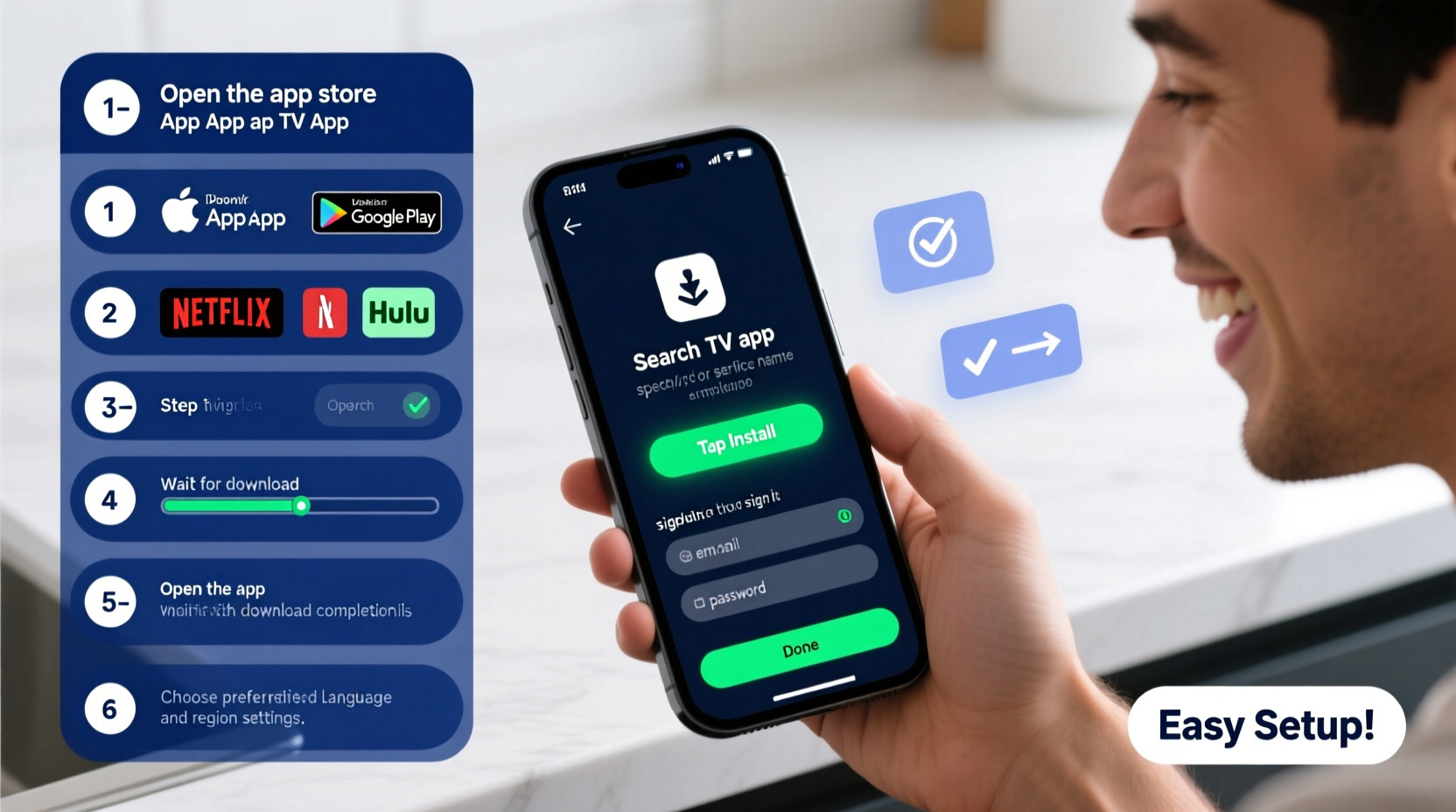
- Open Your App Store: For Android, open Google Play Store. For iPhone, launch the App Store. Search using the exact app name (e.g., “Hulu” or “Peacock”).
- Download the App: Tap “Install” or “Get.” Wait for the download to complete. Avoid sideloading apps from third-party sources unless absolutely necessary and trusted.
- Launch the App: Once installed, tap the app icon to open it. Most will prompt you to sign in or create an account.
- Create or Log Into Your Account: Enter your credentials. If new, follow registration steps, which typically include email verification and payment method entry for subscription-based services.
- Customize Settings: After logging in, navigate to the app’s settings menu. Adjust preferences such as video quality (Wi-Fi vs. mobile data), subtitle language, autoplay behavior, and profile selection.
- Test Playback: Play a short clip or episode to confirm audio, video, and connectivity work properly. Check volume, screen orientation, and caption display.
- Enable Offline Viewing (Optional): In supported apps, download select episodes for offline use. Ideal for travel or areas with poor connectivity.
- Add to Home Screen: Long-press the app icon and choose “Add to Home Screen” for quick access.
Comparison of Popular TV Apps: Features at a Glance
| App Name | Subscription Cost (Monthly) | Offline Downloads | Live TV Option | Free Trial Available? |
|---|---|---|---|---|
| Netflix | $6.99–$22.99 | Yes | No | Yes (30 days) |
| Hulu | $7.99–$17.99 | Yes (with +Live TV) | Yes | Yes (30 days) |
| Disney+ | $8.99 | Yes | No | No |
| YouTube TV | $72.99 | Yes (unlimited storage) | Yes | Yes (1 week) |
| Sling TV | $40–$60 | No (cloud DVR only) | Yes | Yes (7 days) |
This table helps evaluate which service aligns best with your budget, viewing habits, and need for live programming. Note that prices vary by region and promotional offers may apply.
Common Setup Mistakes and How to Avoid Them
- Using weak passwords: Always create strong, unique passwords for each streaming account. Consider using a password manager.
- Ignoring app permissions: Some apps request access to storage (for downloads) or location (for regional content). Denying essential permissions may limit functionality.
- Not updating the app: Developers regularly release updates to fix bugs and improve performance. Enable auto-updates in your app store settings.
- Overlooking regional restrictions: Content libraries differ by country. A U.S.-based Netflix account won’t show the same titles in Australia.
- Streaming in high quality over slow networks: Manually lower video resolution when on mobile data to prevent buffering and excess data consumption.
“Users who take five minutes to configure their app settings correctly experience 70% fewer playback issues.” — Raj Patel, Senior Streaming Support Analyst at TechStream Solutions
Real-World Example: Maria’s Seamless Transition to Mobile TV
Maria, a frequent traveler and marketing consultant, used to rely on hotel TVs for evening entertainment. After missing the season finale of her favorite show due to incompatible regional channels, she decided to switch to mobile streaming. She followed the steps outlined above: first downloading HBO Max, then linking her existing subscription, enabling offline downloads for flights, and adjusting subtitle preferences. Within 20 minutes, she had full control over her viewing experience. On her next trip, she downloaded two episodes before boarding and watched them mid-flight without internet. Her only regret? Not doing it sooner.
Essential Checklist Before You Start
Use this checklist to ensure a smooth setup process:
- ✅ Confirm your phone’s OS version supports the app
- ✅ Connect to a reliable Wi-Fi network
- ✅ Have your subscription details or payment method ready
- ✅ Review app permissions and allow necessary access
- ✅ Check available storage space (most TV apps require 50–100 MB; videos add more)
- ✅ Set preferred video quality under app settings
- ✅ Test sound and screen rotation before extended viewing
Frequently Asked Questions
Can I use one TV app account on multiple phones?
Yes, most services allow multiple device logins, but with limits on simultaneous streams. For example, Netflix permits 1–4 concurrent streams depending on your plan. Be aware that logging in from a new device may log you out of an older one if the limit is exceeded.
Why does the app keep crashing after installation?
This could be due to insufficient storage, outdated software, or a corrupted download. Try restarting your phone, clearing the app cache (under Settings > Apps), or reinstalling the app. Also, ensure your operating system is up to date.
Are free TV apps safe to use?
Some free apps are legitimate (like Tubi, Crackle, or Pluto TV), but others may host pirated content or contain malware. Stick to official app stores and read user reviews before installing. Avoid apps requesting excessive permissions unrelated to streaming.
Final Tips for Ongoing Success
Once your TV apps are set up, maintain them proactively. Periodically review subscriptions to cancel unused services. Monitor data usage if streaming frequently on cellular networks. Take advantage of family plans or bundled packages to save money. And don’t forget to explore hidden features—many apps offer voice search, dark mode, or adaptive brightness for better viewing comfort.
🚀 Ready to transform your phone into a personal theater? Pick one TV app today, follow the steps in this guide, and start streaming smarter. Share your favorite setup tip in the comments below!