The DHGargets Hello Kitty speaker blends nostalgic charm with modern Bluetooth convenience, making it a favorite among fans and casual listeners alike. Its compact design, vibrant aesthetic, and surprisingly rich sound output make it ideal for personal use at home, during travel, or at small gatherings. However, like many compact Bluetooth devices, first-time users may encounter minor hiccups when pairing it with smartphones. This comprehensive guide walks you through every phase of the connection process—ensuring a smooth, frustration-free experience whether you're using an iPhone, Android device, or older smartphone model.
Understanding Your Speaker’s Features
Before diving into the pairing process, it's essential to understand the core functions of the DHGargets Hello Kitty speaker. It uses Bluetooth 5.0 technology, which offers stable connections up to 33 feet (10 meters) in open space. The speaker includes physical buttons for power, volume control, playback, and a dedicated pairing button. A small LED indicator shows battery status, connection state, and pairing mode.
The device is compatible with all major smartphone operating systems, including iOS 12 and above, and Android 6.0 and later. No special app is required for basic operation, though some third-party audio enhancement apps can improve EQ settings once connected.
Tip: Fully charge your Hello Kitty speaker before attempting the first connection. A low battery can interfere with Bluetooth signal stability.Step-by-Step Connection Process
Follow this sequence carefully to ensure successful pairing between your DHGargets Hello Kitty speaker and smartphone.
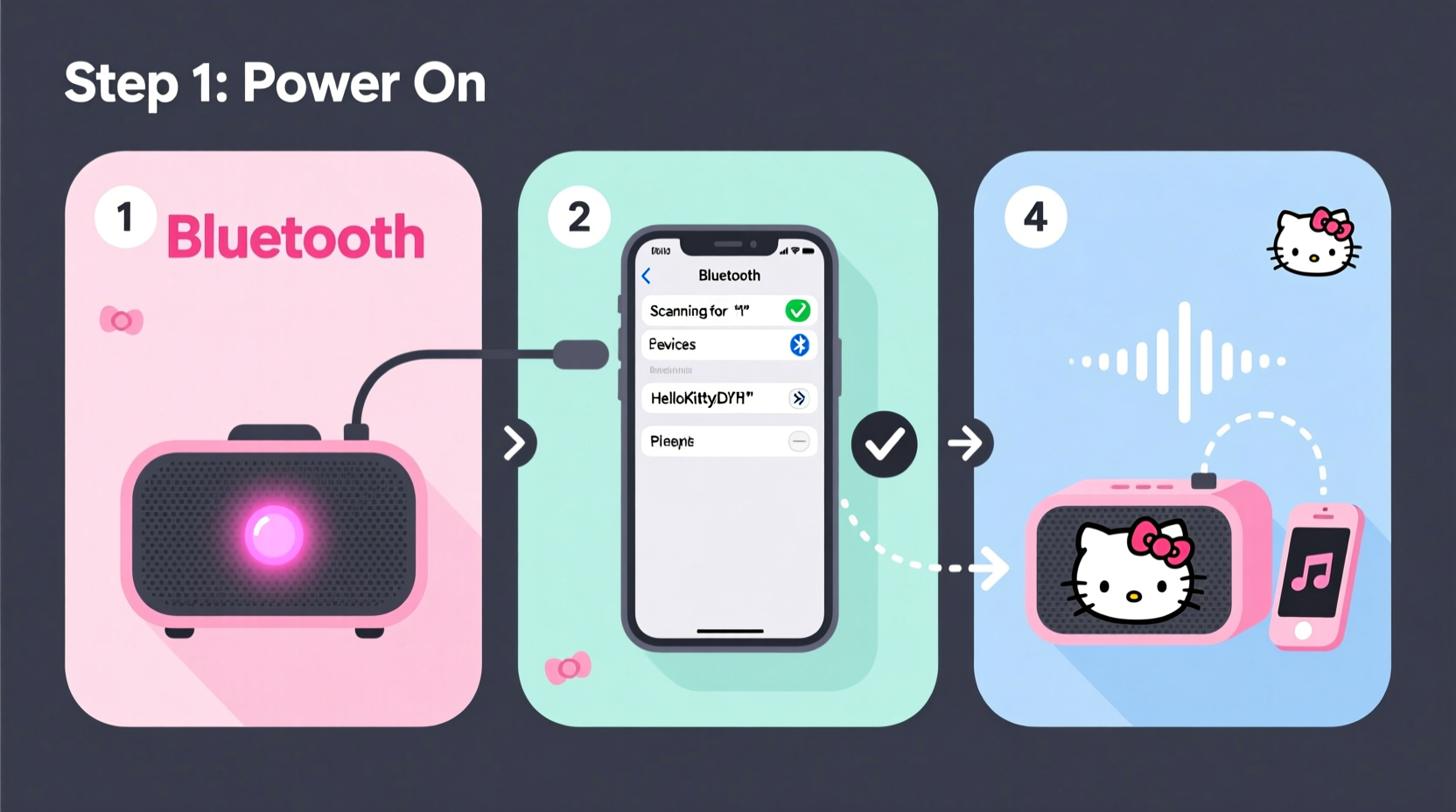
- Power On the Speaker: Press and hold the power button (usually located on the top or side) for 3 seconds. The LED will flash red and blue, indicating the device is on and ready to pair.
- Enable Bluetooth on Your Smartphone: Open Settings > Bluetooth and toggle it on. Wait a few seconds for the system to scan available devices.
- Enter Pairing Mode: If the speaker doesn’t automatically enter pairing mode, press and hold the Bluetooth or multifunction button for 5 seconds until the LED alternates rapidly between red and blue.
- Select the Device: On your phone’s Bluetooth screen, look for a device named “HelloKitty_Speaker” or “DHGargets_HK.” Tap it to initiate pairing.
- Confirm Connection: Once paired, the LED on the speaker will turn solid blue. You may hear a chime or voice prompt confirming the connection.
- Test Audio: Play a song or video to confirm sound is routing through the speaker. Adjust volume using either the phone or speaker controls.
If the device does not appear in your list, ensure no other Bluetooth devices are interfering and that the speaker isn’t already connected to another device. In such cases, disconnect the previous device or reset the speaker.
Troubleshooting Common Issues
Even with careful setup, occasional issues arise. Below are frequent problems and their solutions:
| Issue | Possible Cause | Solution |
|---|---|---|
| Speaker not showing in Bluetooth list | Not in pairing mode or powered off | Hold Bluetooth button for 5 seconds; check LED flashes |
| Connection fails or drops | Low battery or interference | Charge speaker; move away from Wi-Fi routers or microwaves |
| Sound quality is poor | Compression or distance | Move closer to the speaker; avoid playing high-bitrate files over Bluetooth |
| Paired but no sound | Audio output not switched | Check phone’s audio routing settings; restart media app |
“Bluetooth connectivity relies heavily on proximity and signal clarity. Keeping your speaker within 10 feet and minimizing obstructions ensures optimal performance.” — Rajiv Mehta, Wireless Audio Engineer
Maintenance and Best Practices
Once connected, maintaining a reliable link requires consistent care. Avoid exposing the speaker to moisture, even though it has a light splash-resistant coating. Clean the exterior gently with a dry microfiber cloth—especially around the buttons and charging port—to prevent debris buildup.
To preserve battery life, turn off the speaker when not in use. It does not auto-shutdown after disconnection on all models, so manual power-off is recommended. For long-term storage, charge it to about 50% and power down to extend battery longevity.
Tip: Rename your speaker in your phone’s Bluetooth settings (e.g., “Hello Kitty – Bedroom”) to easily identify it among multiple devices.Mini Case Study: Connecting During a Sleepover
Maya, a college student and longtime Hello Kitty fan, purchased the DHGargets speaker for a weekend sleepover. She arrived with her iPhone 13, while her friends used various Android phones. Initially, one friend couldn’t connect because the speaker was still linked to Maya’s phone. After Maya disconnected it from her Bluetooth settings, the speaker re-entered pairing mode automatically upon being turned off and on again. Within minutes, everyone took turns streaming music from their devices. The group appreciated the clear midrange tones and playful design, which became a conversation starter. The key takeaway? Managing active connections prevents confusion in shared environments.
Essential Checklist Before First Use
- ✅ Charge the speaker fully using the included micro-USB or USB-C cable
- ✅ Update your smartphone’s OS to the latest version for optimal Bluetooth compatibility
- ✅ Disable any active Bluetooth connections to other speakers or headphones
- ✅ Locate the pairing button and familiarize yourself with LED indicators
- ✅ Test audio output immediately after pairing to verify functionality
- ✅ Store the pairing instructions for future reference (e.g., when switching devices)
Frequently Asked Questions
Can I connect the Hello Kitty speaker to two phones at once?
No, the DHGargets model does not support multipoint Bluetooth. Only one device can be actively connected at a time. To switch users, the current device must disconnect manually before the next one pairs.
How do I reset the speaker if it won’t connect?
Press and hold the power and volume down buttons simultaneously for 10 seconds. The LED will flash rapidly, indicating a factory reset. Afterward, release the buttons and restart the pairing process.
Does the speaker work with tablets and laptops?
Yes. Any device with Bluetooth 4.2 or higher can pair with the Hello Kitty speaker. This includes iPads, Android tablets, Windows laptops, and MacBooks. The process is identical to smartphone pairing.
Maximize Your Listening Experience
After a successful connection, explore how to get the most from your speaker. Position it on a flat, non-porous surface to enhance bass response. Avoid placing it inside bags or under pillows, which muffle sound. For outdoor use, keep it in the shade—direct sunlight can degrade both the plastic casing and internal battery over time.
Consider creating playlists optimized for smaller speakers. Tracks with heavy bass may distort at high volumes. Lower the volume slightly and increase the equalizer’s mid and high frequencies for clearer vocals and instrument separation.
Conclusion
Connecting your DHGargets Hello Kitty speaker to a smartphone is a simple process when you know the right steps. From powering on and entering pairing mode to troubleshooting common glitches, each action contributes to a seamless audio experience. Whether you're reliving childhood memories or simply enjoying cute tech with solid sound, this little speaker delivers more than meets the eye.
💬 Got a fun way you use your Hello Kitty speaker? Share your story in the comments and inspire others to personalize their audio setup!