There’s nothing more frustrating than trying to take a hands-free call only to discover the speakerphone isn’t working. Whether you're in the middle of a conference call, navigating with voice directions, or simply trying to multitask while talking, a non-responsive speakerphone disrupts your workflow and communication. The good news? Most issues are fixable without visiting a technician. With a few targeted troubleshooting steps, you can diagnose and resolve the problem quickly—often in under 10 minutes.
Common Causes of Speakerphone Failure
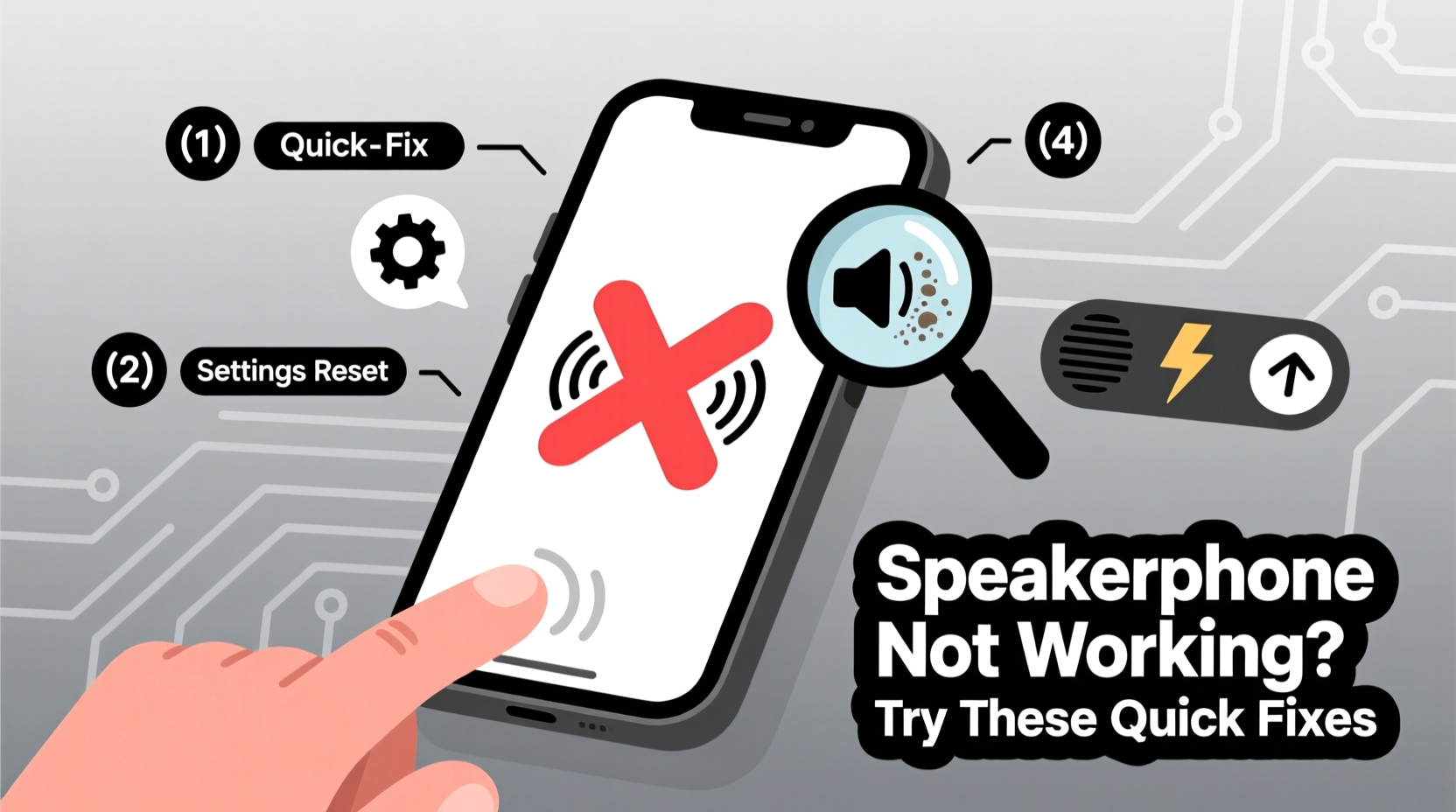
Before jumping into fixes, it helps to understand what might be going wrong. Speakerphone issues typically stem from one of three categories: software glitches, physical obstructions, or hardware damage. Identifying the root cause saves time and prevents unnecessary repairs.
- Software bugs: Outdated operating systems, app-specific errors, or misconfigured settings can disable the speakerphone function.
- Physical blockage: Dust, lint, or debris clogging the speaker grille can muffle or completely silence output.
- Hardware failure: Damaged internal speakers, water exposure, or manufacturing defects may require professional repair.
- Accidental mute: A simple oversight—like having the volume down or Do Not Disturb enabled—can mimic a broken speaker.
Most users experience software-related or obstruction-based issues, both of which are easily resolved at home.
Tip: Always check if the issue occurs during calls only or across all audio functions (music, videos, alarms). This helps isolate whether the problem is call-specific or system-wide.Step-by-Step Troubleshooting Guide
Follow this logical sequence to identify and fix the issue efficiently. Start with the simplest solutions before moving to advanced diagnostics.
- Check volume settings: Press the volume up button during a call. Ensure the media and call volumes are not muted or set too low.
- Verify mute status: Look for a mute icon on-screen during calls. Some phones automatically start calls with mic muted but forget to alert users.
- Clean the speaker grille: Use a soft-bristled brush or compressed air to gently remove lint and dust from the bottom or front-facing speaker.
- Restart your phone: A reboot clears temporary software glitches that may interfere with audio routing.
- Test in Safe Mode (Android): Boot into Safe Mode to rule out third-party apps interfering with audio functions.
- Update your OS: Install the latest system updates, as patches often fix known audio bugs.
- Reset sound settings: On iPhone, go to Settings > General > Reset > Reset All Settings. On Android, use “Reset app preferences” or “Reset sound settings” if available.
- Test with headphones: Plug in headphones and play audio. If sound works there, the issue is likely with the internal speaker or its configuration.
If none of these steps restore functionality, proceed to deeper diagnostics.
Do’s and Don’ts When Fixing Speakerphone Issues
| Do’s | Don’ts |
|---|---|
| Use compressed air to clean speaker grilles gently | Insert sharp objects like pins or needles into the speaker |
| Keep your phone dry and avoid moisture exposure | Use liquid cleaners directly on the speaker |
| Regularly update your device’s operating system | Ignore persistent crackling or distorted sounds |
| Back up data before resetting settings | Drop your phone to dislodge debris—this risks further damage |
Real-World Example: Resolving a Stubborn Speaker Issue
Sarah, a project manager, noticed her Samsung Galaxy S22 wouldn’t activate speakerphone during team calls. She could hear others faintly through the earpiece but couldn’t switch to speaker mode. She checked volume levels and restarted the phone—no change. Then she recalled downloading a new call-recording app the day before. After uninstalling it, the speakerphone worked immediately. The app had altered default audio routing permissions without notification.
This case highlights how third-party applications can silently interfere with core phone functions. Testing in Safe Mode would have confirmed this faster by disabling all non-essential apps temporarily.
“Many so-called hardware failures turn out to be permission conflicts or background app interference. Always investigate software first—it solves 70% of reported speaker issues.” — David Lin, Mobile Support Engineer at TechAid Solutions
Quick Checklist: Speakerphone Not Working?
Run through this checklist to save time and effort:
- ✅ Is the volume turned up during the call?
- ✅ Is the microphone or speaker accidentally muted?
- ✅ Are there any visible blockages in the speaker grill?
- ✅ Does the speaker work for music, videos, or alarms?
- ✅ Have you restarted the device recently?
- ✅ Is your OS up to date?
- ✅ Did you install any new apps before the issue started?
- ✅ Does the speaker work in another calling app (e.g., WhatsApp, Zoom)?
If all items are checked and the problem persists, consider a factory reset as a last resort—after backing up your data.
Tip: Try making a call using a different dialer app. Sometimes the default phone app has bugs that third-party alternatives don’t.Frequently Asked Questions
Why does my speakerphone work sometimes but not others?
Intermittent performance often points to software instability or partial blockage. It could also be related to network conditions—VoLTE or Wi-Fi calling bugs occasionally prevent proper audio channel activation. Clearing the cache of your Phone app or toggling airplane mode on and off can help stabilize the connection.
Can water damage cause permanent speaker failure?
Yes. Even brief exposure to moisture can corrode internal components over time. If your phone was recently near water, allow it to dry completely for 24–48 hours in a dry, ventilated area (avoid rice—it’s ineffective and can introduce dust). If sound returns weak or distorted, professional cleaning may be needed.
Is it worth repairing the speaker if only the speakerphone is dead?
It depends on the phone’s age and value. For newer devices, speaker replacement is usually cost-effective. For older models, consider upgrading. However, if other functions (earpiece, charging, camera) are failing too, moisture or impact damage may be widespread, making repair less viable.
Conclusion: Take Action Before Replacing Your Phone
A malfunctioning speakerphone doesn’t automatically mean your device is broken beyond repair. In most cases, a combination of basic cleaning, software resets, and setting adjustments restores full functionality. By methodically ruling out common causes—from accidental mute to rogue apps—you regain control without spending money or losing valuable data.
Don’t rush to replace your phone at the first sign of trouble. Apply these fixes in order, document what changes, and pay attention to patterns. More often than not, the solution is simpler than it seems. Your speakerphone can—and should—work reliably. Now that you know how to fix it, take charge and get back to seamless, hands-free communication.
💬 Have a unique fix that worked for you? Share your experience in the comments and help others solve their speakerphone problems faster!