For anyone spending hours at a keyboard—writers, programmers, students, or remote workers—the tactile experience of each keystroke matters more than most realize. Mechanical keyboards have gained popularity not just for their durability, but for the way different switch types influence comfort, speed, and fatigue over long typing sessions. Among the most debated pairings are Cherry MX Red and Cherry MX Brown switches. Both are widely available, often found in mid-range to premium keyboards, and favored for their balanced performance. But when it comes to all-day typing, which one truly feels better? The answer isn’t universal—it depends on your typing style, hand strength, and personal sensitivity to feedback.
The Core Differences: Linear vs Tactile
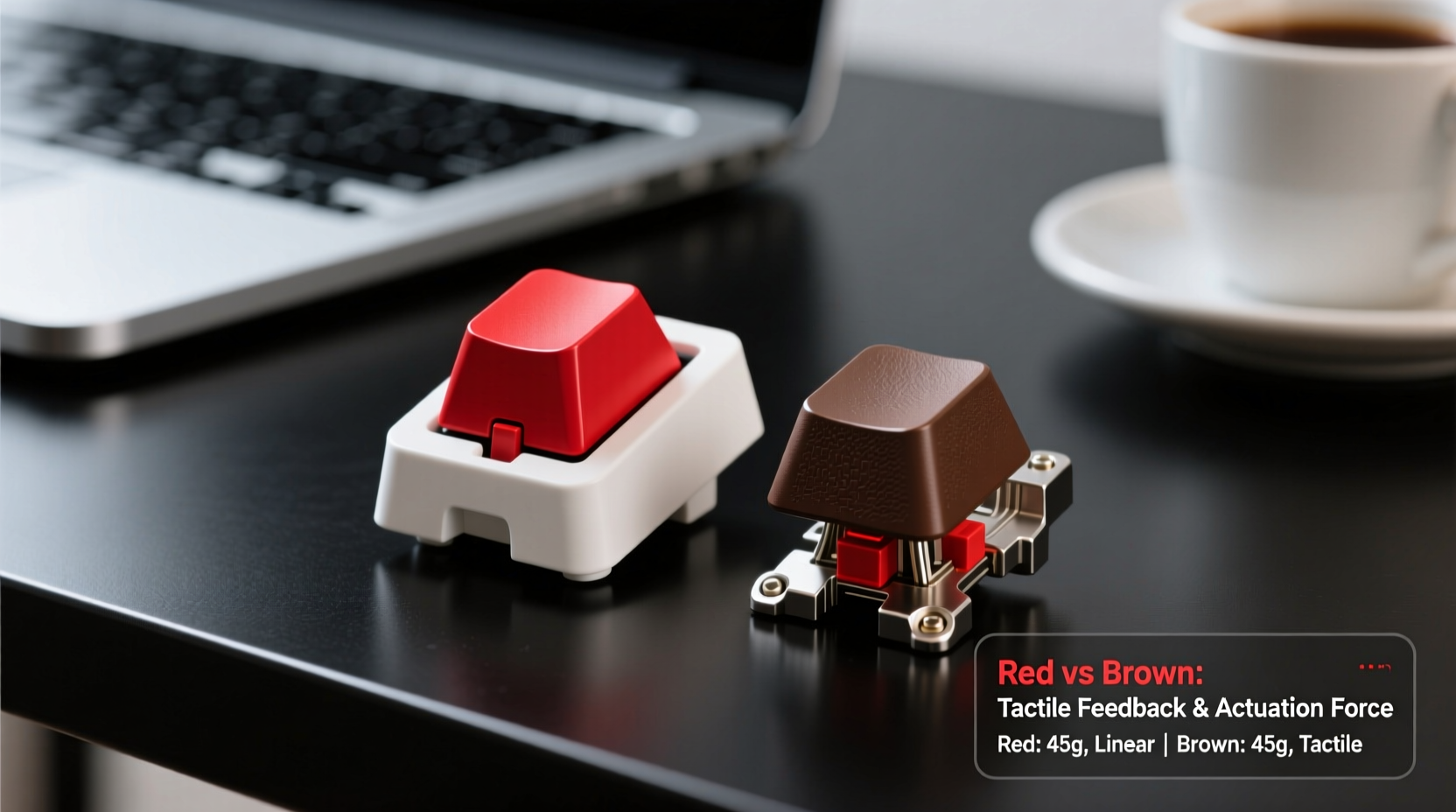
The fundamental distinction between Red and Brown switches lies in their actuation mechanism. Cherry MX Reds are linear switches, meaning they offer a smooth, consistent keystroke from top to bottom without any bump or audible click. In contrast, Browns are tactile switches—they feature a subtle bump mid-press that signals the point of activation. This difference shapes the entire typing experience.
Linear switches like Reds require less finger effort once past the initial resistance, making them ideal for rapid key presses and gaming. However, because there’s no physical feedback, typists may rely more on sound or muscle memory to confirm actuation. Tactile switches like Browns provide that subtle \"bump,\" offering a sensory cue that helps reduce bottoming out (pressing keys all the way down), which can lead to less strain during extended use.
Tip: If you frequently press keys too hard without realizing it, a tactile bump like the one in Brown switches can help regulate force and reduce fatigue.Typing Comfort Over Time: Pressure, Travel, and Fatigue
Comfort during prolonged typing is influenced by several mechanical factors: actuation force, total travel distance, and reset point. Cherry MX Reds typically require 45cN of force to actuate, while Browns require the same—but the perception differs due to the tactile bump. That small resistance peak in the middle of a Brown switch can make it feel slightly heavier, even though the numbers are identical.
Travel distance is consistent across both at 4.0mm, with actuation occurring at 2.0mm. This means either switch registers input halfway through the press. However, users of Brown switches often report typing more efficiently because the bump acts as a natural pause, encouraging lighter keystrokes. Reds, being smoother, can encourage faster but potentially heavier typing if not consciously controlled.
A study conducted by the Human Factors and Ergonomics Society noted that tactile feedback reduces typing errors by up to 17% in continuous writing tasks. While this doesn’t directly measure comfort, fewer errors mean less backtracking and correction, contributing to a smoother, less mentally taxing experience.
“Tactile switches introduce micro-feedback loops that help typists self-regulate pressure. Over an eight-hour day, that small efficiency adds up.” — Dr. Alan Zhou, Human-Computer Interaction Researcher, MIT Media Lab
Comparative Analysis: Red vs Brown Switches
| Feature | Cherry MX Red | Cherry MX Brown |
|---|---|---|
| Type | Linear | Tactile |
| Actuation Force | 45cN | |
| Travel Distance | 4.0mm | 4.0mm |
| Actuation Point | 2.0mm | 2.0mm |
| Feedback | None (smooth press) | Subtle bump at actuation |
| Noise Level | Moderate (depends on keycap material) | Slightly higher due to bump resonance |
| Best For | Gaming, fast typists, light touch typers | Prolonged typing, error reduction, hybrid use |
| Fatigue Factor | Low if technique is light; higher if bottoming out | Generally lower due to feedback preventing over-pressing |
Real-World Typing Experience: A Day in the Life
Consider Sarah, a technical writer who logs 6–8 hours daily typing documentation, emails, and reports. She initially used a keyboard with Red switches, drawn to their smoothness and quiet operation. After three months, she began experiencing finger fatigue, particularly in her ring and pinky fingers. Upon reviewing her typing habits, she noticed she was consistently bottoming out—hitting the base of the keys with noticeable force—because the lack of feedback made it hard to gauge actuation.
She switched to a Brown switch keyboard and within a week reported improved comfort. “It’s not louder or harder,” she said, “but I can *feel* when the key has registered. I don’t have to press as far or as hard. My hands feel lighter at the end of the day.”
This scenario reflects a common trend among professional typists: while Reds offer speed, Browns promote sustainability. The tactile bump serves as a built-in regulator, reducing unnecessary force and promoting a more efficient typing rhythm. For those who type continuously with minimal breaks, that efficiency translates into reduced muscular strain.
Choosing Based on Your Typing Style
Your ideal switch depends heavily on how you type. Here’s a checklist to help determine which might suit you best:
Checklist: Which Switch Matches Your Typing Habits?- ✅ Do you prefer a smooth, uninterrupted keystroke? → Lean toward Reds
- ✅ Do you often rest your fingers lightly on the home row? → Reds may enhance speed
- ✅ Do you find yourself pressing keys too hard or hearing loud bottom-out noise? → Browns can correct this
- ✅ Do you value feedback to confirm keystrokes without looking? → Browns are superior
- ✅ Are you using the same keyboard for gaming and typing? → Reds excel in dual-role setups
- ✅ Do you experience finger fatigue after long sessions? → Try Browns for improved ergonomics
If you're a light touch typist with a relaxed posture, Reds can feel effortless. But if you tend to type aggressively or want more control, Browns offer a natural damping effect. It's also worth noting that keycap material, keyboard case design, and desk surface can influence perceived comfort. PBT keycaps, for instance, add slight texture that complements the tactile bump of Browns, enhancing overall feedback.
Expert Recommendations and Industry Trends
Keyboard designers and ergonomic specialists increasingly favor tactile switches for productivity-focused builds. According to Linus Sebastian, host of Linus Tech Tips and founder of LTT Store, “While Reds dominate gaming keyboards, we see a shift toward tactile switches in office and hybrid work environments. The feedback just makes long typing sessions more sustainable.”
Manufacturers have responded with variations like Kailh Speed Browns (faster actuation) and Gateron Browns (smoother bump), aiming to blend the best of both worlds. Even Cherry itself now offers Silent Reds, which dampen noise while maintaining linearity—ideal for shared spaces where tactile feedback might be distracting.
“In ergonomic design, sensation matters as much as mechanics. A well-placed tactile bump can reduce cognitive load by confirming input without sound or visual cues.” — Dr. Mei Tran, Industrial Design Consultant, IDEO
Step-by-Step Guide to Testing Switches Before Buying
You don’t need to buy multiple keyboards to decide. Follow this practical guide to test switches intelligently:
- Visit a local electronics store with mechanical keyboards on display. Brands like Logitech, Corsair, and Razer often showcase different switch types.
- Bring a short passage to type—a paragraph from a book or article—to simulate real usage.
- Type for at least 3–5 minutes per switch. Focus on how your fingers feel, not just speed.
- Pay attention to bottoming out. Are you hitting the base of the keys repeatedly? This indicates potential fatigue risk.
- Note auditory feedback. Are the Browns noisier than expected? Does the Red feel too quiet to confirm input?
- Rest and compare. Step away for a few minutes, then return to re-evaluate. First impressions can be misleading.
- Read user reviews focused on long-term comfort, not just initial excitement.
Alternatively, consider purchasing a switch tester—a small device with multiple switch types mounted for side-by-side comparison. These typically cost $20–$35 and can save you from buyer’s remorse.
Frequently Asked Questions
Can I switch from Red to Brown after years of using linear switches?
Yes, and many users do so successfully. The adjustment period is usually 3–7 days. You may initially feel the bump as distracting, but most adapt quickly and appreciate the added control.
Are Brown switches too noisy for an open office?
They’re slightly noisier than Reds due to the internal bump mechanism, but not excessively so. With standard keycaps, they remain quieter than clicky switches like Blues. Using O-rings or foam padding inside the case can further reduce noise.
Do Red switches wear out faster because of constant bottoming out?
Not significantly. Both Red and Brown switches are rated for 50 million keystrokes. However, frequent bottoming out can accelerate wear on keycaps and stabilizers. Using proper typing technique extends the life of any switch.
Final Verdict: Which Feels Better for All-Day Typing?
When the goal is sustained comfort over hours of typing, Cherry MX Brown switches generally come out ahead. The tactile bump provides crucial sensory feedback that promotes lighter keystrokes, reduces finger fatigue, and improves accuracy. While Cherry MX Reds offer a sleek, fast feel ideal for gamers or those who prefer a frictionless press, they demand more discipline in typing technique to avoid over-pressing.
That said, personal preference remains paramount. Some writers thrive on the fluidity of Reds, especially when paired with low-profile keycaps or soft landing mods. Others find the subtlety of Browns indispensable. The best approach is empirical: test both under real conditions and listen to what your hands tell you after an hour—not just the first minute.
💬 Ready to upgrade your typing experience? Try a switch tester today and discover whether Red or Brown makes your fingers feel fresher at the end of a long workday. Share your findings with others—your insight could help someone avoid months of discomfort.