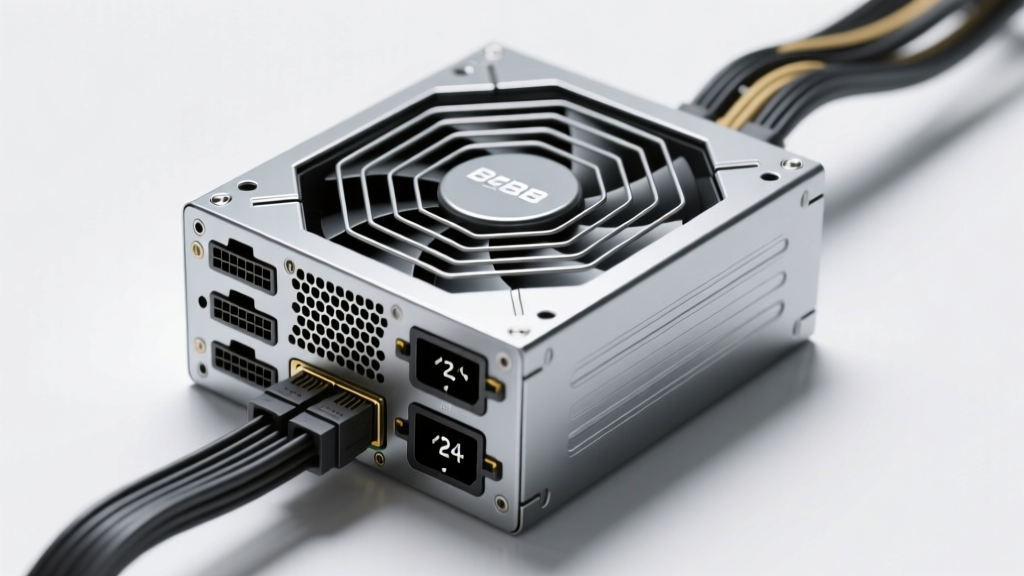
Types of Laptop Computer Hardware
Laptop computer hardware is the physical components that make up a laptop, each serving a specific function in data processing, storage, input, output, and system performance. Understanding these components helps users make informed decisions about upgrades, repairs, and purchasing. There are five primary categories of laptop hardware, each playing a crucial role in overall functionality and user experience.
Storage Hardware
Storage hardware includes all components responsible for saving data—both temporarily and permanently—within a laptop. This category encompasses internal and external storage solutions.
Key Features
- Stores operating system, applications, and user files
- Available in internal (SSD, HDD) and external (USB drives, memory cards) forms
- Modern laptops primarily use SSDs for faster boot and load times
- SSDs offer greater durability due to lack of moving parts
Considerations
- HDDs are slower and more prone to mechanical failure
- Higher-capacity SSDs can significantly increase laptop cost
- External storage requires additional ports or wireless connectivity
Best for: Long-term data retention, system performance (SSD), backup solutions (external drives)
Memory Hardware (RAM)
Memory hardware, commonly known as Random Access Memory (RAM), is a volatile, high-speed storage component that temporarily holds data actively used by the CPU.
Key Features
- Enables smooth multitasking and quick application switching
- More RAM allows handling of memory-intensive tasks (e.g., video editing, virtual machines)
- Modern laptops use DDR4 or LPDDR4/5 RAM for energy efficiency and speed
- Directly impacts system responsiveness and performance
Considerations
- RAM is volatile—data is lost when power is off
- Some laptops have soldered RAM, limiting upgrade options
- Excessive RAM beyond needs offers diminishing returns
Best for: Multitasking, running complex software, improving system fluidity
Input Hardware
Input hardware allows users to interact with and send data to the laptop. These components are essential for navigation, content creation, and communication.
Key Features
- Includes built-in devices like keyboards, trackpads, webcams, and microphones
- Supports external peripherals such as mice, drawing tablets, and external keyboards
- Touchscreens and stylus support enhance interactivity on 2-in-1 laptops
- Crucial for productivity, gaming, and creative workflows
Considerations
- Integrated input devices may lack ergonomic comfort
- External devices require additional space and connectivity
- Touchscreens can reduce battery life
Best for: User interaction, content creation, remote communication, precision control
Output Hardware
Output hardware delivers processed information from the laptop to the user in visual, auditory, or printed form.
Key Features
- Primary output is the built-in display, typically high-definition or 4K resolution
- Internal speakers and audio jacks provide sound output
- Supports external monitors, projectors, and high-fidelity audio systems
- Essential for multimedia, presentations, and entertainment
Considerations
- Integrated speakers often lack depth and volume
- Higher-resolution displays consume more power
- External output devices require compatible ports or adapters
Best for: Multimedia consumption, professional presentations, gaming, creative output
Processing Hardware
Processing hardware is the computational core of the laptop, responsible for executing instructions and managing all system operations.
Key Components
- CPU (Central Processing Unit): The "brain" of the laptop; handles general computing tasks and OS operations
- GPU (Graphics Processing Unit): Specialized for rendering images, video, and animations; crucial for gaming and design
- Modern processors (e.g., Intel Core, AMD Ryzen, Apple M-series) integrate CPU and GPU on a single chip
- Determines overall system speed, responsiveness, and multitasking capability
Considerations
- High-performance processors generate more heat and require robust cooling
- Integrated GPUs are less powerful than dedicated ones
- Processor upgrades are rarely possible in most laptops
Best for: Running applications, gaming, video editing, 3D rendering, and AI tasks
| Hardware Type | Primary Function | Common Components | Impact on Performance | Lifespan & Upgradeability |
|---|---|---|---|---|
| Storage | Data retention and retrieval | SSD, HDD, NVMe, SD card reader | Fast boot times, quick file access | SSDs: 5–7 years; often upgradeable |
| Memory (RAM) | Temporary data access for active processes | DDR4, LPDDR4, DDR5 | Smooth multitasking, app responsiveness | 3–5 years; sometimes soldered, limiting upgrades |
| Input | User interaction and data entry | Keyboard, trackpad, webcam, touchscreen | Efficiency, comfort, and accessibility | 5+ years; external options highly flexible |
| Output | Displaying and delivering processed information | Display screen, speakers, HDMI/USB-C ports | Visual/audio quality, external connectivity | 5+ years; external devices offer scalability |
| Processing | Executing instructions and computations | CPU, GPU, chipset | Determines overall speed and capability | 3–7 years; rarely upgradeable |
Expert Tip: For optimal performance, prioritize laptops with SSD storage and at least 8GB of RAM. Gamers and creative professionals should look for dedicated GPUs and higher RAM capacity (16GB or more) to handle demanding applications efficiently.
Commercial Value of Laptop Computer Hardware
Laptop computer hardware holds significant commercial value across a broad spectrum of industries. In today’s fast-paced, digital-first environment, laptops are no longer just tools—they are essential enablers of productivity, innovation, and connectivity. The market worth of laptop hardware is influenced by several interrelated factors that reflect both technological advancement and evolving user demands.
Key Drivers of Commercial Value
Technical Performance Enhancement
The performance capabilities of laptop hardware are among the most critical factors determining its commercial appeal. High-performance components such as multi-core processors (e.g., Intel Core i7/i9 or AMD Ryzen 9), solid-state drives (SSDs), and ample RAM (16GB or higher) enable seamless multitasking and efficient handling of resource-intensive applications.
For professionals in fields like data science, software development, and financial modeling, these components translate into faster processing times and reduced workflow bottlenecks. Similarly, creative professionals—including graphic designers, video editors, and animators—rely on powerful GPUs and high-speed storage to render complex projects efficiently. This direct correlation between hardware capability and productivity makes performance a top priority for businesses investing in technology.
Functional Versatility Across Sectors
Laptops are uniquely positioned as versatile tools that serve diverse needs across multiple industries. Their portability and adaptability make them ideal for use in education, corporate environments, healthcare, engineering, entertainment, and remote work settings.
In education, students use laptops for research, writing, and online learning platforms. In business, they support video conferencing, cloud collaboration, and enterprise software. Gaming laptops with dedicated graphics cards cater to the booming esports and content creation markets. Meanwhile, ruggedized or industrial-grade laptops are deployed in fieldwork, manufacturing, and logistics for real-time data collection and inventory management. This wide functional range significantly enhances the market demand and commercial viability of laptop hardware.
Continuous Technological Advancements
The rapid pace of innovation in computer hardware drives sustained consumer interest and market growth. Each year, manufacturers introduce new generations of processors (such as Apple’s M-series chips or Intel’s Core Ultra), improved thermal designs, longer-lasting batteries, and higher-resolution displays (including OLED and 120Hz refresh rate screens).
These advancements not only improve user experience but also extend the lifecycle and relevance of devices in professional settings. For example, AI-accelerated tasks, enhanced security features (like TPM 2.0 and facial recognition), and 5G connectivity are increasingly integrated into modern laptops, making them future-ready. As a result, companies and consumers alike are motivated to upgrade regularly, fueling a consistent demand cycle in the global market.
Impact on Lifestyle and User Expectations
Modern lifestyles have become deeply intertwined with mobile computing. Users now expect their laptops to be lightweight, powerful, and capable of supporting all aspects of their digital lives—whether working remotely, attending virtual meetings, streaming media, or engaging in creative hobbies.
This shift in expectations has redefined what constitutes a "valuable" device. Consumers prioritize sleek designs, long battery life, instant wake-up features, and seamless integration with smartphones and cloud services. As a result, hardware manufacturers must continuously innovate to meet these evolving standards, further increasing the commercial stakes. Devices that successfully align with lifestyle demands—such as ultrabooks and 2-in-1 convertibles—command premium pricing and enjoy strong market traction.
| Value Driver | Industry Impact | Commercial Implication |
|---|---|---|
| High-Performance Components | Technology, Engineering, Media | Justifies premium pricing; essential for professional workflows |
| Versatile Design & Portability | Education, Remote Work, Healthcare | Expands market reach; supports BYOD (Bring Your Own Device) policies |
| Regular Hardware Innovation | Consumer Electronics, Retail | Drives upgrade cycles and brand loyalty |
| Alignment with Lifestyle Trends | Entertainment, Freelancing, Startups | Increases perceived value and emotional connection to the product |
Emerging Trends Influencing Future Value
Important: The commercial value of laptop hardware is not static—it evolves with technological progress, market trends, and user behavior. Businesses and consumers should consider total cost of ownership (TCO), including durability, upgrade potential, software compatibility, and support services when evaluating hardware investments. Staying informed about emerging technologies ensures better decision-making and maximizes return on investment.
Specification & Maintenance of Laptop Computer Hardware
Each component of laptop hardware plays a vital role in overall system performance, reliability, and longevity. Understanding the technical specifications and proper maintenance practices for key hardware components ensures optimal functionality, prevents premature failure, and enhances user experience. Below is a comprehensive guide covering storage, memory, input/output devices, and processing units.
Storage Hardware: Specifications & Maintenance
Modern laptops rely heavily on solid-state drives (SSDs) for fast, reliable data access. Unlike traditional hard disk drives (HDDs), SSDs have no moving parts, resulting in faster boot times, improved durability, and lower power consumption. A 1TB SSD is ideal for users handling large files such as videos, games, or professional software.
- Optimal Usage: Avoid filling the SSD beyond 80% capacity to maintain read/write speeds and extend lifespan
- External Storage: Affordable external HDDs are excellent for backups and media archives; however, they should be handled with care due to mechanical components
- Environmental Care: Protect all storage devices from extreme temperatures, moisture, and physical shocks
- Maintenance Tips: Regularly run disk error checks, enable TRIM for SSDs, and perform automated backups using cloud services or external drives
Pro tip: Use built-in tools like Windows Storage Sense or macOS Optimization to manage storage automatically.
Memory (RAM): Specifications & Maintenance
Random Access Memory (RAM) is essential for multitasking and running resource-intensive applications such as video editing software, virtual machines, or modern games. Most contemporary laptops come equipped with 16GB of RAM, which strikes a balance between performance and cost. High-end models may offer 32GB or more for professional workflows.
- Performance Monitoring: Use Task Manager (Windows) or Activity Monitor (macOS) to track memory usage and identify memory-hogging applications
- Optimization: Close unused programs and browser tabs to free up RAM and prevent slowdowns
- Thermal Management: Overheating can degrade RAM performance; ensure proper ventilation by cleaning air vents every 3–6 months
- Upgrade Consideration: If your laptop supports it, upgrading RAM can significantly improve responsiveness and multitasking capability
Key insight: Insufficient RAM forces the system to use slower disk-based virtual memory, reducing overall performance.
Input & Output Hardware: Specifications & Maintenance
Input and output (I/O) devices enable interaction between the user and the laptop. These include keyboards, trackpads, touchscreens, displays, speakers, webcams, and external peripherals like mice and printers. Modern laptops often feature backlit keyboards, high-resolution touchscreens, and HD audio systems for enhanced usability.
- Cleaning Routine: Use compressed air and microfiber cloths to remove dust from keyboards, trackpads, and display screens
- Liquid Protection: Avoid eating or drinking near the laptop to prevent spills that can damage internal circuits and I/O components
- Driver & Firmware Updates: Regularly check for OS and driver updates to ensure compatibility, security, and peak performance
- Safe Peripheral Use: Always eject external storage devices properly to avoid data corruption or file system errors
- Ergonomic Enhancements: Connect external keyboards, mice, or monitors for improved comfort during extended use
Best practice: Calibrate touchscreen and display brightness settings to reduce eye strain and conserve battery life.
Processing Hardware: Specifications & Maintenance
The central processing unit (CPU) and graphics processing unit (GPU) are the core computational engines of a laptop. Modern processors feature multiple cores and hyper-threading technology, enabling efficient multitasking and parallel processing. Integrated or dedicated GPUs handle graphical workloads, crucial for gaming, 3D modeling, and video rendering.
- Thermal Throttling Prevention: Overheating causes the CPU/GPU to reduce clock speeds (thermal throttling), degrading performance. Clean internal fans and heatsinks periodically to maintain airflow
- Cooling Solutions: Use a laptop cooling pad during intensive tasks like gaming or video encoding to dissipate heat effectively
- Performance Monitoring: Utilize tools like HWMonitor or Core Temp to track CPU temperature and usage in real time
- Power Settings: Adjust power plans to "High Performance" when needed, or "Power Saver" for longer battery life during light tasks
- Firmware & BIOS Updates: Keep system firmware updated to optimize processor efficiency and fix known bugs
Critical note: Persistent overheating can permanently damage the CPU or GPU—address cooling issues promptly.
Expert Recommendation: For optimal performance and longevity, adopt a proactive maintenance routine: clean internal components every 6 months, keep software updated, monitor system health, and invest in surge protectors and laptop sleeves. Users should also create regular backups and consider upgrading hardware (like adding more RAM or replacing HDD with SSD) when performance begins to lag.
| Hardware Component | Recommended Specification | Maintenance Frequency | Lifespan (Average) |
|---|---|---|---|
| Storage (SSD) | 512GB–1TB NVMe SSD | Monthly health check | 5–7 years |
| Memory (RAM) | 16GB DDR4/DDR5 | As needed (monitor usage) | 6+ years |
| Display & Input Devices | FHD/4K Touchscreen, Backlit Keyboard | Bi-weekly cleaning | 4–6 years |
| Processor (CPU/GPU) | Quad-core+ CPU, Dedicated GPU (if applicable) | Every 6 months (cooling check) | 5–8 years |
Additional Best Practices
- Battery Care: Avoid keeping the laptop plugged in at 100% charge constantly; aim to keep battery levels between 20% and 80% for lithium-ion longevity
- Dust Prevention: Use laptop in clean environments and store in protective cases when not in use
- Surge Protection: Always use surge protectors or UPS systems, especially in areas with unstable power supply
- Software Optimization: Uninstall unused programs, disable startup apps, and defragment HDDs (not SSDs) regularly
- Security & Updates: Enable automatic OS and antivirus updates to protect hardware from malware that can degrade performance
Laptop Hardware: Key Questions Answered
Choosing the right laptop and maintaining it properly involves understanding both hardware selection and long-term care. This comprehensive Q&A guide explores the essential factors in selecting optimal laptop hardware, strategies to extend its lifespan, and practical solutions to common hardware issues. Whether you're a student, professional, or casual user, this information will help you make informed decisions and get the most out of your device.
Q1. What are the determinants of the right laptop computer hardware?
Selecting the ideal laptop hardware requires careful consideration of multiple interrelated factors. The right configuration balances performance, portability, budget, and future needs. Below are the key determinants to guide your decision-making process:
- Purpose of Usage
Your primary use case is the most critical factor in determining hardware specifications. A gaming laptop, for example, demands high-performance components such as a powerful multi-core CPU (like Intel Core i7/i9 or AMD Ryzen 7/9), a dedicated GPU (such as NVIDIA RTX series), and at least 16GB of RAM to handle graphics-intensive games smoothly. In contrast, for everyday tasks like word processing, email, web browsing, and video streaming, a mid-range processor (e.g., Intel Core i5 or AMD Ryzen 5), 8GB of RAM, and integrated graphics are more than sufficient. Creative professionals working with video editing, 3D modeling, or large datasets will need a balance of strong CPU, GPU, and ample RAM (32GB+ recommended).
- Budget Constraints
Your financial limit plays a pivotal role in narrowing down options. While higher budgets allow access to premium components and better build quality, it's important to prioritize spending based on actual needs. However, investing slightly more upfront in a future-proof configuration—such as opting for 16GB RAM instead of 8GB or choosing a 512GB SSD over a 256GB model—can save money in the long run by delaying the need for upgrades or replacement. Consider total cost of ownership, including potential repair costs and software compatibility over time.
- Portability Requirements
If you frequently travel or work remotely, portability becomes a top priority. Ultrabooks and thin-and-light laptops (e.g., MacBook Air, Dell XPS 13) offer excellent mobility with weights under 3 lbs and slim profiles. However, these designs often sacrifice expandability, cooling efficiency, and battery life under heavy loads. Gaming laptops, while powerful, tend to be heavier (6–8 lbs) and bulkier. Evaluate screen size (13–15 inches ideal for portability), weight, and durability when choosing a mobile-friendly device.
- Future-Proofing Considerations
To maximize your investment, select hardware that will remain capable for several years. Aim for at least an 8th-generation Intel processor or equivalent AMD Ryzen 3000 series or newer. Choose systems with upgradable RAM and storage whenever possible. Solid-state drives (SSDs) should be preferred over traditional hard drives (HDDs) due to faster speeds and reliability. A modern GPU ensures compatibility with upcoming software and games. Future-proofing also includes connectivity—look for Thunderbolt 4, USB-C, HDMI 2.1, and Wi-Fi 6E support for seamless integration with future peripherals.
- Specifications and Compatibility
Ensure the laptop meets minimum and recommended specs for your intended applications. Key specifications include:
- CPU: Minimum 4 cores (quad-core); 6–8 cores recommended for multitasking and demanding applications.
- RAM: At least 8GB for basic use; 16GB is ideal for productivity and gaming; 32GB+ for content creation.
- Storage: SSD preferred with 512GB minimum; 1TB recommended for users with large media libraries or software collections.
- GPU: Integrated graphics (Intel Iris Xe, AMD Radeon) for general use; dedicated GPUs (NVIDIA GeForce, AMD Radeon RX) for gaming and creative work.
- Ports & Connectivity: Multiple USB-A/USB-C ports, HDMI, SD card reader, headphone jack, and Bluetooth 5.0+ for peripheral compatibility.
Q2. What factors can help prolong laptop computer hardware lifespan?
With proper care, a laptop can last 5–7 years or more. Extending hardware longevity reduces electronic waste and saves money. Implement these best practices to protect your investment:
- Regular Maintenance and Cleaning
Dust accumulation inside the laptop can block airflow and cause overheating, leading to thermal throttling or component failure. Clean the exterior weekly with a microfiber cloth. Every 6–12 months, consider professional internal cleaning or carefully use compressed air to clear vents and fans (with the laptop powered off). Regular cleaning prevents dust from insulating heat-generating components like the CPU and GPU.
- Proper Usage and Handling
Always use your laptop on a hard, flat surface to ensure optimal airflow through bottom vents. Avoid placing it on soft materials like beds, sofas, or pillows, as they obstruct ventilation and increase internal temperatures. When transporting, use a padded laptop sleeve or backpack with dedicated compartments to prevent drops, pressure damage, or exposure to liquids. Close the lid gently and avoid placing heavy objects on top of a closed laptop.
- Consistent Software Updates
Regularly update your operating system, drivers, and firmware. These updates often include performance improvements, security patches, and optimized power management that reduce strain on hardware. Outdated software can lead to inefficient resource usage, causing the CPU and disk to work harder than necessary, which accelerates wear. Enable automatic updates where possible to stay current without manual effort.
- Using Antivirus and Security Programs
Malware and viruses can indirectly damage hardware by overloading the system with background processes, increasing CPU and disk usage to 100% for extended periods. Install reputable antivirus software (e.g., Windows Defender, Bitdefender, Norton) and keep it updated. Perform regular scans to detect and remove threats before they degrade system performance or cause hardware stress due to excessive workload.
- Optimal Power Management
Use battery saver modes and adjust power settings to balance performance and energy efficiency. Avoid keeping the laptop plugged in continuously at 100% charge, as this can degrade battery health over time. For laptops with removable batteries, occasional full discharge and recharge cycles help maintain battery calibration. Modern laptops with built-in battery management systems (like Lenovo Vantage or Apple’s Optimized Charging) should have these features enabled to extend battery lifespan.
Expert Tip: Calibrate your laptop battery every 2–3 months by fully charging it to 100%, then letting it drain to about 5% before recharging. This helps maintain accurate battery level reporting and prolongs overall battery health.
Q3. What are the common problems in laptop computer hardware and their fixes?
Even well-maintained laptops can encounter hardware issues over time. Recognizing symptoms early and applying correct troubleshooting steps can prevent permanent damage. Below are common hardware-related problems and their effective solutions:
| Issue | Common Causes | Troubleshooting Steps | Prevention Tips |
|---|---|---|---|
| Failure to Boot or Slow Performance | Full storage drive, fragmented HDD, outdated OS, excessive startup programs, failing SSD/HDD | Boot into Safe Mode to disable non-essential processes. Check available storage (ensure at least 10–15% free space). Upgrade RAM or replace HDD with SSD. Run disk cleanup and defragmentation (for HDDs only). | Regularly clean temporary files, uninstall unused apps, and upgrade to SSD if still using HDD. |
| Laptop Overheating | Dust-clogged fans/vents, blocked airflow, failing thermal paste, intensive workloads | Shut down and let cool. Clean vents with compressed air. Use on hard surfaces. Monitor temperatures with tools like HWMonitor. Consider professional repasting of CPU/GPU thermal compound. | Avoid soft surfaces, clean internals annually, use cooling pads during heavy usage. |
| Frequent Crashes or Freezes | RAM failure, driver conflicts, overheating, corrupted OS | Update all drivers and OS. Run Windows Memory Diagnostic or MemTest86 to check RAM. Restart to clear temporary glitches. Perform a clean OS reinstall if needed. | Keep drivers updated, avoid overclocking, ensure adequate cooling. |
| Display Issues (Black Screen, Flickering, Lines) | Loose display cable, failing GPU, driver issues, physical screen damage | Connect to external monitor to isolate issue. Update graphics drivers. Re-seat internal display cable (if experienced). If hardware failure suspected, consult technician. | Handle lid gently, avoid pressure on screen, keep drivers updated. |
- Failure to Boot or Slow Performance
Symptoms include long startup times, unresponsive applications, or inability to reach the login screen. These often stem from a nearly full hard drive, outdated software, or insufficient RAM. Fragmentation (on HDDs) and background processes can also contribute.
The Fix: Boot into Safe Mode to disable non-essential startup programs. Use Task Manager to identify resource-heavy applications. Ensure your storage drive has at least 10–15% free space. For mechanical hard drives, run disk defragmentation. Consider upgrading to an SSD for dramatic performance gains. Adding more RAM (if supported) can also significantly improve multitasking and responsiveness.
- Laptop Overheating
While some warmth is normal, excessive heat can lead to automatic shutdowns, reduced performance, or permanent damage to components like the CPU or battery. This is often caused by dust buildup in fans and heat sinks, blocked air vents, or degraded thermal paste.
The Fix: Immediately shut down the laptop and allow it to cool completely. Use compressed air to blow out dust from cooling vents. Avoid using the laptop on soft surfaces that block airflow. If overheating persists, consider having a technician clean the internal components and reapply thermal paste. Using a laptop cooling pad can also help maintain lower operating temperatures during intensive tasks.
- Frequent Crashes or Freezes
Random system freezes or blue screen errors (BSOD) can be caused by software conflicts, corrupted drivers, or failing hardware—particularly RAM. Overheating can also trigger instability.
The Fix: Update all device drivers, especially graphics and chipset drivers. Run a memory diagnostic tool (e.g., Windows Memory Diagnostic) to test for RAM errors. Restart the system regularly to clear temporary issues. If crashes continue, perform a clean installation of the operating system to rule out software corruption. Monitor system temperatures to ensure overheating isn't the root cause.
- Display Issues
Problems such as a black screen, flickering display, colored lines, or partial screen failure may indicate issues with the display panel, GPU, or internal video cable. A loose connection between the motherboard and screen is common in older laptops.
The Fix: Connect the laptop to an external monitor via HDMI or DisplayPort. If the external display works, the issue is likely with the laptop’s screen or internal cable. Update your graphics drivers from the manufacturer’s website. If the problem persists, a technician may need to reseat or replace the display cable or screen assembly. For GPU-related issues, updating BIOS and drivers may resolve compatibility problems.
Pro Tip: Before assuming hardware failure, always try basic troubleshooting: restart the laptop, check for software updates, and test with peripherals disconnected. Many issues are software-related and can be resolved without hardware repair.
Understanding laptop hardware empowers you to make smarter purchasing decisions and maintain your device effectively. By selecting the right specifications for your needs, practicing preventive maintenance, and addressing issues promptly, you can ensure reliable performance and extend the usable life of your laptop. When in doubt, consult a certified technician for diagnostics and repairs—especially for internal component issues.
Conclusion: The Evolution and Impact of Laptop Computers
Laptop computers have undergone a remarkable transformation since their inception, evolving from bulky, limited-performance machines into sleek, powerful, and highly portable devices that are integral to modern life. Originally designed as a convenient alternative to desktop computers, today’s laptops now serve as versatile tools capable of handling a wide array of demanding tasks—from professional-grade video editing and 3D modeling to high-performance gaming and complex engineering simulations.
Powering Modern Performance
Modern laptops are equipped with advanced hardware architectures that enable them to efficiently manage resource-intensive applications. Most contemporary models feature dual processing units: the Central Processing Unit (CPU) for general computing tasks and the Graphics Processing Unit (GPU) dedicated to rendering visuals and accelerating parallel computations. This combination ensures smooth multitasking, faster rendering times, and enhanced user experiences across creative, technical, and entertainment applications.
| User Type | Recommended RAM | Storage (HDD/SSD) | Processor | Graphics Card |
|---|---|---|---|---|
| Everyday Users | 8–16 GB | 512 GB SSD | Dual-core or Quad-core | Integrated Graphics |
| Creative Professionals | 16–32 GB | 1 TB SSD or higher | Quad-core or higher | Dedicated GPU (e.g., NVIDIA RTX, AMD Radeon) |
| Gamers & Engineers | 16 GB+ | 1 TB NVMe SSD + HDD | High-end Quad-core or Octa-core | High-performance GPU (e.g., RTX 30/40 Series) |
Hardware Tailored to Consumer Needs
Today’s laptop hardware is highly customizable based on user requirements. For general productivity tasks such as web browsing, document editing, and media consumption, a system with at least 512GB of storage and 16GB of RAM offers optimal performance and future-proofing. However, for power users—such as game developers, graphic designers, data scientists, and engineers—systems with dedicated GPUs (like NVIDIA's GH or RTX series) and quad-core or higher processors are essential to handle software like Adobe Creative Suite, AutoCAD, Blender, or machine learning frameworks.
Did you know? A dedicated graphics card doesn't just improve gaming performance—it significantly accelerates rendering, video encoding, and AI computations, making it vital for creative and technical workflows.Widespread Commercial and Educational Applications
The versatility of laptop computers has made them indispensable across numerous sectors. In education, they support digital learning, online research, and collaborative projects. In business environments, laptops enable remote work, presentations, financial modeling, and secure communications. Meanwhile, in engineering and scientific fields, they run simulation software, CAD programs, and data analysis tools that drive innovation.
Continuous Innovation Driving Efficiency
Ongoing advancements in semiconductor technology, battery efficiency, display quality, and cooling systems continue to enhance laptop capabilities. Newer models boast longer battery life, faster solid-state drives (SSDs), higher-resolution displays (including 4K and OLED), and improved thermal management—all contributing to greater productivity and user satisfaction.
As a result, laptops not only improve personal convenience but also elevate professional efficiency, streamline workflows, and empower users to achieve more in less time. Their evolving design and functionality reflect a deep integration into everyday life, making them one of the most valuable tools of the digital age.