Social media is a powerful tool for personal branding, business growth, and community engagement. For many, Instagram is the platform of choice—vibrant, visual, and highly interactive. But nothing disrupts momentum faster than trying to post and hitting a wall: the upload fails, hangs indefinitely, or disappears into the void. If you’ve ever asked, “Why isn’t my Instagram post going through?” you’re not alone. Millions of users encounter posting issues daily. The good news? Most problems have simple, immediate solutions. This guide breaks down the top reasons Instagram won’t let you post and provides actionable fixes to get your content live—fast.
Common Technical Reasons Instagram Won’t Post
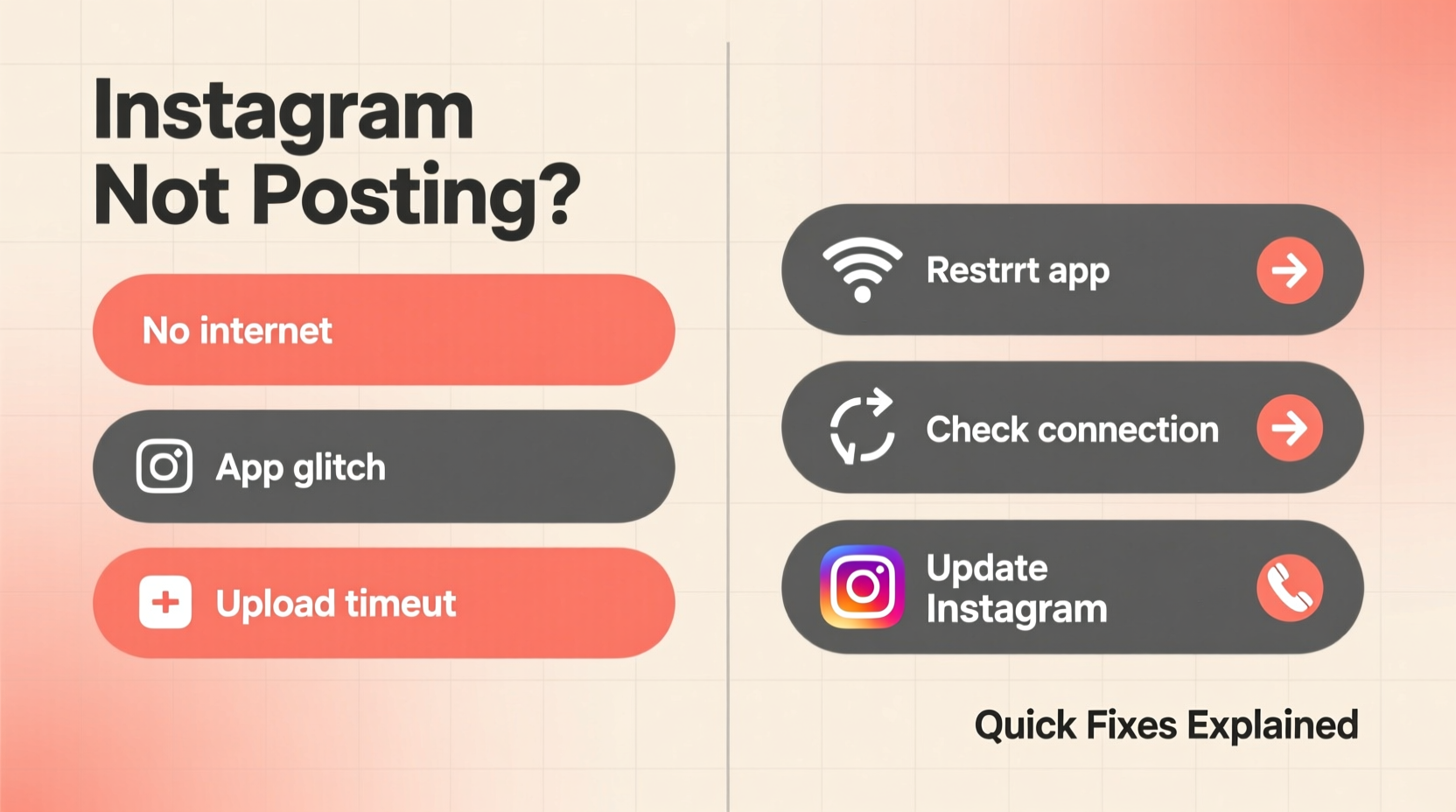
When a post fails, start by ruling out technical glitches. These are often device-specific or tied to app performance rather than account-level restrictions.
- Unstable internet connection: Instagram requires a consistent upload speed to process images and videos. Even if your phone shows Wi-Fi or cellular signal, weak bandwidth can interrupt uploads.
- Outdated app version: Older versions may lack compatibility with current server protocols, leading to failed posts.
- Insufficient storage space: If your phone’s memory is full, Instagram might fail to cache or render media before upload.
- Server-side outages: Occasionally, Instagram experiences global downtimes that prevent any user from posting, regardless of device or location.
Media Format & Size Issues That Block Posts
Instagram has strict guidelines on file types, dimensions, and duration. Ignoring these can silently cause upload failures—even if the preview looks fine.
| Content Type | Max File Size | Recommended Format | Common Pitfalls |
|---|---|---|---|
| Photo | 30 MB | JPEG | Files over 30MB often crash during upload |
| Video (Feed) | 4GB | MP4, H.264 codec | Unsupported codecs cause silent failures |
| Reels | 4GB / 90 seconds | H.264, AAC audio | Videos longer than 90 seconds won’t upload |
| Carousels | 30 MB per image | All images under limit | One oversized image blocks entire set |
If you're using high-resolution files from professional cameras or editing software, compression is essential. Tools like HandBrake (for video) or TinyPNG (for images) can reduce file size without sacrificing visible quality.
Account Restrictions & Policy Violations
Sometimes, the issue isn’t your device—it’s your account. Instagram’s automated systems flag content that violates community guidelines, even if unintentionally.
Examples include:
- Posts containing nudity, hate symbols, or graphic violence—even in artistic or educational contexts.
- Repeated use of copyrighted music in Reels, which triggers audio muting or post rejection.
- Suspicious activity, such as rapid posting or bot-like behavior, which may trigger temporary posting blocks.
“We see a spike in posting error reports every time Instagram updates its moderation algorithms. Many users aren’t violating rules—they’re just caught in overly sensitive filters.” — Lena Torres, Social Media Platform Analyst
If your post includes third-party music, try switching to Instagram’s commercial music library, which is licensed for use. Avoid repetitive hashtags or mass-uploading across accounts, as these mimic spam patterns.
Tip: If you suspect a shadow restriction, post a neutral image (e.g., a plain text graphic) to test if it goes through.Step-by-Step Guide to Fix Instagram Posting Failures
Follow this sequence when your post won’t upload. Most issues resolve within five minutes using this method.
- Check Internet Connection: Turn airplane mode on for 10 seconds, then off. Switch from Wi-Fi to cellular data or vice versa.
- Verify Media Specs: Ensure your photo or video meets Instagram’s size and format requirements. Trim long videos or compress large files.
- Restart the App: Close Instagram completely from your app switcher and reopen it.
- Clear App Cache (Android): Go to Settings > Apps > Instagram > Storage > Clear Cache. (iOS users must delete and reinstall the app.)
- Update the App: Visit Google Play Store or Apple App Store and check for updates.
- Test with a Simple Post: Try uploading a small JPEG photo with no caption to confirm basic functionality.
- Check for Outages: Visit downdetector.com or search “Is Instagram down?” to see if others report issues.
- Log Out and Back In: If all else fails, log out of your account, restart your phone, then log back in.
Mini Case Study: Recovering From a Sudden Posting Block
Sophie, a lifestyle influencer with 58K followers, couldn’t post her weekly recipe Reel. The upload bar froze at 75%. She tried three times over two hours with the same result. Initially blaming her internet, she switched networks—still no success. Following the checklist above, she discovered her video was 92 seconds long, exceeding Instagram’s 90-second limit for Reels. After trimming two seconds using a free editor, the post uploaded instantly. The root cause wasn’t connectivity or account status—it was a subtle format violation.
This case highlights how minor technical oversights can mimic major system failures. Always validate duration, resolution, and file size before troubleshooting further.
Do’s and Don’ts When Instagram Won’t Post
| Do’s | Don’ts |
|---|---|
| Use Wi-Fi for large video uploads | Ignore error messages—read them carefully |
| Compress files before uploading | Spam the upload button repeatedly |
| Update the app weekly | Delete and reinstall the app too quickly—try simpler steps first |
| Test with a small image or draft post | Assume it’s a permanent account ban without evidence |
Frequently Asked Questions
Why does Instagram say “Couldn’t Upload” but show no reason?
This generic message usually points to a network interruption, file corruption, or unsupported format. It’s often resolved by restarting the app or re-saving the media file.
Can I recover a post that disappeared during upload?
No—once an upload fails, Instagram doesn’t save drafts automatically. Always keep a copy of your media and caption in your phone’s notes or cloud storage before posting.
Does clearing cache delete my saved posts or drafts?
Clearing cache removes temporary files only. Your saved posts, login info, and drafts remain intact. However, iOS users who delete and reinstall the app may lose unsaved drafts.
Final Checklist: Before You Hit Post
- ✅ Internet connection stable (test with another app)
- ✅ File under 30MB (photos) or 4GB (videos)
- ✅ Video under 90 seconds for Reels
- ✅ Caption free of banned hashtags (#nude, #drugs, etc.)
- ✅ App updated to latest version
- ✅ No recent warnings or restrictions on your account
Conclusion: Stay Proactive, Stay Posted
Instagram not posting doesn’t have to derail your content schedule. Most issues stem from avoidable technical mismatches—not deep system errors. By understanding file limits, monitoring account health, and following a clear troubleshooting flow, you regain control quickly. The key is systematic diagnosis: don’t jump to reinstalling apps or resetting passwords until you’ve tested connectivity and media specs. With these strategies, you’ll minimize downtime and maximize visibility. Now that you know the real reasons behind failed uploads, take a moment to audit your workflow. Are your files optimized? Is your app up to date? Make these checks routine, and your feed will stay active, consistent, and frustration-free.
🚀 Found this guide helpful? Share it with someone who’s stuck on a failed upload. Knowledge saves time—and keeps content flowing.