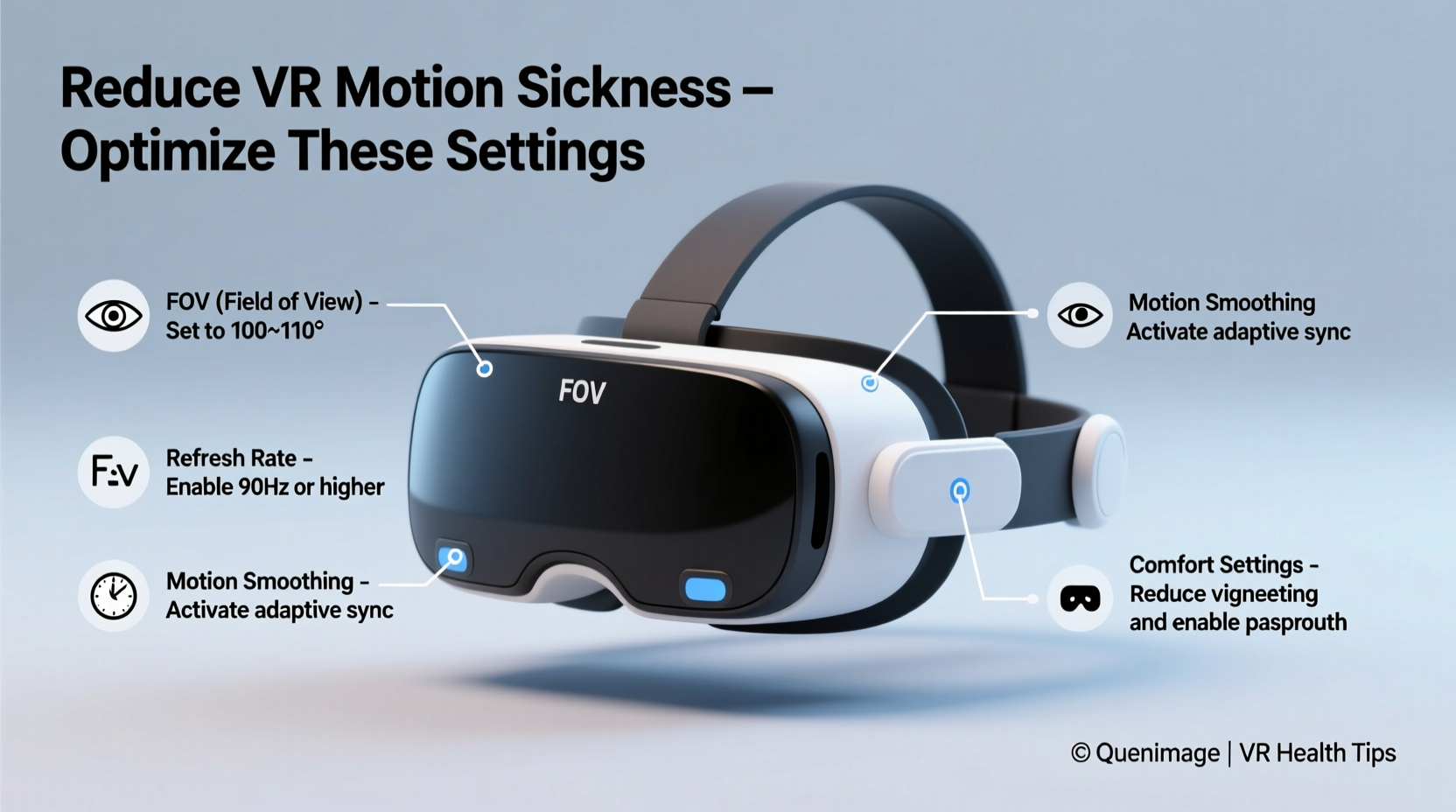
Motion sickness in virtual reality remains one of the most common barriers to immersive gameplay. Despite advancements in hardware and software, many users still experience dizziness, nausea, or disorientation when playing VR games. The root cause often lies in the disconnect between what the eyes see and what the body feels—a phenomenon known as sensory conflict. Fortunately, much of this discomfort can be mitigated by adjusting your VR headset’s settings and optimizing your environment. Unlike general advice about taking breaks or staying hydrated, fine-tuning your device settings offers a direct, actionable path to reducing symptoms before they start.
Understanding the Causes of VR Motion Sickness
Before diving into solutions, it's essential to understand why motion sickness occurs in VR. When your visual system perceives movement—such as walking through a virtual forest or flying a spaceship—but your inner ear and body remain stationary, your brain receives conflicting signals. This mismatch triggers the vestibular system, leading to symptoms like nausea, sweating, headaches, and fatigue.
Several technical factors amplify this effect:
- Low frame rates: Below 90 FPS,画面 can appear choppy, increasing cognitive strain.
- High-latency tracking: Delay between head movement and visual response disrupts immersion.
- Artificial locomotion: Smooth movement without physical input (e.g., joystick walking) is a major trigger.
- Field of view (FOV) mismatch: If the virtual FOV doesn’t match natural human vision, depth perception suffers.
While individual sensitivity varies, research shows that up to 40% of new VR users report some level of discomfort during initial use. However, most adapt over time—especially when key headset settings are properly configured.
“VR-induced motion sickness isn’t inevitable. With proper calibration and comfort-focused settings, even sensitive users can enjoy extended sessions.” — Dr. Lena Torres, Human-Computer Interaction Researcher, Stanford University
Optimizing Headset Display and Performance Settings
The foundation of a comfortable VR experience begins with display quality and system performance. Poor visuals directly contribute to eye strain and disorientation. Here’s how to adjust critical settings across major headsets like Meta Quest, Valve Index, and PlayStation VR2.
Set Frame Rate to Maximum Stable Output
Always run your VR headset at its highest supported refresh rate. Most modern devices offer 72Hz, 80Hz, 90Hz, or even 120Hz options. Higher frame rates reduce motion blur and make virtual movement feel more natural.
Tip: On Meta Quest devices, go to Settings > System > Developer Mode > Refresh Rate and select 90Hz or higher if available. For PC-based headsets, ensure your GPU supports the desired frame rate in SteamVR or Oculus Debug Tool.Adjust IPD (Interpupillary Distance) Accurately
IPD is the distance between your pupils. An incorrect setting forces your eyes to converge unnaturally, causing double vision and headaches. Most headsets allow manual adjustment via physical sliders or software calibration.
- Measure your IPD using a ruler and mirror or an online tool.
- Navigate to your headset’s IPD settings menu.
- Select the closest match (usually in 58–72mm range).
- Test with a static scene; text should appear crisp and single.
Enable Asynchronous Timewarp (ATW) and Projection Layers
These are low-level rendering features that maintain smooth visuals during brief drops in frame rate. ATW predicts head movement and warps the last rendered frame to match current orientation, reducing judder.
While typically enabled by default, developers and advanced users can verify their status in platform SDKs. For example, OpenXR runtimes support projection layer composition that stabilizes background elements during motion.
Locomotion and Movement Settings That Reduce Discomfort
How you move in VR has the greatest impact on motion sickness. Free locomotion using analog sticks is the biggest culprit. However, alternative movement methods and settings can preserve gameplay while minimizing nausea.
Use Teleportation Instead of Smooth Locomotion
Teleportation eliminates perceived motion by instantly repositioning the player. It gives the brain time to recalibrate between jumps, significantly reducing sensory conflict.
In supported games, enable teleportation under Controls or Movement settings. Many titles, such as *Half-Life: Alyx* and *Boneworks*, allow switching between teleport and continuous movement.
Enable Snap Turning
Continuous turning (rotating smoothly with a thumbstick) is highly nauseating for many users. Snap turning rotates the view in fixed increments (e.g., 30° or 45° per input), aligning better with real-world head movements.
| Movement Type | Sickness Risk | Recommended For |
|---|---|---|
| Smooth Locomotion | High | Experienced users with strong tolerance |
| Teleportation | Low | New users, seated experiences |
| Snap Turning | Low | All users seeking comfort |
| Analog Stick Turning | High | Avoid unless necessary |
| Arm Swinging (Natural Locomotion) | Medium | Fitness apps, active players |
Reduce Turning Speed Sensitivity
If snap turning isn’t available, lower the turning sensitivity. Rapid rotation—even if smooth—can overwhelm the vestibular system. A slower turn speed allows your brain to process spatial changes gradually.
Tip: In-game settings often label this as “Turn Speed” or “Rotation Gain.” Start at 50% and increase only if dizziness remains absent after 15 minutes of play.Visual Anchors and Environmental Adjustments
Beyond locomotion, visual design plays a crucial role in comfort. Your brain relies on stable reference points to interpret motion. Without them, even minor camera shifts can induce vertigo.
Add a Static Reference Frame
Some VR applications let you add a cockpit, nose bridge, or peripheral grid overlay. These act as visual anchors, giving your brain a fixed point of reference despite virtual motion.
For example, flight simulators like *Elite Dangerous* include detailed cockpits that minimize the sensation of drifting. Even simple solutions—like enabling a faint grid in the corners of your vision—can help ground perception.
Limit Peripheral Distortion
Wide-angle lenses can create fish-eye effects at the edges of the display. While immersive, this distortion may contribute to discomfort. Some headsets allow FOV limiting in developer settings.
On PC VR platforms, tools like Advanced Settings (for SteamVR) let users tweak reprojection modes and vignette intensity. Reducing peripheral blur during movement can ease visual processing load.
Play Seated or Stationary When Starting Out
Remaining physically still while playing reduces sensory conflict. Sitting also lowers blood pressure fluctuations associated with standing + moving virtually—an added benefit for those prone to lightheadedness.
Games designed for seated play (*Tetris Effect*, *TheBlu*) are ideal starting points. Once tolerance builds, transition to standing or room-scale setups.
Step-by-Step Setup Guide for Comfortable VR Play
Follow this sequence before launching any VR game to minimize the risk of motion sickness from the outset.
- Calibrate IPD: Adjust lens spacing until text appears sharp and single.
- Set refresh rate: Choose the highest stable option (90Hz+).
- Enable snap turning: Replace smooth turning in system or game settings.
- Select teleportation: Use instant movement instead of joystick walking.
- Lower brightness slightly: Excessive contrast increases eye strain.
- Check fit and weight balance: Ensure the headset sits snugly without pressure points.
- Start with a short session: Limit initial playtime to 10–15 minutes.
- Take a break every 20 minutes: Step out of VR, focus on distant real-world objects.
This routine takes less than five minutes but dramatically improves comfort. Repeat whenever switching headsets or trying a new game genre.
Real-World Example: Overcoming VR Nausea in *Beat Saber*
James, a 32-year-old teacher, purchased a Meta Quest 3 to try *Beat Saber*. Within three minutes of playing, he felt dizzy and had to stop. He assumed VR just wasn’t for him—until a friend suggested tweaking the settings.
He adjusted his IPD, switched to 90Hz mode, and discovered the game’s hidden “Comfort Mode” under modifiers. Enabling “No Fail” and “Reduced Headbob” stabilized the camera. More importantly, he started in Practice mode, focusing only on horizontal blocks, which minimized sudden vertical movements.
By limiting sessions to 10 minutes and using snap turning when navigating menus, James built tolerance over two weeks. Today, he plays full songs daily with no discomfort—proof that small configuration changes yield big results.
Frequently Asked Questions
Can I permanently eliminate VR motion sickness?
Most users develop increased tolerance over time through repeated exposure and proper settings. While some sensitivity may persist, especially with intense movement, effective configuration makes long-term play entirely feasible.
Does headset resolution affect motion sickness?
Indirectly. Higher resolution reduces screen-door effect and pixel shimmer, decreasing visual fatigue. However, performance (frame rate and latency) matters more than raw resolution for comfort.
Are certain VR games safer for beginners?
Yes. Games with minimal artificial movement, such as *Moss*, *I Expect You to Die*, or *Richie’s Plank Experience*, are excellent starting points. Avoid rollercoaster sims or fast-paced shooters initially.
Final Checklist: Pre-Game Comfort Optimization
- ✅ Calibrated IPD
- ✅ Refresh rate set to 90Hz or higher
- ✅ Snap turning enabled
- ✅ Teleportation or arm-swing locomotion selected
- ✅ Brightness and contrast adjusted for clarity
- ✅ Headset properly fitted and balanced
- ✅ Game chosen matches comfort level (low motion first)
- ✅ Scheduled 10–15 minute play window with post-session break
Conclusion: Take Control of Your VR Experience
Motion sickness in VR isn’t a personal failing—it’s a technical challenge with practical solutions. By leveraging your headset’s settings, choosing appropriate movement mechanics, and respecting your body’s adaptation timeline, you can transform an uncomfortable experience into an enjoyable one. Don’t accept nausea as the price of entry. Modern VR systems give you powerful tools to customize comfort. Use them wisely, start conservatively, and build confidence with each session. The virtual world should expand your horizons, not confine you to the couch. Optimize your setup today, and reclaim the freedom to explore without limits.
💬 Have a tip that helped you beat VR motion sickness? Share your story in the comments and help others find relief too.