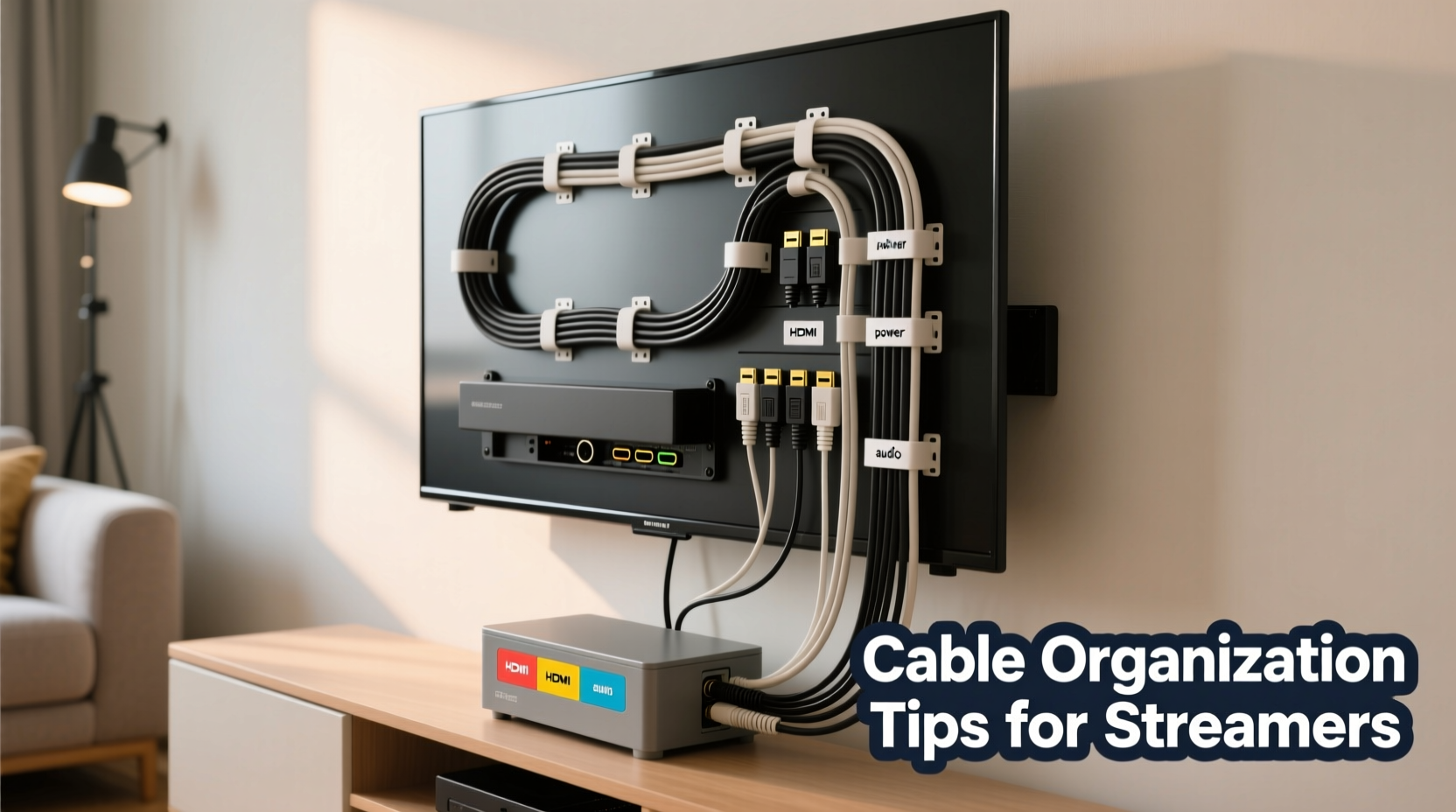
A sleek, clutter-free entertainment center isn’t just visually pleasing—it enhances functionality, reduces frustration, and improves airflow around electronics. Yet, most streaming setups end up buried under a tangled mess of HDMI, power, audio, and USB cables. Untangling this web might seem like a minor chore, but it directly impacts your viewing experience, device performance, and even safety. Proper cable management ensures better heat dissipation, easier troubleshooting, and faster upgrades when new gear arrives. This guide walks you through practical, long-term strategies to organize every wire behind your TV—efficiently, affordably, and sustainably.
Assess Your Current Setup
Before reaching for zip ties or cable sleeves, take inventory of what’s connected. Most modern streaming setups include multiple devices: a smart TV, soundbar or AV receiver, streaming stick or box (like Apple TV, Roku, or Fire Stick), gaming console, Blu-ray player, and possibly a network switch or external hard drive. Each contributes at least one cable—often more.
Begin by powering down and unplugging all devices. Label each cable at both ends using masking tape and a pen. For example: “HDMI – PS5 to TV,” “Power – Soundbar,” “Ethernet – Router.” This prevents confusion during reassembly and makes future maintenance effortless.
Tip: Use color-coded labels or small plastic tags to distinguish between device types—red for audio, blue for networking, green for video.As you unplug, check for damaged wires, frayed insulation, or bent connectors. Replace faulty cables immediately. Old or low-quality HDMI cables can cause signal dropouts, buffering, or no picture at all—issues often mistaken for software problems.
Choose the Right Cable Management Tools
Not all cable organizers are created equal. The best solution depends on your setup size, wall type, and aesthetic preferences. Below is a comparison of common tools used in professional installations.
| Tool | Best For | Pros | Cons |
|---|---|---|---|
| Velcro Straps | Temporary bundling, frequent changes | Reusable, gentle on cables, easy to adjust | Less secure than zip ties |
| Cable Sleeves (Braided) | Grouping multiple cables into one neat line | Flexible, attractive, scalable | Can trap heat if overfilled |
| Cable Raceways (Wall Channels) | Routing cables along walls or baseboards | Conceals wires completely, paintable | Requires drilling, permanent installation |
| Cable Clips | Securing individual cables to surfaces | Inexpensive, no tools needed | May leave residue or damage paint |
| Magic Cable Ties (Releasable Zip Ties) | Balancing security and flexibility | Strong hold, reusable, affordable | Single-use versions aren't eco-friendly |
For most home streaming setups, a combination of Velcro straps and braided cable sleeves offers the ideal balance of flexibility and neatness. If your TV is mounted on drywall, consider adhesive-backed raceways to route power and data lines from floor level up to the equipment zone.
Step-by-Step Guide to Organizing Behind the TV
Follow this sequence to transform chaos into order without damaging equipment or voiding warranties.
- Clear the area: Move furniture if possible, or carefully tilt the TV forward (if mounted) to access the back panel. Ensure the TV is stable and supported.
- Disconnect and sort: Unplug all cables. Group them by function—power, HDMI, optical audio, Ethernet, USB—and lay them out on a nearby surface.
- Shorten cable runs: Replace excessively long cables with appropriately sized ones. A 6-foot HDMI cable coiled behind the TV adds bulk unnecessarily. Measure distances between devices and choose cables that fit snugly.
- Route power first: Plug power strips or surge protectors into the wall outlet. Use a right-angle plug adapter if space is tight behind the cabinet. Secure the strip to the back of the media console using adhesive mounts or brackets.
- Connect devices logically: Start with the TV, then connect downstream devices. Plug streaming boxes, consoles, and Blu-ray players into the TV’s HDMI ports in a consistent order (e.g., HDMI 1 = Fire Stick, HDMI 2 = Xbox). Label inputs accordingly in your TV settings.
- Bundle like cables: Use Velcro straps to group HDMI cables together, and separate them from power cords to reduce electromagnetic interference. Avoid wrapping power and signal cables tightly together.
- Secure with clips or sleeves: Run bundled cables through a braided sleeve and fasten it to the back of the TV stand or wall using adhesive anchors. Keep bends gentle—never kink a cable sharply.
- Label everything: Attach durable labels near both ends of each cable. Consider using pre-printed heat-shrink labels for a professional finish.
- Test before finalizing: Power on all devices and verify signals. Swap HDMI inputs if needed. Only once everything works should you fully tighten straps or close raceway covers.
- Final tidy: Adjust slack loops neatly underneath or beside the media unit. Use a dust cover or fabric sleeve if desired for aesthetics.
Real Example: From Chaos to Clarity
Consider Mark, a remote worker and avid streamer in Austin, Texas. His living room TV setup included a Samsung QLED, Sonos Arc soundbar, PlayStation 5, Apple TV 4K, and an old cable box—all connected haphazardly. Cables dangled from shelves, tangled around legs, and blocked ventilation slots. After watching a YouTube tutorial on cable management, he spent two hours reorganizing.
He started by labeling every cord, then replaced three oversized HDMI cables with flat, 3-foot versions. He installed a white plastic raceway along the wall from floor to TV height, feeding power and Ethernet through it. Using Velcro straps, he grouped audio and video lines separately and secured them behind the console with adhesive clips. The result? A minimalist look, improved cooling, and no more “no signal” errors when switching inputs. Most importantly, his partner stopped complaining about the “spiderweb behind the TV.”
Expert Insight on Signal Integrity and Safety
Cable organization isn’t just about looks—it affects performance and longevity. Poor airflow around stacked devices can lead to overheating, throttling, and premature failure. Electromagnetic interference from poorly separated power and data lines may degrade video quality or cause audio hum.
“Clean cable routing isn’t cosmetic—it’s critical for system reliability. Separating analog audio cables from AC power lines reduces noise. Avoid tight bends in fiber optic or high-speed HDMI cables. And never overload a single power strip with high-draw devices.” — Daniel Ruiz, Certified Home Theater Technician (CEDIA)
Rui also emphasizes fire safety: “Daisy-chaining power strips or covering cables with rugs creates fire hazards. Always use UL-listed surge protectors and inspect cords annually for wear.”
Common Mistakes to Avoid
- Over-tightening zip ties: Can compress insulation and damage internal conductors.
- Using duct tape: Leaves sticky residue and degrades over time.
- Ignoring ventilation: Blocking fan vents with bundled cables leads to overheating.
- Skipping labels: Makes troubleshooting a guessing game months later.
- Running cables across walkways: Creates tripping hazards and wear points.
Checklist: Streamlined Cable Organization in 10 Steps
- Power down and unplug all devices.
- Label each cable at both ends.
- Inspect for damage; replace faulty wires.
- Select appropriate cable lengths.
- Install surge protector or power strip securely.
- Connect devices to TV inputs systematically.
- Group similar cables using Velcro or sleeves.
- Separate power and signal cables where possible.
- Use clips, raceways, or mounts to secure bundles.
- Test all connections before finalizing layout.
Frequently Asked Questions
How do I hide cables without mounting the TV?
Use adhesive raceways along baseboards or furniture edges to guide cables from the TV stand to an outlet. Fabric cable covers blend well with home décor and require no drilling.
Can I use wireless solutions to reduce cables?
Yes. Wi-Fi streaming eliminates HDMI for some devices, and Bluetooth connects speakers and remotes. However, wired Ethernet provides more stable internet for 4K/HDR streaming. For reliability, keep critical connections (like internet and power) physical.
What’s the best way to manage cables for a wall-mounted TV?
Install an in-wall cable management kit designed for safe, concealed routing. These kits include protective conduits and wall plates that comply with electrical codes. Never run standard cables inside drywall without proper shielding.
Conclusion: A Cleaner Setup Starts Today
Organizing cables behind your TV doesn’t require technical expertise or expensive gear. With a few basic tools, a methodical approach, and attention to detail, you can create a streamlined, efficient streaming environment. The benefits go beyond appearance—better airflow, fewer malfunctions, and quicker fixes when issues arise. More than that, a tidy setup reflects care and intentionality in how you design your living space.
💬 Take action tonight: Spend 30 minutes untangling one corner of your entertainment center. Label three cables. Secure one bundle. Small steps lead to lasting change. Share your before-and-after tips in the comments and inspire others to reclaim their walls from cable chaos.