High ping can turn a thrilling match into a frustrating experience. In fast-paced online multiplayer games—whether it's first-person shooters, MOBAs, or battle royales—every millisecond counts. A high ping means your actions take longer to register on the server, resulting in delayed movements, rubberbanding, and missed shots. This delay, known as latency, doesn’t just affect performance; it undermines fairness and immersion. The good news is that ping isn’t fixed. With the right strategies, you can significantly reduce it and enjoy smoother, more responsive gameplay—even on modest internet connections.
Understanding Ping and Why It Matters
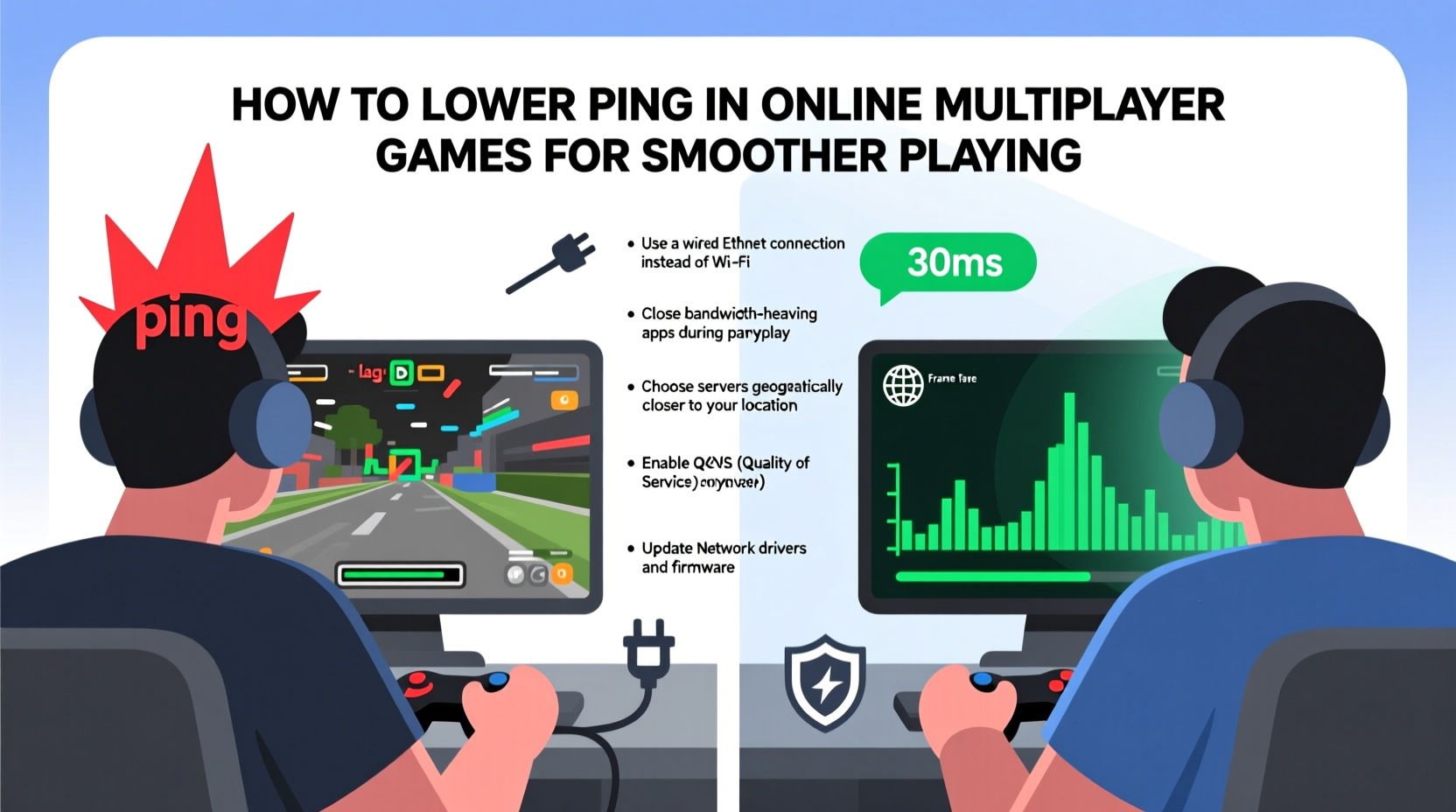
Ping measures the round-trip time it takes for data to travel from your device to a game server and back, expressed in milliseconds (ms). A lower ping means faster communication, which translates to real-time responsiveness. Ideally, you want a ping under 30 ms for competitive play. Between 30–60 ms is generally acceptable, while anything above 100 ms starts to noticeably impact gameplay.
Latency isn't just about raw speed—it’s about consistency. Even if your average ping is low, frequent spikes can ruin matches. Factors like distance to the server, network congestion, Wi-Fi interference, and background applications all contribute to poor ping.
“Reducing ping isn’t just about upgrading hardware—it’s about optimizing every layer of your connection.” — David Lin, Network Engineer at ProGamer Labs
Optimize Your Home Network Setup
Your home network is the foundation of your gaming experience. Even with a high-speed plan, poor configuration can lead to high ping. Start by ensuring your router is positioned optimally: central, elevated, and away from obstructions like metal appliances or thick walls. Avoid placing it near microwaves or cordless phones, which emit interfering signals on the 2.4 GHz band.
Use wired Ethernet whenever possible. Wi-Fi introduces variable latency due to signal strength fluctuations and interference. A Cat 6 Ethernet cable provides stable, low-latency connectivity and eliminates wireless bottlenecks. If you must use Wi-Fi, connect to the 5 GHz band instead of 2.4 GHz. The 5 GHz frequency offers faster speeds and less interference, though its range is shorter.
Tip: Restart your router weekly to clear memory leaks and refresh DNS connections, which can subtly improve ping stability.Router Quality and Firmware
Older routers may not support modern traffic prioritization features. Invest in a gaming-grade router with Quality of Service (QoS) settings. QoS allows you to prioritize gaming traffic over other devices or activities like streaming or downloads. Enable this feature and assign your gaming PC or console the highest priority.
Keep your router’s firmware updated. Manufacturers release updates that improve stability, security, and performance. Check your router’s admin panel (usually accessible via 192.168.1.1 or similar) for firmware options.
Reduce Background Network Activity
Every device connected to your network consumes bandwidth and processing resources. Automatic updates, cloud backups, smart home devices, and even mobile phones syncing in the background can spike your ping during critical moments.
Before launching a game, close unnecessary applications on your PC—especially those using the internet. Common culprits include:
- Cloud storage apps (Dropbox, Google Drive, OneDrive)
- Web browsers with multiple tabs open
- Streaming services (Spotify, YouTube)
- VoIP apps (Discord, Zoom, Skype)
- Operating system updates (Windows Update, macOS Software Update)
On Windows, open Task Manager and sort by “Network” usage to identify bandwidth hogs. On consoles, disable automatic downloads and restrict background app refresh.
| Activity | Average Bandwidth Use | Impact on Ping |
|---|---|---|
| HD Video Streaming | 5–8 Mbps | Moderate to High |
| Cloud Backup Sync | 1–3 Mbps | High (bursty) |
| Software Updates | 10+ Mbps | Severe |
| Music Streaming | 0.3–1 Mbps | Low |
| Gaming (typical) | 3–6 Mbps | None (if prioritized) |
Even small background tasks can disrupt latency-sensitive gaming traffic. Schedule large downloads for off-peak hours.
Select the Best Game Server and Region
Distance matters. The farther you are from a game server, the higher your ping. Always choose the geographically closest server with available slots. Most games automatically suggest one, but manual selection often yields better results.
For example, a player in Berlin connecting to a Frankfurt server might see 20 ms ping, while connecting to New York could result in 120 ms. That difference alone can determine whether you win or lose a gunfight.
Some games allow third-party tools or community-hosted servers with lower latency. Platforms like Steam show ping to each server in multiplayer lobbies. Use this data to make informed decisions.
“In competitive titles like CS2 or Valorant, I never auto-connect. I manually pick servers under 35 ms, even if it means waiting longer.” — Lena Park, Professional FPS Player
Using Ping Testing Tools
Test your connection to various locations using command-line tools. Open Command Prompt (Windows) or Terminal (macOS/Linux) and run:
ping google.com
This gives you baseline latency to general servers. To test specific game servers, find their IP addresses through community forums or developer documentation. For example:
ping 155.133.245.100
Compare results across regions to identify optimal routing paths.
Upgrade Internet Service and Hardware
If you're consistently experiencing high ping despite optimization, your internet service may be the bottleneck. Look for plans with low latency and consistent upload/download speeds. Fiber-optic connections typically offer the lowest ping due to direct light-based transmission and minimal jitter.
Avoid satellite and older DSL connections for gaming—they often have high inherent latency (600+ ms for satellite). Cable internet is better but can suffer from congestion during peak hours.
Recommended ISP Features for Gamers
- Symmetric upload/download speeds
- Low contention ratios (fewer users per node)
- Dedicated gaming tiers or DDoS protection
- Static IP address option (reduces NAT delays)
Additionally, consider upgrading your network hardware. A modern gigabit router with MU-MIMO and beamforming improves efficiency. Pair it with a gaming switch or powerline adapter if running Ethernet is challenging.
Tip: Use a DOCSIS 3.1 modem if on cable internet—it supports higher bandwidth and better traffic management than older models.Step-by-Step Guide to Lower Your Ping
Follow this sequence to systematically reduce your ping:
- Restart your modem and router – Clears temporary glitches and resets connection states.
- Switch to Ethernet – Connect your gaming device directly using a Cat 6 cable.
- Close bandwidth-heavy apps – Shut down updates, streams, and cloud syncs.
- Enable QoS on your router – Prioritize your gaming device in network settings.
- Choose the nearest game server – Manually select the lowest-ping region in-game.
- Update network drivers – Ensure your PC’s NIC (Network Interface Card) has the latest firmware.
- Change DNS servers – Use low-latency DNS like Google (8.8.8.8) or Cloudflare (1.1.1.1).
- Test with a different device – Rule out hardware issues by testing on another machine.
- Contact your ISP – Report persistent high ping; they may reroute your connection or fix line issues.
This process can reduce ping by 30–70 ms in many cases, especially when switching from Wi-Fi to wired and eliminating background traffic.
Mini Case Study: Reducing Ping for Competitive Apex Legends
Mark, a semi-professional Apex Legends player based in Toronto, struggled with inconsistent ping ranging from 80 to 150 ms during ranked matches. Despite having a 200 Mbps cable plan, his gameplay suffered from lag spikes and delayed abilities.
He began by switching from Wi-Fi to a wired Ethernet connection, which immediately reduced his average ping to 65 ms. Next, he enabled QoS on his ASUS RT-AX86U router, assigning his gaming PC top priority. He also disabled automatic Windows updates and paused iCloud backups.
Finally, he started manually selecting NA-East servers instead of accepting the default auto-match. Combined, these changes brought his ping down to a steady 42–48 ms. His kill-death ratio improved by 35% over the next month, and he advanced two ranks.
Mark’s case shows that meaningful improvements don’t always require expensive upgrades—just disciplined optimization.
Frequently Asked Questions
Can a VPN lower my ping?
Generally, no. Most consumer VPNs add extra routing hops, increasing latency. However, some specialized gaming VPNs (like ExitLag or WTFast) use optimized private networks that bypass congested routes. These can reduce ping in specific scenarios, especially when connecting to international servers, but they’re not a universal fix.
Does closing apps really reduce ping?
Yes. While apps may not consume much bandwidth, they generate constant background network requests—checking for messages, syncing data, or updating content. These micro-transactions increase packet queuing and jitter. Closing them reduces network clutter, leading to cleaner, lower-latency connections.
Why is my ping high even with fast internet?
Download speed and ping are different metrics. You can have 500 Mbps download speed but still suffer high ping due to distance, poor routing, Wi-Fi interference, or server-side congestion. Latency depends on the quality of the entire path, not just your local bandwidth.
Final Checklist: How to Maintain Low Ping
- ✅ Use Ethernet instead of Wi-Fi
- ✅ Position router centrally with minimal interference
- ✅ Enable QoS and prioritize gaming device
- ✅ Close background apps and updates
- ✅ Choose the closest game server manually
- ✅ Upgrade to fiber or low-latency ISP if possible
- ✅ Update router firmware and network drivers
- ✅ Test ping regularly using command-line tools
- ✅ Restart networking equipment weekly
- ✅ Monitor for ISP throttling or routing issues
Conclusion
Lowering ping isn’t about luck—it’s about control. By managing your network environment, choosing optimal servers, and eliminating hidden bottlenecks, you can achieve smoother, more responsive gameplay. Whether you're climbing leaderboards or just enjoying casual matches, reducing latency enhances both performance and enjoyment. The steps outlined here don’t require elite gear or expensive subscriptions. They demand attention to detail and consistency. Start applying them today, and feel the difference in your next match.
🚀 Ready to dominate with lower ping? Audit your setup tonight—implement one change, then another. Share your results or tips in the comments below and help fellow gamers level up their connection!