Flickering on an external monitor can be more than just a minor annoyance—it can strain your eyes, disrupt productivity, and even signal deeper hardware or software issues. Whether you're using a secondary display for work, gaming, or creative projects, a stable image is essential. The good news is that most flickering problems stem from identifiable causes, many of which are easy to diagnose and resolve without professional help.
This guide walks through the most common reasons behind monitor flickering, offers actionable solutions, and provides a clear path to restore a smooth, reliable display. From checking cables to adjusting refresh rates and updating drivers, each step targets a potential culprit with precision.
Common Causes of External Monitor Flickering
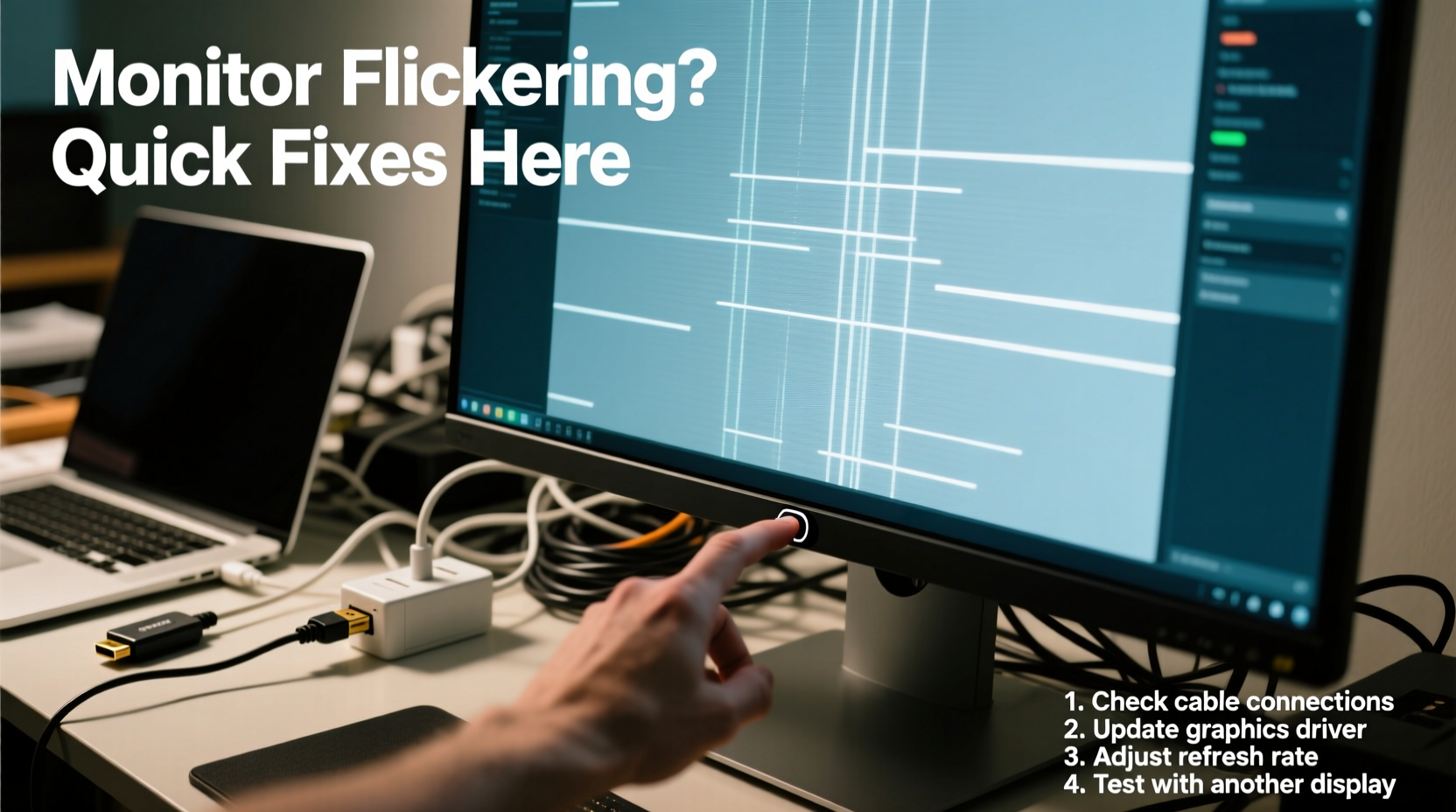
Monitor flickering doesn’t always point to a failing screen. In fact, the root cause often lies outside the monitor itself—especially when the issue appears suddenly on a previously stable setup. Understanding where to look first can save time and prevent unnecessary replacements.
- Cable or connection issues: Loose, damaged, or low-quality HDMI, DisplayPort, or USB-C cables are among the top causes of flickering.
- Incompatible or incorrect refresh rate: A mismatch between your monitor’s supported refresh rate and what your system outputs can lead to visual instability.
- Graphics driver problems: Outdated, corrupted, or incompatible GPU drivers frequently result in display anomalies, including flickering.
- Power supply fluctuations: Unstable power delivery—either from a faulty power adapter or outlet—can affect monitor performance.
- Software conflicts: Background applications, especially those manipulating display settings (e.g., color calibration tools), may interfere with output stability.
- Hardware failure: Less commonly, internal components like the backlight, inverter (in older LCDs), or GPU may be failing.
Step-by-Step Troubleshooting Guide
Follow this structured approach to isolate and resolve the source of flickering. Each step builds on the previous one, eliminating variables methodically.
- Restart all connected devices. Power cycle your computer, monitor, and any docking stations. This clears temporary glitches in communication.
- Inspect physical connections. Ensure all cables are securely plugged into both the computer and monitor. Check for bent pins or visible damage.
- Swap the video cable. Replace the current HDMI, DisplayPort, or USB-C cable with a known working one. Even high-quality cables can degrade over time.
- Try a different port. Connect to another video output on your laptop or desktop (e.g., switch from HDMI to DisplayPort).
- Test the monitor with another device. Connect the flickering monitor to a different computer or laptop. If the problem persists, the issue likely resides with the monitor.
- Connect your computer to a different monitor. This helps determine if the issue follows the source device rather than the display.
- Update graphics drivers. Visit your GPU manufacturer’s website (NVIDIA, AMD, Intel) and install the latest certified driver.
- Adjust refresh rate settings. Match your monitor’s native refresh rate in display settings (covered in detail below).
- Disable adaptive sync features. Temporarily turn off G-Sync or FreeSync to test for compatibility issues.
- Boot into Safe Mode (Windows) or use minimal startup (macOS). This rules out third-party software interference.
Real-World Example: Office Worker Resolves Daily Flicker
Sarah, a project manager working remotely, began experiencing intermittent flickering on her 27-inch external monitor every morning. The issue disappeared after rebooting but returned within hours. She tried adjusting brightness and restarting her laptop multiple times, with no lasting fix.
Following a systematic approach, she first swapped the HDMI cable—no change. Then she connected the monitor to her partner’s MacBook; the screen remained stable. That pointed to her Windows laptop as the source. After checking Device Manager, she found her Intel UHD Graphics driver was outdated. Updating it via Intel’s Driver & Support Assistant resolved the flickering permanently.
This case highlights how driver issues can mimic hardware faults and why isolating components is crucial.
Optimizing Refresh Rate and Display Settings
One of the most overlooked yet impactful fixes involves configuring the correct refresh rate. A monitor running at 60Hz may flicker if forced into an unsupported mode, especially under heavy graphical load.
To check and adjust refresh rate on Windows:
- Right-click the desktop and select Display settings.
- Scroll down and click Advanced display settings.
- Select the external monitor and view the current refresh rate.
- If not set to the highest available option (e.g., 75Hz, 120Hz, 144Hz), click Choose a refresh rate and select the optimal value.
On macOS:
- Go to System Settings > Displays.
- Hold the Option key and click Detect Displays to reveal additional options.
- Look for refresh rate settings under resolution options and choose the recommended setting.
“Incorrect refresh rate configuration is responsible for nearly 30% of reported flickering cases we see in support tickets.” — Raj Patel, Senior Technical Support Engineer at Dell Display Division
| Refresh Rate | Typical Use Case | Flicker Risk if Mismatched |
|---|---|---|
| 60Hz | General office work, web browsing | Moderate – noticeable during scrolling |
| 75Hz+ | Gaming, video editing, animation | High – flicker or tearing if unsupported |
| Variable (G-Sync/FreeSync) | Dynamic frame rate environments | Medium – compatibility issues common |
Do’s and Don’ts When Dealing with Flickering
Avoid making the problem worse by following best practices. The table below outlines critical actions to take—and avoid.
| Action | Do | Don't |
|---|---|---|
| Cable Management | Use shielded, high-speed certified cables (e.g., HDMI 2.1, DP 1.4) | Use cheap or excessively long cables without signal boosters |
| Driver Updates | Download from official GPU or laptop manufacturer sites | Install generic or third-party driver tools from untrusted sources |
| Power Supply | Plug monitor into a surge protector or dedicated outlet | Share outlets with high-draw appliances like heaters or microwaves |
| Settings Adjustments | Change one setting at a time to isolate effects | Apply multiple display tweaks simultaneously |
| Hardware Testing | Test monitor with multiple devices to confirm fault location | Assume the monitor is defective without cross-testing |
When It Might Be Hardware Failure
If all software and connection-based fixes fail, the issue could be internal. Signs pointing to hardware include:
- Flickering occurs only in specific areas of the screen (e.g., bottom third).
- The screen pulses rhythmically, even when idle.
- Backlight dimming or flashing accompanies the flicker.
- Flickering worsens when the monitor heats up after prolonged use.
In older CCFL-backlit monitors, a failing inverter board can cause flickering. Modern LED-backlit displays are less prone to this, but backlight bleed or driver board malfunctions still occur. If the monitor is under warranty, contact the manufacturer. For out-of-warranty units, consider repair cost versus replacement—especially since newer models often offer better efficiency and features.
“The first rule in diagnosing display issues: never assume it’s the monitor. More often than not, the problem traces back to cabling or driver compatibility.” — Lin Zhao, Display Systems Analyst at LG Electronics
Troubleshooting Checklist
Use this checklist to ensure you’ve covered all bases:
✅ External Monitor Flickering Checklist- ___ Restart computer and monitor
- ___ Check all cable connections (tighten if loose)
- ___ Swap video cable with a known good one
- ___ Try a different video port (HDMI → DisplayPort)
- ___ Test monitor on another device
- ___ Test computer with another monitor
- ___ Update graphics drivers (Intel, NVIDIA, AMD)
- ___ Verify and set correct refresh rate
- ___ Disable G-Sync / FreeSync temporarily
- ___ Boot into Safe Mode to rule out software conflicts
- ___ Check for firmware updates (monitor or laptop)
- ___ Inspect power cable and outlet stability
Frequently Asked Questions
Why does my external monitor flicker only when I move the cable?
This typically indicates a damaged or poorly seated cable. The internal wires may be frayed or disconnected intermittently when bent. Replace the cable immediately to prevent further signal loss.
Can a USB-C dock cause monitor flickering?
Yes. Lower-quality or overloaded docks may not deliver stable video signals, especially when driving high-resolution displays. Try connecting the monitor directly to your laptop’s native port to test.
Is screen flickering harmful to my eyes?
Prolonged exposure to flickering screens can cause eye strain, headaches, and fatigue. The human eye may not consciously detect rapid flickers, but the brain still processes the inconsistency. Resolve flickering promptly for comfort and long-term visual health.
Final Thoughts and Next Steps
External monitor flickering is rarely a mystery once you apply a logical, step-by-step approach. Most issues stem from simple, fixable sources like cables, drivers, or incorrect settings. By systematically testing each component, you can pinpoint the cause without guesswork.
If you've followed all troubleshooting steps and the flicker persists, it may be time to consult a technician or consider upgrading your display—especially if it's several years old. Modern monitors offer higher refresh rates, better color accuracy, and improved power efficiency, making them a worthwhile investment for anyone relying on dual-screen workflows.
💬 Have you fixed a flickering monitor recently? Share your experience, solution, or question in the comments—your insight could help someone else solve their display dilemma today.