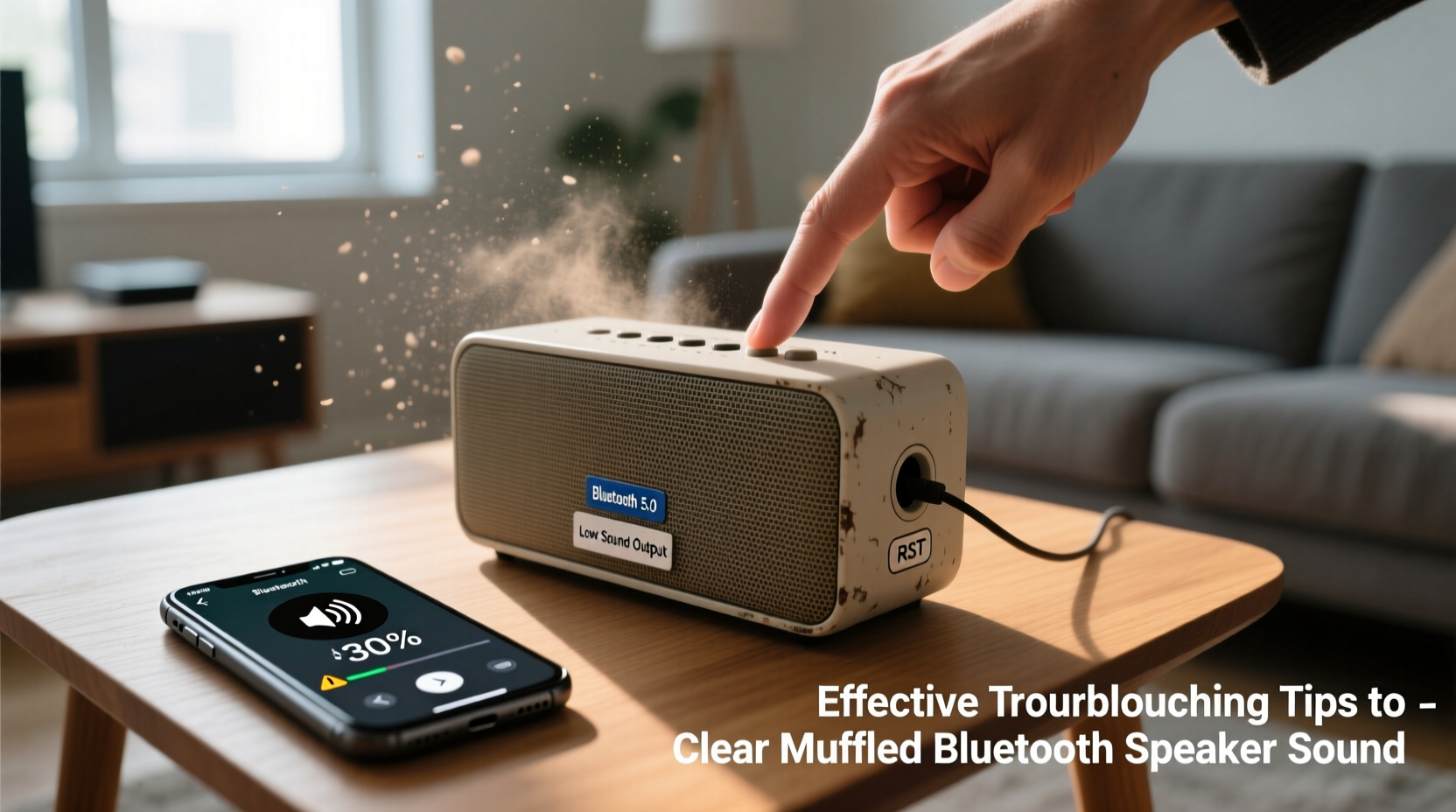
Bluetooth speakers are designed to deliver powerful, room-filling sound with the convenience of wireless connectivity. But when your speaker starts sounding dull, distant, or muffled—especially if it once played clearly—it can be frustrating. Muffled audio doesn’t always mean the speaker is broken. In most cases, the issue stems from preventable causes like physical blockages, connection interference, incorrect settings, or environmental factors. The good news? Many of these problems can be diagnosed and resolved at home with simple, systematic steps.
Understanding Why Bluetooth Speakers Sound Muffled
Muffled sound typically occurs when high-frequency details are lost, bass overwhelms the mix, or audio signals are degraded before reaching the speaker. Unlike wired systems, Bluetooth audio involves compression and transmission over radio waves, which introduces more variables that affect sound quality. Common culprits include:
- Dust, debris, or fabric blocking speaker grilles
- Poor Bluetooth signal due to distance or interference
- Low-bitrate audio sources or outdated codecs
- Speaker driver damage from moisture or impact
- Software bugs in firmware or paired devices
- Incorrect equalizer (EQ) settings on your phone or app
Before assuming hardware failure, rule out simpler issues first. Most users overlook basic maintenance and connection hygiene, which often resolve muffled sound instantly.
Tip: Always test your speaker with multiple audio sources and devices to determine whether the issue lies with the speaker or the playback device.Step-by-Step Guide to Diagnose and Fix Muffled Audio
- Inspect the Speaker Grille and Ports
Use a soft-bristled brush or compressed air to gently remove dust, lint, or pocket debris from the speaker mesh. Even small obstructions can dampen treble frequencies, making sound seem flat or muddy. - Test with a Wired Connection (if available)
If your speaker has an auxiliary input, connect using a 3.5mm cable. If the sound improves significantly, the issue is likely Bluetooth-related rather than hardware damage. - Check Bluetooth Signal Strength
Move closer to the speaker—ideally within 3 meters (10 feet)—and remove physical barriers like walls or metal objects. Interference from Wi-Fi routers, microwaves, or other wireless devices can degrade audio quality. - Switch Audio Sources
Play high-quality audio files (e.g., FLAC or 320kbps MP3) from different apps. Streaming low-bitrate tracks from certain platforms can result in compressed, lifeless sound. - Reset Bluetooth Connections
On your phone or tablet, “Forget” the speaker in Bluetooth settings, then re-pair it. This clears corrupted pairing data that may be affecting signal stability. - Update Firmware and Device Software
Visit the manufacturer’s website or app to check for firmware updates. Outdated firmware can cause compatibility issues with modern Bluetooth standards. - Adjust Equalizer Settings
Disable any bass-boosting EQ presets on your device. Overemphasized low frequencies can mask mid and high ranges, creating a muffled effect.
Do’s and Don’ts: Maintaining Clear Bluetooth Audio
| Do’s | Don’ts |
|---|---|
| Keep speaker grilles clean with regular light dusting | Use sharp tools to scrape off debris (risk of damaging drivers) |
| Store in dry, temperature-stable environments | Leave outdoors in rain or direct sunlight |
| Pair only one device at a time unless multi-point is supported | Simultaneously stream from multiple phones without support |
| Use lossless audio sources when possible | Rely solely on low-bitrate streaming services for critical listening |
| Re-pair devices monthly as preventive maintenance | Ignore persistent crackling or distortion after basic fixes |
Real Example: Recovering Clarity After Poolside Use
Jamal noticed his portable Bluetooth speaker sounded dull after a weekend pool party. Despite full volume, voices in podcasts were hard to distinguish, and music lacked sparkle. He first wiped down the exterior and dried the base, suspecting water exposure. Using compressed air, he cleared moisture-trapped dust from the grille. Next, he disconnected all devices and reset the speaker via its reset button. After re-pairing with his phone and switching from a low-bitrate streaming app to a local high-res file, the clarity returned almost completely. A final firmware update smoothed out minor latency issues. Jamal realized that combining environmental protection with digital hygiene made a dramatic difference.
Tip: Never submerge a non-waterproof speaker, and even with IPX7-rated models, avoid prolonged exposure to moisture to preserve internal components.Expert Insight: What Audio Engineers Recommend
“Many people blame their speaker when the real issue is upstream—like poor source material or incorrect gain staging. Always start troubleshooting at the source.” — Lena Park, Audio Engineer & Product Tester at SoundLab Collective
“Physical obstructions are the most overlooked cause of muffled sound. A thin layer of dust can absorb high frequencies just like acoustic foam.” — Marcus Tran, Acoustic Design Specialist
Troubleshooting Checklist
Use this checklist to methodically eliminate common causes of muffled Bluetooth speaker sound:
- ✅ Clean speaker grille with soft brush or compressed air
- ✅ Test audio on another device (phone, tablet, laptop)
- ✅ Play high-quality audio file (not low-bitrate stream)
- ✅ Move closer to the speaker; minimize obstacles
- ✅ Disable EQ or bass boost on playback device
- ✅ Forget and re-pair the Bluetooth connection
- ✅ Check for firmware updates from manufacturer
- ✅ Try auxiliary input (if available) to isolate Bluetooth issues
- ✅ Inspect for signs of physical damage or moisture exposure
- ✅ Reset speaker to factory defaults if problems persist
Frequently Asked Questions
Can water damage cause permanent muffled sound?
Yes. Even brief exposure to moisture can corrode internal components or cause the speaker cone to stick, resulting in distorted or muffled output. While some waterproof models resist short-term exposure, prolonged dampness leads to long-term degradation. If your speaker gets wet, power it off immediately, dry it thoroughly, and let it air out for 24–48 hours before reuse.
Why does my speaker sound fine at low volume but muffled at high volume?
This often indicates driver strain or clipping. At higher volumes, the amplifier may exceed its capacity, causing distortion. It could also mean the speaker’s passive crossover isn’t handling frequency distribution properly. Reduce volume gradually and ensure you're not overdriving the unit. If the problem persists, internal damage may require professional repair.
Does Bluetooth version affect sound quality?
Absolutely. Newer versions like Bluetooth 5.0 and above support higher bandwidth and better codecs (e.g., aptX, LDAC), which deliver richer, more detailed audio. Older versions (4.0 and below) rely on SBC codec, which compresses audio heavily, leading to flatter, less dynamic sound. Pairing a modern phone with an older speaker can bottleneck performance—even with high-quality sources.
Conclusion: Restore Your Speaker’s Voice
Muffled Bluetooth speaker sound is rarely a death sentence. With careful observation and a few practical steps, you can often restore clarity and enjoy vibrant audio once again. Start with the simplest explanations—dirt, distance, or settings—before moving to advanced solutions like firmware updates or resets. Regular maintenance, mindful usage, and awareness of audio quality sources go a long way in preserving your speaker’s performance. Don’t rush to replace a device that just needs attention. Often, a few minutes of troubleshooting saves money and reduces electronic waste.
💬 Have a speaker that came back to life after troubleshooting? Share your story in the comments—your fix might help someone else get their sound back.