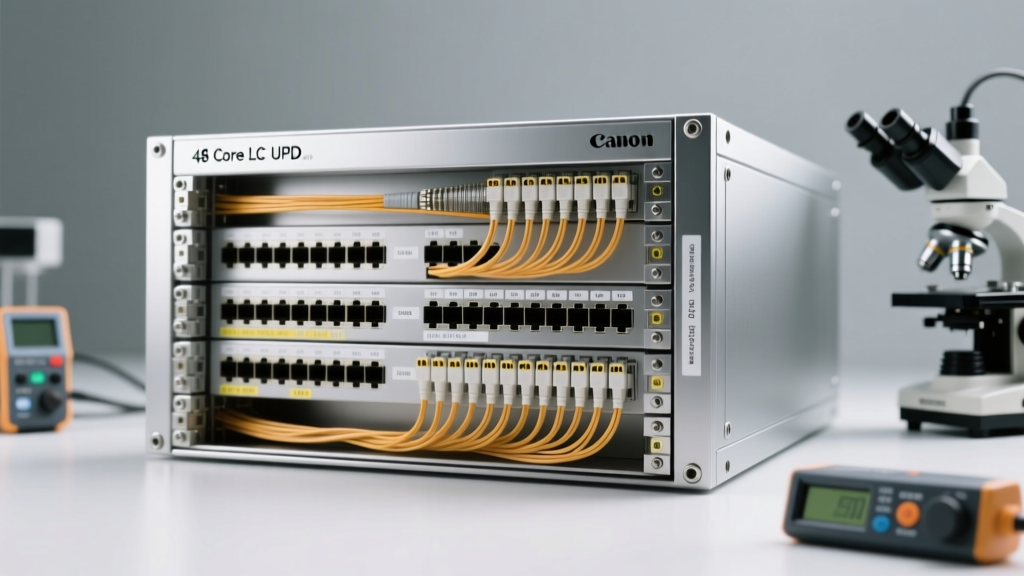
Types of Display Hubs: A Comprehensive Guide for Wholesale Buyers
A display hub is an essential peripheral device that expands connectivity options for laptops, desktops, and tablets, enabling users to connect multiple monitors and accessories through a single interface. With the growing demand for multi-monitor setups in offices, creative studios, and home entertainment systems, understanding the different types of display hubs is crucial for wholesale buyers aiming to meet diverse customer needs.
Below is a detailed breakdown of the most common and effective display hub types available in the market today, including their features, benefits, limitations, and ideal use cases.
USB-C Display Hub
Designed for modern devices with USB-C ports, this hub consolidates video output, data transfer, and power delivery into one sleek connection.
Advantages
- Single-cable solution for video, data, and charging
- Supports high-resolution output (up to 4K in many models)
- Compact and portable design
- Backward compatible with USB-A via adapters
- Widely used in laptops like MacBooks, Chromebooks, and ultrabooks
Limitations
- Requires USB-C with DisplayPort Alt Mode support
- Performance varies by device and hub quality
- Potential overheating with prolonged heavy use
Best for: Mobile professionals, remote workers, students, and businesses using modern laptops
Wireless Display Hub
Eliminates cables by using Wi-Fi or Miracast technology to stream screen content from devices to displays.
Advantages
- Cable-free setup enhances workspace flexibility
- Easy to install and use with minimal configuration
- Supports screen mirroring from smartphones, tablets, and laptops
- Ideal for collaborative meetings and presentations
Limitations
- Potential latency during video playback or gaming
- Connection stability depends on network strength
- Limited bandwidth compared to wired solutions
- Not ideal for high-resolution or real-time applications
Best for: Conference rooms, classrooms, retail demo stations, and casual home use
4K Display Hub
Built for high-definition performance, this hub supports Ultra HD (3840x2160) resolution, making it perfect for content creators and media professionals.
Advantages
- Supports crisp 4K resolution at 60Hz (on compatible models)
- Minimizes lag and compression for smooth visuals
- Essential for graphic design, video editing, and digital signage
- Often includes multiple video outputs for dual-monitor setups
Limitations
- Higher cost than standard hubs
- Requires a powerful GPU and compatible display
- May need active cooling in compact designs
Best for: Creative professionals, broadcasters, medical imaging, and high-end home theaters
HDMI Display Hub
One of the most widely adopted types, this hub features multiple HDMI ports and is ideal for connecting several monitors simultaneously.
Advantages
- Universal compatibility with TVs, monitors, and projectors
- Transmits high-quality audio and video (up to 4K on newer versions)
- Plug-and-play functionality with no drivers needed
- Available in multi-port configurations (dual, triple, or quad HDMI)
Limitations
- Limited to video/audio; fewer data or charging options
- Cable clutter with multiple wired connections
- May require external power for multi-display setups
Best for: Home theaters, digital signage, control rooms, and professional workstations
VGA Display Hub
Tailored for legacy systems, this hub includes VGA ports to support older monitors and projectors still in use across many industries.
Advantages
- Backward compatibility with older hardware
- Affordable option for budget-conscious buyers
- Useful in industrial, educational, and government settings
- Hybrid models often include HDMI or USB-C for modern connectivity
Limitations
- Maximum resolution capped at 1080p (typically 720p–1080i)
- Analog signal prone to interference and quality loss
- Bulkier cables and connectors
- Phasing out in favor of digital standards
Best for: Enterprises upgrading gradually, schools, hospitals, and industrial environments with legacy equipment
| Type | Max Resolution | Connectivity | Best For | Considerations |
|---|---|---|---|---|
| USB-C Display Hub | Up to 4K | Video, Data, Power (single cable) | Modern laptops, mobile users | Requires USB-C with Alt Mode |
| Wireless Display Hub | 1080p–4K (varies) | Wi-Fi, Miracast, AirPlay | Presentation, education, meetings | Latency, network dependency |
| 4K Display Hub | 4K @ 60Hz | HDMI, DisplayPort, USB | Design, video editing, media | Higher cost, power needs |
| HDMI Display Hub | Up to 4K | Multiple HDMI ports | Home theater, workstations | Cable management, power supply |
| VGA Display Hub | 1080p (max) | VGA + hybrid digital ports | Legacy systems, budget setups | Analog signal, obsolescence |
Expert Tip: When sourcing display hubs for resale, consider offering bundled kits that include necessary adapters (e.g., HDMI-to-VGA or USB-C-to-USB-A) to enhance customer satisfaction and reduce return rates due to compatibility issues.
Choosing the Right Display Hub for Your Market
Wholesale buyers should assess their target market’s needs before selecting display hubs for distribution. For example:
- Corporate clients benefit from USB-C and wireless hubs for seamless meetings and hot-desking.
- Educational institutions may prefer VGA or hybrid hubs to support aging infrastructure.
- Creative agencies demand 4K and HDMI hubs for high-fidelity visual work.
- Home users often look for affordable, easy-to-use HDMI or wireless options.
Stocking a diverse range ensures you can meet varied demands and position yourself as a one-stop solution for display connectivity.
Function, Features, and Design of Display Hubs: A Complete Guide
Display hubs have become essential tools in modern computing environments, enabling users to extend their workspace, enhance productivity, and streamline connectivity. Whether for professional use, gaming, or everyday multitasking, a display hub bridges the gap between a single video output and multiple display or peripheral devices. This guide explores the core functions, key features, and design considerations that define high-performance display hubs.
Core Functions of a Display Hub
A display hub—also known as a video hub or docking station—acts as a central connection point that expands the video and data capabilities of laptops, desktops, and mobile devices. By plugging into a single video port (such as USB-C, HDMI, or DisplayPort), it enables the simultaneous use of multiple monitors and external peripherals, significantly enhancing workflow efficiency.
Multiple Monitor Support
One of the primary functions of a display hub is enabling multi-monitor setups. This allows users to extend their desktop across two or more screens, which is ideal for tasks like video editing, financial analysis, coding, or managing multiple applications simultaneously. For example, you can have your email on one screen, a spreadsheet on another, and a web browser on a third—dramatically improving productivity and reducing window-switching fatigue.
Video and Data Transmission
Modern display hubs go beyond video output by integrating data transfer and power delivery. Many USB-C-based hubs support DisplayPort Alt Mode, allowing video, data, and power to travel over a single cable. This means you can connect external hard drives, keyboards, smartphones, and even charge your laptop—all through the same hub—reducing cable clutter and simplifying setup.
Compatibility and Versatility
High-quality display hubs support a range of connection standards—including HDMI, DisplayPort, USB-A, USB-C, and sometimes VGA—making them compatible with a wide variety of devices. This versatility is especially valuable for professionals who switch between laptops, tablets, and desktops or need to connect to projectors during presentations. Universal compatibility ensures seamless integration across different operating systems (Windows, macOS, Linux) and device types.
Extended Functionality
Advanced display hubs often include additional features such as built-in Ethernet ports for stable internet connections, audio jacks for external speakers, SD card readers for media professionals, and even wireless screen mirroring (e.g., Miracast or AirPlay). Some models support daisy-chaining via DisplayPort 1.2+ MST, allowing multiple monitors to be connected in series using a single output.
Essential Features of Modern Display Hubs
Not all display hubs are created equal. The performance and user experience depend heavily on specific technical features. Choosing the right hub requires understanding these key specifications.
| Feature | Importance | Recommended Specifications |
|---|---|---|
| Maximum Resolution | High | 4K @ 60Hz (minimum); 8K @ 30Hz for high-end models |
| Refresh Rate | High | 60Hz minimum; 120Hz+ for gaming and animation |
| Port Variety | High | At least 2 video outputs + 3+ USB ports + PD charging |
| Power Delivery | Medium-High | 60W for ultrabooks; 87W+ for MacBook Pro and high-power laptops |
| Build Quality & Portability | Medium | Aluminum housing, compact size, tangle-free cable |
Design Considerations for Optimal Performance
The physical and aesthetic design of a display hub plays a significant role in its usability, durability, and integration into various environments—from minimalist home offices to busy corporate workstations.
Sleek and Modern Aesthetics
Most display hubs are designed with a clean, professional appearance—featuring matte finishes, neutral colors (black, silver, or gray), and minimal branding. This ensures they blend seamlessly into modern office or home setups without drawing unnecessary attention.
Ergonomic and Space-Saving Layout
Well-designed hubs arrange ports thoughtfully to prevent cable strain and allow easy access. Side-facing or angled ports help reduce desk clutter, while vertical stands double as laptop risers, improving ergonomics and airflow. Some models include adhesive pads or mounting options for under-desk installation.
Durability and Heat Management
High-performance hubs generate heat during prolonged use, especially when driving multiple 4K displays. Effective thermal design—including aluminum casings, ventilation slots, and internal heat dissipation layers—helps maintain stable performance and prolongs device lifespan.
Cable Integration and Length
Many hubs come with fixed cables (e.g., USB-C to hub) that are braided for tangle resistance and durability. Cable length (typically 15–30 cm) is optimized for laptop docking without excess slack. Detachable cable models offer more flexibility for different setups.
Important: Always verify compatibility between your device and the display hub before purchasing. Check your laptop’s video output capabilities (e.g., Thunderbolt 3/4 vs. standard USB-C), supported resolutions, and power requirements. Using an incompatible hub may result in limited functionality, screen flickering, or failure to charge. Additionally, ensure your operating system is up to date to support the latest display standards and driverless connectivity.
Display Hub Applications Across Key Scenarios
Display hubs have evolved into essential tools across diverse environments, offering scalable connectivity and enhanced visual experiences. Whether in professional, creative, or personal settings, a well-chosen display hub can significantly improve workflow efficiency, entertainment quality, and collaborative engagement. By consolidating multiple video inputs and peripheral connections, these devices eliminate cable clutter and streamline device switching—making them indispensable in modern digital ecosystems.
Office and Professional Workspaces
In fast-paced corporate environments, multitasking is a necessity. A display hub empowers employees by enabling multi-monitor setups that dramatically expand screen real estate, allowing simultaneous access to emails, spreadsheets, communication platforms, and project management tools.
- Supports dual or triple monitor configurations for improved task management and reduced window switching
- Provides additional USB ports to connect keyboards, mice, smartphones, and external storage devices
- Enables seamless docking for laptops, enhancing productivity in hybrid and remote office setups
- Reduces cable clutter and simplifies workspace organization with centralized connectivity
Key benefit: Increases productivity by up to 40% through efficient screen utilization and streamlined device integration
Creative Professionals
For graphic designers, video editors, animators, and digital artists, precise color accuracy and high-resolution output are non-negotiable. A premium display hub ensures reliable transmission of 4K or even 8K content across professional-grade monitors, preserving detail and color fidelity.
- Supports ultra-high-definition (UHD) and HDR content for accurate color grading and image editing
- Facilitates dual-screen workflows—one for editing software (e.g., Adobe Photoshop) and another for real-time previews
- Ensures minimal latency and no signal degradation across long cable runs
- Ideal for color-critical work where consistency between devices is essential
Pro insight: Use display hubs with DisplayPort 1.4 or HDMI 2.1 for full 4K@60Hz+ support and wide color gamuts (DCI-P3, Rec. 709)
Home Entertainment Systems
Modern home theaters involve multiple media sources—streaming boxes (Apple TV, Roku), gaming consoles (PS5, Xbox), Blu-ray players, and sound systems. A display hub eliminates the need to manually switch HDMI cables, offering instant source selection at the push of a button.
- HDMI switchers allow quick toggling between up to 4–8 devices without interrupting the viewing experience
- Some models include IR remote controls or app-based switching for added convenience
- Supports ARC (Audio Return Channel) for simplified audio routing to soundbars or AV receivers
- Maintains full HD, 4K, or even 8K resolution with HDR10/Dolby Vision passthrough
Ideal for: Families and cinephiles who want a clean, user-friendly entertainment center without constant cable swapping
Gaming Setup
Gamers demand high performance, low latency, and immersive visuals. A capable display hub enhances multi-monitor gaming rigs by ensuring synchronized video output across all screens while supporting high refresh rates and resolutions.
- Enables ultrawide or triple-monitor setups for racing, flight simulation, and strategy games
- Supports 144Hz+, 1440p, or 4K@120Hz for smooth gameplay with minimal input lag
- Integrates with gaming peripherals via USB hubs—connect headsets, controllers, webcams, and microphones
- Some models feature automatic EDID management to prevent display detection issues
Performance tip: Choose a display hub with VRR (Variable Refresh Rate) and low signal compression for competitive gaming
Educational Settings
In classrooms, lecture halls, and training centers, instructors often need to switch between laptops, tablets, document cameras, and student devices. A display hub simplifies this process, allowing educators to maintain a dynamic and interactive learning environment.
- Connects teacher laptops, student tablets, and presentation tools to a central projector or interactive whiteboard
- Supports screen mirroring from multiple devices for collaborative presentations
- Enables quick transitions during lectures without technical interruptions
- Ideal for STEM labs, language labs, and multimedia classrooms requiring high-resolution visuals
Educational advantage: Promotes engagement by making technology integration seamless and intuitive
Additional Use Cases
Beyond the primary applications, display hubs serve a growing number of specialized environments where reliable, multi-source video switching is critical.
- Healthcare: Connect diagnostic imaging devices to multiple viewing stations in clinics and hospitals
- Digital Signage: Manage content across multiple displays in retail stores, airports, or corporate lobbies
- Control Rooms: Monitor security feeds, network dashboards, or industrial systems across several screens
- Streaming & Content Creation: Route camera, audio, and preview signals to different monitors during live broadcasts
Emerging trend: USB-C and wireless display hubs are gaining popularity for their portability and compatibility with modern devices
Expert Recommendation: When selecting a display hub, always verify compatibility with your devices' video standards (HDMI, DisplayPort, USB-C Alt Mode), supported resolutions, and refresh rates. For professional and educational use, prioritize models with robust build quality, EDID management, and plug-and-play functionality. In home and gaming environments, consider hubs with remote controls and automatic input detection for ease of use.
| Scenario | Recommended Hub Type | Key Features | Resolution Support |
|---|---|---|---|
| Office Workspace | USB-C Docking Station | Multi-monitor output, Ethernet, charging | 4K@60Hz (dual) |
| Creative Work | DisplayPort 1.4 Hub | HDR, color accuracy, low latency | 4K@120Hz or 8K@60Hz |
| Home Theater | HDMI Switch (4-Port) | Remote control, ARC, CEC support | 4K@60Hz with HDR |
| Gaming Setup | High-Bandwidth HDMI Splitter/Switch | VRR, 144Hz+, low signal loss | 1440p@144Hz or 4K@120Hz |
| Educational Use | Multi-Input AV Switcher | Plug-and-play, durable connectors | 1080p–4K |
Choosing the Right Display Hub: Key Considerations
- Number of Inputs/Outputs: Match the hub’s capacity to your device count—whether connecting 2 or 8 devices
- Video Standards: Ensure support for HDMI 2.1, DisplayPort 1.4, or USB-C with DisplayPort Alt Mode as needed
- Audio Support: Look for hubs that pass through surround sound formats like Dolby Atmos or DTS:X
- Power Delivery: USB-C hubs with 60W–100W charging are ideal for laptop docking
- Build Quality: Metal housings and gold-plated connectors improve durability and signal integrity
- Plug-and-Play vs. Driver-Based: Most modern hubs are driver-free, but some advanced models may require software
How to Choose the Right Display Hub: A Comprehensive Buyer’s Guide
Selecting the ideal display hub—especially for wholesale distribution—requires careful consideration of technical specifications, customer needs, and market trends. Whether you're a retailer, reseller, or business buyer, understanding the key factors that influence performance and compatibility will help you make informed decisions and meet the diverse demands of your target audience.
Important Note: The wrong display hub can lead to compatibility issues, poor video quality, or customer dissatisfaction. Always verify device compatibility and technical requirements before making bulk purchases.
Key Factors to Consider When Choosing a Display Hub
- Compatibility with Display Ports
Different devices support various video output interfaces. To ensure broad compatibility, it's essential to stock hubs that support multiple port types:
- HDMI: Most common for TVs, monitors, and laptops; ideal for home entertainment and office setups.
- DisplayPort (DP): Preferred for high-performance monitors and professional workstations; supports higher refresh rates and resolutions.
- USB-C with DisplayPort Alt Mode: Increasingly standard on modern laptops and tablets; supports video, data, and power delivery in one cable.
- VGA: Older analog standard; still used in legacy systems, especially in educational institutions and some corporate environments.
Pro Tip: Multi-port hubs that combine USB-C, HDMI, and DP offer maximum flexibility and future-proofing for end users.
- Resolution and Refresh Rate Support
The hub must support the resolution and refresh rate required by your customers’ applications:
- 4K at 60Hz: Essential for graphic designers, video editors, and gamers who demand crisp visuals and smooth motion.
- 1080p at 144Hz: Popular among competitive gamers needing high refresh rates for responsive gameplay.
- Multi-display support: Some hubs allow daisy-chaining or dual-monitor setups via MST (Multi-Stream Transport), ideal for productivity-focused professionals.
Ensure the hub clearly states its maximum supported resolution and whether it supports HDR, chroma subsampling, or variable refresh rate (e.g., FreeSync or G-Sync).
- Number and Type of Ports
A versatile display hub should offer more than just video output. Look for models with a balanced mix of ports to enhance usability:
- Multiple HDMI/DP outputs: For extended desktops or presentations.
- USB-A ports: For connecting keyboards, mice, flash drives, or other peripherals.
- USB-C with Power Delivery (PD): Allows charging of laptops and phones while using the hub—critical for mobile professionals.
- Ethernet (RJ45): Provides stable wired internet, especially useful in areas with weak Wi-Fi.
- SD/TF card readers: Convenient for photographers and content creators.
Hubs with 6–8 total ports are typically the most popular among business and creative users.
- Plug-and-Play Functionality
Most modern display hubs support plug-and-play operation, meaning no additional drivers or software installation is required. This is a major selling point for:
- Home users who value simplicity
- IT departments deploying devices at scale
- Educators and presenters needing quick setup
Ensure the hub is compatible with major operating systems (Windows, macOS, Chrome OS, Linux) without requiring proprietary software.
- Build Quality and Design
The physical design of the hub matters, especially for customers integrating it into home offices, conference rooms, or entertainment centers:
- Compact and portable: Ideal for travelers and remote workers.
- Desktop-friendly design: Sleek, durable materials that match modern aesthetics.
- Heat dissipation: Metal housings or ventilation help prevent overheating during prolonged use.
- Cable management: Integrated slots or stands improve organization.
- Target Market Alignment
Tailor your inventory to the specific needs of your customer segments:
- Professionals & Educators: Prioritize multi-monitor support, Ethernet, and docking capabilities.
- Gamers & Creators: Focus on 4K/60Hz+, HDR, and low-latency performance.
- Home Users: Emphasize ease of use, plug-and-play, and HDMI compatibility.
- Enterprise Buyers: Look for durable builds, centralized management, and security features.
| Customer Type | Recommended Features | Port Configuration Example | Use Case |
|---|---|---|---|
| Graphic Designers | 4K@60Hz, HDR, USB-A for peripherals | 1x USB-C (input), 1x HDMI, 1x DP, 3x USB-A, 1x SD card reader | Color-accurate dual-monitor editing |
| Gamers | High refresh rate (144Hz+), low latency | 1x USB-C, 1x HDMI 2.1, 2x USB-A, Ethernet | Console or PC gaming on 4K monitors |
| Remote Workers | Plug-and-play, power delivery, Ethernet | 1x USB-C (PD 60W), 1x HDMI, 2x USB-A, RJ45 | Laptop docking for home office |
| Educators | VGA + HDMI support, durable build | 1x USB-C, 1x HDMI, 1x VGA, 2x USB-A | Connecting to legacy projectors and smartboards |
| Home Entertainment | HDMI 2.0+, audio support, compact size | 1x USB-C, 2x HDMI, 1x USB-A | Streaming from laptop to TV and sound system |
Expert Tip: Offer tiered product options—budget, mid-range, and premium—to cater to different customer budgets and technical needs. Bundling hubs with cables or protective cases can also increase perceived value and average order size.
Final Recommendations for Merchants
- Conduct market research to understand your customers’ most common devices and use cases.
- Stock a mix of hubs with different port combinations to cover all major use scenarios.
- Prioritize brands with strong warranties and reliable customer support.
- Provide clear product descriptions highlighting resolution support, port types, and compatibility.
- Train your sales team to ask the right questions (e.g., “What devices will you connect?” or “Do you need dual monitors?”).
- Stay updated on emerging standards like USB4, Thunderbolt 4, and HDMI 2.1 for future-proof inventory planning.
By carefully evaluating technical specifications and aligning your product offerings with customer needs, you can build a competitive display hub portfolio that drives satisfaction, reduces returns, and boosts long-term sales. Remember: the best display hub isn’t the most feature-packed one—it’s the one that perfectly fits the user’s workflow.
Frequently Asked Questions About Display Hubs
Q1: What is a display hub?A display hub is a compact, external device designed to expand your device's video output capabilities by enabling the connection of multiple monitors or display devices to a single source—such as a laptop, desktop, or tablet. It acts as a central interface that splits or extends the video signal, allowing users to create multi-monitor setups for enhanced productivity, creative workflows, or immersive entertainment.
Modern display hubs often come equipped with a variety of ports such as HDMI, DisplayPort, USB-C, and sometimes even legacy options like VGA, ensuring compatibility across different screen types. Many also include additional features like built-in USB hubs, power delivery (PD) charging, and support for audio transmission, making them ideal for professionals, designers, and multitaskers who need seamless connectivity and expanded screen real estate.
Q2: Which type of display hub is best for gaming?For an optimal gaming experience, the ideal display hub should support high-resolution output (preferably 4K at 60Hz or higher) and high refresh rates (120Hz or 144Hz) to ensure smooth, lag-free visuals during fast-paced gameplay. Look for models that support HDMI 2.0 or later, DisplayPort 1.4, or USB-C with DisplayPort Alt Mode and DSC (Display Stream Compression) to handle demanding graphics without compromising quality.
Gamers who use multi-monitor setups—such as triple-screen configurations for racing or flight simulators—should choose a display hub that supports AMD Eyefinity or NVIDIA Surround technology for synchronized display performance. Additionally, low input latency and adaptive sync technologies like FreeSync or G-Sync compatibility can further enhance visual fluidity and reduce screen tearing.
- Recommended specs: 4K @ 60Hz minimum, HDR support, low-latency signal processing.
- Port selection: Dual HDMI or DisplayPort outputs, USB-C input with PD charging.
- Compatibility: Works with gaming laptops, consoles (via adapters), and high-end GPUs.
Yes, most modern display hubs are fully compatible with MacBooks, especially those equipped with USB-C or Thunderbolt 3/4 ports. Apple’s MacBook lineup (including M1, M2, and M3 models) supports external displays through USB-C hubs and docking stations, making it easy to connect one or more monitors using a display hub.
When selecting a display hub for your MacBook, ensure it supports DisplayPort over USB-C (Alt Mode) and offers sufficient bandwidth for your desired resolution. For example:
- MacBook Air/Pro (M1 and later): Supports up to two external displays when using a Thunderbolt-compatible hub.
- Older Intel-based MacBooks: May support one external display via HDMI or USB-C, depending on the model.
Hubs with additional HDMI, VGA, or DisplayPort outputs are especially useful for connecting projectors, older monitors, or TVs in office or presentation settings. Always verify macOS compatibility and check for any required drivers or firmware updates before purchase.
Q4: What is the difference between a display hub and a docking station?While both devices expand connectivity options, they serve slightly different purposes and offer varying levels of functionality:
| Feature | Display Hub | Docking Station |
|---|---|---|
| Primary Function | Focused on connecting multiple monitors or display devices. | Provides comprehensive connectivity including video, data, power, and networking. |
| Video Output | Typically 2–3 video ports (HDMI, DisplayPort, etc.). | Supports multiple displays, often with higher bandwidth (e.g., dual 4K). |
| Data Ports | Limited USB ports (1–2), mainly for peripheral support. | Multiple USB-A/USB-C ports, SD card readers, Ethernet, audio jacks. |
| Power Delivery | Some models offer charging (e.g., 60W–100W via USB-C). | Usually includes high-wattage PD (up to 100W) to charge laptops. |
| Use Case | Ideal for users needing extended screen space (e.g., traders, designers). | Better suited for office setups, remote workstations, or hybrid work environments. |
| Price & Complexity | Generally more affordable and simpler to use. | More expensive but offers greater integration and productivity benefits. |
In short, if your main goal is to run multiple monitors, a dedicated display hub is sufficient. However, if you need a full workstation replacement with Ethernet, USB devices, and charging—all from one cable—a docking station is the better investment.
Q5: Can a display hub be used for 4K home theater systems?Absolutely. Many modern display hubs support Ultra HD (3840×2160) resolution and are fully capable of integrating into a 4K home theater setup. These hubs—often referred to as "4K HDMI switchers" or "multi-input media hubs"—allow you to connect several high-definition devices (like Blu-ray players, streaming boxes, gaming consoles, and soundbars) to a single TV or projector, eliminating the need to constantly switch HDMI cables.
Key features to look for in a home theater-compatible display hub include:
- HDMI 2.0 or 2.1 support: Ensures compatibility with 4K @ 60Hz or even 120Hz for next-gen consoles.
- HDR10/Dolby Vision: Preserves dynamic color and contrast for cinematic quality.
- eARC support: Enables high-quality audio return to your sound system.
- Remote control or automatic switching: Simplifies device selection without manual input changes.
Some advanced models even support CEC (Consumer Electronics Control), allowing you to power on all connected devices with a single remote. Whether you're building a minimalist entertainment center or upgrading your smart TV experience, a 4K-capable display hub can streamline your home theater connections while maintaining premium audiovisual performance.