
There are few things more frustrating than needing internet access only to discover your Wi-Fi network isn’t showing up on your device. Whether you're using a laptop, smartphone, or tablet, the absence of your network from the available list can halt productivity, disrupt streaming, or block essential communication. The good news is that in most cases, this issue has a clear cause—and a practical fix. From router misconfigurations to device-specific glitches, this guide walks through the most effective troubleshooting steps to help you regain reliable connectivity.
Understanding Why Your Wi-Fi Network Might Be Hidden
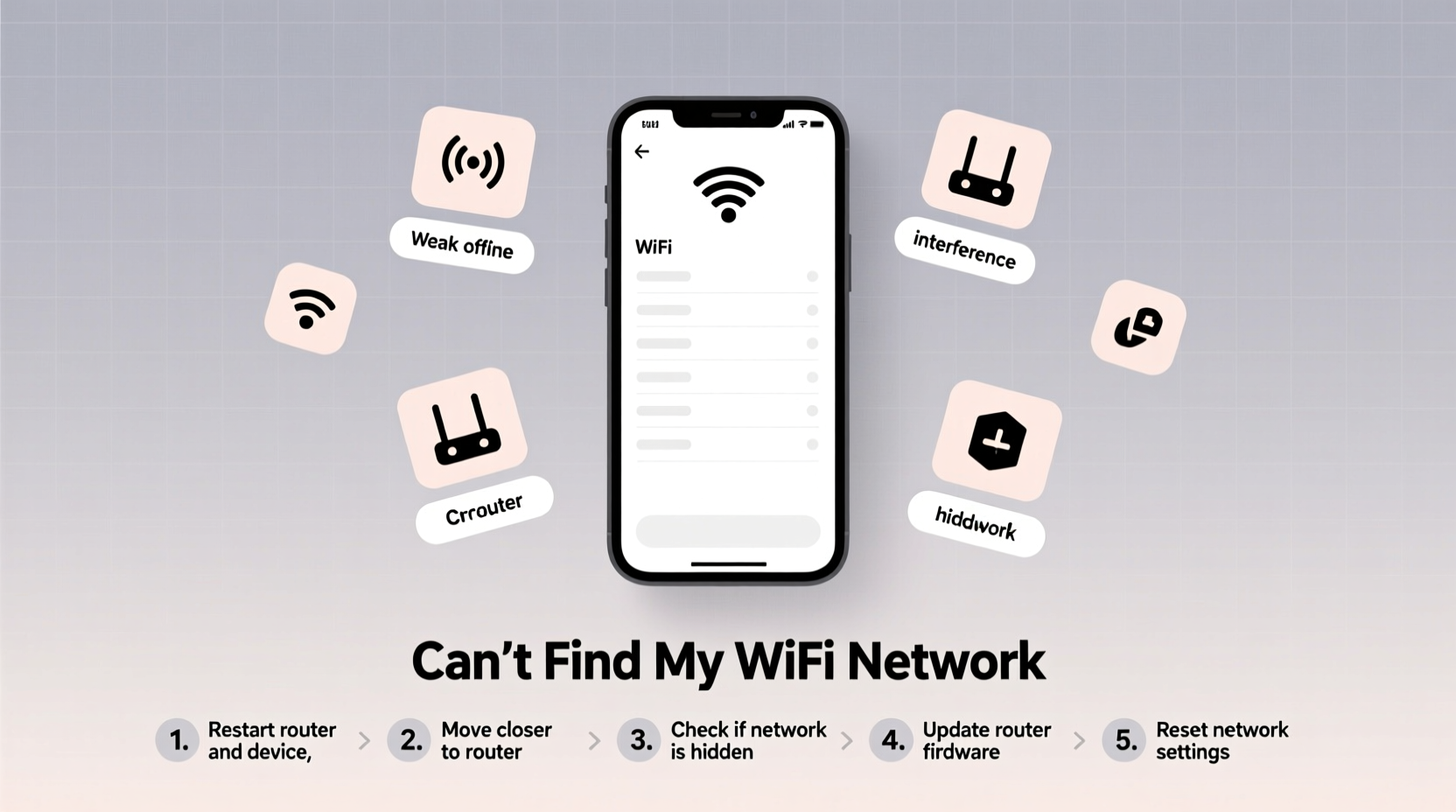
Your Wi-Fi network may not appear due to several underlying reasons. Some are technical, while others stem from simple oversights. Common causes include:
- The router is powered off or malfunctioning
- The SSID (network name) is hidden or disabled
- Interference from other networks or electronic devices
- Outdated or corrupted network drivers (on computers)
- Device-specific settings like Airplane Mode or Wi-Fi toggle
- Frequency band mismatch (e.g., 5 GHz vs. 2.4 GHz compatibility)
Before jumping into complex diagnostics, start with basic checks. Often, the solution lies in one overlooked setting or a quick hardware reset.
Tip: Restart both your device and your router—this resolves over 50% of temporary network issues.Step-by-Step Troubleshooting Guide
Follow this structured approach to systematically identify and resolve the issue:
- Verify Physical Connections: Ensure the router is powered on and all cables (especially the Ethernet cable between modem and router) are securely connected. Check for blinking lights indicating active data transfer.
- Check Device Wi-Fi Settings: Confirm Wi-Fi is enabled and Airplane Mode is off. On laptops, ensure no physical Wi-Fi switch is turned off.
- Look for the Network Manually: On Windows, click \"Network & Internet Settings\" > \"Wi-Fi\" > \"Show available networks.\" On macOS, hold Option and click the Wi-Fi icon for an extended list.
- Restart the Router: Unplug the router for 30 seconds, then plug it back in. Wait 2–3 minutes for full reboot before checking again.
- Check if Other Devices Can See the Network: Test with a phone, tablet, or another computer. If none can detect it, the issue is likely with the router.
- Log Into the Router Interface: Access the admin panel via browser (usually 192.168.1.1 or 192.168.0.1). Verify that the SSID broadcast is enabled under wireless settings.
- Update Network Drivers (Windows): Go to Device Manager > Network Adapters, right-click your Wi-Fi adapter, and select \"Update driver.\"
- Forget and Reconnect (Mobile Devices): In Wi-Fi settings, forget the network and attempt to reconnect manually by entering the password.
Common Fixes Based on Device Type
Different devices exhibit unique behaviors when failing to detect Wi-Fi. Tailor your approach accordingly.
| Device Type | Issue | Solution |
|---|---|---|
| Windows PC | Wi-Fi adapter not detecting any networks | Update drivers, run Network Troubleshooter, or reset network stack via Command Prompt (netsh winsock reset) |
| MacBook | Network not appearing despite proximity | Hold Option + Click Wi-Fi icon > Open Wireless Diagnostics; also try creating a new network location under Network Preferences |
| iPhone/iPad | SSID missing after iOS update | Toggle Airplane Mode, restart device, or reset network settings (Settings > General > Reset > Reset Network Settings) |
| Android Phone | Only sees some networks | Disable \"Intelligent Wi-Fi\" or \"Auto-switch to mobile data\"; check if 5 GHz networks are supported |
Expert Insight: When Hardware Is the Culprit
Not all Wi-Fi problems stem from software or settings. Sometimes, aging or faulty equipment plays a key role.
“Routers older than 4–5 years often struggle with modern device demands. Signal degradation, firmware bugs, and limited band support make them unreliable even after troubleshooting.” — David Lin, Senior Network Engineer at ConnectSure Technologies
If your router is outdated, consider upgrading to a dual-band or mesh system. Newer models support WPA3 encryption, better interference management, and improved range—critical for homes with multiple connected devices.
Mini Case Study: Resolving a Disappearing Home Network
Sarah, a remote worker in Austin, Texas, suddenly lost her Wi-Fi connection one Monday morning. Her laptop showed no available networks, but her roommate’s phone could still connect. She first restarted her laptop—no change. Then she checked her Wi-Fi settings and discovered Airplane Mode had been accidentally toggled on during a recent presentation. After disabling it, her network reappeared immediately.
In a follow-up test, she noticed her 5 GHz network was invisible to her older work laptop. Logging into her router, she found the 5 GHz SSID was set to “hidden.” She re-enabled broadcasting, saved the settings, and successfully connected. This two-part issue highlighted both a user error and a configuration oversight.
Checklist: Quick Actions to Regain Network Visibility
✅ Action Checklist – Use this when your Wi-Fi network isn’t showing:- Confirm router is powered on and lights are active
- Ensure device Wi-Fi is enabled and Airplane Mode is off
- Restart both the router and the connecting device
- Check if other devices can see the network
- Log into router settings and verify SSID broadcast is ON
- Update network drivers or OS if necessary
- Reset network settings on mobile devices as a last resort
Frequently Asked Questions
Why can’t I see my Wi-Fi network even though I’m close to the router?
This can happen if the SSID broadcast is disabled, the network operates on an incompatible frequency (like 5 GHz on a 2.4 GHz-only device), or there's a temporary glitch in the router’s firmware. It may also be due to MAC filtering or IP conflicts.
Can a firmware update fix a missing Wi-Fi network issue?
Yes. Outdated firmware can cause instability, including intermittent or missing network visibility. Manufacturers regularly release updates to improve performance and security. Check your router’s admin interface for a firmware update option under \"Administration\" or \"System Tools.\"
What should I do if resetting the router doesn’t help?
If a reset fails to restore network visibility, perform a factory reset (use the pinhole button on the router). Note: This erases all custom settings, including passwords and port configurations. Reconfigure the router from scratch afterward.
Preventive Measures for Long-Term Stability
Once you’ve restored your network, take steps to prevent recurrence:
- Enable automatic firmware updates if available
- Use a consistent naming convention for 2.4 GHz and 5 GHz bands (e.g., \"HomeNet-2G\" and \"HomeNet-5G\")
- Place the router centrally, away from microwaves, cordless phones, or thick walls
- Set a monthly reminder to reboot the router
- Monitor connected devices to detect unauthorized access
Conclusion
Losing sight of your Wi-Fi network doesn’t have to mean losing time or peace of mind. With methodical troubleshooting—from checking basic settings to inspecting hardware—you can pinpoint the root cause and apply a lasting fix. Most issues are resolvable without professional help, especially when approached with clarity and patience. Don’t let connectivity gaps disrupt your day. Apply these strategies proactively, keep your equipment updated, and maintain a resilient home network that works as hard as you do.
💬 Have a unique Wi-Fi issue you solved? Share your experience in the comments—your insight might help someone else get back online faster.