Laptop screen flickering under battery power is a surprisingly common yet often misunderstood issue. Unlike flickering that occurs regardless of power source, this specific behavior—where the display stabilizes when plugged in but becomes erratic when running on battery—points to a narrow set of underlying causes. Understanding what triggers this behavior requires knowledge of power management systems, display hardware, and energy-saving protocols built into modern laptops. This article breaks down the technical reasons behind this phenomenon, provides a structured diagnostic approach, and offers actionable solutions to restore screen stability.
Understanding Power-Saving Modes and Display Behavior
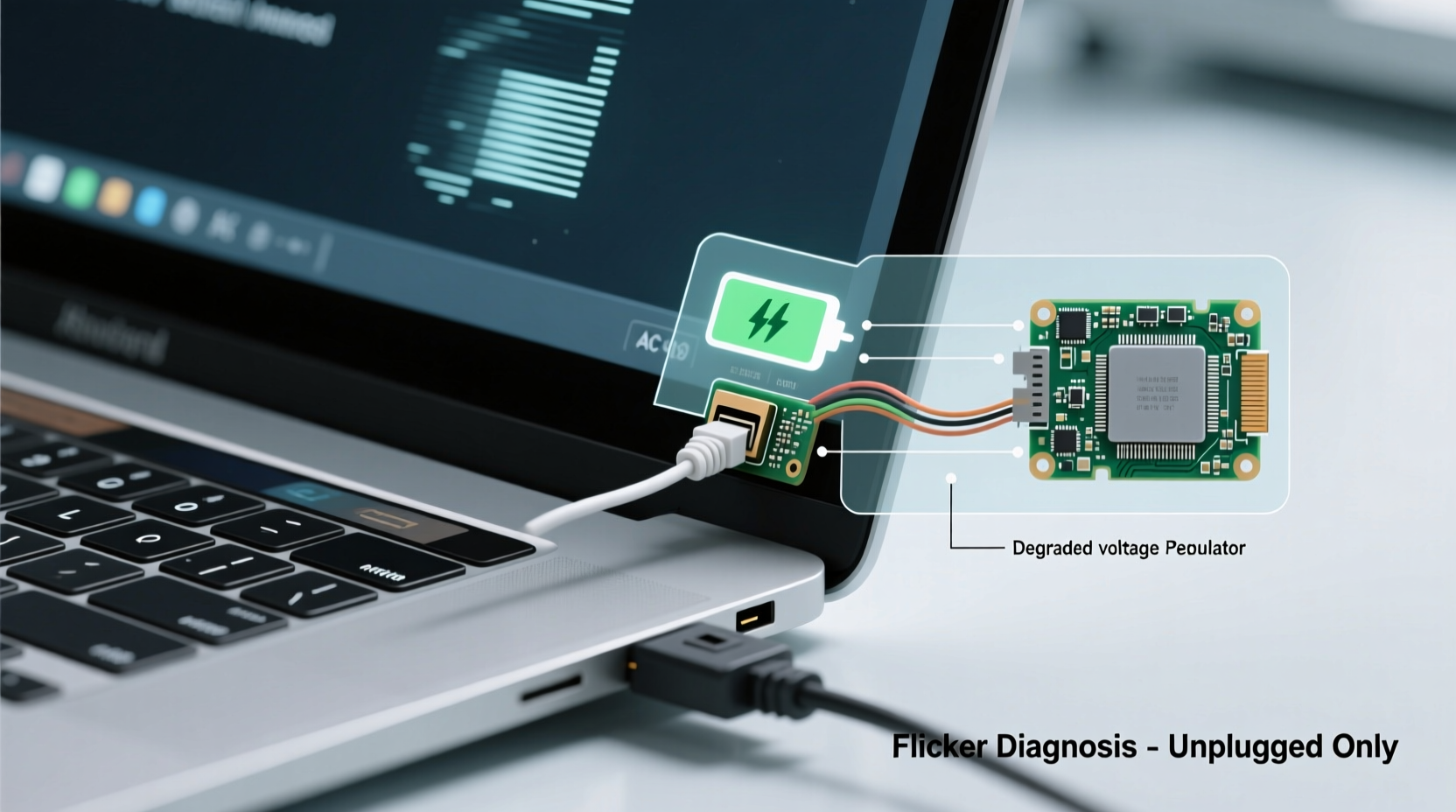
Modern laptops are engineered to optimize performance and battery life through dynamic power management. When operating on battery, the system automatically reduces power consumption across multiple components, including the CPU, GPU, and display subsystem. One key area affected is the display refresh rate and backlight modulation.
The screen flicker you observe when unplugged may not be a hardware defect at all, but rather a side effect of aggressive power-saving settings. For example, many laptops reduce the screen’s refresh rate from 60Hz to 48Hz or even 40Hz when on battery to conserve energy. Some models use pulse-width modulation (PWM) to dim the backlight, which can cause visible flickering, especially in low-light environments. While imperceptible to some users, others experience eye strain or notice rapid flashing.
Additionally, graphics drivers often switch between integrated and discrete GPUs depending on power mode. When unplugged, the system may disable the more powerful GPU to save battery, leading to instability in display output if driver handoffs aren’t handled smoothly.
Tip: Check your laptop’s power plan settings—switching to \"Balanced\" or disabling adaptive brightness may eliminate flickering caused by aggressive power throttling.Common Causes of Battery-Only Screen Flickering
Flickering exclusively on battery points to issues rooted in power delivery, voltage regulation, or firmware-level power policies. Below are the most frequent culprits:
- Inconsistent power delivery from the battery: A failing or aging battery may supply unstable voltage, causing the display controller to reset intermittently.
- Graphics driver conflicts: Drivers may apply different rendering profiles based on power source, leading to glitches when switching modes.
- PWM-based backlight dimming: Low-frequency PWM used for brightness control can become more noticeable when the system lowers power thresholds.
- Firmware or BIOS bugs: Some laptop models have known firmware issues that mismanage display settings during power transitions.
- Loose internal cabling: The LCD cable connecting the motherboard to the display may be partially dislodged. Vibration or movement when unplugged (e.g., carrying the laptop) can exacerbate connection issues.
Unlike flickering that persists when plugged in—which often indicates a hardware failure—battery-only flickering suggests the system functions correctly under stable AC power but struggles with the variability of battery output.
Step-by-Step Diagnostic Process
To efficiently identify the root cause, follow this systematic troubleshooting sequence. Begin with software and settings before moving to hardware checks.
- Test with a different power adapter: Confirm the issue isn't related to marginal charging. Use a known-good adapter of the correct wattage.
- Update or roll back graphics drivers: Navigate to Device Manager > Display adapters, right-click your GPU, and choose \"Update driver.\" If the problem started recently, consider rolling back to a previous version.
- Disable adaptive brightness: Go to Settings > System > Display and turn off \"Change brightness automatically when lighting changes.\"
- Switch power plans: In Control Panel > Hardware and Sound > Power Options, select \"High performance\" temporarily to see if flickering stops.
- Check for BIOS updates: Visit your laptop manufacturer’s support site, enter your model number, and install any available BIOS updates that address display or power management fixes.
- Inspect Event Viewer logs: Press Win + X, select Event Viewer, and look under Windows Logs > System for errors related to \"Display,\" \"Power-Troubleshooter,\" or \"Kernel-Power\" around the time flickering occurs.
- Boot into Safe Mode: Restart and hold Shift while selecting \"Restart,\" then go to Troubleshoot > Advanced Options > Startup Settings > Restart > Enable Safe Mode. If flickering stops, the issue is likely software or driver-related.
Hardware vs. Software: How to Tell the Difference
Distinguishing whether the flickering stems from hardware or software is crucial for effective resolution. The following table summarizes key indicators:
| Factor | Software Indicators | Hardware Indicators |
|---|---|---|
| Pattern Consistency | Flickering follows specific actions (e.g., opening apps, changing brightness) | Flickering occurs randomly, especially when moving the laptop |
| External Monitor Test | External display works fine; issue isolated to built-in screen | External monitor also flickers (suggests GPU or motherboard issue) |
| Safe Mode Behavior | No flickering in Safe Mode | Flickering persists even in Safe Mode |
| Battery Age | New or healthy battery, recent OS/driver update preceded issue | Battery is old (>2 years), swollen, or reports \"poor\" health in power settings |
| Voltage Stability | Not applicable without tools | Multimeter shows fluctuating voltage output from battery |
If software indicators dominate, focus on driver updates, power settings, and OS-level fixes. If hardware signs are present, proceed to physical inspection or professional repair.
Mini Case Study: Resolving Flickering on a Dell Latitude 7420
A user reported that their Dell Latitude 7420 began flickering shortly after unplugging, particularly when using Microsoft Teams or browsing multiple Chrome tabs. The flickering stopped immediately upon reconnecting the charger. Initial diagnostics showed no issues in Device Manager, and the battery health was rated at 92% capacity.
The technician first disabled adaptive brightness and switched the power plan to \"High performance.\" Flickering reduced but didn’t disappear. Next, they updated the Intel Iris Xe graphics driver from Dell’s official support portal. After rebooting, the flickering ceased entirely on battery power.
Further investigation revealed that the pre-installed driver had a known conflict with Dell’s Power Manager utility, which aggressively throttles GPU usage on battery. The updated driver resolved the handshake issue between the graphics subsystem and power management firmware. This case highlights how seemingly hardware-related symptoms can stem from subtle software interactions unique to specific laptop models.
“Battery-only flickering is often a symptom of policy mismatch—not hardware failure. The system thinks it’s saving power, but the trade-off is display instability.” — Dr. Alan Reyes, Senior Systems Engineer at Notebook Insight Labs
Actionable Checklist: Fix Laptop Screen Flicker on Battery
Use this checklist to methodically resolve the issue:
- ✅ Disable adaptive brightness in display settings
- ✅ Switch to “High Performance” or “Best Performance” power plan
- ✅ Update graphics drivers from the manufacturer’s website (not via Windows Update)
- ✅ Check for and install the latest BIOS/firmware update
- ✅ Test with an external monitor to isolate the issue
- ✅ Boot into Safe Mode to rule out third-party software interference
- ✅ Run battery report: Open Command Prompt as admin, type
powercfg /batteryreport, and review wear level and design capacity - ✅ Reset power settings: Run
powercfg –restoredefaultschemesin Command Prompt - ✅ Inspect for physical damage or loose hinges that may affect display cable integrity
- ✅ Replace battery if wear level exceeds 70% or voltage is unstable
When to Seek Professional Help
While many cases are resolvable through software adjustments, certain scenarios require expert intervention:
- The flickering is accompanied by screen artifacts, color distortion, or partial blackouts.
- You hear faint buzzing or clicking sounds near the display hinge—possible sign of electrical arcing in a damaged cable.
- The laptop has been dropped or exposed to moisture, and the issue emerged afterward.
- Multiple BIOS and driver updates fail to resolve the problem.
In such cases, a certified technician should inspect the LVDS or eDP cable connecting the display to the motherboard. These ribbon cables are fragile and prone to fatigue, especially in laptops opened and closed thousands of times. A micro-fracture may conduct electricity inconsistently, particularly when the laptop shifts position on battery power.
Tip: If your laptop is under warranty, contact the manufacturer before attempting internal repairs—opening the device may void coverage.Frequently Asked Questions
Can a weak battery really cause screen flickering?
Yes. A degraded battery may deliver inconsistent voltage, especially under load (e.g., when the GPU activates). The display controller, sensitive to power fluctuations, can momentarily reset, causing flicker. Even if the battery holds charge, internal cell imbalance can create ripple effects in power delivery.
Why doesn’t the flickering happen when I’m plugged in?
When connected to AC power, the laptop draws stable voltage directly from the adapter, bypassing the battery. The power management system operates in a higher-performance mode, maintaining consistent refresh rates and backlight control. The battery acts as a buffer when unplugged, but if it’s failing, that buffer becomes unreliable.
Is screen flickering harmful to my eyes or the laptop?
Prolonged exposure to flickering screens can cause eye strain, headaches, and fatigue. While the flickering itself doesn’t damage the laptop, it may indicate deeper power or hardware issues that could worsen over time. Addressing it early prevents potential system instability or complete display failure.
Conclusion: Take Control Before the Problem Escalates
Screen flickering that appears only when your laptop runs on battery is not normal—and it’s not something to ignore. While it may seem minor at first, it often signals inefficiencies in power delivery, outdated drivers, or early-stage hardware degradation. The good news is that most cases can be diagnosed and corrected without costly repairs. By understanding how power modes affect display behavior, applying targeted fixes, and using the right diagnostic tools, you can restore smooth operation and extend your laptop’s usability.
Start with the simplest solutions: adjust power settings, update drivers, and disable adaptive features. If those don’t work, dig deeper into firmware and hardware health. Your laptop is designed to adapt to different power sources seamlessly—when it doesn’t, a little informed intervention goes a long way.
🚀 Don’t wait for the flickering to get worse. Run a battery report today and check your graphics drivers. Share your experience in the comments—your solution might help someone else avoid a service center visit!