Modern heating and cooling systems are only as effective as the thermostat that controls them. Honeywell thermostats—known for reliability, intuitive design, and energy-saving features—are widely used in homes across North America. Yet many homeowners underutilize their full potential, relying on basic manual adjustments instead of harnessing programmable or smart functions. Setting the perfect temperature isn’t just about comfort; it’s about optimizing energy use, reducing utility bills, and maintaining consistent indoor air quality. This guide walks you through every critical step to master your Honeywell thermostat, whether you have a legacy model or a Wi-Fi-enabled smart device.
Understanding Your Honeywell Thermostat Model
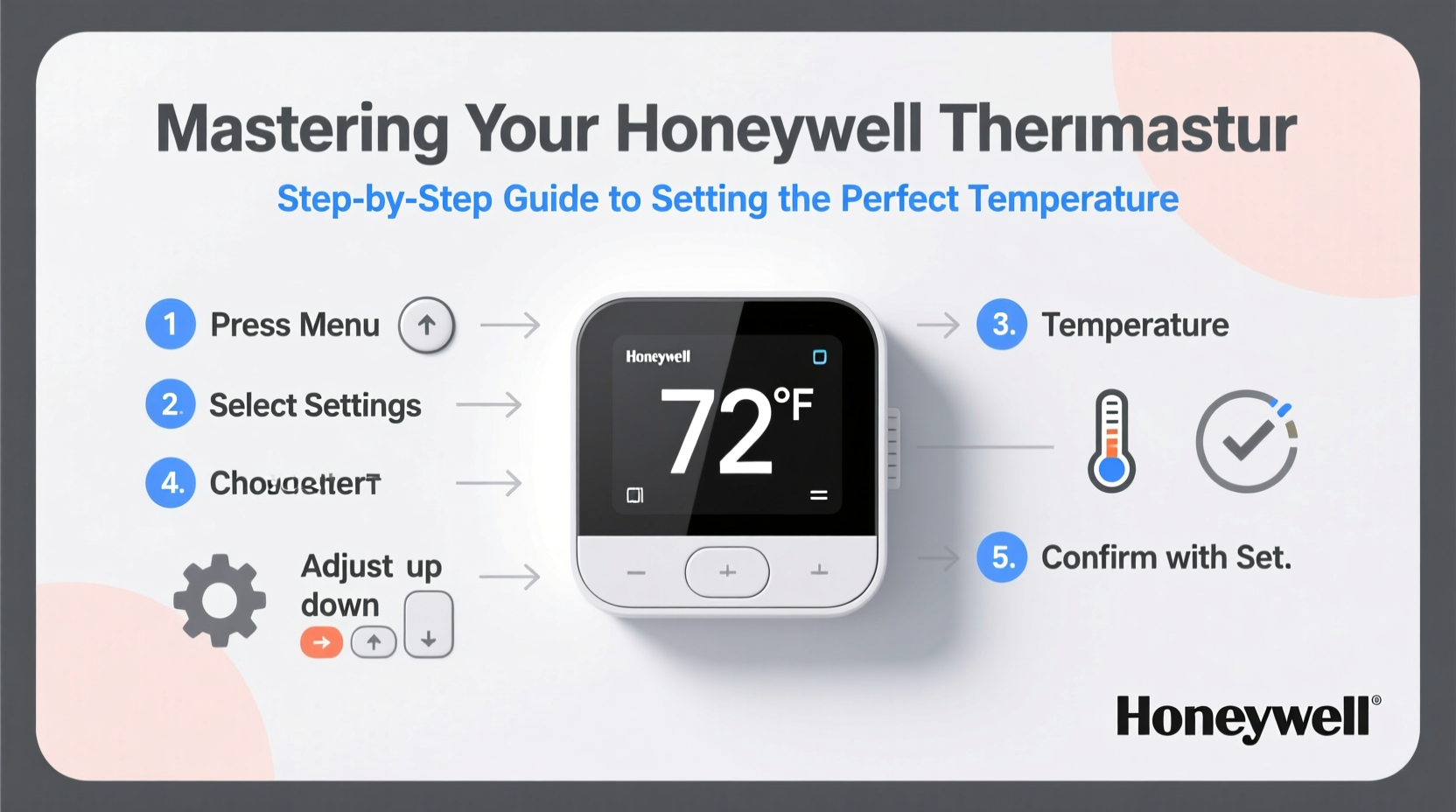
Honeywell offers several thermostat types, each with unique interfaces and capabilities. Before adjusting settings, identify your model. Common versions include:
- Manual (Non-Programmable): Basic dials or buttons; no scheduling.
- Programmable: Allows daily/weekly temperature schedules (e.g., RTH6350, T6 Pro).
- Smart/Wi-Fi: Connects to apps, supports remote control and voice assistants (e.g., T9, T10).
Check the front panel or back of the unit for the model number. Knowing your model determines which features are available—such as geofencing, adaptive recovery, or HVAC diagnostics—and ensures you follow the correct steps for programming.
Tip: Take a photo of your thermostat’s screen and settings before making changes. This helps you revert if needed.Step-by-Step Guide to Setting the Ideal Temperature
Setting the perfect temperature involves more than turning a dial. It requires understanding your household’s routine, seasonal needs, and energy goals. Follow this timeline-based process to configure your thermostat effectively.
- Assess Your Daily Schedule: Note when people are home, asleep, or away. Most energy is wasted heating or cooling empty homes.
- Choose a Base Comfort Temperature: The U.S. Department of Energy recommends 68°F (20°C) when awake and at home in winter, and 78°F (26°C) in summer for cooling.
- Set Away Temperatures: Lower heat to 60–62°F in winter or raise cooling to 85°F when no one is home.
- Adjust for Sleep: Slightly cooler temperatures improve sleep quality. Set to 65–67°F at night in winter.
- Program Weekly Settings: Use weekday/weekend profiles to reflect lifestyle patterns.
- Enable Auto Mode (if available): Automatically switches between heating and cooling based on set ranges.
For programmable models, access “Schedule” mode via the main menu. Assign temperature levels to four daily periods: Wake, Leave, Return, and Sleep. Smart thermostats often learn your preferences over time but benefit from initial manual input.
Optimizing Efficiency with Advanced Features
Higher-end Honeywell thermostats offer intelligent tools that go beyond simple scheduling. Leveraging these can enhance comfort while minimizing energy consumption.
Adaptive Recovery
This feature calculates how long your system takes to reach a desired temperature and starts early enough to hit your target precisely at wake-up time. For example, if your home cools slowly overnight, the thermostat will begin heating at 5:45 AM so the house reaches 68°F by 7:00 AM.
Geofencing (Smart Models)
Using your smartphone’s location, the thermostat detects when you’re leaving or approaching home. It automatically switches to “Away” mode when everyone has left and resumes normal operation as you return—no manual input required.
HVAC Monitoring
Some models send alerts if your system runs too long or frequently cycles, indicating possible maintenance issues like a clogged filter or failing blower motor.
| Feature | Benefit | Available On |
|---|---|---|
| Adaptive Recovery | Precise comfort timing without wasting energy | T6 Pro, T9, T10 |
| Geofencing | Automatic Away/Return modes | T9, T10 (Wi-Fi models) |
| Voice Control | Hands-free adjustments via Alexa or Google Assistant | Select smart models |
| Energy Usage Reports | Monthly insights into heating/cooling patterns | Honeywell Home App-connected devices |
“Smart thermostats like Honeywell’s T-series can reduce HVAC energy use by up to 23% annually when programmed correctly.” — Dr. Linda Chen, Building Systems Engineer, ASHRAE
Real-World Example: The Johnson Family’s Winter Savings
The Johnsons live in Minneapolis and previously kept their home at a constant 72°F all winter, resulting in $220 monthly heating bills. After installing a Honeywell T9, they programmed the following schedule:
- 6:30–8:30 AM: 68°F (Wake)
- 8:30 AM–5:00 PM: 62°F (Away)
- 5:00–10:00 PM: 68°F (Home)
- 10:00 PM–6:30 AM: 65°F (Sleep)
They enabled geofencing so the heat would resume earlier if they returned from evening errands. Within two months, their heating bill dropped to $168—a 24% reduction—without sacrificing comfort. Adaptive recovery ensured the house felt warm upon waking, even though heating started gradually.
Common Mistakes and How to Avoid Them
Even with advanced technology, user error can undermine performance. Here are frequent missteps and corrections:
| Mistake | Consequence | Solution |
|---|---|---|
| Leaving thermostat in “Hold” mode | Disables scheduling; locks in one temperature | Use “Temporary Hold” for short changes; avoid permanent holds |
| Overriding schedule daily | Defeats energy-saving automation | Revise the schedule instead of overriding it |
| Setting extreme temperatures to “heat faster” | No effect—HVAC heats at fixed rate | Set desired temp once; avoid cranking it to 80°F |
| Ignoring battery warnings | Loss of settings during power outage | Replace batteries annually or use C-wire powered models |
Frequently Asked Questions
How do I switch between heating and cooling modes?
Press the “System” or “Mode” button until you see “Heat,” “Cool,” “Auto,” or “Off.” In “Auto,” the thermostat automatically activates heating or cooling based on your setpoints. Ensure your HVAC system is capable of both functions.
Why does my thermostat show “Wait” or “Recovery”?
“Wait” appears during compressor protection delay (prevents rapid cycling). “Recovery” means adaptive recovery is active—the system is working to reach your scheduled temperature at the right time.
Can I control my Honeywell thermostat from my phone?
Yes, if you have a Wi-Fi model (e.g., T9, T10). Download the Honeywell Home app, create an account, and connect your thermostat to your home network. You can then adjust settings remotely, view usage history, and receive alerts.
Final Checklist: Mastering Your Thermostat in 7 Steps
- Identify your Honeywell model and capabilities.
- Set a base temperature (68°F in winter, 78°F in summer).
- Program different temperatures for wake, leave, return, and sleep times.
- Enable Away mode when traveling or out for extended periods.
- Use geofencing and adaptive recovery (smart models).
- Avoid permanent holds and unnecessary overrides.
- Review energy reports monthly and adjust as seasons change.
Take Control of Your Comfort and Savings Today
Your Honeywell thermostat is more than a temperature dial—it’s a powerful tool for enhancing home comfort and managing energy costs. By investing just 20 minutes to program it properly, you gain year-round benefits: fewer drafts, better sleep, lower bills, and reduced environmental impact. Whether you’re using a basic programmable model or a cutting-edge smart thermostat, the principles remain the same: consistency, automation, and awareness. Don’t let inefficient settings drain your wallet. Apply these steps today, fine-tune as needed, and experience what true climate control feels like.
💬 Have questions about your Honeywell setup or want to share your energy-saving results? Join the conversation below and help others master their thermostats too!