If your tablet was once smooth and responsive but now takes forever to open apps or lags between taps, you're not alone. Sudden slowdowns are one of the most common frustrations among tablet users—especially when there’s no obvious reason for the decline. The good news: most causes are fixable without technical expertise. Whether it's background processes eating up resources, outdated software, or simply too many apps fighting for space, understanding the root cause is the first step toward restoring performance.
This guide breaks down the real reasons behind sudden tablet lag and provides actionable solutions that actually work. From quick tweaks to deeper optimizations, these steps can help reclaim speed and extend your device’s usable life.
Common Causes of Sudden Tablet Slowdowns
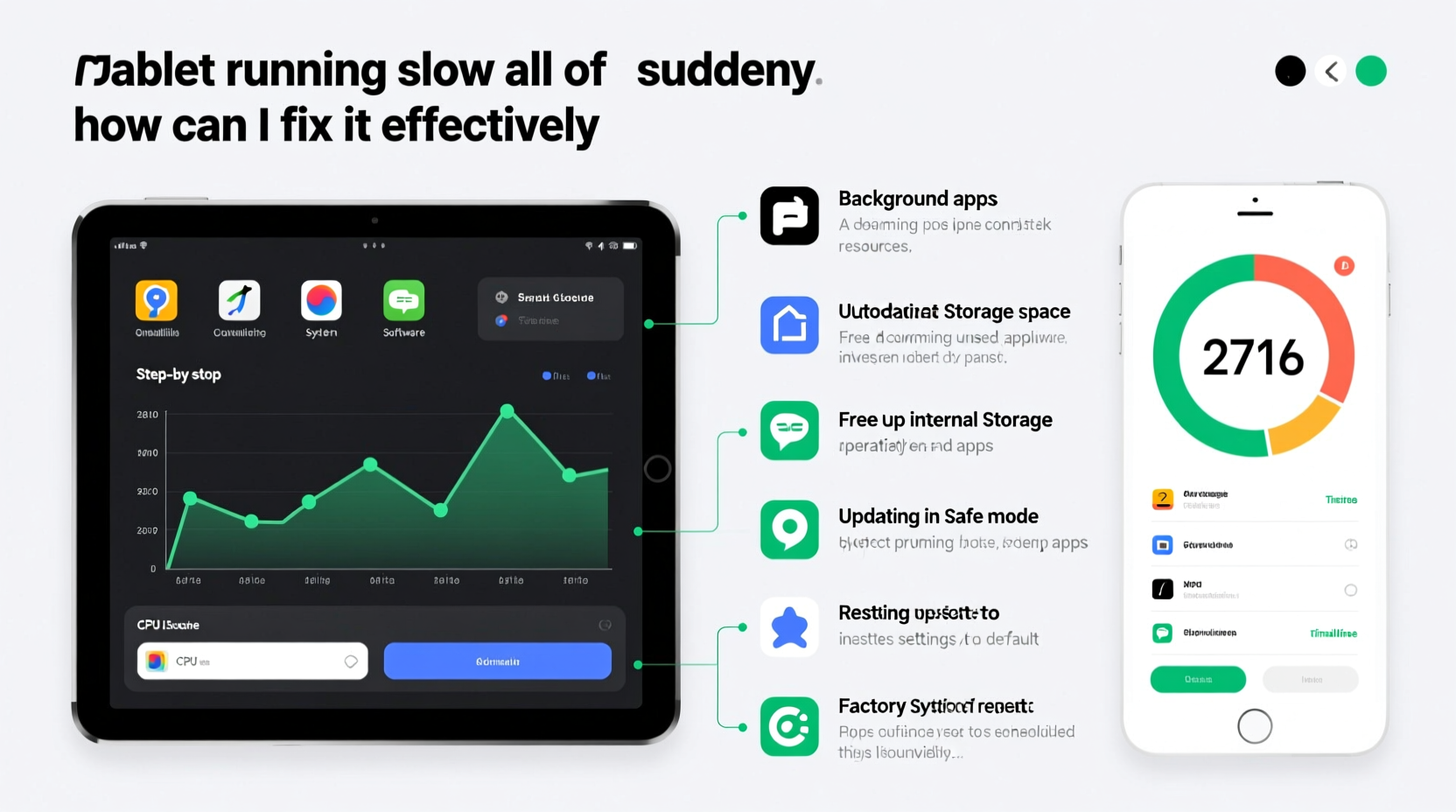
A tablet doesn’t just decide to run slowly overnight. Behind every sluggish screen tap or frozen app is a system struggling under unseen pressure. Identifying the culprit requires looking beyond surface-level symptoms.
- Background apps consuming memory: Many apps continue running in the background even after you close them, using RAM and CPU cycles.
- Low storage space: When internal storage drops below 10%, Android and iOS systems start throttling performance to manage limited space.
- Outdated operating system: Older OS versions may lack optimizations or contain bugs that affect speed and stability.
- Bloatware and unnecessary pre-installed apps: Some tablets come loaded with apps you’ll never use, which still consume resources.
- Too many widgets or live wallpapers: These visual elements constantly refresh data and animations, taxing the processor.
- Malware or suspicious apps: Rare but possible—malicious software can run hidden processes that drain performance.
- Aging hardware: Over time, batteries degrade and components wear out, leading to thermal throttling and reduced processing power.
Unlike smartphones, tablets often go longer between reboots, allowing background clutter to accumulate. A single update or app installation can be the tipping point that turns a slightly sluggish device into an unresponsive one.
Tip: Restart your tablet at least once a week to clear temporary files and reset background processes.Step-by-Step Guide to Speed Up Your Tablet
Fixing a slow tablet isn’t about magic tricks—it’s systematic troubleshooting. Follow this timeline-based approach to identify and resolve issues efficiently.
- Restart the device (Immediate)
Hold the power button, select “Restart,” and wait 30 seconds. This clears RAM and stops rogue background tasks. - Check storage usage (5 minutes)
Go to Settings > Storage. If available space is below 1 GB (or 10% of total), delete unused apps, photos, or cached data. - Update the operating system (10–20 minutes)
Navigate to Settings > System > Software Update. Install any pending OS or security patches—many updates include performance improvements. - Close unnecessary background apps (2 minutes)
Use the recent apps button (swipe up and hold) and swipe away unused apps. On iOS, double-click Home or swipe up from bottom and swipe apps away. - Clear app caches (5 minutes)
On Android: Settings > Apps > [App Name] > Storage > Clear Cache. On iPadOS, offload apps instead (Settings > General > iPhone/iPad Storage > Offload App). - Disable animations (Android only, 3 minutes)
Enable Developer Options by tapping Build Number 7 times in About Phone. Then reduce Window Animation Scale, Transition Animation Scale, and Animator Duration Scale to \"Off.\" - Remove bloatware or unused apps (Ongoing)
Delete apps you don’t use. Disable pre-installed ones you can’t uninstall via Settings > Apps > [App] > Disable.
This sequence targets the most frequent causes of slowdowns. Most users notice improvement within 30 minutes of completing these steps.
Do’s and Don’ts: Tablet Performance Best Practices
| Do | Don't |
|---|---|
| Keep at least 15% of storage free for optimal performance | Fill your tablet until less than 1 GB remains |
| Update apps and OS regularly to benefit from bug fixes | Ignore software update notifications for months |
| Use lightweight browsers like Firefox Lite or Kiwi | Run multiple heavy tabs on Chrome for days |
| Reboot weekly to clear system clutter | Leave your tablet running continuously for weeks |
| Limit home screen widgets to essential ones | Add animated widgets that refresh every minute |
Following these guidelines helps maintain consistent performance over time. Prevention is far more effective than trying to recover a severely bogged-down device.
Real-World Example: How Sarah Fixed Her Lagging Tablet
Sarah, a freelance graphic designer, relied on her Android tablet for client meetings and sketching. One Monday morning, her device began freezing during presentations. Apps took 10 seconds to load, and stylus input lagged noticeably.
She initially assumed the hardware had failed. But after checking storage, she discovered only 2% space remained—mostly filled with cached files from design apps and hundreds of downloaded reference images. She followed the cleanup process: restarted the device, cleared caches for Adobe Sketch and Chrome, deleted old project backups, and moved photos to cloud storage.
Within 20 minutes, her tablet responded instantly again. The issue wasn’t aging hardware or a broken OS—it was simple resource exhaustion. By setting monthly maintenance reminders, Sarah avoided repeat slowdowns.
“Performance issues are rarely about hardware failure. More often, they’re symptoms of digital clutter.” — Dr. Raj Mehta, Mobile Systems Analyst at TechInsight Labs
Frequently Asked Questions
Why did my tablet slow down after an update?
Some OS updates introduce new features that require more processing power. While rare, bugs in early update builds can also cause lag. Wait for a patch, or temporarily disable new visual effects. In most cases, performance stabilizes after a few reboots as the system optimizes app compatibility.
Can too many browser tabs slow down my tablet?
Absolutely. Each open tab consumes RAM and CPU, especially if it plays video or runs scripts. On tablets with 3GB of RAM or less, having more than 10–15 tabs open can cripple performance. Use tab grouping or bookmark pages to revisit later instead of keeping them all active.
Is it worth upgrading my tablet’s storage?
Most tablets don’t support internal storage upgrades. However, if yours has a microSD slot (common in older Android models), adding expandable storage helps offload media files. Note: apps and system functions still rely on internal storage, so SD cards won’t fully resolve performance issues caused by low internal space.
Comprehensive Checklist: Restore Your Tablet’s Speed
Use this checklist as a diagnostic tool whenever your tablet feels sluggish. Complete each item in order for best results.
- ✅ Restart the tablet immediately
- ✅ Check available storage (aim for >15% free)
- ✅ Delete unused apps and large files (videos, downloads)
- ✅ Clear cache for top 5 used apps (e.g., Chrome, Facebook, YouTube)
- ✅ Install pending OS and app updates
- ✅ Close all background apps manually
- ✅ Disable or remove bloatware apps
- ✅ Reduce or remove animated widgets and live wallpapers
- ✅ Enable battery optimization for non-essential apps
- ✅ Consider factory reset if problems persist (after backing up data)
Completing this list addresses both immediate symptoms and long-term habits that contribute to slowdowns. For persistent issues, a factory reset should be the final step—not the first.
Tip: Before resetting, back up photos, documents, and app data to Google Drive or iCloud to avoid permanent loss.When Hardware Can’t Be Saved
Even with perfect care, tablets have a lifespan. Devices older than four years may struggle with modern apps regardless of software tweaks. Signs that hardware is the bottleneck include:
- Constant overheating during basic tasks
- Battery draining in under 3 hours despite low usage
- Apps crashing frequently, even after reinstalling
- Screen responsiveness delays unrelated to touch input
In such cases, replacing the device may be more cost-effective than continued troubleshooting. However, before retiring your tablet, consider repurposing it—as a kitchen recipe viewer, smart home controller, or dedicated e-book reader—where high performance isn’t critical.
Conclusion: Take Control of Your Tablet’s Performance
A slow tablet doesn’t mean the end of its usefulness. Most performance drops stem from manageable issues: cluttered storage, outdated software, or runaway background apps. With regular maintenance and informed habits, you can restore speed and extend your device’s life by months or even years.
The key is consistency. Just like a car needs oil changes, your tablet needs periodic digital tune-ups. Apply the steps outlined here, set calendar reminders for monthly cleanups, and treat your device with the care it deserves. Small actions today prevent major frustrations tomorrow.
💬 Did these tips help revive your tablet? Share your experience or ask questions in the comments—your insight could help others get their devices back on track!