
Streaming 4K content should be a seamless, cinematic experience—crisp visuals, immersive sound, and uninterrupted playback. Yet many users find themselves frustrated by stuttering video, buffering icons, or delayed audio. If your smart TV stutters during 4K playback, you're not alone. The issue isn't always with the TV itself but rather a combination of hardware limitations, network conditions, and service configurations. Understanding the root causes is the first step toward resolving them.
Modern smart TVs are powerful devices, but they operate under constraints that can affect performance, especially when handling high-bandwidth 4K streams. This article breaks down the most common reasons behind 4K lag, offers practical solutions, and provides tools to optimize your viewing experience.
Understanding 4K Streaming Requirements
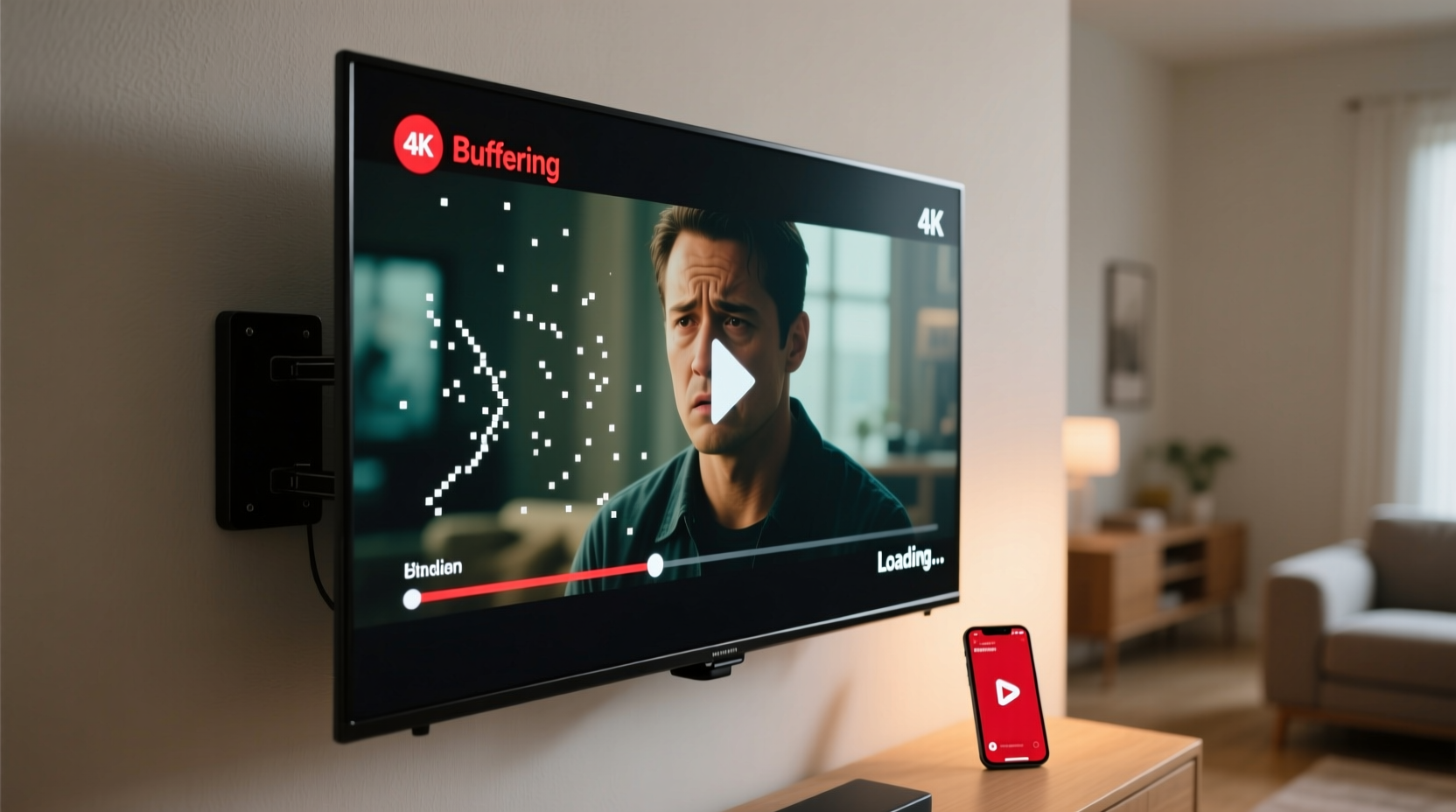
Before diagnosing lag, it’s essential to understand what 4K streaming demands. Unlike HD (1080p), 4K Ultra HD delivers four times the resolution—approximately 8.3 million pixels per frame. To maintain smooth playback, especially with HDR (High Dynamic Range) and Dolby Atmos audio, the data throughput must be consistently high.
Streaming platforms like Netflix, Disney+, and Amazon Prime Video recommend specific internet speeds for reliable 4K playback:
| Service | Recommended Minimum Speed | Bitrate (Approx.) |
|---|---|---|
| Netflix | 25 Mbps | 15–25 Mbps |
| Amazon Prime Video | 15 Mbps | 12–15 Mbps |
| Disney+ | 25 Mbps | 20–25 Mbps |
| HBO Max | 25 Mbps | 18–25 Mbps |
If your connection falls below these thresholds, the platform may automatically reduce quality—but even then, inconsistent speeds can cause buffering and stuttering. More importantly, bandwidth isn’t the only factor. Latency, packet loss, and Wi-Fi interference also play critical roles in real-time streaming performance.
Tip: Run a speed test directly on your smart TV using built-in tools or apps like Netflix's Fast.com to get an accurate reading of available bandwidth.Common Causes of 4K Lag on Smart TVs
1. Insufficient Internet Bandwidth
The most frequent culprit is inadequate internet speed. Even if your plan promises 100 Mbps, shared networks, background downloads, or ISP throttling can reduce actual throughput. Multiple devices streaming simultaneously—phones, tablets, gaming consoles—can saturate your bandwidth, leaving insufficient capacity for 4K video.
2. Wi-Fi Signal Interference and Weak Reception
Most smart TVs connect via Wi-Fi, which is inherently less stable than Ethernet. Walls, appliances, and neighboring networks operating on the same 2.4 GHz band can introduce interference. The 5 GHz band offers faster speeds and less congestion but has shorter range and weaker penetration through obstacles.
3. Outdated or Underpowered TV Hardware
Not all smart TVs are built equally. Older models or budget-friendly units may have underpowered processors and limited RAM, making it difficult to decode high-bitrate 4K content smoothly. As streaming apps evolve, they demand more system resources. A TV from 2017 might struggle with today’s app versions, even if the screen supports 4K.
4. Software Glitches and App Bloat
Smart TV operating systems like Tizen (Samsung), webOS (LG), and Android TV accumulate cache over time. Corrupted data or outdated firmware can lead to sluggish app performance. Additionally, automatic updates sometimes introduce bugs that impact decoding efficiency.
5. Server-Side Issues from Streaming Platforms
Lag isn’t always your fault. During peak hours, popular services like Netflix may experience server congestion, leading to temporary delays or adaptive bitrate drops. While rare, regional outages or CDN (Content Delivery Network) bottlenecks can disrupt smooth delivery.
“Even with gigabit internet, poor Wi-Fi placement or outdated router firmware can cripple 4K streaming. It’s not just about speed—it’s about consistency.” — Rajiv Mehta, Senior Network Engineer at Broadband Insights Group
Step-by-Step Guide to Fix 4K Streaming Lag
Follow this structured approach to identify and resolve the source of lag:
- Test Your Internet Speed on the TV
Use the TV’s browser or a dedicated app (e.g., Fast.com) to measure download speed, upload speed, and ping. Ensure results meet or exceed the 25 Mbps threshold for 4K. - Restart Your Router and TV
Power cycle both devices. Unplug the router for 30 seconds, then reconnect. Restart the TV completely—not just standby mode. This clears temporary glitches and resets network handshakes. - Switch to a Wired Ethernet Connection
If possible, connect your TV directly to the router using a Cat 6 or Cat 7 Ethernet cable. This eliminates Wi-Fi instability and ensures maximum throughput. - Move Closer to the Router or Upgrade Wi-Fi
If wired isn’t feasible, reposition the TV closer to the router or install a mesh Wi-Fi system. Consider upgrading to a Wi-Fi 6 router for better multi-device handling and reduced latency. - Check for Firmware Updates
Navigate to Settings > Support > Software Update (varies by brand). Install any pending updates for the TV and router. Updated firmware often includes performance improvements and bug fixes. - Clear App Cache and Data
Go to Settings > Apps > [Streaming App] > Clear Cache. For persistent issues, clear storage data (note: you’ll need to log in again). - Reduce Network Load
Pause downloads on other devices, disable cloud backups during streaming, and disconnect unused gadgets. Prioritize your TV using QoS (Quality of Service) settings in your router. - Try a Different Streaming App or Device
Test 4K playback using a streaming stick (e.g., Roku, Fire Stick) or game console connected to the same TV. If performance improves, the TV’s internal processor or OS may be the bottleneck.
Tips and Best Practices for Smooth 4K Playback
- Use the 5 GHz Wi-Fi Band: Configure your router to broadcast separate 2.4 GHz and 5 GHz networks. Connect your TV exclusively to the 5 GHz band for higher throughput and lower interference.
- Enable QoS in Your Router: Quality of Service settings allow you to prioritize media streaming traffic. Assign highest priority to your TV’s IP or MAC address.
- Limit Background Apps: Close unused apps on the TV. Some continue running in the background, consuming CPU and memory.
- Avoid Peak Usage Hours: If possible, stream during off-peak times (early morning or mid-afternoon) when network congestion is lower.
- Upgrade Aging Equipment: TVs older than five years may lack the processing power for modern 4K codecs like HEVC (H.265) or AV1. Consider external streaming devices designed for high-performance decoding.
Mini Case Study: Resolving Persistent Lag on a 2019 Samsung QLED
John, a homeowner in Austin, Texas, reported constant stuttering while watching 4K content on his Samsung Q80T, despite having a 100 Mbps fiber connection. Initial speed tests on his phone showed full speed, but the TV registered only 12 Mbps.
After following diagnostic steps, he discovered that his router was located in the basement, two floors away from the living room. The thick concrete walls severely degraded the 5 GHz signal. He upgraded to a mesh Wi-Fi 6 system with a node placed near the TV. Post-upgrade, his TV recorded 85 Mbps on speed tests, and 4K playback became flawless.
This case illustrates how physical environment and network topology can override raw internet speed claims. Proximity and signal integrity matter as much as bandwidth.
Checklist: Is Your Setup Ready for 4K?
Use this checklist to verify your system’s readiness:
- ✅ Internet speed ≥ 25 Mbps (measured at the TV)
- ✅ Connected to 5 GHz Wi-Fi or Ethernet
- ✅ Router supports at least Wi-Fi 5 (802.11ac)
- ✅ TV firmware is up to date
- ✅ Streaming app is updated
- ✅ No large downloads running in the background
- ✅ TV is within strong Wi-Fi range or hardwired
- ✅ Router QoS enabled for media devices
Frequently Asked Questions
Why does my 4K content buffer even with fast internet?
Buffering can occur due to network instability, not just speed. Fluctuations in ping, packet loss, or Wi-Fi dropouts interrupt the steady data flow needed for 4K. Even brief disconnections force the stream to pause and reload.
Can my smart TV be too old for 4K streaming?
Yes. TVs from 2016 or earlier may lack hardware decoding for modern compression standards like HEVC or VP9. They rely on software decoding, which strains older processors and leads to lag. In such cases, using a newer streaming stick often resolves the issue.
Does HDR make streaming lag worse?
HDR increases color depth and brightness metadata, requiring slightly higher bandwidth and processing power. Combined with 4K, this raises the overall load. If your network or device is already near its limit, enabling HDR can push it into unstable territory.
Conclusion: Take Control of Your Streaming Experience
4K lag isn’t inevitable—it’s usually a solvable mismatch between expectations and infrastructure. By methodically evaluating your network, hardware, and settings, you can eliminate frustrating interruptions and enjoy the full fidelity of ultra-high-definition content. Don’t accept stuttering as normal; diagnose, upgrade, and optimize. Whether it’s switching to Ethernet, updating firmware, or investing in better Wi-Fi coverage, small changes yield dramatic improvements.
💬 Have you fixed 4K lag on your smart TV? Share your solution in the comments and help others stream without compromise!