You charge your phone overnight, only to wake up and find it already below 50%. It never left your nightstand. No calls, no browsing—yet something is clearly consuming power. This frustrating experience is more common than you think. Modern smartphones are engineered for performance and connectivity, but that constant readiness comes at a cost: battery life. Even when idle, numerous services, apps, and system functions can quietly deplete your battery. Understanding what’s behind this silent drain is the first step toward regaining control of your device’s longevity.
The Hidden Culprits Behind Idle Battery Drain
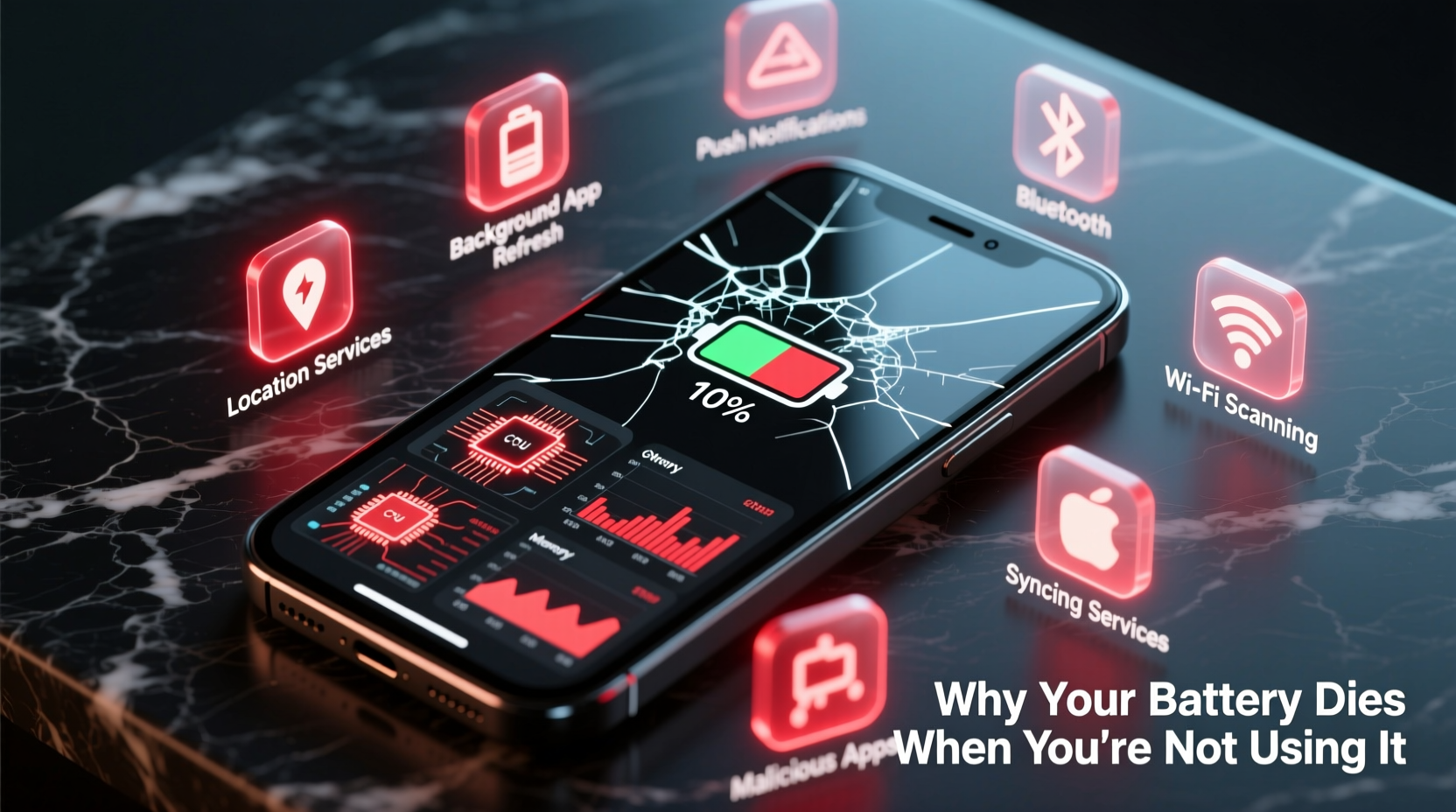
At rest, your phone isn’t truly “off.” It maintains network connections, checks for updates, syncs data, and listens for notifications. While essential for functionality, these background operations can become excessive. Some apps continue running tasks long after you’ve closed them. Others misuse permissions to stay active, track location, or refresh content unnecessarily.
Android and iOS both include built-in tools to monitor battery usage, but interpreting the data requires insight. High percentages attributed to \"Phone\" or \"System\" don’t always mean hardware failure—they often point to background processes like cellular signal hunting, Wi-Fi scanning, or push notifications from poorly optimized apps.
Tip: Check your battery settings weekly. A sudden spike in background usage often reveals problematic apps before they cripple your day.Background App Refresh and Push Notifications
One of the most significant contributors to passive battery drain is background app refresh (iOS) or auto-sync (Android). Apps like social media platforms, email clients, and news aggregators constantly fetch new content—even when you’re not using them.
For example, Facebook may refresh your feed every 15 minutes, Twitter might preload videos, and Gmail could sync multiple accounts in real time. Each operation wakes the CPU, activates the display briefly, and uses data—all consuming battery.
Push notifications compound the issue. Every alert triggers a brief system wake-up, screen illumination, sound playback, and vibration. Multiply this by dozens of notifications per day, and the cumulative effect becomes substantial.
Location Services and GPS Draining Power
Location tracking is another major energy consumer. Many apps request access to your location “while using” the app, but some run geofencing or background location tracking without clear justification. Weather apps, fitness trackers, and delivery services often fall into this category.
Even when not actively navigating, apps like Google Maps or Uber may periodically check your position to offer predictive routes or estimate arrival times. On Android, Google Location Services continuously scans for nearby Wi-Fi networks and Bluetooth devices to improve location accuracy—a feature known as “Wi-Fi scanning” or “network-based location.”
“Background location access is one of the top three causes of unexpected battery drain in modern smartphones.” — Dr. Alan Reyes, Mobile Systems Engineer at MIT Media Lab
Do You Really Need All Those Permissions?
Review which apps have access to your location. Go to Settings > Privacy > Location Services (iOS) or Settings > Location (Android). Look for apps that use location “Always” and ask yourself: Does this app genuinely need to know where I am all the time?
- A flashlight app doesn’t need location access.
- A recipe app shouldn’t require constant GPS.
- Games rarely benefit from real-time positioning unless they’re AR-based.
Restrict unnecessary permissions. Set most apps to “While Using” or “Only Once” instead of “Always.” This single change can extend standby battery life by up to 30%.
Silent Network Activity: Signal Strength and Connectivity
Poor cellular reception forces your phone to work harder. When the signal is weak—such as in basements, rural areas, or concrete-heavy buildings—the radio boosts its transmission power to maintain connection. This dramatically increases energy consumption.
The same applies to Wi-Fi. If your phone is connected to a distant router or one with interference, it repeatedly attempts to re-establish stable links. Bluetooth also contributes if paired devices frequently disconnect or send small packets of data.
| Connectivity Type | Battery Impact | Mitigation Strategy |
|---|---|---|
| Poor Cellular Signal | High | Enable Airplane Mode or Wi-Fi calling |
| Weak Wi-Fi | Moderate | Forget unstable networks; switch to cellular |
| Bluetooth Devices | Low-Moderate | Turn off when not in use |
| Background Data Sync | High | Limit auto-sync frequency |
Another overlooked factor is 5G vs. LTE. While 5G offers faster speeds, early implementations were less power-efficient. Phones dynamically switch between bands, but in areas with spotty 5G coverage, the constant handoff between 4G and 5G can increase battery strain.
Tip: In low-signal areas, enable Airplane Mode and turn on Wi-Fi manually. This stops cellular searching while keeping internet access.Step-by-Step Guide to Diagnose and Stop Battery Drain
Follow this systematic approach to identify and eliminate sources of idle battery consumption:
- Check Battery Usage Stats: Go to Settings > Battery. Identify which apps or system components show high percentages—even if they weren’t actively used.
- Distinguish Active vs. Background Use: Look for apps with high “background” activity. On iOS, this appears under “Background Activity.” On Android, tap the app to see foreground vs. background breakdown.
- Disable Background App Refresh:
- iOS: Settings > General > Background App Refresh > Off or Wi-Fi Only
- Android: Settings > Apps > Special Access > Background Restrictions > Apply per app
- Limit Location Access: Disable “Always” location for non-essential apps. Prefer “While Using” or revoke access entirely.
- Reduce Push Notifications: Disable alerts for low-priority apps. Prioritize only messages, calls, and calendar events.
- Turn Off Unnecessary Connectivity: Disable Bluetooth, Wi-Fi, NFC, and Personal Hotspot when not needed.
- Update Your OS and Apps: Developers regularly optimize battery usage. Outdated software may contain bugs causing excessive drain.
- Restart Weekly: A simple reboot clears cached processes and resets misbehaving services.
Mini Case Study: Sarah’s Overnight Drain Mystery
Sarah noticed her iPhone dropped from 100% to 45% overnight—without being touched. She checked Settings > Battery and found “Google Photos” listed at 28% usage, despite not opening it. Investigation revealed that Background App Refresh was enabled, and the app was backing up hundreds of photos in bursts throughout the night, waking the phone repeatedly.
She disabled background refresh for Google Photos and set backups to occur only over Wi-Fi during daytime hours. The next morning, her battery was at 89%. The fix wasn’t drastic—just smarter configuration.
Common System Processes That Consume Power
Not all battery drain comes from third-party apps. Core system functions can also contribute significantly:
- Software Updates: Automatic downloads and installations happen in the background. While convenient, they use CPU, storage, and network resources.
- Cloud Syncing: iCloud, Google Drive, and Dropbox constantly sync files, photos, and documents. Large libraries mean longer sync sessions.
- Security Scans: Antivirus apps or built-in malware detection (especially on Android) may run periodic checks.
- Adaptive Features: Android’s Now On Tap, iOS’s Siri Suggestions, and widget updates all process data silently.
These services are useful, but their timing and frequency should be managed. For instance, schedule cloud backups during charging periods only. On iOS, go to Settings > [Your Name] > iCloud > iCloud Backup > “This iPhone” and ensure it’s set to back up only when plugged in and on Wi-Fi.
When Hardware Might Be the Issue
If you’ve optimized settings and still experience rapid drain, consider aging hardware. Lithium-ion batteries degrade over time. After 300–500 full charge cycles, capacity typically drops to 80% of original levels.
Signs of a failing battery include:
- Sudden shutdowns at 20% or higher
- Swelling or overheating during normal use
- Charging quickly to 80%, then stalling
Both Apple and Android manufacturers offer battery health diagnostics. On iPhone, go to Settings > Battery > Battery Health. If “Maximum Capacity” is below 80%, replacement is recommended. On Android, dial *#*#4636#*#* (testing menu) to access battery info on many devices, or use apps like AccuBattery to estimate wear.
Frequently Asked Questions
Why does my phone battery drain overnight even when I’m not using it?
Overnight drain is usually caused by background app refresh, push notifications, location services, or poor signal strength. Apps syncing data or checking for updates can wake the phone repeatedly. Restrict background activity and disable unnecessary location access to reduce this.
How do I stop apps from running in the background?
On iOS, go to Settings > General > Background App Refresh and disable it globally or per app. On Android, navigate to Settings > Apps > [App Name] > Battery > Background Restrictions. Also, avoid swiping apps away frequently—this can trigger reloads that use more power.
Is it bad to leave my phone charging overnight?
Modern phones stop charging at 100%, so leaving them plugged in isn’t harmful in the short term. However, keeping the battery at 100% for extended periods accelerates chemical aging. Enable Optimized Battery Charging (iOS) or Adaptive Charging (Android) to delay full charges until just before you wake up.
Checklist: Reduce Idle Battery Drain in 10 Minutes
Complete this quick checklist to immediately improve standby battery life:
- ✅ Review battery usage in Settings
- ✅ Turn off Background App Refresh for non-essential apps
- ✅ Change location access from “Always” to “While Using”
- ✅ Disable push notifications for social media and games
- ✅ Turn off Bluetooth and Wi-Fi if not needed
- ✅ Enable Low Power Mode (iOS) or Battery Saver (Android)
- ✅ Restart your phone to clear stuck processes
- ✅ Update your operating system and apps
Conclusion: Take Control of Your Phone’s Power Use
Your phone’s battery doesn’t have to die by noon. The root cause of fast drain—even when idle—is rarely a mystery once you know where to look. From rogue apps to invisible system tasks, the real energy hogs are often hiding in plain sight within your settings. By taking a few minutes each week to audit permissions, restrict background activity, and manage connectivity, you can reclaim hours of battery life.
Don’t accept poor performance as inevitable. Modern smartphones are powerful, but they require smart management. Start applying these fixes today. Your next charge should last noticeably longer—and you’ll spend less time hunting for outlets and more time living uninterrupted.
💬 Have you discovered a hidden app draining your battery? Share your story in the comments and help others troubleshoot their devices!