It’s a familiar sound: the low hum of your laptop fan kicking in, even when you’re not doing anything demanding. You’ve minimized all apps, left only your browser open with a single tab, and yet the cooling system runs like it’s under heavy load. This isn’t just annoying—it can be a sign of underlying issues that affect both performance and hardware lifespan.
Laptop fans are designed to regulate temperature by expelling heat generated by the CPU, GPU, and other components. While some fan activity is normal, constant high-speed spinning during idle periods indicates inefficiency or malfunction. The good news? Most causes are fixable without technical expertise or expensive repairs. With a few straightforward steps, you can restore quiet operation and extend your device’s life.
Understanding Why Laptop Fans Run Constantly
Fans respond to internal temperature. When your laptop detects rising heat, it increases fan speed to prevent overheating. However, several factors can trigger unnecessary fan activity even when the system appears idle:
- Background processes — Hidden software consuming CPU power.
- Dust buildup — Blocked vents restrict airflow, forcing fans to work harder.
- Power settings — Aggressive performance modes prioritize speed over efficiency.
- Faulty thermal paste — Degraded paste reduces heat transfer from the CPU.
- Malware — Cryptocurrency miners or spyware can run silently in the background.
Before assuming hardware failure, eliminate software and environmental causes. Many users resolve persistent fan noise with basic troubleshooting—no tools required.
Tip: Place your laptop on a hard, flat surface. Soft materials like beds or couches block intake vents, causing rapid overheating.Step-by-Step Guide to Diagnose and Fix Fan Overuse
Follow this structured approach to identify and resolve the root cause of continuous fan operation.
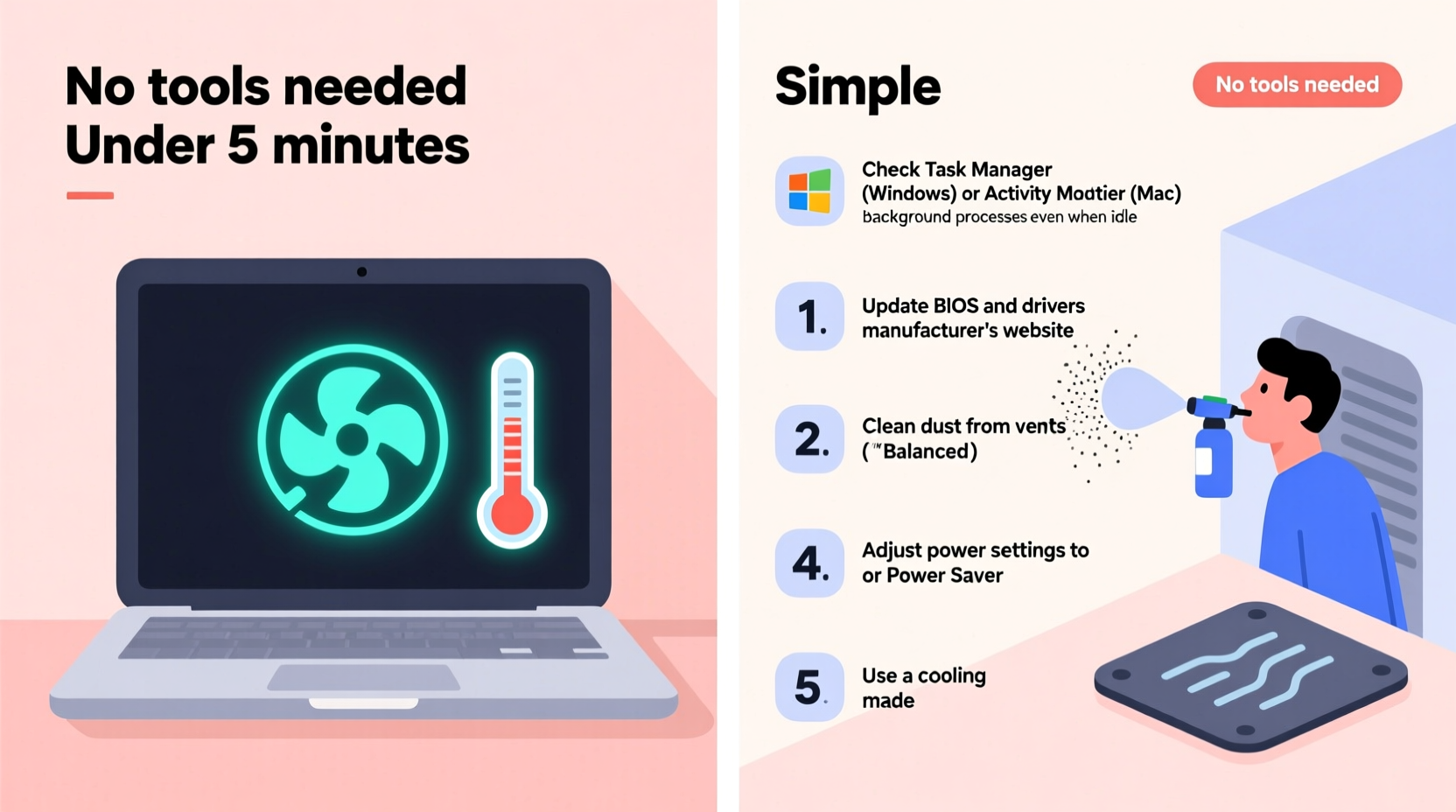
- Check CPU and GPU usage
Press Ctrl + Shift + Esc to open Task Manager (Windows) or use Activity Monitor (Mac). Sort processes by CPU or Energy Impact. Look for any app using more than 10–15% consistently while idle. Common culprits include updaters, cloud sync tools, or browser tabs with autoplay videos. - Restart in Safe Mode
Boot into Safe Mode to disable third-party software. On Windows, hold Shift while clicking Restart. On Mac, hold Shift during startup. If the fan quiets down, a background program is likely the issue. - Update operating system and drivers
Outdated drivers—especially graphics and chipset—can cause inefficient power management. Visit your laptop manufacturer’s support site and install the latest BIOS, chipset, and GPU drivers. - Adjust power plan settings
On Windows, go to Control Panel > Hardware and Sound > Power Options. Switch from “High Performance” to “Balanced” or “Power Saver.” Set both battery and plugged-in plans to limit maximum processor state to 90–95% to reduce heat generation. - Clean air vents manually
Use compressed air to blow dust out of exhaust and intake vents. Hold the can upright and spray in short bursts. Do not use vacuum cleaners—they generate static electricity that can damage components. - Reset thermal management settings
Shut down the laptop completely, unplug it, and remove the battery if possible. Hold the power button for 30 seconds to discharge residual power. This resets embedded controller settings that may be misreporting temperatures.
Common Software Triggers and How to Stop Them
Many users overlook how much background software impacts system heat. Here are frequent offenders and how to manage them:
| Process | Why It Causes Heat | Solution |
|---|---|---|
| Google Chrome (multiple tabs) | Each tab runs as a separate process; memory leaks increase CPU load | Use extensions like The Great Suspender or switch to lightweight browsers |
| Antivirus real-time scan | Constant file monitoring raises baseline CPU usage | Schedule scans during active hours, not idle times |
| Cloud storage sync (OneDrive, Dropbox) | Syncing large files uses disk and CPU resources | Pause syncing when not needed or exclude large folders |
| Windows Update Host (wuauserv) | Downloads patches in the background | Set updates to download only on Wi-Fi and outside peak hours |
| Cryptominers (malware) | Uses full CPU/GPU capacity without consent | Run Malwarebytes or Windows Defender full scan |
“Over 60% of ‘overheating’ laptops we see in service centers are actually suffering from software bloat or dust-clogged vents—not hardware failure.” — Rajiv Mehta, Senior Technician at TechCare Pro
Physical Maintenance: When Cleaning Makes a Difference
Dust accumulation is one of the most overlooked causes of fan overuse. Over time, lint and debris clog air intakes and coat internal components, acting as insulation that traps heat. Even moderate dust can raise internal temperatures by 10–15°C, prompting fans to spin faster and longer.
For best results:
- Clean vents every 2–3 months if used daily.
- Use a soft brush to loosen stubborn particles before using compressed air.
- Avoid using hairdryers—they can generate static and push debris deeper.
If you're comfortable opening the laptop, inspect the heatsink and fan blades. A thin layer of dust on the fan reduces its efficiency significantly. Gently wipe blades with a cotton swab dampened with isopropyl alcohol (70% or higher).
Tip: Elevate the back of your laptop slightly using rubber feet or a stand. Improved airflow reduces thermal stress and keeps fans quieter.Mini Case Study: Sarah’s Overheating Work Laptop
Sarah, a freelance writer, noticed her three-year-old laptop running hot and loud even when writing in a plain text editor. She assumed it was aging hardware. After trying a factory reset with no improvement, she brought it to a repair shop. The technician found that dust had completely blocked the intake vent on the bottom. After cleaning, internal idle temperatures dropped from 78°C to 52°C, and the fan ran only intermittently. Sarah now cleans her laptop every two months and uses a desk stand—her machine feels like new again.
When Hardware Might Be the Issue
If software fixes and cleaning don’t help, consider these hardware-related causes:
- Degraded thermal paste: After 2–4 years, thermal compound between the CPU and heatsink dries out, reducing heat transfer. Reapplying high-quality paste (like Arctic MX-4) can lower temperatures by 10–20°C.
- Failing fan: A wobbly or noisy fan may spin inefficiently. Listen for grinding or irregular sounds. Replacement fans are often available online for under $20.
- Loose heatsink: If the heatsink isn’t making proper contact with the CPU, heat builds up quickly. This usually requires professional reseating.
Replacing thermal paste or installing a new fan requires precision and confidence with small screws and connectors. If you're unsure, consult a local repair technician. The cost ($40–$80) is far less than replacing the entire laptop.
Checklist: 7 Quick Fixes to Try First
Before scheduling a repair or buying new hardware, complete this checklist:
- ✅ Close unused browser tabs and applications
- ✅ Run a malware scan using trusted antivirus software
- ✅ Update OS, drivers, and BIOS
- ✅ Change power plan to \"Balanced\"
- ✅ Clean air vents with compressed air
- ✅ Elevate the laptop for better airflow
- ✅ Restart after a full shutdown (not sleep mode)
Most users report noticeable improvement after completing just 3–4 of these steps.
Frequently Asked Questions
Is it bad if my laptop fan runs all the time?
Constant fan operation under load is normal, but continuous high-speed spinning during idle periods can shorten the fan’s lifespan and indicate poor thermal management. Prolonged overheating may also degrade battery health and reduce processor longevity due to thermal throttling.
Can I turn off the fan manually?
No—and you shouldn’t. The fan is controlled by firmware based on temperature sensors. Manually disabling it risks permanent hardware damage from overheating. Instead, address the root cause of excess heat.
How hot should my laptop get when idle?
A healthy idle temperature ranges between 40°C and 55°C (104°F–131°F). Anything above 65°C while idle suggests a problem with ventilation, software, or internal components.
Conclusion: Take Control of Your Laptop’s Performance
A constantly running laptop fan doesn’t have to be the price of modern computing. In most cases, the solution lies in simple maintenance, smarter software habits, or minor adjustments to your environment. By understanding what drives fan behavior, you regain control over your device’s efficiency, noise level, and longevity.
You don’t need advanced tools or technical training to make meaningful improvements. Start with cleaning and monitoring CPU usage. Progress through the checklist. Share what works—your experience could help someone else avoid costly repairs. Small actions today can keep your laptop cool, quiet, and reliable for years to come.
💬 Have a fix that worked for you? Share your story in the comments and help others troubleshoot their overheating laptops!