
Apple CarPlay has transformed the driving experience, seamlessly integrating your iPhone with your vehicle’s infotainment system. But nothing disrupts that convenience faster than CarPlay dropping the connection mid-navigation or mid-call. If you’ve found yourself asking, “Why does my CarPlay keep disconnecting randomly?” you’re not alone. Thousands of drivers face this frustrating issue across different car models and iPhone versions. The causes range from simple cable faults to deeper software conflicts. The good news is most disconnections are fixable—often without professional help.
This guide dives into the most common reasons behind unstable CarPlay connections and provides practical, tested solutions. Whether you're using a wired or wireless setup, understanding the root causes can save time, reduce frustration, and restore smooth functionality.
Common Causes of CarPlay Disconnection
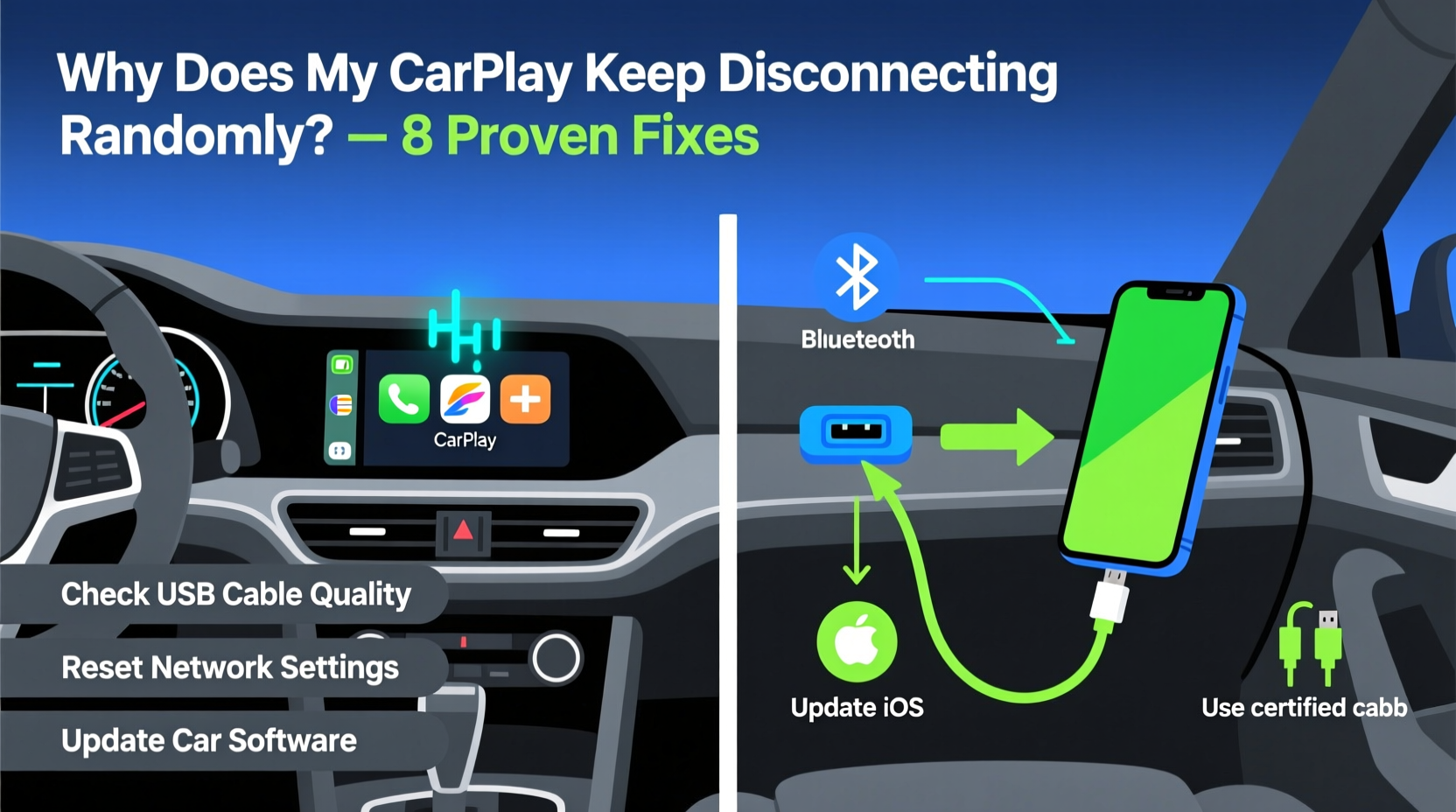
CarPlay instability rarely stems from a single factor. Instead, it’s usually a combination of hardware, software, and environmental variables. Identifying the culprit starts with recognizing patterns: Does the disconnection happen when turning corners? After software updates? Only when charging? Each clue points toward a specific cause.
- Faulty or low-quality USB cables: Especially common in wired setups, frayed or non-MFi-certified cables often lead to intermittent connections.
- Outdated iOS or infotainment software: Compatibility issues arise when either your iPhone or car system runs outdated firmware.
- Overheating devices: iPhones left in direct sunlight or under heavy processing load (like navigation + music) may throttle performance, causing CarPlay to drop.
- Bluetooth or Wi-Fi interference (wireless CarPlay): Nearby networks, electronic devices, or poor signal strength disrupt wireless pairing.
- Car infotainment system limitations: Some older or base-model systems lack the processing power for sustained CarPlay use.
- Background app overload: Too many apps running in the background can strain resources and interrupt CarPlay handoff.
Step-by-Step Troubleshooting Guide
Follow this systematic approach to isolate and resolve the issue. Start with the simplest fixes before moving to advanced diagnostics.
- Restart both devices: Reboot your iPhone and turn your car off and on again. This clears temporary glitches in memory or communication protocols.
- Check the USB port and cable: Try a different port in your car (if available). Swap in a known-good MFi-certified cable. Inspect for bent pins or debris in the port.
- Test with another iPhone: Plug in a friend’s iPhone to see if the issue persists. If it works fine, the problem likely lies with your device.
- Forget and re-pair CarPlay: On your iPhone, go to Settings > General > CarPlay > select your car > tap “Forget This Car.” Then reconnect from scratch.
- Update software: Ensure your iPhone runs the latest iOS version. Check your car manufacturer’s website or dealership for infotainment system updates.
- Reset network settings: Go to Settings > General > Transfer or Reset iPhone > Reset > Reset Network Settings. This clears corrupted Bluetooth/Wi-Fi configurations affecting wireless CarPlay.
- Disable battery-saving features: Turn off Low Power Mode and Background App Refresh restrictions temporarily to test stability.
When Wireless CarPlay Fails More Often
Wireless CarPlay relies on a stable trio: Bluetooth for initial handshake, Wi-Fi for data streaming, and proximity. Interference in any of these areas causes dropouts. Unlike wired connections, wireless setups are more prone to environmental disruptions.
“Wireless CarPlay requires dedicated Wi-Fi channels within the car. Congestion from other connected devices can degrade performance significantly.” — David Lin, Automotive Connectivity Engineer at Harman International
To improve reliability:
- Ensure your car’s Wi-Fi hotspot isn’t overloaded with multiple devices.
- Keep your iPhone close to the center console or dashboard antenna zone.
- Avoid placing your phone near metal objects or inside thick cases that block signals.
- Manually connect to your car’s Wi-Fi network in Settings if auto-join fails.
Hardware Considerations and Long-Term Fixes
Sometimes, the issue isn't user error—it's hardware design. Certain vehicles, particularly pre-2018 models or entry-level trims, were retrofitted with CarPlay support but lack optimized circuitry. This results in marginal power delivery or weak Wi-Fi modules.
| Issue | Likely Cause | Solution |
|---|---|---|
| Connection drops when turning or vibrating | Loose cable or worn USB port | Replace cable; inspect port for damage; consider dash-mounted holder for secure fit |
| CarPlay works briefly then quits | Inadequate power supply | Use high-amperage USB port; avoid daisy-chained adapters |
| No CarPlay detection at all | Non-supported USB mode or faulty integration | Check vehicle manual; consult dealer for compatibility confirmation |
| Wireless CarPlay fails after iOS update | Software mismatch | Update car firmware; reset CarPlay settings on iPhone |
For persistent hardware concerns, especially in older vehicles, consider upgrading to a modern aftermarket head unit from brands like Pioneer, Alpine, or Sony—most offer full CarPlay support with improved stability and dual-band Wi-Fi.
Mini Case Study: Persistent Disconnects in a 2017 Honda Civic
Mark, a daily commuter in Chicago, experienced frequent CarPlay dropouts every few minutes. He tried multiple cables and even replaced his iPhone, but the issue remained. After ruling out software problems (both devices were updated), he noticed the disconnections occurred mostly during winter commutes.
The real cause? Cold temperatures caused slight contraction in the USB port, leading to intermittent contact. Once he started parking in a garage and using a snug-fitting, reinforced MFi cable, the disconnections stopped entirely. A small change, rooted in environmental awareness, solved a months-long frustration.
Tip: In extreme temperatures, allow your phone and car electronics to acclimate before connecting. Rapid thermal changes stress internal components and connections.Preventative Maintenance Checklist
Stay ahead of CarPlay issues with regular maintenance. Use this checklist monthly or after long trips:
- ✅ Inspect USB cables for fraying, stiffness, or bent connectors
- ✅ Clean USB ports gently with compressed air or a soft brush
- ✅ Verify iOS is up to date (Settings > General > Software Update)
- ✅ Confirm CarPlay is enabled and set as default in your car’s display settings
- ✅ Restart your car’s infotainment system (via menu or by disconnecting battery briefly)
- ✅ Remove and re-pair CarPlay annually to clear cached data
- ✅ Avoid stacking multiple Bluetooth pairings—limit active connections to essential devices
FAQ: Common Questions About CarPlay Stability
Does using a case affect CarPlay connection?
Thick or poorly designed cases can prevent a secure connection in the USB port, especially if they extend beyond the Lightning connector. For best results, remove the case when plugging in or choose a slim, precision-cut model.
Can a car battery issue cause CarPlay disconnections?
Yes. A weak battery or failing alternator leads to voltage fluctuations, which destabilize the infotainment system. If your car struggles to start or electrical components flicker, have the charging system inspected.
Why does CarPlay work sometimes but not others?
Inconsistent behavior often points to environmental or situational triggers—like temperature changes, cable movement, or software hiccups. Logging when and where disconnections occur helps identify patterns.
Expert Insight: Design Limitations Still Affect User Experience
“Many automakers integrated CarPlay as an add-on rather than a core system feature. That means shared processors and limited RAM, which struggle under multitasking loads.” — Lena Park, Senior UX Researcher at a major German OEM
This insight explains why some cars handle CarPlay smoothly while others lag or disconnect under similar conditions. Automakers prioritizing seamless smartphone integration typically allocate dedicated resources to the infotainment environment—a trend gaining momentum in newer EV platforms.
Final Thoughts and Call to Action
Random CarPlay disconnections don’t have to be a permanent annoyance. Most issues stem from correctable factors: aging cables, outdated software, or overlooked settings. By methodically testing each potential cause, you can restore reliable connectivity and reclaim the seamless driving experience CarPlay promises.
The key is consistency—regular checks, quality accessories, and staying informed about updates make a significant difference. Don’t accept glitchy tech as normal. With the right approach, your CarPlay should work as effortlessly as your iPhone does in your pocket.
🚀 Take control today: Pick one fix from this guide—replace your cable, update your software, or clean your USB port—and apply it now. Share your results or additional tips in the comments below. Your experience could help another driver solve their CarPlay puzzle.