Text spilling beyond the margins in Google Docs is a common but frustrating issue. Whether you're drafting a report, writing an essay, or formatting a resume, content that runs off the page disrupts readability and makes your document look unprofessional. The good news? Most causes are simple to diagnose and fix—often in under a minute. This guide walks through the root causes of text overflow and provides clear, actionable fixes to restore clean, readable formatting across all devices.
Why Text Runs Off the Page in Google Docs
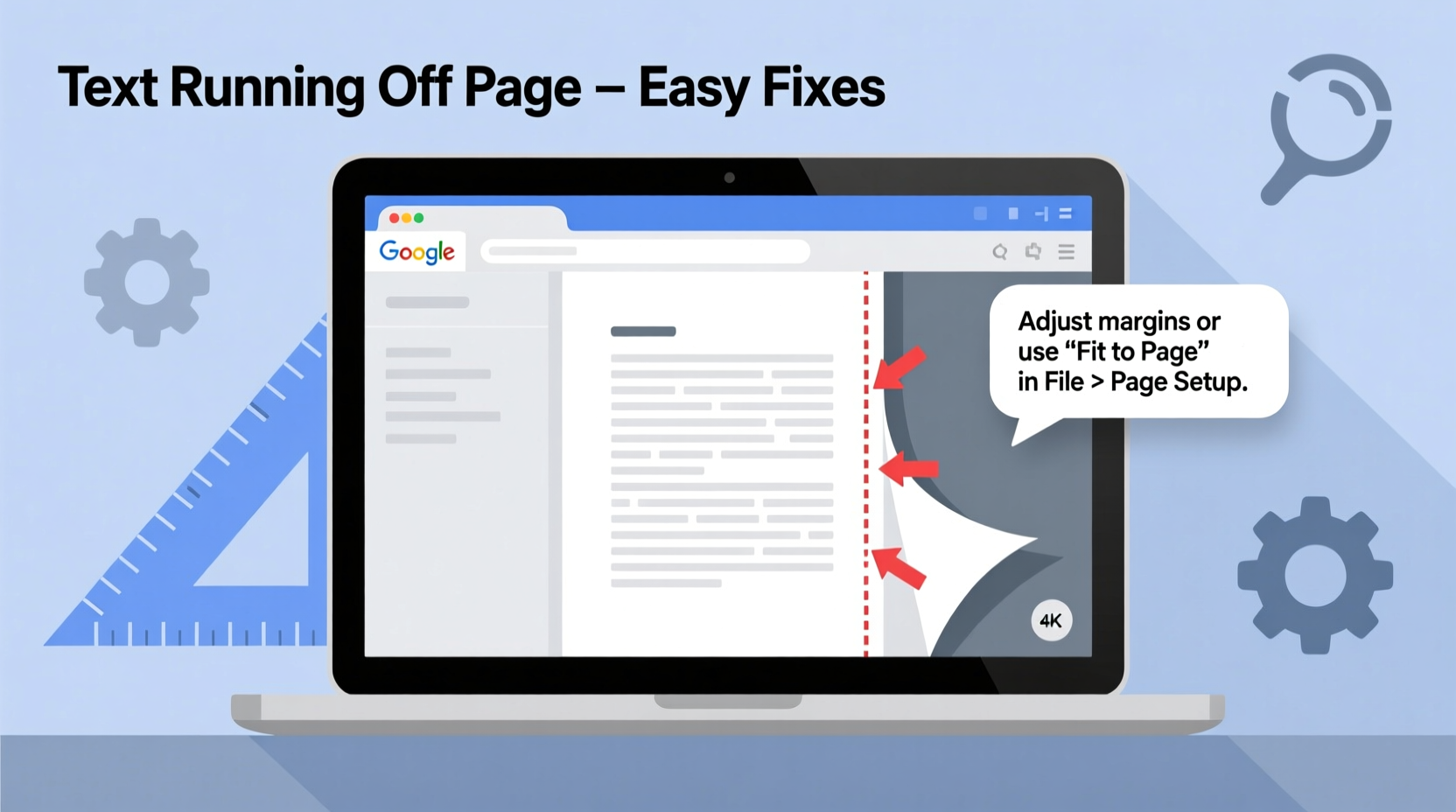
Google Docs is designed to adapt to various screen sizes and input methods, but certain formatting choices can override default behaviors. When text appears to \"run off\" the right edge of the page, it’s typically due to one or more of the following:
- Manual line breaks instead of paragraph returns
- Excessive use of spaces or tabs to align text
- Narrow or misconfigured page margins
- Tables with fixed column widths exceeding page size
- Zoom level distortion on specific screens
Unlike desktop word processors like Microsoft Word, Google Docs relies heavily on responsive design principles. However, user-driven formatting errors can break this responsiveness. Identifying the exact cause is the first step toward resolution.
Tip: Always press Enter at the end of a paragraph—not Shift+Enter—to ensure proper word wrapping and margin adherence.Step-by-Step Fixes for Text Overflow
Follow this structured approach to resolve text overflow issues systematically. Each step targets a different potential cause, starting with the most common.
- Check for forced line breaks. Look for instances where
Shift + Enterwas used instead ofEnter. These create soft line breaks that bypass normal text wrapping. Replace them with proper paragraph breaks. - Remove extra spaces and tabs. Excessive whitespace can push text past the margin. Highlight suspicious areas and press Delete or use Find & Replace (
Ctrl+H) to replace multiple spaces with a single space. - Adjust page margins. Go to File > Page setup and verify margins are set between 0.5” and 1”. Margins below 0.5” may cause overflow on smaller screens.
- Resize tables or text boxes. If your document includes tables, click on the table and drag the rightmost column handle inward until content fits within margins.
- Reset zoom level. In the top-right corner, ensure zoom is set to 100%. Higher zoom levels (e.g., 120%) can visually distort layout, making text appear off-page.
Real Example: Fixing a Student's Research Paper
A university student submitted a 10-page paper only to receive feedback that “parts of the text disappear off the right side.” Upon inspection, the issue stemmed from using Shift+Enter throughout body paragraphs to keep lines short. While this seemed to control spacing, it disabled automatic word wrap. By replacing each soft break with a proper paragraph return and adjusting margins to 1 inch, the entire document realigned correctly. The fix took less than five minutes and resolved all formatting complaints.
Common Formatting Mistakes That Cause Overflow
Many users unknowingly apply habits from older word processors or texting apps. Below are frequent missteps and their modern alternatives:
| Don’t | Do Instead | Reason |
|---|---|---|
| Using multiple spaces to indent | Use the ruler bar or Tab key |
Spaces don’t scale; indents do |
| Pressing Shift+Enter mid-paragraph | Press Enter for new paragraphs | Soft breaks disable auto-wrap |
| Dragging table edges beyond visible area | Right-click table > Resize > Fit to Content | Prevents horizontal overflow |
| Typing long URLs without line breaks | Hyperlink the text or insert a manual break | Long strings resist wrapping |
��Proper paragraph structure is the foundation of readable digital documents. Avoid workarounds like forced breaks—they compromise accessibility and layout stability.” — Dr. Lisa Tran, Digital Literacy Educator, University of Washington
Tips for Preventing Future Overflow Issues
Once you’ve corrected current problems, adopt preventive habits to maintain clean formatting over time.
Tip: Enable Show print layout (View > Print layout) to see actual margins and detect overflow early.- Use Styles consistently. Apply Normal, Heading, or Subtitle styles instead of manually adjusting font size and spacing.
- Avoid copying formatted text from external sources. Pasted content often carries hidden styling. Use Edit > Paste without formatting (
Ctrl+Shift+V). - Preview before sharing. Click File > Print (or
Ctrl+P) to preview how text will appear when printed or exported to PDF. - Use the ruler bar. Drag the left and right indent markers to visually control margins within paragraphs.
Checklist: Quick Audit for Text Overflow
Run through this checklist whenever your document looks misaligned:
- ✅ Are all paragraphs separated by
Enter, notShift+Enter? - ✅ Have I removed excessive spaces or tabs?
- ✅ Are page margins set to at least 0.5 inches?
- ✅ Do any tables extend beyond the page width?
- ✅ Is zoom set to 100%?
- ✅ Does the print preview show full text within margins?
Frequently Asked Questions
Why does my text look fine on my laptop but run off on my phone?
Different screen sizes render text differently. If you've used fixed-width elements like rigid tables or non-wrapping lines, they may fit on larger screens but overflow on mobile. Always test using Print layout view or export as PDF to check consistency.
Can Google Docs automatically fix text overflow?
Google Docs automatically wraps text in properly structured paragraphs. However, it cannot correct manual formatting errors like forced line breaks or oversized tables. You must intervene to remove such overrides.
How do I stop long words or URLs from going off the page?
For long URLs, hyperlink the text (select text > Ctrl+K) instead of typing the full address. For technical terms or code, insert a soft hyphen (Ctrl+Alt+-) where a word can break, or enable CSS word-break behavior by pasting into a compatible add-on.
Conclusion: Clean Up Your Docs for Professional Results
Text running off the page in Google Docs isn’t a software flaw—it’s usually a formatting oversight. With a few targeted adjustments, you can restore clean, readable layouts in minutes. The key is understanding how Google Docs handles text flow and avoiding outdated typing habits that interfere with its responsive engine. By applying consistent paragraph breaks, managing margins, and auditing tables, your documents will look polished across all devices.
🚀 Take action today: Open your latest Google Doc, run through the checklist, and fix any overflow issues. Share this guide with colleagues or students who struggle with formatting—small changes lead to big improvements in professionalism and clarity.