When your Surface Pro refuses to power on, it can feel like a digital emergency—especially if you rely on it for work, school, or creative projects. The good news is that most power-related issues aren’t permanent hardware failures. Many are caused by simple software glitches, battery depletion, or connection problems that you can resolve at home with the right approach. This guide walks through systematic troubleshooting steps, from basic checks to advanced resets, helping you regain access to your device without unnecessary service costs.
Step 1: Confirm the Basics Are Covered
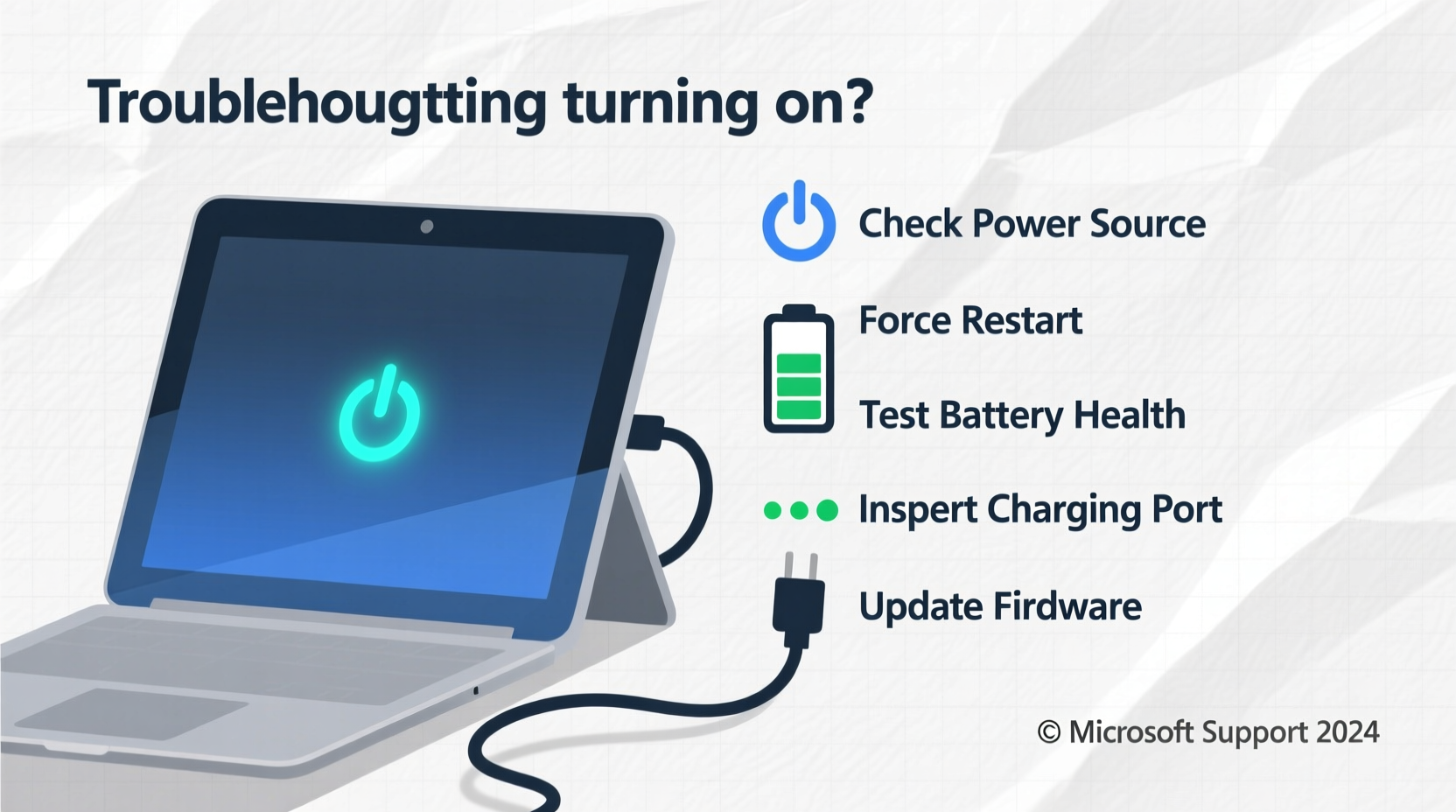
Before diving into complex fixes, rule out the simplest causes. A surprising number of “dead” devices are simply victims of overlooked details.
- Check the power source: Ensure the Surface charger is securely connected to both the wall outlet and the device. Try a different outlet to eliminate power supply issues.
- Inspect the charging cable and adapter: Look for frayed wires, bent connectors, or signs of damage. Microsoft’s proprietary chargers are sensitive—if the pins are misaligned or corroded, charging may fail.
- Wait before assuming failure: If the battery is completely drained, it may take up to 10 minutes plugged in before any sign of life appears—even the charging light might be delayed.
Step 2: Perform a Hard Reset
A hard reset forces the device to reboot at the firmware level, clearing temporary system errors that may prevent startup. This is safe and does not erase your data.
- Disconnect the Surface Pro from the charger.
- Press and hold the power button for 30 seconds. Do not release early—even if you see flickering or lights.
- While still holding the power button, plug in the charger.
- Continue holding the power button for another 10–15 seconds after connecting power.
- Release the button and wait up to 2 minutes for the device to respond.
This method often resolves soft lockups caused by firmware hiccups or failed updates. It mimics a power cycle similar to removing a laptop battery—a workaround for devices without removable batteries.
Step 3: Diagnose Battery and Charging Issues
If the device remains unresponsive, the issue may lie with the battery or charging circuitry. Here’s how to assess the situation:
| Status | What It Means | Recommended Action |
|---|---|---|
| No lights when plugged in | Charger fault, port damage, or deep battery discharge | Try a known-working charger; clean charging port gently with dry toothbrush |
| White light on charger but no boot | Battery charging but system not starting | Wait 30+ minutes, then attempt hard reset |
| Amber light on charger | Battery charging normally | Allow full charge (up to 3 hours), then try powering on |
| Intermittent or flickering light | Loose connection or failing charger | Replace charger or inspect Surface Connect port for debris |
The Surface Connect port is prone to collecting dust and lint, especially if carried in bags or pockets. Gently clean around the port with a plastic pick or dry cotton swab—never metal, which could cause a short.
Step 4: Force Recovery Mode Using Volume + Power
If the device still won’t start, attempt to force it into recovery mode. This bypasses the normal boot process and allows access to diagnostic tools.
- Plug in the charger and let the device charge for at least 20 minutes.
- Press and hold the volume-up button, then press and hold the power button.
- Keep both buttons held for 15 seconds, then release the power button but continue holding volume-up for another 10 seconds.
- If successful, the Microsoft logo will appear, followed by a blue recovery screen.
From the recovery environment, you can:
- Restart the device
- Uninstall recent updates
- Reset the PC (with or without data loss)
- Use command-line tools via Advanced Options > Command Prompt
This step is particularly effective if the device was updating or installing drivers when it froze.
“Many Surface boot issues stem from corrupted UEFI settings or interrupted firmware updates. Forcing recovery mode allows the system to rebuild critical boot components.” — David Lin, Senior Hardware Engineer at TechField Support Group
Step 5: Evaluate Hardware and Environmental Factors
Sometimes, the root cause isn’t software or power—it’s physical. Consider these often-overlooked factors:
- Temperature exposure: Surface Pros exposed to extreme cold or heat may shut down and refuse to restart until returned to room temperature. If left in a car during winter or summer, allow 1–2 hours to normalize before attempting to power on.
- Liquid or moisture damage: Even minor spills near the keyboard or ports can cause internal shorts. If suspected, power off immediately (if possible), disconnect all accessories, and let the device air-dry in a warm, ventilated area for 24–48 hours.
- Physical impact: Drops can dislodge internal connectors, especially between the battery and motherboard. While rare, this requires professional repair.
Mini Case Study: Recovering a Frozen Surface Pro 7 After Update
Sarah, a freelance graphic designer, found her Surface Pro 7 completely unresponsive after leaving it to install Windows updates overnight. No lights, no sounds. She tried plugging it in—no response. Assuming it was dead, she nearly shipped it to a repair center. Instead, she followed the hard reset procedure: held the power button for 30 seconds, reconnected the charger while still holding it, and waited. After two minutes, the charging light turned white. She let it charge for 45 minutes, then performed a forced recovery. The device booted into the recovery menu, where she chose “Continue to Windows.” The system started normally, though it took an additional 10 minutes to complete the pending update. Sarah saved over $150 in potential repair fees by applying systematic troubleshooting.
Troubleshooting Checklist
Follow this concise checklist when your Surface Pro won’t turn on:
- ✅ Verify the charger is working and properly connected
- ✅ Test with a different power outlet
- ✅ Inspect the charging cable and Surface Connect port for damage
- ✅ Wait at least 10–15 minutes after plugging in a fully drained device
- ✅ Perform a hard reset (30-second power hold + reconnect charger)
- ✅ Attempt forced recovery using volume-up + power buttons
- ✅ Check for environmental factors (temperature, moisture, impact)
- ✅ Allow extended charging time (up to 3 hours) before retrying
Frequently Asked Questions
Why does my Surface Pro show no lights when I plug it in?
This typically indicates a problem with the charger, charging port, or a deeply discharged battery. First, test with a known-good charger. If there’s still no response, the internal battery may have entered protection mode and require longer charging or professional servicing.
Can a factory reset fix a Surface Pro that won’t turn on?
A factory reset can help—but only if you can access the recovery environment. If the device doesn’t reach the blue recovery screen, resetting isn’t possible yet. Focus first on achieving a minimal boot state using forced recovery methods.
Is it safe to leave my Surface Pro plugged in overnight?
Yes. Surface devices regulate charging and stop drawing power once the battery reaches 100%. However, for long-term battery health, avoid keeping it at 100% charge for days at a time. Modern lithium-ion batteries perform best between 20% and 80%.
Final Steps and When to Seek Help
If you’ve completed all the above steps and your Surface Pro remains unresponsive, the issue may involve deeper hardware failure—such as a faulty battery, damaged charging circuit, or motherboard defect. At this point, contact Microsoft Support or visit an authorized service provider. If your device is under warranty or covered by Microsoft Complete, repairs may be free or low-cost.
Before sending it in, note any patterns: Did the issue begin after an update? Was the device dropped? This information helps technicians diagnose faster. Never attempt to open the device yourself—Surface Pros are sealed units, and unauthorized tampering voids warranties.
💬 Have a Surface Pro that came back to life after troubleshooting? Share your experience in the comments—your solution might help someone else get their device running again!