When it comes to mechanical keyboards, size matters—especially when you're balancing desk space, typing comfort, and functionality. Two of the most popular compact layouts today are the 75% and 60% keyboards. Both eliminate the numeric keypad and reduce overall footprint, but they differ significantly in how much they retain from a full-size board. The key question many users face is whether the missing arrow keys on a 60% model are a dealbreaker—or just a minor adjustment.
The answer isn't binary. It depends on your workflow, typing habits, and willingness to adapt. This article dives deep into the practical differences between 75% and 60% mechanical keyboards, focusing specifically on the role of arrow keys, layer navigation, and long-term usability.
Understanding Keyboard Layout Percentages
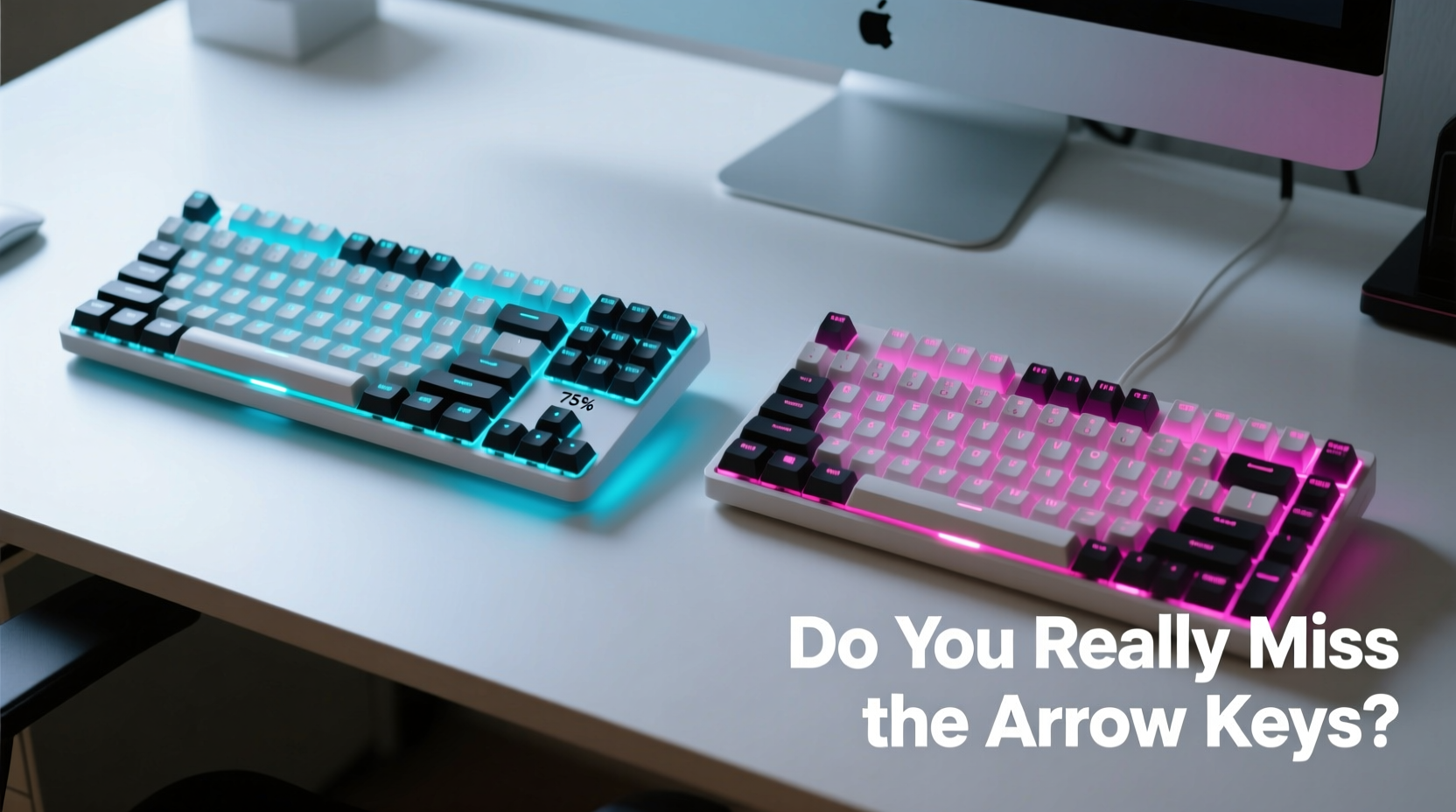
Keyboard \"percentages\" refer to the proportion of a full-size 104-key layout that a given model retains. These aren’t exact measurements but rather conventions used by the mechanical keyboard community to describe form factors.
- 100% (Full-Size): Includes all keys including F-row, navigation cluster, and numpad.
- 87% (Tenkeyless - TKL): Removes the numpad but keeps everything else.
- 75%: Retains function row and arrow keys but condenses spacing and removes some separators.
- 60%: Keeps only the core alphanumeric section; arrow keys, F-row, and navigation cluster are accessed via layers.
The jump from 75% to 60% represents a significant reduction in physical key count—typically around 15–20 fewer keys. Most notably, the 60% layout omits dedicated arrow keys, Home/End, Page Up/Down, and function keys unless accessed through secondary layers.
Tip: If you frequently use Excel, coding IDEs, or text-heavy applications, consider how often you rely on arrow keys before downsizing.Do You Really Miss the Arrow Keys?
At first glance, losing dedicated arrow keys seems like a major compromise. After all, they’re essential for navigating documents, spreadsheets, and code. But in practice, many users adapt quickly—especially those who already use keyboard shortcuts or touch-typists who rarely look down.
On a 60% keyboard, arrow functions are typically assigned to a secondary layer, activated by holding a modifier key (like Fn) and pressing WASD or IJKL. Some firmware platforms like QMK allow remapping so that, for example, holding a thumb key turns D into Right Arrow.
For casual users, this extra step can feel clunky at first. But with regular use, muscle memory takes over. Programmers, writers, and minimalist typists often report no performance drop after two to three weeks of adaptation.
“After switching to a 60%, I was frustrated for about five days. By day ten, I didn’t even think about the arrows. My hands stayed centered, and my posture improved.” — Daniel Reyes, Software Developer & Keyboard Enthusiast
Who Benefits Most from a 75% Layout?
The 75% strikes a balance: it’s compact enough to free up desk space but preserves critical navigation keys. This makes it ideal for:
- Office workers using spreadsheets or word processors daily.
- Hybrid users who switch between gaming and productivity.
- Those unwilling to learn new key combinations.
- People who value tactile feedback over minimalism.
Because 75% boards keep a dedicated arrow cluster—often stacked vertically to save horizontal space—they offer immediate access without layer shifting. This reduces cognitive load during fast-paced tasks like editing timelines in video software or debugging lines of code.
Who Thrives on a 60% Layout?
The 60% appeals to purists and efficiency-focused users. Its strength lies in forcing intentional design: every key has multiple roles, and hand movement is minimized. Ideal candidates include:
- Programmers using Vim or Emacs-style navigation (hjkl instead of arrows).
- Digital nomads or travelers needing ultra-portable gear.
- Ergonomic typists aiming to keep hands close to home row.
- Customization enthusiasts comfortable with firmware tweaking.
In these cases, the absence of arrow keys isn’t a loss—it’s a feature. Users often replace traditional navigation with modal systems or custom shortcuts, leading to faster workflows once mastered.
Comparing Usability: A Real-World Example
Consider Sarah, a technical writer who uses Google Docs, Notion, and GitHub daily. She previously used a full-size keyboard but wanted to declutter her workspace. She tested both a 75% and a 60% model over four-week periods.
With the 75%, she noticed an immediate improvement in ergonomics. Her mouse was closer, reducing shoulder strain. She still had instant access to Home, End, and arrow keys—critical when reviewing long documents. However, she felt the board could’ve been smaller without sacrificing too much.
Switching to the 60%, she struggled initially. Navigating within paragraphs required pressing Fn+J/K for up/down movement. At first, this slowed her editing speed by nearly 30%. But by week three, she began using Ctrl+A/E (beginning/end of line) and Ctrl+Arrow (word-by-word jump) more efficiently. By week four, her net typing speed matched her original pace—and she preferred the tighter hand positioning.
Sarah ultimately chose the 60% board—not because it had more features, but because it encouraged better habits. She now uses fewer wrist motions and reports less fatigue at the end of the workday.
Tip: Use the first week on a smaller keyboard as a learning phase. Don’t judge usability until after 10–15 hours of active typing.Functional Trade-offs: A Detailed Comparison
| Feature | 75% Keyboard | 60% Keyboard |
|---|---|---|
| Dedicated Arrow Keys | Yes – usually vertical stack | No – accessed via layer |
| F-Keys (F1–F12) | Often present on top row | Layer-dependent |
| Home/End/PgUp/PgDn | Typically available | Requires Fn combos |
| Desk Footprint | Moderate reduction (~25%) | Significant reduction (~40%) |
| Ease of Transition | Low friction | Moderate learning curve |
| Customization Flexibility | Good | Excellent (with QMK/VIA) |
| Best For | General productivity, office use | Minimalists, coders, travelers |
This table highlights a fundamental truth: the 75% prioritizes accessibility, while the 60% emphasizes efficiency through consolidation. Neither is objectively superior—the best choice aligns with your daily tasks and tolerance for adaptation.
Mastering Navigation Without Dedicated Arrows
If you choose a 60% keyboard, mastering alternative navigation methods is essential. Here’s a practical guide to staying productive without arrow keys:
- Learn Essential Shortcuts: Master Ctrl+Arrow (move by word), Shift+Ctrl+Arrow (select by word), Ctrl+Home/End (jump to document start/end).
- Use Layer Mapping Wisely: Assign arrow keys to a momentary layer triggered by a thumb key. Keep them under IJKL or WASD for ergonomic access.
- Adopt Modal Editing: Tools like Vim or VS Code with Vim extensions let you navigate using hjkl—keys already on the home row.
- Enable Sticky Keys: Allow temporary activation of layer modifiers so you don’t have to hold Fn while pressing another key.
- Practice Daily Drills: Spend 10 minutes editing a text file using only keyboard shortcuts to build fluency.
“Efficiency isn’t about having more keys—it’s about reducing unnecessary motion. A well-laid-out 60% can be faster than a full-size if designed intentionally.” — Lin Zhao, Ergonomic Design Consultant
Checklist: Choosing Between 75% and 60%
Still undecided? Run through this checklist to clarify your priorities:
- ✅ Do you edit large documents or spreadsheets daily? → Lean toward 75%
- ✅ Do you travel frequently with your keyboard? → 60% wins for portability
- ✅ Are you comfortable learning new key combinations? → 60% becomes viable
- ✅ Is desk space extremely limited? → 60% offers maximum savings
- ✅ Do you use Vim, Emacs, or similar tools? → 60% integrates naturally
- ✅ Do you hate pressing ‘Fn’ for basic functions? → Avoid 60%
- ✅ Are you open to flashing custom firmware? → 60% unlocks full potential
If four or more answers point to one category, that layout is likely the better fit.
Frequently Asked Questions
Can I add arrow keys back on a 60% keyboard?
Absolutely. Most 60% keyboards support layered keymaps via firmware like QMK or VIA. You can assign arrow functions to any key combination, such as holding a dedicated nav layer and pressing IJKL. Some models even support dynamic macros or OLED displays to indicate active layers.
Is a 75% keyboard worth the extra space?
If you value immediate access to navigation keys and use them constantly, yes. The 75% gives you 90% of the functionality of a full-size board in 75% of the space. For hybrid work setups or dual-monitor stations, the marginal increase in width is often justified by reduced reliance on mouse navigation.
Do professional typists prefer 75% or 60%?
There’s no consensus. Many transcriptionists and writers stick with 75% or TKL boards for direct access to editing keys. However, developers and system administrators increasingly favor 60% layouts due to integration with command-line tools and tiling window managers. Preference correlates more with workflow than profession.
Final Thoughts: It’s About Workflow, Not Just Keys
The debate between 75% and 60% mechanical keyboards isn’t truly about arrow keys—it’s about philosophy. The 75% respects tradition, preserving familiar navigation patterns while offering modest space savings. The 60% challenges convention, pushing users toward optimized, intentional input methods.
Do you miss the arrow keys? Initially, yes—especially if you’re used to glancing down and hitting them instinctively. But within a few weeks, most users either adapt or discover better ways to navigate. The real benefit of compact keyboards isn’t just saved desk space; it’s improved ergonomics, reduced reach, and a cleaner setup that supports focused work.
Rather than asking whether you’ll miss the arrows, ask yourself: What kind of typist do you want to become? One who relies on legacy layouts, or one who embraces efficiency through constraint?
🚀 Ready to downsize? Try a 75% if you want ease and familiarity. Go 60% if you’re ready to level up your typing game. Your future self—and your wrists—might thank you.