
When your iPhone starts acting up—apps crashing, Wi-Fi dropping, or battery draining unusually fast—it’s natural to consider a reset. But confusion often arises between two similar-sounding options: “Reset All Settings” and “Erase All Content and Settings.” Though both are found under Settings > General > Transfer or Reset iPhone, they serve entirely different purposes. Choosing the wrong one could mean losing valuable data unnecessarily. Understanding the distinction is crucial for effective troubleshooting without unintended consequences.
What Happens During Each Type of Reset?
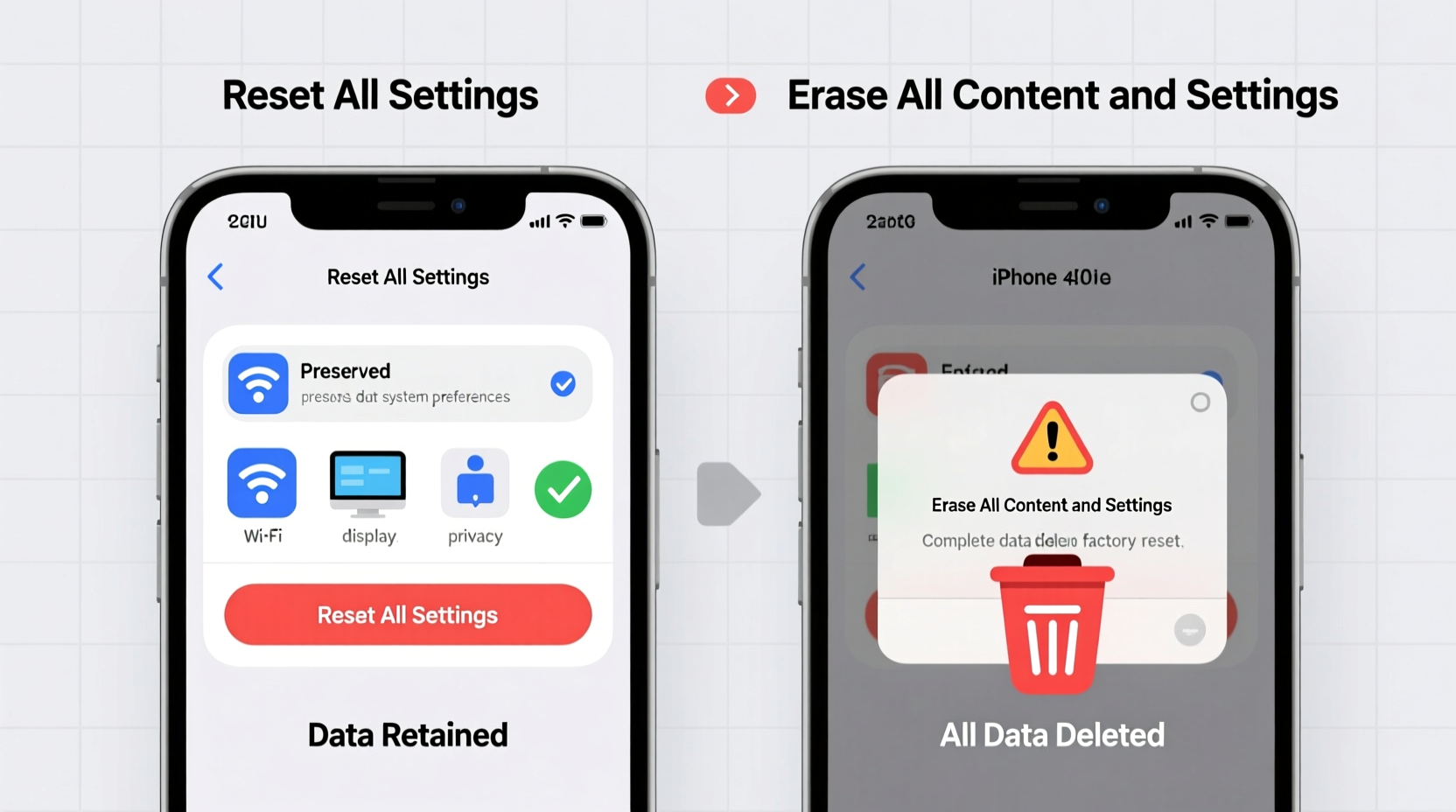
The core difference lies in what data is removed and what remains intact. Let’s break down each option:
- Reset All Settings: This restores system preferences to default but keeps your personal files, apps, photos, messages, and accounts untouched.
- Erase All Content and Settings: This wipes your entire device—apps, media, messages, settings, Apple ID, and more—returning it to factory condition.
In essence, resetting settings is like rebooting your car’s navigation system; erasing everything is like selling the car and starting over with a new one.
Tip: Always back up your iPhone before performing any kind of reset—even if you think no data will be lost.When to Use “Reset All Settings”
This option is ideal when you're experiencing issues related to configurations, connectivity, or performance glitches that aren’t tied to corrupted app data. Common scenarios include:
- Wi-Fi or Bluetooth won’t connect consistently
- Keyboard or accessibility settings behave unexpectedly
- Display brightness or sound settings reset on their own
- Background app refresh or location services malfunction
- Network settings become unresponsive after an iOS update
Resetting all settings clears network configurations, keyboard dictionary, privacy permissions, and system-level customizations. It does not delete passwords saved in iCloud Keychain, nor does it remove your Apple ID.
“Many users jump straight to wiping their phone when a simple settings reset would have resolved the issue. Start small—fix the configuration before nuking the data.” — Jordan Lee, Apple-Certified Technician, TechCare Pro
When to Choose “Erase All Content and Settings”
This nuclear option should only be used when:
- You’re preparing to sell or give away your iPhone
- The device is frozen, unresponsive, or stuck in a boot loop
- You suspect malware (rare on iOS) or deep system corruption
- You’ve forgotten your passcode and can’t access the device
- After multiple failed software updates or restore attempts via Finder/iTunes
Erasing all content and settings removes every piece of personal information, deauthorizes the device from your Apple ID, and reinstalls a clean version of iOS. Afterward, you’ll go through the full setup process—like when you first bought the phone.
Mini Case Study: The Overheating iPhone
Sarah noticed her iPhone 13 was overheating during calls and draining battery within four hours. She tried closing apps and disabling background refresh, but the problem persisted. Fearing hardware failure, she almost erased everything. Instead, she backed up her phone and chose “Reset All Settings.” After rebooting, the issue vanished. Later, she discovered that a recent iOS update had misconfigured her cellular settings. A full erase would have been unnecessary—and time-consuming to recover from.
Key Differences at a Glance
| Feature | Reset All Settings | Erase All Content and Settings |
|---|---|---|
| Data (Photos, Messages, Apps) | ✅ Preserved | ❌ Deleted |
| Apple ID & Passwords | ✅ Remains signed in | ❌ Removed |
| Network Settings (Wi-Fi, VPN) | ❌ Reset | ❌ Wiped |
| System Preferences (Wallpaper, Sounds) | ❌ Reset to default | ❌ Wiped |
| Time Required | ~2 minutes | 10–30 minutes + setup |
| Backup Needed? | Recommended | Essential |
Step-by-Step: How to Perform Each Reset
How to Reset All Settings
- Open the Settings app.
- Tap General.
- Scroll down and select Transfer or Reset iPhone.
- Tap Reset.
- Select Reset All Settings.
- Enter your device passcode when prompted.
- Confirm the action. Your iPhone will restart automatically.
Note: You’ll need to re-enter Wi-Fi passwords and reconfigure display/privacy settings afterward.
How to Erase All Content and Settings
- Back up your iPhone using iCloud or Finder/iTunes.
- Go to Settings > General > Transfer or Reset iPhone.
- Tap Erase All Content and Settings.
- Enter your passcode.
- If prompted, enter your Apple ID password to disable Activation Lock.
- Confirm the erase. The process begins immediately.
Once complete, the device will restart into Setup Assistant, just like out of the box.
Checklist: Before You Reset
- ✅ Back up your iPhone via iCloud or computer
- ✅ Ensure your device is charged to at least 50% (or plug it in)
- ✅ Note down important Wi-Fi passwords or account details you may lose
- ✅ Disable Find My iPhone if erasing for resale (done automatically with Apple ID sign-out)
- ✅ Verify your iCloud storage has enough space for a backup
Frequently Asked Questions
Will resetting all settings delete my photos?
No. Photos, videos, messages, and installed apps remain intact. Only system configurations like network, privacy, and display settings are reset.
Can I recover data after erasing all content and settings?
Only if you have a recent backup. Without one, data is permanently deleted. iCloud, iTunes, or Finder backups allow restoration during initial setup.
Does “Reset All Settings” remove jailbreak or sideloaded apps?
No—but if the device is jailbroken, this option may fail or behave unpredictably. A full erase is typically required to return to a stock iOS state.
Conclusion: Choose Wisely, Act Confidently
Understanding the real impact of “Reset All Settings” versus “Erase All Content and Settings” empowers you to troubleshoot effectively without fear. In most everyday cases—connectivity hiccups, erratic behavior after updates, or preference conflicts—a settings reset is sufficient and far less disruptive. Reserve the full erase for device handoffs, severe malfunctions, or as a last resort after other fixes fail.
Your iPhone holds years of memories, communications, and personal data. Treat resets not as quick fixes, but as strategic tools. With the right knowledge, you maintain control, minimize downtime, and keep your device running smoothly for years to come.
💬 Have a reset story or tip to share? Tell us how you recovered your iPhone—your experience might help someone avoid a costly mistake.