If your iPhone has started to feel sluggish—apps take forever to load, the screen lags when scrolling, or the keyboard stutters mid-sentence—you're not alone. Millions of users experience performance drops over time, even on high-end models. While newer iPhones are built for speed, software clutter, outdated settings, and background processes can significantly degrade responsiveness. The good news? Most slowdowns aren’t permanent. With a few targeted adjustments, you can restore smooth performance without needing a new device.
Why Your iPhone Slows Down Over Time
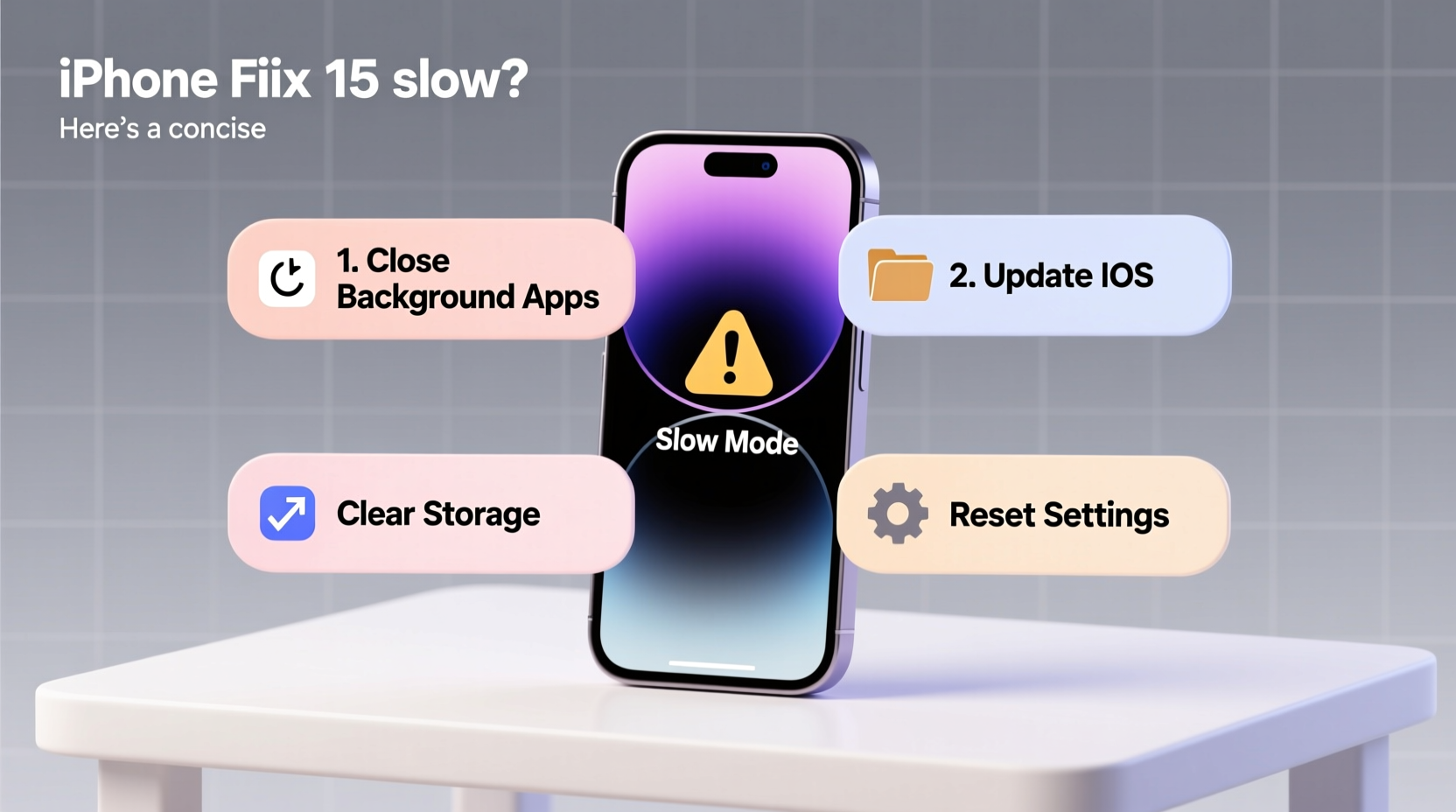
iPhones are known for their longevity, but no device stays fast forever. As iOS evolves, so do its system demands. Even if your hardware hasn’t changed, software updates introduce new features that require more processing power and memory. Over months and years, several factors accumulate to drag down performance:
- Outdated iOS version: Running an older OS can cause compatibility issues with current apps.
- Storage nearly full: When storage drops below 10%, iOS struggles to manage temporary files and cache.
- Too many background apps: Apps refreshing in the background consume CPU and battery.
- Bloated app caches: Messaging apps like WhatsApp or Instagram store large media caches over time.
- Visual effects overload: Animations and transparency effects look great but tax older processors.
Apple designs iOS to adapt to aging hardware, but there’s a limit. Without regular maintenance, even a two-year-old iPhone can feel like it's from a previous generation.
Tip: Check your available storage by going to Settings > General > iPhone Storage. Aim to keep at least 2–3 GB free for optimal performance.Quick Fixes to Speed Up Your iPhone Immediately
You don’t need to factory reset or visit Apple Support to regain speed. Many improvements can be made in under 10 minutes. Here’s what to do first:
- Restart your iPhone. A simple reboot clears temporary memory and stops rogue processes. Hold the side button and volume button, slide to power off, then turn it back on.
- Update iOS. Go to Settings > General > Software Update. New patches often include performance optimizations.
- Close unused background apps. Swipe up from the bottom (or double-click Home on older models) and swipe away apps you’re not using.
- Disable automatic app refresh. Go to Settings > General > Background App Refresh and turn it off globally or per app.
- Reduce motion and transparency. In Settings > Accessibility > Motion, enable “Reduce Motion.” Also, go to Settings > Accessibility > Display & Text Size and turn on “Reduce Transparency.”
These changes reduce visual strain on the processor and free up RAM, leading to snappier transitions and faster app switching.
Deep-Clean Your iPhone for Long-Term Speed
For lasting results, go beyond surface fixes. A deeper cleanup targets hidden inefficiencies that build up silently over time.
Delete Unused Apps and Large Files
Apps you haven’t opened in months still occupy space and may run background tasks. Go to Settings > General > iPhone Storage to see which apps use the most space. Tap on bulky ones—especially social media, photo editors, or games—and consider deleting and reinstalling them to clear corrupted caches.
Clear Safari and Message Caches
Safari stores cookies, history, and website data that can slow browsing. Clear it via Settings > Safari > Clear History and Website Data. Similarly, old iMessages and attachments pile up. Go to Settings > Messages > Keep Messages and switch from “Forever” to “30 Days” or “1 Year.”
Reset All Settings
If your iPhone still feels off, reset settings without losing data. Go to Settings > General > Transfer or Reset iPhone > Reset > Reset All Settings. This restores network, display, and privacy settings to default, often resolving hidden glitches.
| Fix | Time Required | Impact Level |
|---|---|---|
| Restart iPhone | 2 minutes | High (immediate) |
| Update iOS | 15–30 minutes | High (long-term) |
| Offload Unused Apps | 5 minutes | Medium |
| Clear Safari Cache | 1 minute | Medium |
| Reset All Settings | 10 minutes | High (system-wide) |
“Many iPhone slowdowns stem from software bloat, not hardware failure. A clean, optimized system can feel like a new device.” — David Lin, Senior Mobile Engineer at iOS Solutions Group
Real Example: How Sarah Regained Her iPhone’s Speed
Sarah, a freelance photographer, relied on her iPhone 12 for client communication and editing. After two years, she noticed delays when opening Lightroom and sending image previews. Scrolling through messages became choppy, and her phone would overheat during basic tasks.
She tried restarting it occasionally, but the lag returned within hours. Then, she checked her storage: only 1.2 GB free out of 128 GB. She discovered that WhatsApp had accumulated over 18 GB of cached videos and voice notes. After offloading unused apps, clearing Safari data, and enabling Reduce Motion, her iPhone responded instantly again. She also set monthly reminders to review storage usage—a habit that kept performance stable.
Sarah didn’t need a new phone. She just needed smarter maintenance.
Step-by-Step Weekly Maintenance Routine
To prevent future slowdowns, adopt this simple weekly checklist:
- Check storage (Settings > General > iPhone Storage). Delete unnecessary photos, downloads, or apps.
- Review background app activity. Disable refresh for non-essential apps.
- Clear Safari history and data. Prevents browser lag.
- Reboot your iPhone. Clears RAM and resets system processes.
- Update apps. Open the App Store and tap your profile icon to update all at once.
Frequently Asked Questions
Will resetting my iPhone delete my photos?
No—resetting settings (Settings > General > Reset > Reset All Settings) does not erase photos, messages, or personal data. However, a full “Erase All Content and Settings” will delete everything. Always back up first via iCloud or iTunes if performing a full reset.
Can too many widgets slow down my iPhone?
Widgets themselves have minimal impact, but those pulling live data (like weather, news, or email) can increase background activity. Limit widgets to essential ones and avoid stacking multiple real-time updates on the home screen.
Is it worth upgrading to a new iPhone if mine is slow?
Not always. If your iPhone is more than four years old (e.g., iPhone 8 or earlier), hardware limitations may make modern iOS versions inherently sluggish. But for devices less than three years old, software optimization usually restores acceptable speed. Consider a replacement only after exhausting all troubleshooting steps.
Conclusion: Take Control of Your iPhone’s Performance
An iPhone doesn’t have to slow down just because it’s aging. Most performance issues stem from avoidable software buildup and misconfigured settings. By understanding the root causes—full storage, outdated systems, excessive background activity—you can apply precise fixes that deliver immediate results.
Start today: restart your phone, clear storage, and disable unnecessary animations. Make maintenance a habit, not a crisis response. Your iPhone was designed to last; with a little care, it can keep up with your life for years to come.
🚀 Ready to breathe new life into your iPhone? Pick one fix from this guide and apply it now—then share your results in the comments!