Waking up on time should be effortless, but if your iPhone alarm is barely audible, it can disrupt your mornings and throw off your entire day. Many users report their alarms sounding quieter than expected, especially when the phone is close to their face or under a pillow. The culprit? A feature called \"Attention Aware Features,\" designed to lower volume when you’re looking at your device. While well-intentioned, this setting can unintentionally mute your alarm just when you need it most.
This guide explains exactly how Attention Aware Features affect alarm volume, why they might be causing issues, and how to disable them for a louder, more reliable wake-up experience. Whether you're a heavy sleeper, travel frequently, or simply rely on your iPhone to start the day right, these steps will help ensure your alarm is heard — loud and clear.
Understanding Attention Aware Features on iPhone
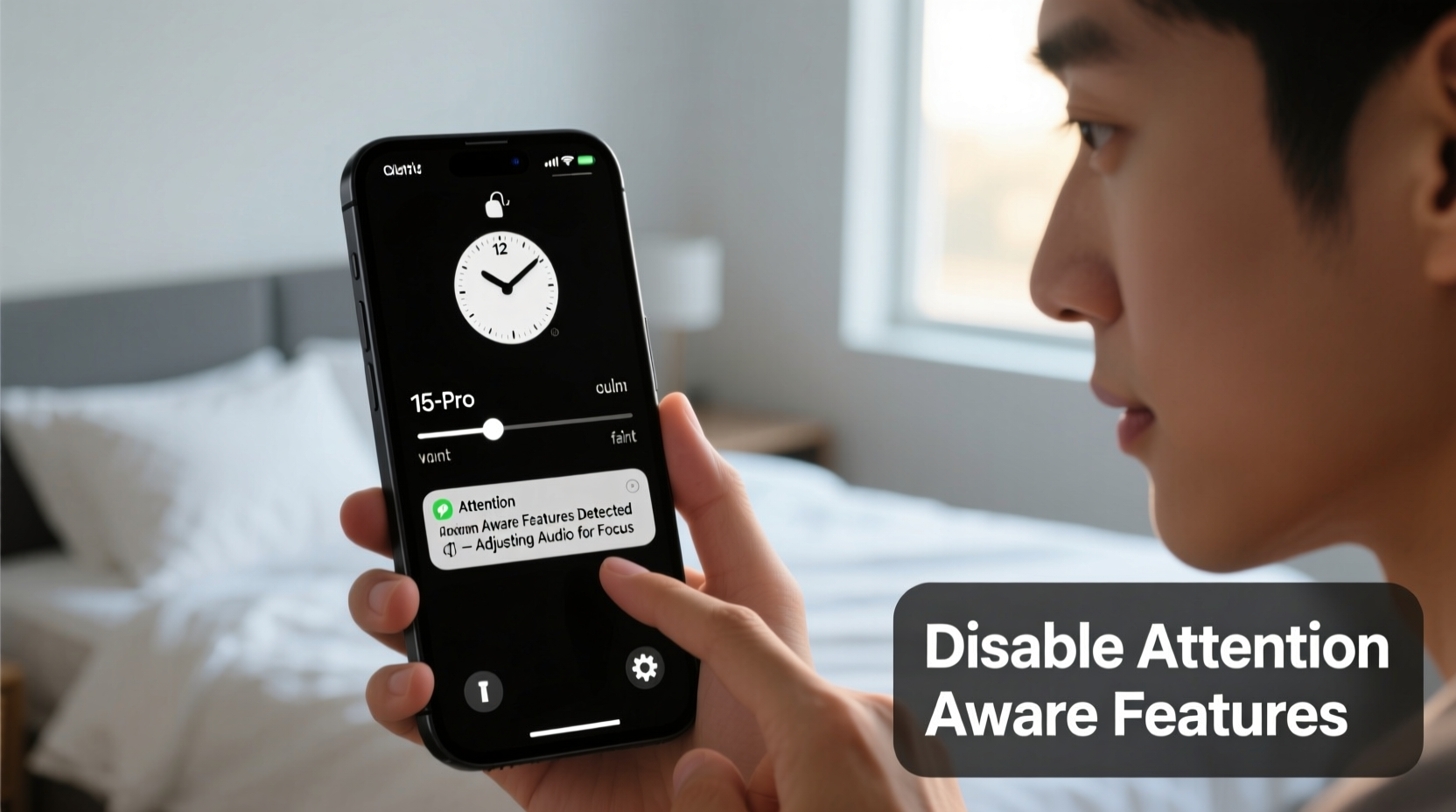
Introduced with iOS 12 and refined in later versions, Attention Aware Features use the TrueDepth camera system (available on iPhone X and newer models) to detect whether you’re looking at your screen. When enabled, the iPhone subtly lowers the volume of notifications and ringer alerts as soon as it senses your eyes are on the display. The idea is to reduce abrupt sounds when you're already aware of an incoming alert.
However, this behavior extends to certain audio outputs — including alarm volume in specific scenarios. If your iPhone detects that you’re facing it while the alarm is going off, it may automatically reduce the volume, making it harder to hear, especially if you sleep with your phone nearby or on silent mode.
Apple’s design philosophy prioritizes user comfort and context-aware interactions, but in practice, this can backfire during critical moments like waking up. As one tech reviewer noted:
“Smart features should enhance reliability, not compromise it. An alarm that gets quieter because you opened your eyes defeats the entire purpose.” — David Lin, Senior Editor at MobileTech Review
How to Disable Attention Aware Features to Increase Alarm Volume
The most effective way to prevent your iPhone from lowering alarm volume is to disable Attention Aware Features entirely. This ensures consistent sound output regardless of whether you’re looking at the screen.
Follow this step-by-step process:
- Open the Settings app on your iPhone.
- Tap Face ID & Passcode (or Face ID and Attention depending on your iOS version).
- Enter your passcode when prompted.
- Scroll down to find the option labeled Attention Aware Features.
- Toggle the switch to the off position (the switch will turn gray).
Once disabled, your iPhone will no longer adjust notification or ringer volume based on eye detection. Your alarm will play at full volume, even if the device senses you’re awake or looking at the screen.
Tip: After disabling Attention Aware Features, test your alarm by setting a trial alert two minutes ahead. Place the phone near your pillow and observe whether the volume remains strong.Additional Ways to Maximize iPhone Alarm Loudness
Disabling Attention Aware Features is the primary fix, but several other settings influence how loudly your alarm plays. Combine these adjustments for optimal results:
1. Adjust Ringer and Alerts Volume
The alarm uses the same volume level as your ringer. To increase it:
- Go to Settings > Sounds & Haptics.
- Drag the slider under Ringers and Alerts all the way to the right.
- Press the physical volume buttons during an alarm test to confirm maximum output.
2. Use a Louder Alarm Tone
Not all alarm tones are created equal. Some default options like “Birdsong” or “Ripples” are melodic but lack punch. Choose a tone with strong bass and sharp peaks for better audibility.
To change your alarm sound:
- Open the Clock app.
- Tap the Alarm tab.
- Edit an existing alarm or create a new one.
- Select Sound and browse available options.
- Pick a robust tone such as Alarm, Scanner, or Bells.
3. Enable Repeat and Snooze Strategically
If you tend to oversleep, set your alarm to repeat daily and enable snooze. However, avoid relying solely on snooze — repeated exposure to fading volume due to attention sensing can still occur if the feature is active.
4. Avoid Silent Mode Misconceptions
Many users assume that putting their iPhone on silent disables alarms. It doesn’t. Alarms still play on silent mode — unless silenced manually via the mute switch *and* Do Not Disturb is active. Ensure Do Not Disturb isn’t scheduled during your wake-up hours.
Do’s and Don’ts: Optimizing Your iPhone Alarm Experience
| Do’s | Don’ts |
|---|---|
| Do disable Attention Aware Features if you’re a deep sleeper. | Don’t assume silent mode stops alarms — it doesn’t. |
| Do test your alarm volume weekly. | Don’t place your phone under pillows — it mutes speakers and risks overheating. |
| Do choose high-frequency, dynamic alarm tones. | Don’t ignore software updates — they sometimes tweak audio behavior. |
| Do keep speaker grilles clean from dust and debris. | Don’t rely only on haptic feedback — sound is essential for waking. |
Real-Life Example: Sarah’s Morning Wake-Up Struggle
Sarah, a 32-year-old nurse working night shifts, relied on her iPhone alarm to wake up after short daytime naps. Despite setting multiple alarms, she often slept through them. She assumed she was just a heavy sleeper — until a colleague suggested checking her Face ID settings.
After reviewing her iPhone, Sarah discovered that Attention Aware Features were enabled. Her phone, placed face-up on the nightstand, detected her eyes opening briefly during light sleep and lowered the alarm volume each time. Once she turned off the feature and switched to the “Bells” alarm tone, she began waking up consistently — even after just four hours of rest.
“It wasn’t my sleep depth,” she said. “It was my phone getting too smart for its own good.”
Checklist: How to Fix Low iPhone Alarm Volume
Action Steps to Ensure a Loud, Reliable Alarm:- ☐ Disable Attention Aware Features in Settings > Face ID & Passcode.
- ☐ Increase Ringer and Alerts volume to maximum in Sounds & Haptics.
- ☐ Select a **louder alarm tone** like “Alarm” or “Scanner” in the Clock app.
- ☐ Test the alarm in real conditions — don’t just listen in a quiet room.
- ☐ Keep the speaker and microphone ports clean using a soft brush.
- ☐ Avoid covering the front sensors (TrueDepth camera) with cases or stickers.
- ☐ Schedule Do Not Disturb to end before your alarm time.
Frequently Asked Questions
Does Attention Aware Features affect all alarms?
It primarily affects devices with Face ID (iPhone X and later). The impact varies based on proximity and sensor visibility. If the phone detects attention, it may lower the initial volume burst of the alarm, though the sound typically resumes full volume after a few seconds.
Will disabling Attention Aware Features make my phone less secure?
No. Disabling this feature does not affect Face ID security. You’ll still need facial authentication to unlock your device. The only change is that notifications and ringer volume won’t dim when you look at the screen.
Why does my alarm sound different when I pick up the phone?
This is likely due to the combination of Attention Aware Features and automatic brightness/volume adjustments. When you lift the phone toward your face, the sensors activate and may reduce volume preemptively. Turning off the feature eliminates this behavior.
Conclusion: Take Control of Your Morning Routine
Your iPhone alarm should be dependable, not undermined by subtle background features designed for convenience. Attention Aware Features, while innovative, can interfere with one of the most fundamental functions of a smartphone — waking you up reliably. By disabling this setting and optimizing your audio preferences, you regain full control over your alarm’s performance.
Don’t wait for another missed meeting or late shift to take action. Spend five minutes today adjusting your settings, testing your alarm, and ensuring your mornings start on time, every time. Small changes lead to consistent results — and a more confident, punctual you.
💬 Did this fix solve your low alarm issue? Share your experience or tips in the comments — your insight could help someone else finally wake up on time!