For college students navigating fast-paced lectures, the ability to take clear, organized, and searchable notes digitally has become essential. Two leading devices dominate the conversation: the Apple iPad (particularly the 9th or 10th generation with Apple Pencil) and the Microsoft Surface Go 4 with Surface Pen. Both promise portability, stylus support, and long battery life, but they differ significantly in ecosystem, software capabilities, and overall user experience. Choosing between them isn’t just about hardware—it’s about how well each device supports your academic workflow.
This guide breaks down the key differences and strengths of the iPad and Surface Go 4 specifically for digital note-taking in a college environment. From handwriting precision to multitasking during study sessions, we’ll explore which device better serves students who prioritize flexibility, responsiveness, and integration with their coursework.
Design and Portability: Lightweight Champions
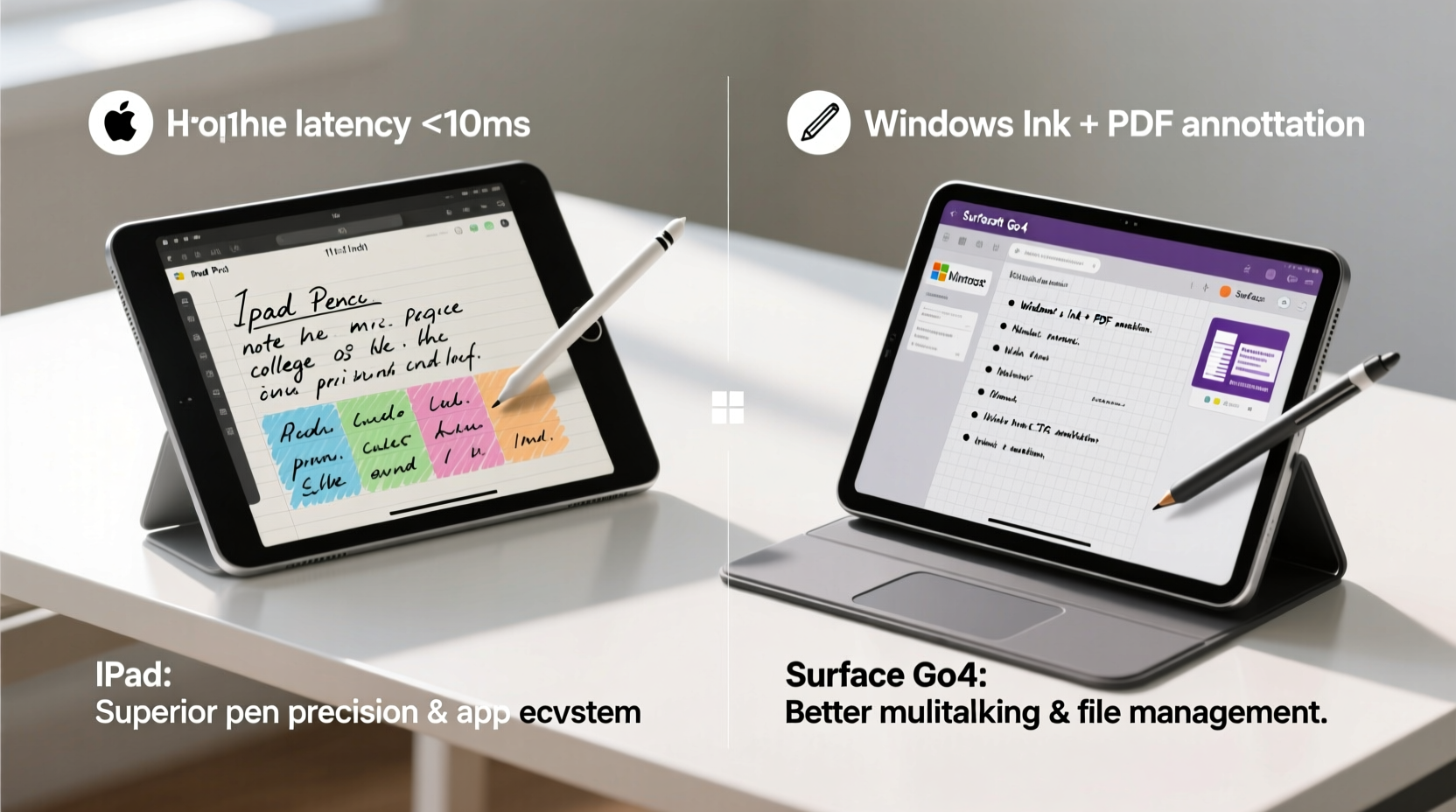
Both the iPad (10th gen, ~470g) and Surface Go 4 (~510g with keyboard) are designed for mobility. Their slim profiles and light weight make them easy to carry between classes, fitting comfortably in backpacks without adding bulk. The iPad edges slightly ahead in pure portability due to its thinner bezels and more compact footprint, while the Surface Go 4 includes a built-in kickstand—a feature absent on the base iPad—and offers optional LTE connectivity for internet access off-campus.
The Surface Go 4 also features a full-sized USB-C port and a microSD slot, allowing direct file transfers from cameras or external drives—useful for engineering or design students. The iPad relies solely on USB-C (on newer models), requiring adapters for many peripherals. However, the iPad’s aluminum build feels more premium and durable over time, especially when paired with a protective case.
Tip: If you frequently move between classrooms and libraries, prioritize the lighter device—the iPad—for less strain on your daily carry.Stylus Performance and Handwriting Experience
Note-taking is only as good as the input method. Both devices support active styluses with pressure sensitivity and palm rejection, but the experience differs subtly.
The Apple Pencil (1st or 2nd gen depending on model) is widely praised for its near-zero latency and pixel-perfect precision. When used with apps like GoodNotes or Notability, it replicates the feel of writing on paper. Palm rejection works seamlessly, allowing students to rest their hand naturally on the screen while writing. The magnetic attachment on the 10th-gen iPad also makes it less likely to be lost—a common concern among busy students.
The Surface Pen, while capable, often receives mixed feedback. Latency is slightly higher, and some users report occasional jitter or lag during rapid writing. That said, Microsoft has improved pen performance in recent firmware updates, and OneNote’s integration with the Surface Pen remains one of the strongest ecosystems for freeform note-taking. Features like the eraser end and shortcut button add convenience during lecture transcription.
“Low-latency input is non-negotiable for effective lecture note-taking. A delay of even 20 milliseconds can disrupt cognitive flow.” — Dr. Lena Park, Human-Computer Interaction Researcher, MIT Media Lab
Software Ecosystem: iOS vs Windows 11
This is where the fundamental divide lies. The iPad runs iPadOS, a touch-first operating system optimized for media consumption and single-tasking. The Surface Go 4 runs full Windows 11 Home, enabling desktop applications and true multitasking.
For dedicated note-takers, iPadOS offers superior app quality. Apps like GoodNotes 5, Notability, and Nebo provide fluid handwriting recognition, shape correction, audio syncing, and seamless PDF annotation. These tools are purpose-built for education and have matured over years of student feedback. Searchable handwritten notes (via OCR) work reliably, making exam prep faster.
Windows 11, on the other hand, gives access to the full Microsoft Office suite—including desktop versions of Word, Excel, and PowerPoint—alongside powerful tools like OneNote, Obsidian, and Adobe Acrobat. Students in STEM fields benefit from running MATLAB Mobile, Python IDEs, or CAD viewers directly on the device. Multitasking is more robust: snap layouts allow splitting the screen between a lecture slide PDF and handwritten notes, or referencing a textbook while typing an essay.
However, Windows on the Surface Go 4 runs on lower-powered Intel processors (Pentium Silver or Core i3), which can lead to sluggishness when multiple apps are open. In contrast, the iPad’s A14 or A15 Bionic chip handles graphics-heavy tasks like annotating diagrams or watching videos smoothly.
App Comparison for Note-Taking
| Feature | iPad (iPadOS) | Surface Go 4 (Windows 11) |
|---|---|---|
| Best Note App | GoodNotes / Notability | OneNote / Obsidian |
| Handwriting Recognition | Excellent (real-time, accurate) | Good (requires calibration) |
| Audio + Notes Sync | Yes (Notability) | Limited (third-party tools) |
| PDF Annotation Tools | Rich markup, shapes, highlights | Fully featured with Adobe/Edge |
| Desktop Software Access | No (only mobile apps) | Yes (full Office, browsers, IDEs) |
| Multitasking Flexibility | Moderate (Slide Over, Split View) | High (snap layouts, resizable windows) |
Real-World Student Use: A Case Study
Consider Maya, a third-year biomedical sciences major at a large public university. Her typical day includes three lectures, a lab session, and two hours of independent study. She uses her tablet to annotate research papers, sketch anatomical diagrams, record mini-lectures, and organize weekly study guides.
Initially, Maya used an iPad with GoodNotes. She loved the smooth writing experience and the ability to search her handwritten notes before exams. But she struggled when trying to analyze datasets in Excel or write code snippets for her bioinformatics module—tasks that required switching to her laptop.
She switched to the Surface Go 4 with a Type Cover. While the pen wasn’t quite as responsive, having Excel, Chrome, and OneNote open simultaneously saved her hours. She could pull up a journal article in PDF, highlight key findings with the pen, and type summaries side-by-side. For group projects, she connected to Zoom and shared her screen directly from Word without interruption.
Maya’s experience illustrates a critical trade-off: the iPad excels in focused, analog-style learning; the Surface Go 4 shines when digital workflows require integration across multiple productivity tools.
Battery Life and All-Day Usability
Battery longevity is crucial during back-to-back lectures or library marathons. The iPad consistently delivers 8–10 hours of active use, easily lasting a full academic day. Charging via USB-C is convenient, and many students top up between classes using portable power banks.
The Surface Go 4 claims up to 10 hours, but real-world usage—especially with Wi-Fi, brightness, and background apps—often reduces this to 6–7 hours. Running full Windows processes consumes more power than iPadOS’s optimized environment. Students relying on the Surface Go 4 should consider carrying a charger or limiting background apps during long days.
Tip: Enable battery saver mode and reduce screen brightness during lectures to extend usable time on either device.Step-by-Step: Optimizing Your Device for Lecture Success
- Before Class: Download slides or reading materials. Organize folders by course in your note app.
- During Lecture: Open your note template, enable audio recording if allowed, and position your stylus for quick access.
- Use Templates: Pre-format pages with Cornell note layouts or subject-specific headers to save time.
- After Class: Review notes within 24 hours. Tag important concepts and sync to cloud storage (iCloud or OneDrive).
- Weekly: Export summaries as PDFs and archive them by date for easy retrieval during finals.
Which Should You Choose? A Decision Checklist
Your ideal device depends on your academic focus and personal preferences. Use this checklist to decide:
- ✅ Do you primarily handwrite notes and value a paper-like writing feel? → iPad
- ✅ Are you in a STEM field requiring desktop software (Excel, SPSS, coding)? → Surface Go 4
- ✅ Do you already own other Apple devices (Mac, iPhone)? → iPad (better ecosystem sync)
- ✅ Do you need full Windows compatibility for university software? → Surface Go 4
- ✅ Is budget a major factor? → Compare pricing: iPad starts lower, but Pencil and keyboard add cost.
- ✅ Do you want LTE for campus-wide internet access? → Surface Go 4 (iPad LTE limited to cellular models)
Frequently Asked Questions
Can I use the Surface Pen on the iPad or vice versa?
No. The Apple Pencil and Surface Pen use proprietary technologies and are not cross-compatible. Each requires specific hardware support and drivers.
Is the Surface Go 4 too underpowered for college work?
It depends on your workload. For word processing, web research, and note-taking, it performs adequately. However, video editing, advanced data analysis, or running virtual machines will be slow. It’s best suited for light to moderate academic tasks.
Does the iPad support split-screen multitasking effectively?
Yes, but with limitations. You can use Split View (two apps side-by-side) or Slide Over (floating window), but app resizing is restricted compared to Windows. Some educational apps don’t support multitasking at all.
Final Verdict: Match Device to Workflow
The iPad and Surface Go 4 represent two philosophies of digital learning. The iPad is a refined tool for students who treat note-taking as a creative, tactile process—ideal for humanities, pre-med, or art-focused majors who prioritize handwriting quality and simplicity. Its ecosystem of note apps is unmatched, and the Apple Pencil sets the industry standard for low-latency input.
The Surface Go 4, while less polished in stylus performance, wins on versatility. It’s a full PC in tablet form, giving students control over their computing environment. For those juggling complex assignments, coding exercises, or heavy document editing alongside handwritten notes, the ability to run desktop-grade software is invaluable.
In the end, the choice comes down to whether you want a specialized note-taking companion or a general-purpose student computer that also takes notes well. If your primary goal is capturing lectures efficiently and reviewing them later, the iPad is likely the better fit. If you need a device that transitions seamlessly from notebook to laptop throughout the day, the Surface Go 4 earns its place.
🚀 Ready to upgrade your academic toolkit? Assess your daily workflow, try both devices in-store if possible, and choose the one that aligns with how you learn best. Share your experience below—your insights could help another student make the right decision.